
Staff Email Support: How to Run It as a Team in 2026
Staff Email Support: How to Run It as a Team in 2026 ! Support teammates handing off a customer email Staff email support means a group of people answering customer email from one shared address, with clear ownership of every message.

Staff email support means a group of people answering customer email from one shared address, with clear ownership of every message. The simplest way to do it is to connect the mailbox you already use (Gmail or Microsoft 365) to a shared inbox. Then assign each conversation to one person, keep internal discussion out of the customer’s thread, and track how fast you reply. This guide covers setup, handoffs, security, metrics, and the point where a shared inbox stops being enough.
TL;DR
- Use one shared address (support@ or help@) and give every conversation exactly one owner. Duplicate and missed replies come from unclear ownership, not from too little software.
- Start from your existing Google Workspace or Microsoft 365 mailbox. Native shared mailboxes work, and a connected shared inbox adds assignment, notes, and metrics on top.
- Treat access as a process: a named owner, delegated permissions instead of a shared password, and a plan for when people leave.
- Track first response time and unassigned threads weekly. One published benchmark puts email first response at 4 hours.
- A shared inbox is enough until you need phone, chat, or complex ticket routing across departments.
Table of Contents
- What staff email support actually means
- Set up team email using the mailbox you already have
- Assign, track, and hand off without duplicate or missed replies
- Workflows that help small, remote, and startup teams
- What to check before choosing a tool
- Security and governance for a shared support address
- Measure whether it is working
- When a shared inbox is enough, and when it is not
- Our perspective
- Try a shared inbox on your own mailbox
- FAQ
- Sources
What staff email support actually means
The phrase covers two different things, and readers searching for it usually mean one of them. The first is customer support delivered by your staff over email: a small team replying to questions, orders, refunds, and bug reports. The second is internal support, where employees email IT or HR. This article is about the first, but the ownership and security practices apply to both.
The core problem is simple. When customers write to a single address and three people can see it, each person assumes someone else is replying. The result is two replies to one customer, or none. A shared inbox solves this by making the state of each email visible: who has it, whether it is open, and what has been said internally.
A good setup gives you four things:
- One address customers can remember, such as support@yourcompany.com.
- Visible ownership, so everyone can see who is handling each conversation.
- Private context, meaning internal notes that never reach the customer.
- A record, so you can see volume, delay, and workload over time.
If you want the broader picture of why this matters for professional teams, our piece on the benefits of a professional client inbox goes deeper.
Set up team email using the mailbox you already have
Most small businesses already pay for Google Workspace or Microsoft 365. You do not need to migrate or change DNS records to share support email. You have three realistic paths.
Option 1: A native shared mailbox or group
In Google Workspace, an administrator can create a shared inbox in the admin console, add delegates, and convert an existing account into a shared one. According to Xpecto’s walkthrough of Google Workspace shared inboxes, each message then shows both the shared address and the actual sender, which keeps replies transparent. Our guide to Google Workspace shared inbox options compares the three native routes in detail.
In Microsoft 365, the equivalent is a shared mailbox. If you are new to it, start with what a Microsoft 365 shared mailbox is, then follow our Microsoft 365 team inbox setup guide.
Native options are free with your plan and fine for very low volume. Their limit is workflow: they show mail, but they rarely show who owns it, whether it was answered, or how long customers waited.
Option 2: Connect your mailbox to a shared inbox tool
A shared inbox tool sits on top of the Gmail or Microsoft 365 mailbox you already use. Your team gets assignment, internal notes, tags, and saved views, and customers keep seeing your normal business address. This is the route we built SendSync for: you connect the mailbox and are live in minutes, with no DNS changes. Our Gmail team inbox guide walks through the connection, and the Gmail shared inbox for small business guide covers the small-team case.
Option 3: A full help desk
Full help desks add ticket numbers, service-level rules, multiple channels, and deep reporting. They also add configuration time and, often, per-agent pricing. They make sense later, as covered below.
Avoid the shared password
The oldest shortcut is one login that everyone uses. Small-team security guidance from OpsecGuides recommends narrow role accounts, a specific owner, and platform delegation or shared-mailbox features instead, because individual access can then be removed when someone leaves. With a shared password, removing one person means changing it for everyone.
Assign, track, and hand off without duplicate or missed replies
Software only works if the team agrees on a few rules. These are the ones that matter most.
One conversation, one owner
Every new email gets an owner within a set time. In a small team that can be a rotation (Monday is Priya’s, Tuesday is Marcus’s) or a triage role where one person assigns the morning’s mail. Whoever owns it replies, or reassigns it on purpose. Nobody replies to a thread owned by someone else without telling them first.
Use internal notes instead of forwarding
When you need a colleague’s input, write a note on the conversation and mention them. Do not forward the customer’s email around. Forwarding splits the history across several inboxes, which is exactly how replies get missed. Notes keep the full context in one place for whoever picks up next.
Tag by reason, not by mood
A short, stable tag list makes reporting possible later. Five to eight tags is plenty for a small team:
- Billing
- Bug report
- How-to question
- Refund or cancellation
- Sales question
- Feature request
Resist adding a new tag for every odd case. If you cannot summarize last month’s email by tag in one minute, the list is too long.
Build saved views for the questions you ask every morning
Three views cover most teams: Unassigned, Assigned to me, and Waiting on customer. The first is the one that prevents missed replies. If anything sits there for more than your target response time, someone acts.
Write a handoff routine
Remote teams across time zones need a shift handoff. At the end of a shift, the outgoing person reassigns anything open to the next person with a note stating what the customer wants, what has been tried, and what is promised. Our shared inbox best practices for support teams expands on these routines with templates.
Automate the repetitive triage
Automation should do the sorting, not the thinking. Useful rules include tagging by keyword (for example, messages mentioning “invoice” get the Billing tag), assigning by sender domain to a known account owner, and routing messages sent to a specific alias. Keep rules few and visible. A rule nobody remembers creating is a future source of confusion.
Workflows that help small, remote, and startup teams
Different team shapes need different emphasis.
Freelancers and solo operators need professionalism more than process: a branded address, saved replies, and a place to keep client context. A shared inbox lets a freelancer add a part-time assistant later without changing addresses. For tools aimed at client communication in particular, there is a useful overview of client communication tools for freelancers.
Small businesses with two to ten staff benefit most from ownership and notes. The owner often still answers email, and a shared inbox lets them delegate without losing sight of what is happening.
Remote teams need asynchronous clarity. Because nobody can lean over and ask who is handling the refund, the inbox itself must answer that. Assignment, notes, and handoff rules do the work of an office.
Startups need cheap flexibility. Headcount changes monthly, so pricing per user becomes a drag. Founders also answer support themselves in the early days, which makes lightweight tooling worth more than deep configuration.
For Microsoft 365 shops, the benefits of Microsoft 365 team collaboration show how the shared inbox fits next to the tools your team already uses.
What to check before choosing a tool
When comparing tools, ask about these four areas.
Pricing and user limits. Does the price rise with every person you add? Per-seat pricing punishes teams that bring in part-timers, seasonal help, or founders who occasionally jump in. Flat pricing with unlimited users keeps cost predictable. SendSync’s published plans are Founder at $10 per month, Starter at $30 per month, Growth at $80 per month, and Scale at $200 per month, all with unlimited users and no per-seat fees.
Integrations. Confirm it works with the mailbox you use today, without moving your domain or changing mail routing.
Security and access control. This deserves a longer look.
Setup time. If the tool needs a consultant, it is not a small-team tool.

Security and governance for a shared support address
A shared address is a door many people can open, so treat it deliberately. A 2026 checklist from Datapath for Microsoft 365 shared mailboxes recommends:
- blocking direct sign-in to the shared mailbox;
- assigning named business and technical owners;
- reviewing Full Access, Send As, and Send on Behalf permissions;
- controlling forwarding;
- keeping audit evidence;
- maintaining an onboarding, role-change, offboarding, and vendor-exit process.
The same checklist says phishing protection should cover shared-mailbox workflows, and that searchable, exportable audit evidence supports incident response, compliance, and accountability.
For public-facing shared addresses, Cleverence’s guide to organization-wide addresses recommends SPF, DKIM, and DMARC, plus multi-factor authentication, least privilege, periodic access reviews, a role-based owner, a coverage plan, an escalation path, and a weekly review of unassigned and completed threads.
In practice, a small team can turn that into a short routine:
- Name one owner for the support address, by role, not by person.
- Give each teammate their own login with only the access they need.
- Turn on multi-factor authentication for everyone.
- Review who has access every quarter, and immediately when someone leaves.
- Write down who covers the inbox when the owner is away.
We go further on this topic in shared inbox security, including audit commands for IT administrators.
Measure whether it is working
You cannot tell if a new process is helping without a few numbers. Track these four.
| Metric | What it tells you | How often to check |
|---|---|---|
| First response time | How long customers wait for a first human reply | Weekly |
| Unassigned threads | Whether ownership is slipping | Daily |
| Open conversations per person | Whether workload is balanced | Weekly |
| Time to resolution | Whether problems actually get fixed | Monthly |
For context on targets, Softabase’s 2026 help desk KPI guide cites a 2026 benchmark of 4 hours for first response by email. It also reports a median of 6.3 hours for email support from a major help desk vendor, and 1.8 hours for the top 25% of teams. If you do not yet measure anything, your first goal is simply to get under 4 hours during business hours. Our article on first response time benchmarks for small teams shows how to set targets by channel.
A simple worked example: suppose your team receives 40 emails a day and your Unassigned view regularly holds 10 messages by noon. That is a triage problem, not a staffing problem. Assign a morning triage owner, and check the number again after a week. If first response time falls and open conversations per person even out, the process is working.

When a shared inbox is enough, and when it is not
A shared inbox is enough when:
- most customer contact arrives by email;
- one team handles it, even if that team is three people in different countries;
- you can describe your process in a page;
- you want predictable costs as the team grows.
Look at a larger help desk or more channels when:
- customers expect live chat or phone as a primary route;
- you need formal service-level agreements with escalation across departments;
- volume is high enough that you need dedicated queue management and workforce reporting;
- compliance requires ticket-level approval flows.
Most teams under that line are better served by a lighter tool, because a heavy system that nobody configures properly is worse than a simple one that everyone uses. And if you outgrow a shared inbox, the habits you built (ownership, tags, notes, metrics) transfer to any system.
Our perspective
We built SendSync because we kept watching small teams solve a simple problem with a complicated tool. The problem is that several people share one support address and need to know who is replying to what. The solution should take minutes, not a consulting project.
Our view is that most support chaos comes from three missing things: an owner for each email, a private place to talk about it, and a number that shows whether customers are waiting. Everything else is optional. That is why we connect to the Gmail or Microsoft 365 mailbox you already have, skip the DNS changes, and focus on assignment, internal notes, tagging, saved views, and metrics.
We also believe your support cost should not grow with every person you add. Our plans are built around unlimited users and flat pricing, so a part-timer, a founder, or a seasonal helper can join the inbox without changing your bill. Our goal is a team that replies faster and carries less admin, so more attention goes to the customer.
Nick
Try a shared inbox on your own mailbox
If your team is ready to stop sharing passwords and forwarding threads, SendSync connects to your Gmail or Microsoft 365 mailbox and gives everyone assignment, internal notes, tags, saved views, and metrics dashboards. Every plan includes unlimited users with no per-seat fees: Founder is $10 per month, Starter is $30 per month, Growth is $80 per month, and Scale is $200 per month. Every plan starts with a 14-day free trial.
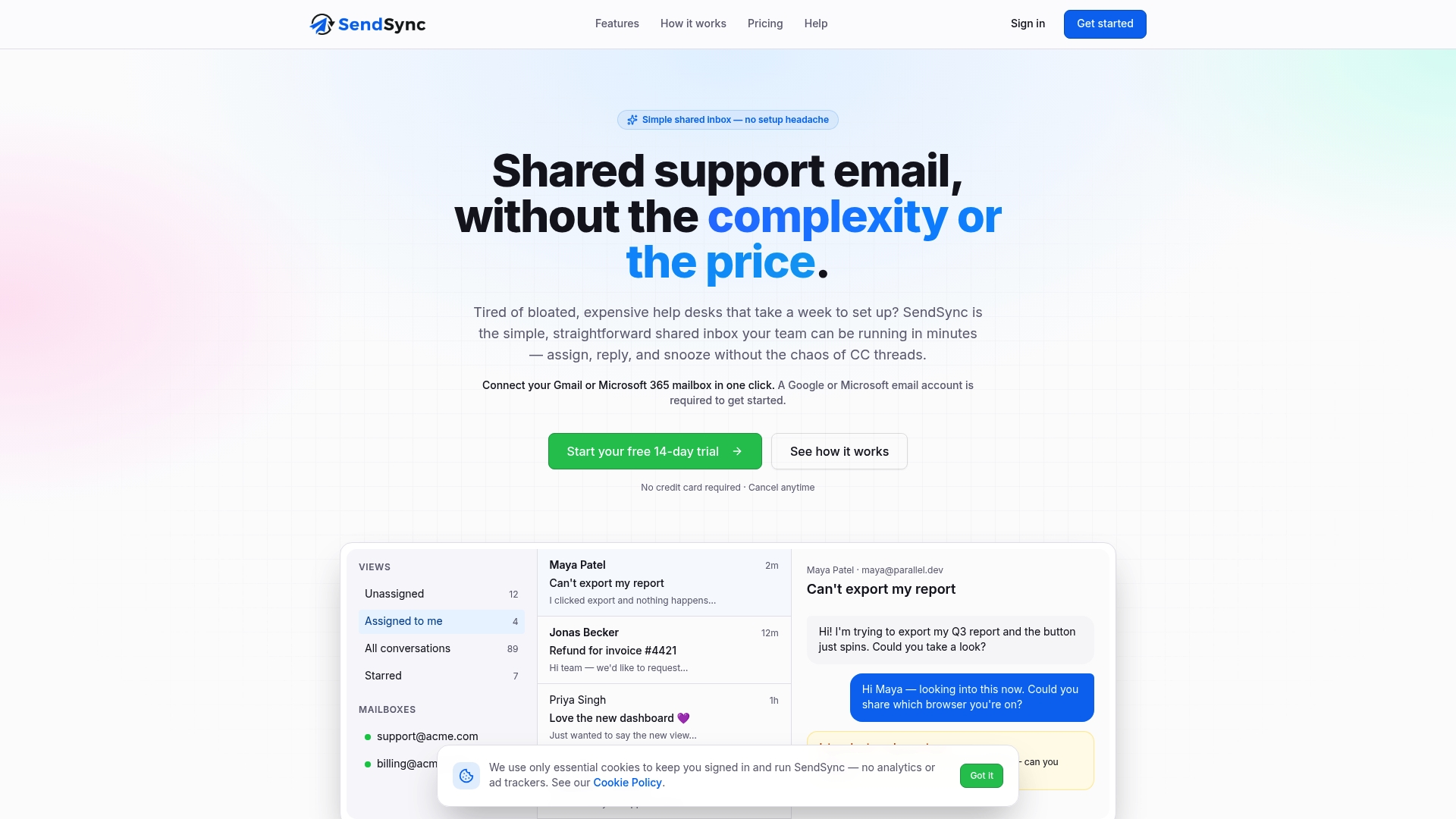
Pick the tier that fits your volume, connect your mailbox, and set up your Unassigned, Assigned to me, and Waiting on customer views on day one.
FAQ
How do I set up email support for my staff?
Create one shared address, such as support@yourcompany.com, and connect it to your Google Workspace or Microsoft 365 account. Give each teammate their own access rather than a shared password. Then agree on one owner per conversation and a target first response time.
How do we avoid two people answering the same email?
Assign every conversation to one person the moment it arrives, and make that assignment visible to everyone. Use internal notes for questions instead of forwarding messages. Check an Unassigned view a few times a day so nothing sits untouched.
What is a good first response time for email support?
One 2026 KPI guide gives 4 hours as the email benchmark, with top-performing teams reaching about 1.8 hours. Start by measuring your current average, then aim to get under 4 hours during business hours. Improve from there once ownership is stable.
Do we need a full help desk?
Not if most of your support arrives by email and one team handles it. A shared inbox with assignment, notes, and metrics covers that case. Consider a larger system when you add phone or chat as main channels or need formal service-level rules across departments.
Sources
- Effortlessly Manage Team Emails with Google Workspace Shared Inboxes (Xpecto)
- Secure Role Accounts And Shared Mailboxes (OpsecGuides)
- Microsoft 365 Shared Mailbox Security Checklist (Datapath)
- Organization-Wide Email Addresses: Setup, Security, and More (Cleverence)
- Help Desk KPIs & Metrics: 10 Essential Benchmarks (Softabase)
- Client Communication Tools for Freelance PMs