
Connect a Gmail Team Inbox in Minutes: 2026 Guide
Connect a Gmail Team Inbox in Minutes: 2026 Guide ! Woman setting up Gmail team inbox You can connect a Gmail team inbox in under five minutes by turning a Google Group into a Collaborative Inbox inside Google Workspace.

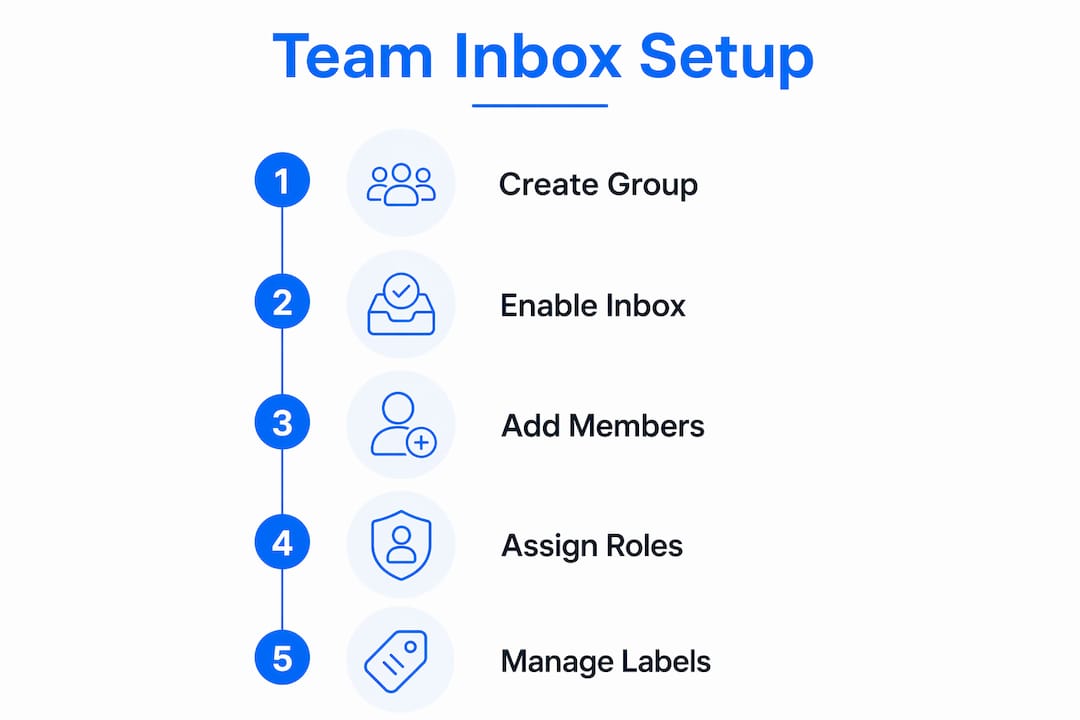
You can connect a Gmail team inbox in under five minutes by turning a Google Group into a Collaborative Inbox inside Google Workspace. No DNS changes, no third-party installs, no waiting. Here is exactly what that looks like:
Go to groups.google.com and create a new group (or open an existing one).
In Group settings, set the group type to Collaborative Inbox under “Enable additional Google Groups features.”
Turn on conversation history. Without this step, assignment and status tracking stay locked, even if you enabled the Collaborative Inbox type.
Set posting permissions to “Anyone on the web” if external senders like customers need to reach the inbox.
Add team members and assign them the correct permissions to take, assign, and manage conversations.
Understand that the collaborative workflow lives at groups.google.com, not inside Gmail. Team members receive copies in Gmail but must use the Groups interface to assign or resolve conversations.
That is the short version. The sections below walk through each step in detail, cover the pitfalls that trip up most teams, and explain when a dedicated tool makes more sense.
How to set up a Gmail team inbox step by step
A Google Group mailbox is free with Google Workspace and can be configured quickly with admin or group-creation rights. Follow these steps in order.
Create or select a Google Group
Sign in to groups.google.com.
Click Create group at the top.
Enter a group name and a group email address, for example
support@yourcompany.com.Click Create group and wait a few minutes before sending a test message, or the delivery may fail.
Enable the Collaborative Inbox
Click the group name, then Group settings on the left.
Under “Enable additional Google Groups features,” select Collaborative Inbox.
Immediately toggle on conversation history. This is the step most teams skip, and it is the reason assignment features appear grayed out.
Configure permissions
Under posting permissions, set “Who can post” to “Anyone on the web” if your inbox address receives mail from outside your organization. Skip this and external emails bounce automatically.
Set member permissions so the right people can take, assign, and mark conversations complete.
Add team members
Invite team members by email. Each member gets copies of group messages in their personal Gmail inbox, but the assignment workflow requires them to work at groups.google.com.
Pro Tip: Before you go live, send a test email from a personal Gmail account outside your organization. If it bounces, your posting permissions are still set to “Members only.” Fix that first.
Google Groups collaborative inbox also integrates naturally with the rest of Google Workspace. Google Calendar, Google Chat, and Google Drive links all render correctly inside group threads, so your team can reference shared documents or schedule follow-ups without leaving the conversation.

How to manage a shared Gmail inbox without losing your mind
The setup is quick. The ongoing management is where teams either build a clean workflow or end up with a chaotic pile of unread threads. A few practices make the difference.
Assign every conversation. The moment a new thread arrives, someone should either take it or assign it to a specific teammate. Unassigned threads are the inbox equivalent of a task with no owner. Use the Take or Assign buttons in the Google Groups interface to make ownership explicit. You can assign emails to teammates by entering their address and an optional note.
Use labels and resolution statuses. Google Groups lets you tag conversations and mark them as complete, no action needed, or duplicate. These statuses filter the view so your team sees only open items, not a wall of resolved threads.
Avoid Gmail-only workflows for collaborative tasks. Gmail shows you the messages, but it does not show you who has taken a conversation or whether it is resolved. Teams that try to manage assignments through Gmail alone end up with duplicate replies and missed threads. The Groups interface is clunky compared to Gmail, but it is the only place the collaborative features actually work.
Monitor workload and response times. Google Groups has no built-in reporting. If you need to track how quickly your team responds or how many conversations each person handles, you need a third-party analytics layer. Without visibility into those numbers, it is hard to spot when one teammate is carrying the load for the whole team.
Review open and resolved conversations weekly to catch anything that slipped through.
Keep your member list current. Former employees with group access are a security and privacy risk.
For teams with more than two or three people, shared inbox best practices recommend explicit ownership rules from day one.
Pro Tip: Gmail delegation works fine for two or three people sharing a single account, but it has no assignment or status features. Once your team grows past that, the Collaborative Inbox approach is the right call.
What goes wrong during setup and how to fix it
Most Gmail team inbox problems trace back to two overlooked settings. Knowing them in advance saves a lot of back-and-forth.
Collaborative features are grayed out. You enabled the Collaborative Inbox type but forgot to turn on conversation history. Go back to Group settings and toggle it on. The assignment and status options appear immediately after.
External emails are bouncing. Your posting permissions are still set to “Members only” or “All organization members.” Change the setting to “Anyone on the web” to allow inbound mail from customers.
Team members cannot assign or resolve conversations. Check their individual permissions inside Group settings. The ability to take and assign conversations is a separate permission from simply being a group member.
Inbox clutter is building up. Set a team habit of marking conversations complete the moment they are resolved. Unresolved threads pile up fast and make the active queue hard to read.
Collision on replies. Google Groups has no collision detection, meaning two teammates can reply to the same thread simultaneously without knowing it. Assign conversations before replying to prevent this.
Security concern: shared access without oversight. Review group membership regularly. Anyone added to the group can read every conversation in the inbox, so keep the member list tight and remove access when someone leaves the team.
The Google Groups collaborative inbox is free with Google Workspace and genuinely capable for straightforward team setups. Its limits show up when teams need response-time reporting, collision detection, or a shared sent folder, none of which Google Groups provides natively.
Key Takeaways
A Google Group turned into a Collaborative Inbox is the fastest way to set up a Gmail team inbox, but enabling conversation history and correct posting permissions are the two steps that determine whether it actually works.
Point | Details |
|---|---|
Setup takes about five minutes | Admin or group-creation rights in Google Workspace are all you need to get started. |
Conversation history is mandatory | Without it, assignment and status tracking stay disabled even after enabling the Collaborative Inbox type. |
External email requires open permissions | Set posting to “Anyone on the web” or customer emails will bounce automatically. |
Collaboration happens in Google Groups | Assignment and resolution features only work at groups.google.com, not inside Gmail. |
Sendsync as an alternative | Sendsync connects Gmail or Microsoft 365 with no DNS setup, unlimited users, and built-in analytics Google Groups lacks. |
Sendsync gives your team a shared inbox without the workarounds

The Google Groups approach works, but it asks your team to accept real trade-offs: a clunky interface, no collision detection, no shared sent folder, and zero built-in reporting on response times or workload. For teams that outgrow those limits quickly, Sendsync is a sharper option.
Sendsync connects directly to Gmail or Microsoft 365 with no DNS changes and no complicated configuration. The whole setup takes a few minutes, and your team gets a clean shared inbox with assignment, real-time visibility, and analytics built in. There are no per-seat fees, so adding teammates does not change your bill. If you want the benefits of a unified team inbox without the interface compromises, Sendsync is worth a look.