
Remote Team Inbox Collaboration: 2026 Guide
Remote Team Inbox Collaboration: 2026 Guide ! Woman managing shared inbox remotely Remote team inbox collaboration is the practice of using shared inboxes combined with structured workflows to manage team communication efficiently across distributed locations.

Remote team inbox collaboration is the practice of using shared inboxes combined with structured workflows to manage team communication efficiently across distributed locations. Tools like Google Groups Collaborative Inbox, Microsoft 365 Shared Mailbox, and Sendsync give distributed teams a single place to assign, track, and resolve messages. Research shows fewer than 5% of emails require a same-hour response, which means your team can work in focused sessions rather than monitoring inboxes constantly. The standard industry term for this practice is shared inbox management, and understanding both terms helps you find the right tools and processes.
What tools work best for remote team inbox collaboration?
The right platform depends on your team size, existing tech stack, and how much customization you need. Four categories of tools cover most remote teams.
Google Groups Collaborative Inbox works inside Gmail and costs nothing extra for Google Workspace users. It lets you assign conversations and set statuses like “resolved,” which is a meaningful step up from a plain shared Gmail account. The tradeoff is limited automation and no native SLA tracking.

Microsoft 365 Shared Mailbox fits teams already running Outlook. It supports delegation and folder rules but lacks built-in assignment workflows. Teams often layer third-party tools on top to get proper status tracking.
Help desk platforms like purpose-built ticketing systems add SLA timers, canned responses, and reporting. They suit larger support operations but carry significant setup time and per-seat pricing that hurts small teams.
Sendsync connects directly to Gmail or Microsoft 365 mailboxes without DNS changes or long configuration. Teams get assignment, status tracking, and conversation management in minutes, not days. The unlimited-user pricing model makes it practical for growing teams that want to avoid per-seat fees.
Tool | Assignment | Status Tracking | Automation | Best For |
|---|---|---|---|---|
Google Groups | Basic | Limited | None | Small teams on Google Workspace |
Microsoft 365 Shared Mailbox | Delegation only | Folder rules | Basic rules | Teams using Outlook |
Help desk platforms | Full | Full | Advanced | Large support operations |
Sendsync | Full | Full | Yes | Remote support teams, fast setup |
The comparison above shows that Google Groups and Microsoft 365 Shared Mailbox handle the basics, but neither gives you the explicit state tracking that distributed teams need. Purpose-built tools fill that gap without requiring a full help desk migration.
How do you design workflows for a distributed team inbox?
Shared inbox management is 90% process and 10% tool. Getting the workflow right before you pick software saves weeks of rework later.
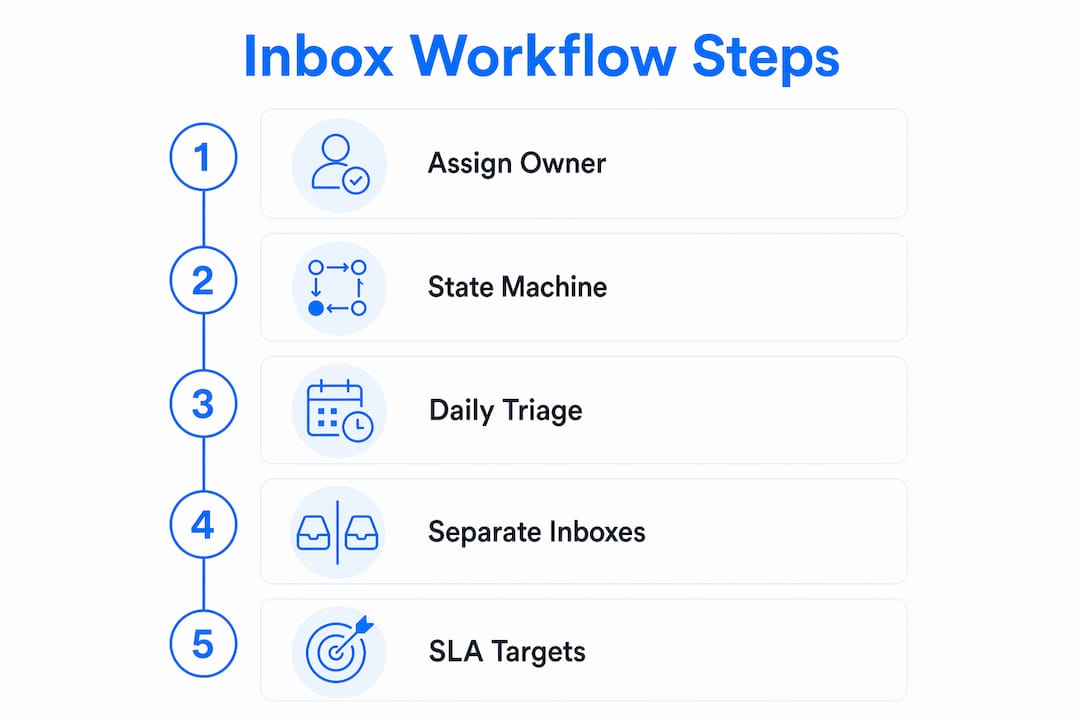
Assign explicit ownership to every message
Every message needs one named owner. Without that, two teammates reply to the same thread, or nobody replies because each assumes someone else handled it. Assign ownership at triage, not after the fact.
Replace read/unread with a state machine
Read/unread status is an anti-pattern for shared inboxes. Use three explicit states instead: Waiting (new, unassigned), Assigned (owner identified, in progress), and Resolved (complete, archived). This gives every team member a clear picture of inbox health at a glance.
Run daily triage sessions with a rotating lead
A rotating triage lead assigns new threads, flags urgent items, and archives noise each morning. Rotating the role weekly prevents one person from carrying the full cognitive load. This single habit keeps inbox volume from compounding overnight.
Separate inboxes by function
Separate shared inboxes by function, using addresses like support@, billing@, and partnerships@. Each address gets its own SLA target, automation rules, and assigned team. Mixing all incoming mail into one address creates routing confusion and makes automation nearly impossible.
Document your SLA targets
A 24-hour response SLA is the standard for non-urgent customer emails in distributed teams. Write that target down, share it with the team, and review it monthly. Undocumented SLAs are invisible, and invisible targets get missed.
Pro Tip: Set your triage sessions at fixed times, such as 9 a.m. and 2 p.m. in your team’s primary time zone. Publishing the schedule tells teammates and customers when to expect movement on their threads.
For more examples of how professional teams structure these workflows, the scalable inbox workflows guide on the Sendsync blog covers real-world setups worth reviewing.
How do you reduce inbox fatigue in a distributed team?
Inbox fatigue is the direct result of treating email as a real-time channel. Treating email as a 24/7 real-time channel triggers anxiety and fatigue. Structured async workflows reduce that pressure significantly.
The behavioral fixes that work are straightforward:
Schedule inbox sessions. Two to three focused sessions per day outperform continuous monitoring. Your team processes more messages and makes fewer errors when they batch the work.
Separate urgent from non-urgent channels. Less than 5% of emails are urgent. Phone calls and Slack handle genuine emergencies. Email handles everything else. Mixing the two trains your team to treat every message as urgent.
Define a clear finish line. Each inbox session ends when the triage queue hits zero or when the scheduled time ends. Without a finish line, sessions expand indefinitely.
Rotate triage responsibility. No single person should own the inbox every day. Rotation distributes the cognitive load and builds shared knowledge of recurring issues.
Use automation for repetitive tasks. AI tools can handle routine inquiries, collect standard documents, and send templated responses. That frees your team for escalations and complex conversations. Tools like Chatzybot offer AI team management features that integrate with shared inbox workflows to handle high-volume repetitive requests.
“Ambient pressure from time zones is the main burnout driver in remote support roles. Managers must set clear inbox finish lines and enforce them.” — Swizero
The quote above captures what most distributed team leaders learn the hard way. The pressure is not from the volume of email. It comes from the expectation of constant availability across time zones. Fixing that expectation is a leadership decision, not a software feature.
How do you fix the most common inbox collaboration problems?
Most shared inbox failures trace back to three root causes: unclear ownership, mixed-purpose inboxes, and reliance on read/unread status. Each has a direct fix.
Unclear ownership creates duplicate replies and dropped threads
The solution is an explicit assignment step at triage. No message leaves the triage queue without a named owner. Tools that support one-click assignment, like Sendsync or purpose-built help desks, make this fast enough that teams actually do it.
Mixed-purpose inboxes create routing chaos
A support@ address that also receives billing questions, partnership pitches, and vendor invoices is impossible to manage well. Separating inboxes by function allows specialized automation and cleaner workflow management at scale. Set up distinct addresses, then route each one to the right team with its own SLA.
Read/unread status hides real inbox health
When a message is marked “read,” it looks handled. Often it is not. Without disciplined workflows and explicit state machines, teams revert to chaotic read/unread patterns regardless of how sophisticated their software is. Adopt the Waiting, Assigned, Resolved model and enforce it from day one.
Pro Tip: Run a 15-minute inbox audit every Friday. Count messages stuck in “Assigned” for more than 48 hours. That number tells you more about workflow health than any dashboard metric.
Problem | Root Cause | Fix |
|---|---|---|
Duplicate replies | No ownership assignment | Assign at triage, one owner per thread |
Dropped threads | Read/unread reliance | Use Waiting, Assigned, Resolved states |
Routing confusion | Mixed-purpose inbox | Separate inboxes by function |
Team burnout | Always-on monitoring | Schedule fixed inbox sessions |
Scaling to a purpose-built tool makes sense when your team handles more than 50 threads per day or when SLA reporting becomes a customer requirement. Below that volume, disciplined process on Google Groups or Microsoft 365 Shared Mailbox works well. You can also review remote workforce operations practices for additional context on managing distributed team accountability beyond the inbox.
Key takeaways
Effective remote team inbox collaboration depends on process discipline, explicit ownership, and the right tool for your team’s scale.
Point | Details |
|---|---|
Process beats technology | Fix ownership and status tracking before adding new software. |
Replace read/unread states | Use Waiting, Assigned, and Resolved to track every message explicitly. |
Separate inboxes by function | Create distinct addresses for support, billing, and other functions to simplify routing. |
Schedule inbox sessions | Two to three daily sessions outperform continuous monitoring and reduce fatigue. |
Document your SLA | A written 24-hour response target improves accountability across distributed teams. |
Why process always wins over the latest tool
I have watched teams spend weeks evaluating shared inbox platforms while their actual problem was that nobody owned the triage step. The tool debate is a distraction when the workflow is broken.
The teams I have seen succeed at distributed inbox management share one trait: their leaders set the rules and modeled the behavior first. They defined what “resolved” meant. They ran the first triage sessions themselves. They enforced the session schedule before asking anyone else to follow it.
Technology accelerates a working process. It cannot create one. Google Groups Collaborative Inbox is free and functional. Sendsync is fast to set up and purpose-built for support teams. Neither one fixes a culture where every message is treated as urgent or where ownership is assumed rather than assigned.
The other thing I would push back on is the idea that more automation solves inbox overload. Automation handles volume, but it does not fix ambiguity. If your team cannot agree on who owns a thread, an AI responder just delays the confusion. Get the human process right first, then layer in automation where it genuinely removes repetitive work.
Async communication works when the team trusts the process. That trust comes from consistent behavior, not from the software you chose.
— Nick
How Sendsync supports your shared inbox workflow
Remote support teams need a shared inbox tool that works from day one, not after a week of configuration.
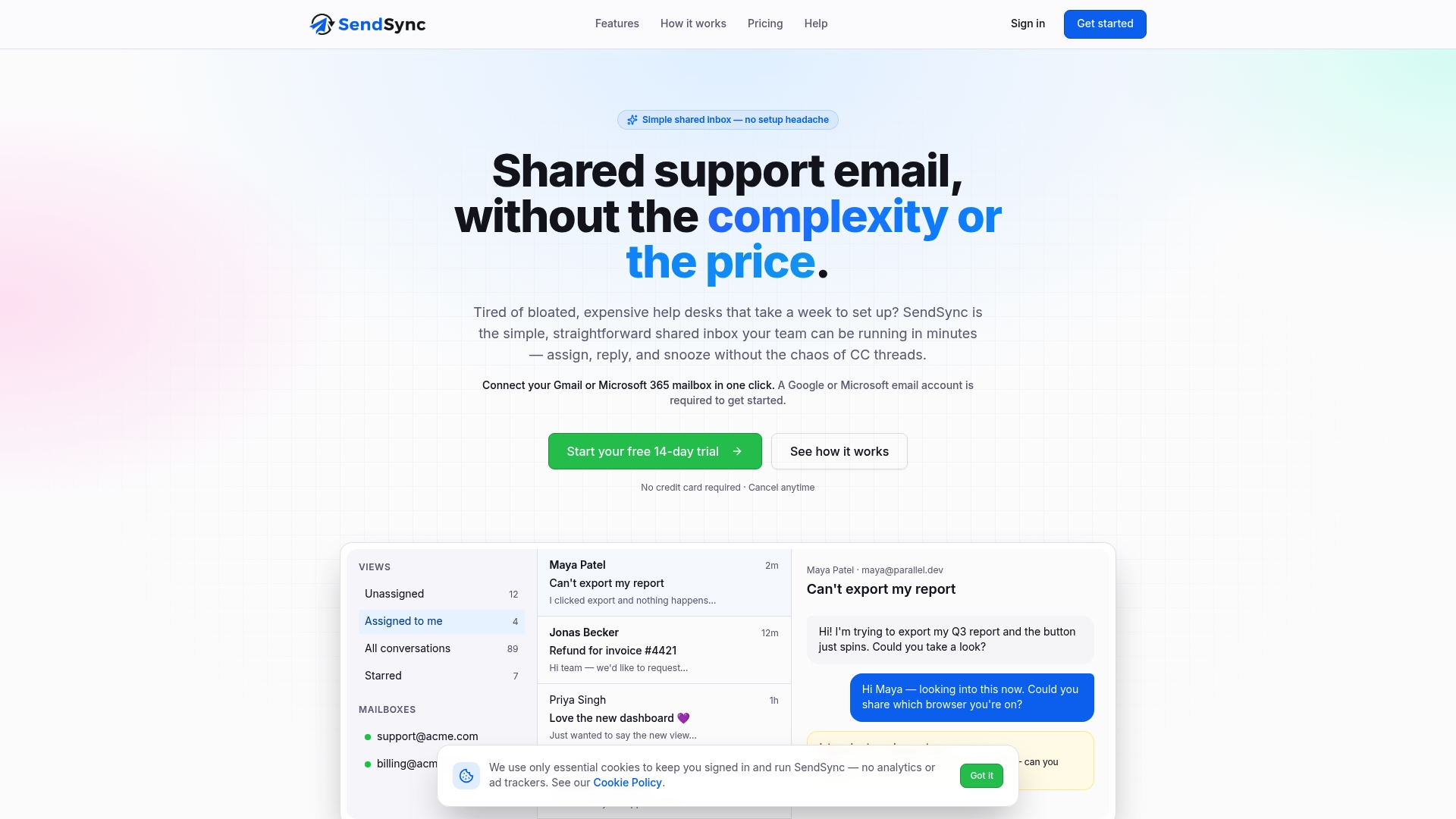
Sendsync connects to your existing Gmail or Microsoft 365 mailbox in minutes. Your team gets full assignment, status tracking, and conversation management without touching DNS settings or paying per seat. That means a five-person support team and a fifty-person support team pay on the same terms. If you are ready to move your team from inbox chaos to a structured workflow, the Sendsync shared inbox is worth a look. Setup takes minutes, and the process improvements start immediately.
FAQ
What is remote team inbox collaboration?
Remote team inbox collaboration, also called shared inbox management, is the practice of using a shared email address combined with structured workflows to assign, track, and resolve messages across a distributed team.
How many times should a remote team check the shared inbox daily?
Two to three focused inbox sessions per day produce better outcomes than continuous monitoring. Fewer than 5% of emails require a same-hour response, so batching sessions is both practical and effective.
What is the standard response SLA for shared team inboxes?
A 24-hour response SLA is the accepted standard for non-urgent customer emails in distributed teams. Documenting and publishing that target improves accountability across time zones.
Why should teams avoid using read/unread status in a shared inbox?
Read/unread status does not indicate ownership or resolution. Using explicit states like Waiting, Assigned, and Resolved gives every team member a clear, accurate view of inbox health.
When should a small team upgrade to a purpose-built shared inbox tool?
A small team should consider a purpose-built tool when daily thread volume exceeds 50 messages or when customers require formal SLA reporting. Below that threshold, Google Groups or Microsoft 365 Shared Mailbox with disciplined process handles most needs.