
Shared Inbox Best Practices for Support Teams in 2026
Shared Inbox Best Practices for Support Teams in 2026 ! Support team member managing shared inbox Shared inbox best practices are defined as assigning single ownership per conversation, replacing read/unread with explicit status labels, setting response SLAs per inbox address, an

Shared inbox best practices are defined as assigning single ownership per conversation, replacing read/unread with explicit status labels, setting response SLAs per inbox address, and running daily triage routines. Support teams using Gmail or Microsoft 365 shared mailboxes face the same core failure modes: duplicate replies, missed threads, and no clear accountability. The practices in this guide fix all three. They apply whether you run a two-person team or a 20-agent department, and they work regardless of which email platform you use.
1. What are the most important shared inbox best practices for ownership?
Ownership assignment is the single most effective fix for shared inbox chaos. Assigning one owner to every conversation eliminates the “someone else will handle it” problem that causes missed emails and duplicated work. Without clear ownership, two agents reply to the same thread, or no one replies at all.
The owner matrix model takes this further. An owner matrix assigns a primary owner, a backup, and an escalation contact per message type. This approach scales ownership beyond a single person and keeps coverage intact during absences. For a support@ inbox, that might mean Tier 1 agents own general queries, a senior agent owns billing disputes, and the team lead owns escalations.

Pro Tip: Build your owner matrix in a shared doc and review it monthly. Roles shift as teams grow, and an outdated matrix creates the same gaps as having no matrix at all.
2. How explicit status tracking replaces read/unread
Read/unread status does not reflect workflow stages. It only tells you whether someone opened a message. Explicit status tracking with labels like New, In Progress, Waiting, and Done maps directly to real work states and gives every team member instant visibility into where a conversation stands.
The difference matters in practice. A message marked “read” could mean it was opened, skimmed, and forgotten. A message marked “Waiting” tells the whole team that a reply was sent and the team is waiting on the customer. That distinction prevents both duplicate follow-ups and missed resolutions.
Serif’s shared inbox guides recommend keeping status sets small and tied to actual workflow stages. Four to five statuses is the right ceiling. More than that, and agents start skipping status updates because the system feels like overhead.
3. How to set and track SLAs in a shared inbox
SLAs belong at the inbox level, not just the team level. A support@ address and a billing@ address carry different urgency expectations, and response-time SLAs should reflect that. A common target for support@ first response is 1–4 business hours. Billing@ queries often warrant a tighter window because they involve money.
Track two metrics every week: first response time and resolution time. First response time measures how fast a customer hears back. Resolution time measures how long the full conversation takes to close. Reviewing both weekly surfaces staffing gaps and process bottlenecks before they become customer complaints.
SLA compliance reviews also reveal which inbox types are consistently overloaded. If billing@ misses its SLA target three weeks in a row, that is a staffing signal, not just a performance issue. Automation can send alerts when a thread approaches its SLA deadline, giving agents a chance to act before the breach.
4. Microsoft 365 shared mailbox security and access management
Microsoft 365 shared mailboxes are designed for delegation, not direct sign-in. Delegated access with Send As or Send on Behalf permissions is the correct setup. Blocking direct sign-in on the shared mailbox account is a security requirement, not just a recommendation.
The licensing model trips up many teams. The shared mailbox itself does not require a license. Every user who accesses it does need a licensed Exchange Online mailbox. That distinction matters for budget planning and for audits.
Automapping is enabled by default in Microsoft 365. It adds the shared mailbox to Outlook automatically when permissions are granted. However, group-based access assignments sometimes require explicit permission assignments to trigger automapping correctly. If a team member cannot see the shared mailbox after being added, explicit permission assignment is the fix.
Setup step | Key detail |
|---|---|
Create shared mailbox | Admin center: Teams & Groups > Shared mailboxes > Add mailbox |
Assign permissions | Use Send As or Send on Behalf, not full account access |
Block direct sign-in | Disable sign-in on the shared mailbox account in Azure AD |
License check | Each accessing user needs a licensed Exchange Online mailbox |
Automapping issues | Use explicit permission assignment if group-based access fails |
5. How to prevent duplicate and conflicting replies
Concurrent agents replying to the same thread is one of the most common and most damaging shared inbox failures. Deduplication alone does not prevent conflicting replies. Locking and clear assignment must work alongside deduplication to stop two agents from sending contradictory answers to the same customer.
The simplest coordination tool is the shared draft. Draft replies in a shared mailbox are visible to all team members with access. When an agent starts drafting a reply, other agents can see that work is in progress and hold off. This works well for small teams without dedicated help desk software.
For teams using API-based or automated workflows, webhook deduplication combined with per-thread locking is the technical standard. The Nylas developer documentation describes this pattern explicitly: dedup the incoming webhook event, then lock the thread before generating a reply. Without the lock, two processes can pass the dedup check simultaneously and both send replies.
“Deduplication alone is insufficient; locking and clear assignment must complement each other to avoid conflicting replies in shared inboxes.” — Nylas Developer Docs
Assign threads at the moment of triage, not after reading. The longer a thread sits unassigned, the higher the chance two agents act on it at once. For remote team coordination, explicit assignment at triage is the single most effective coordination habit.
6. Daily workflows and routines that keep shared inboxes healthy
A shared inbox without a daily routine degrades into a pile of half-read threads within weeks. The most effective teams run a structured triage at the start of each shift. Every new message gets an owner and a status within the first 30 minutes of the day.
Here is a proven daily routine for support teams:
Morning triage. Assign every unowned thread. Set status to In Progress or Waiting as appropriate.
Midday check. Review threads marked Waiting. Follow up on any that have been waiting more than 24 hours.
End-of-day cleanup. Archive resolved threads. Update statuses on anything still open.
Weekly metrics review. Pull first response time and resolution time. Flag any SLA misses for the team meeting.
Template audit. Review the response template library monthly. Remove outdated templates and add new ones for recurring questions.
Templates for recurring questions cut reply time on common queries and keep tone consistent across agents. A well-maintained template library also reduces onboarding time for new team members.
Pro Tip: Pair inbox zero with clear “done” criteria. Archiving a thread before it is fully resolved creates invisible work. Define what “Done” means for your team, write it down, and post it where everyone can see it.
Inbox zero works only when paired with proper workflow transitions: assign, update status, reply, then archive after resolution. Archiving alone destroys workflow visibility. Teams that archive aggressively without status discipline consistently lose track of open issues.
For scalable inbox workflows, duty rotation prevents burnout and keeps coverage consistent. Rotate triage ownership weekly so no single agent carries the full cognitive load of first-touch sorting every day.
Key takeaways
Shared inbox management succeeds when ownership, status, and SLAs are treated as non-negotiable structure, not optional habits.
Point | Details |
|---|---|
Assign single ownership | Every conversation needs one named owner to prevent missed replies and duplicate work. |
Use explicit status labels | Replace read/unread with New, In Progress, Waiting, and Done to reflect real workflow stages. |
Set SLAs per inbox address | Define first response and resolution targets separately for support@, billing@, and info@ addresses. |
Block direct sign-in in Microsoft 365 | Use delegated Send As permissions and disable direct account sign-in for security and clean offboarding. |
Run daily triage routines | Assign, update status, and archive on a fixed schedule to keep the inbox organized and SLAs on track. |
Why process beats tooling every time
The teams I have seen struggle most with shared inboxes are not using bad tools. They are using good tools badly. A team running Gmail with no ownership rules will drown in duplicate replies. The same team with a clear owner matrix and four status labels will run clean, even without dedicated help desk software.
The uncomfortable truth about shared inbox management is that most failures are process failures, not technology failures. Ownership assignment costs nothing. Status labels cost nothing. A weekly SLA review costs 20 minutes. These are decisions, not features.
Security discipline is where I see the most shortcuts. Teams skip blocking direct sign-in on Microsoft 365 shared mailboxes because it feels like extra work. Then someone leaves the company, and the shared mailbox account stays active because no one thought to revoke access. Delegated permissions make offboarding clean. Direct sign-in makes it a security incident waiting to happen.
Automation earns its place once the process is solid. SLA alerts, auto-assignment rules, and template suggestions all work better when the underlying workflow is already consistent. Automating a broken process just makes the mess faster.
The teams that scale well build escalation paths before they need them. An owner matrix with a backup and an escalation contact per message type sounds like overhead when you have five agents. When you have 15 and a major incident hits, it is the difference between a controlled response and a fire drill.
— Nick
How Sendsync helps teams put these practices into action
Sendsync is built for support teams that want shared inbox structure without the setup overhead of a traditional help desk.
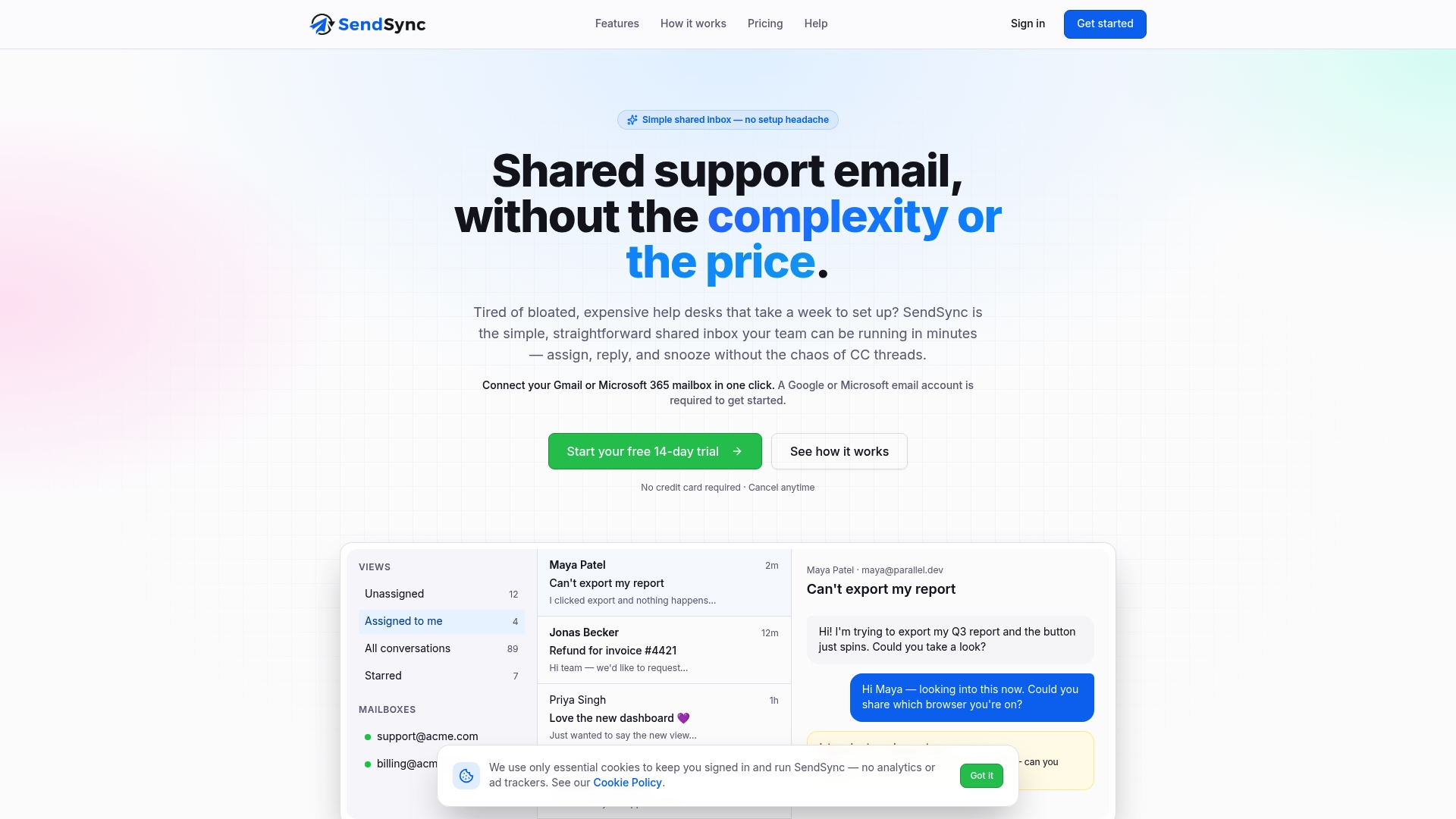
Sendsync connects directly to Gmail or Microsoft 365 mailboxes in minutes, with no DNS configuration required. Teams get ownership assignment and status tracking out of the box, along with automation for SLA alerts and repeat queries. The platform runs on unlimited-user plans with no per-seat fees, which means adding a new agent does not change your monthly bill. If your team is ready to move from a raw shared mailbox to a structured support workflow, Sendsync is worth a look.
FAQ
What is a shared inbox?
A shared inbox is an email address like support@ or info@ that multiple team members access and manage together. It centralizes customer communication without routing messages to a single person’s private mailbox.
How does a shared inbox work in Microsoft 365?
Microsoft 365 shared mailboxes use delegated permissions so team members access the inbox through their own licensed accounts. The shared mailbox account itself does not require a separate license and should have direct sign-in disabled.
What is the best way to prevent duplicate replies in a shared inbox?
Assign every thread to one owner at triage and use draft visibility so other agents can see work in progress. For automated workflows, combine webhook deduplication with per-thread locking.
How do you set SLAs for a shared inbox?
Define first response time and resolution time targets separately for each inbox address. Review compliance weekly and use automation to alert agents when a thread is approaching its SLA deadline.
What is the difference between read/unread and explicit status tracking?
Read/unread only records whether a message was opened. Explicit statuses like New, In Progress, Waiting, and Done reflect actual workflow stages and give the whole team real-time visibility into conversation state.