
What Is a Microsoft 365 Shared Mailbox?
What Is a Microsoft 365 Shared Mailbox? !

A Microsoft 365 shared mailbox is a centralized email inbox that multiple users can access and manage under a single email address, such as support@ or info@, without requiring a dedicated license when storage stays under 50 GB. Teams use shared mailboxes to handle customer inquiries, internal requests, and departmental communications from one unified address. Microsoft 365, Exchange Online, and Outlook all support this feature natively. The result is a cleaner, more accountable email workflow where no message falls through the cracks.
What is a Microsoft 365 shared mailbox and how does it work?
A Microsoft 365 shared mailbox is defined as a mailbox designed for multiple users to read, send, and manage email from a single address. It lives in Exchange Online and appears in Outlook alongside a user’s personal inbox. No one logs into the shared mailbox directly. Instead, authorized users access it through their own licensed accounts.
The most common use cases are addresses like help@, billing@, or contact@. A customer support team, for example, might route all incoming tickets to support@company.com. Every team member with access sees the same inbox, which eliminates the problem of one person hoarding critical messages in a personal folder.

Shared mailboxes also include a shared calendar and a shared contact list. Shared calendars and contacts are accessible by all authorized users, making the mailbox useful for scheduling and relationship management, not just email.
How do you set up and grant access to a shared mailbox?
Setting up a shared mailbox takes fewer than ten steps in the Microsoft 365 admin center. The process is straightforward, but the permission model trips up many administrators on the first attempt.
Creating the mailbox
Sign in to the Microsoft 365 admin center at admin.microsoft.com.
Go to Teams & groups, then select Shared mailboxes.
Click Add a shared mailbox, enter a display name and email address, then save.
The mailbox is created immediately and appears in Exchange Online.
Granting access to users
Once the mailbox exists, you must assign permissions manually. Administrators grant Full Access via the admin center or Exchange admin center. Full Access lets a user open the mailbox and read or delete messages. Send As permission lets them send email that appears to come from the shared address rather than their personal one.
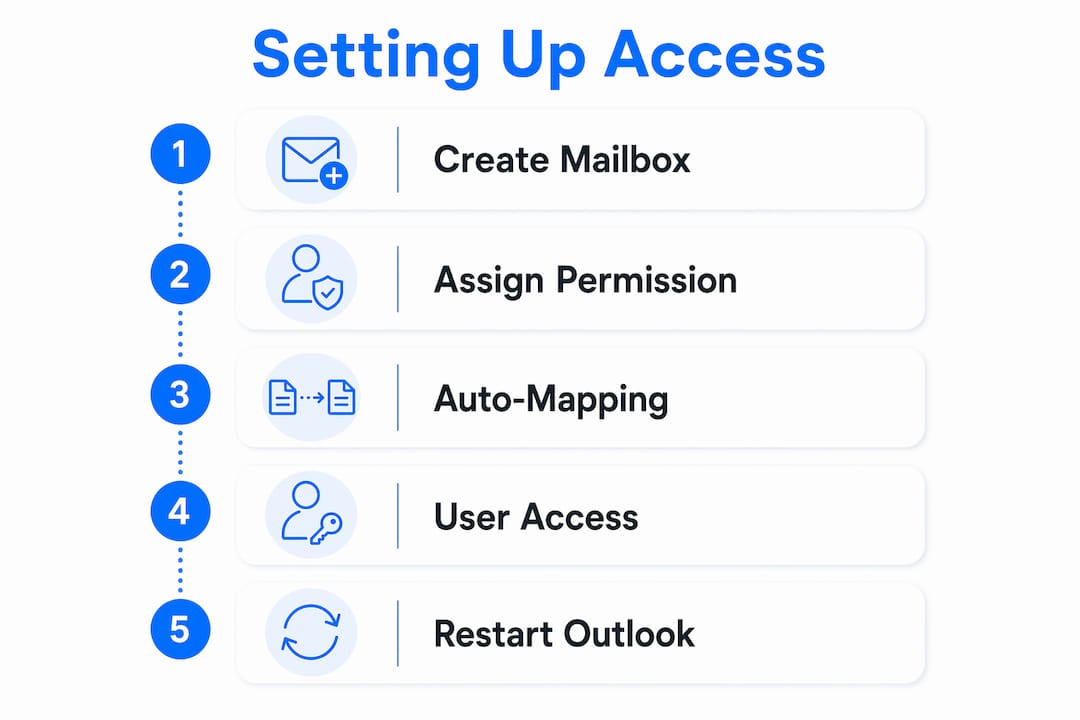
After permissions are granted, Outlook auto-maps the shared mailbox to the user’s account. Auto-mapping typically takes effect within an hour. If the mailbox does not appear, restarting Outlook resolves the issue in most cases.
Users need their own licensed Microsoft 365 accounts, such as Business Basic, to access a shared mailbox. The shared mailbox itself does not require a separate license as long as its storage stays below 50 GB. Exceeding that threshold requires an Exchange Online Plan 2 license.
Pro Tip: After granting Full Access, ask users to close and reopen Outlook rather than waiting. Auto-mapping can take up to an hour, but a restart usually triggers it immediately.
Troubleshooting common setup issues
The most frequent problem is users sending replies from their personal address instead of the shared mailbox address. This happens when Send As permission is missing or when users do not switch the “From” field before hitting send. A quick permission audit and a short team briefing fix this in most cases.
What features does a Microsoft 365 shared mailbox offer?
Shared mailboxes pack more capability than most teams realize. The core features go well beyond a simple group inbox.
Shared inbox management: All authorized users see the same messages, deletions, and folder structure in real time.
Send As and Send on Behalf: Send As makes the email appear to come from the shared address. Send on Behalf shows the sender’s name alongside the shared address.
Shared calendar: Teams can schedule meetings, track deadlines, and coordinate coverage directly from the shared mailbox calendar.
Shared contact list: A centralized contact directory is available to all users with access.
Microsoft 365 Copilot Chat: Authorized users can use Copilot Chat inside shared mailboxes to summarize threads and draft replies. No extra configuration is needed beyond folder permissions. Features like triage and calendar management are planned for future releases.
Storage limits and licensing thresholds
The 50 GB storage limit is the most important number to track. A shared mailbox stays license-free below 50 GB. That threshold is generous for most small and mid-sized teams, but high-volume support inboxes can hit it faster than expected. Archiving old threads and setting retention policies keeps the mailbox under the limit.
Key limitations to know
Shared mailboxes do not allow direct login. Users cannot sign in directly to a shared mailbox account. This surprises many organizations that expect a separate login for the shared address. Mobile access also has limitations. Some mobile Outlook clients handle shared mailboxes well, but the experience is less consistent than on desktop.
Sent items behavior is another common pain point. By default, emails sent from a shared mailbox appear in the sender’s personal Sent Items folder, not in the shared mailbox’s Sent Items folder. This breaks centralized record-keeping unless an administrator changes the setting. It is a one-time configuration fix, but teams that skip it often spend weeks wondering why sent messages are invisible to colleagues.
How does a shared mailbox differ from other Microsoft 365 options?
Teams frequently confuse shared mailboxes with user mailboxes, distribution groups, and email aliases. Each serves a different purpose.
Feature | Shared mailbox | User mailbox | Distribution group | Email alias |
|---|---|---|---|---|
Multiple users can read messages | Yes | No | No (forwarded only) | No |
Centralized message storage | Yes | Yes | No | No |
Requires a dedicated license | No (under 50 GB) | Yes | No | No |
Can send and receive email | Yes | Yes | Receive only | Receive only |
Shared calendar and contacts | Yes | No | No | No |
Direct login supported | No | Yes | No | No |
A distribution group forwards incoming email to each member’s personal inbox. Shared mailboxes maintain a single, unified record of all conversations, while distribution groups create data silos where each member holds a separate copy. That distinction matters when a team member leaves. With a shared mailbox, the conversation history stays intact and accessible. With a distribution group, it scatters across individual inboxes.
An email alias is simply an alternate address that routes mail to an existing mailbox. It offers no shared access, no shared calendar, and no team collaboration features. A shared mailbox is the right choice whenever two or more people need to read, reply to, and manage the same incoming messages.
Best practices and common pitfalls
A shared mailbox without clear rules becomes a chaotic inbox fast. Without clear ownership and assignment workflows, teams duplicate replies and miss messages. The fix is not technical. It is organizational.
Assign ownership: Designate one person as the mailbox owner responsible for monitoring volume and flagging issues.
Use folders and categories: Create folders for open, pending, and resolved threads so the team always knows the status of each conversation. Pairing this with inbox organization strategies makes the workflow repeatable.
Set reply rules: Agree on response time targets and who handles which message types before the mailbox goes live.
Audit permissions quarterly: Remove access for team members who have changed roles or left the organization.
Configure Sent Items: Ask your administrator to enable the setting that saves sent messages to the shared mailbox’s Sent Items folder, not the sender’s personal folder. Managing Sent Items behavior is one of the most overlooked configuration steps.
Pro Tip: Before sending any reply, check the “From” field in Outlook. Checking the From field before every send prevents replies from going out under a personal address instead of the shared mailbox identity.
Use the shared calendar actively. Block time for coverage shifts, flag high-priority deadlines, and schedule team check-ins directly in the shared mailbox calendar. Teams that treat the calendar as a coordination tool get far more value from the mailbox than those who use it only for email.
What I’ve learned from managing shared mailboxes in real teams
The biggest mistake I see teams make is treating a shared mailbox like a personal inbox with extra people attached. They set it up, grant access, and assume the collaboration happens automatically. It does not.
The mailbox is the container. The workflow is what makes it work. Teams that define ownership, set reply standards, and configure Sent Items on day one run their shared mailboxes with almost no friction. Teams that skip those steps spend the first month untangling duplicate replies and missing threads. The shared inbox best practices that apply to any team inbox apply here too, and they matter more than the technical setup.
The Copilot Chat integration is genuinely useful, but only for teams that already have clean inbox habits. Copilot can summarize a thread or draft a reply, but it cannot fix a disorganized inbox. Get the process right first, then let the AI features add speed on top.
One more thing: the 50 GB storage limit catches teams off guard more often than any other technical detail. Set a calendar reminder to check mailbox size every quarter. It takes two minutes and prevents a licensing scramble later.
— Nick
Sendsync makes shared inbox collaboration faster
Teams that outgrow the native Microsoft 365 shared mailbox experience often need assignment tracking, collision detection, and response workflows that Exchange Online does not provide out of the box.

Sendsync connects directly to Microsoft 365 mailboxes in minutes, with no DNS changes and no complex configuration. Team members can assign conversations, reply as a team, and track every thread from a single view. There are no per-seat fees, so the cost stays flat as the team grows. If your support@ or info@ inbox is getting harder to manage, try Sendsync and see how quickly a structured workflow changes the daily experience.
FAQ
What is a Microsoft 365 shared mailbox used for?
A Microsoft 365 shared mailbox is used for team email addresses like support@, info@, or billing@ where multiple users need to read and reply to the same messages from one centralized inbox.
Does a shared mailbox require a license in Microsoft 365?
A shared mailbox does not require a dedicated license as long as its storage stays under 50 GB. Each user who accesses the mailbox must have their own licensed Microsoft 365 account.
Can you log in directly to a shared mailbox?
No. Shared mailboxes do not support direct login. Users access them through their own licensed accounts in Outlook, where the shared mailbox appears automatically after permissions are granted.
How is a shared mailbox different from a distribution group?
A shared mailbox stores all messages in one centralized location that every authorized user can read and manage. A distribution group only forwards copies of incoming messages to each member’s personal inbox, creating separate records with no shared view.
Why are my sent emails not showing in the shared mailbox?
By default, replies sent from a shared mailbox save to the sender’s personal Sent Items folder, not the shared mailbox folder. An administrator can change this setting so all sent messages appear in the shared mailbox’s Sent Items for the full team to see.
Key takeaways
A Microsoft 365 shared mailbox gives multiple users centralized access to one email address without requiring a dedicated license, but it only works well when teams configure permissions, Sent Items behavior, and clear ownership rules from the start.
Point | Details |
|---|---|
No dedicated license needed | Shared mailboxes are free to use as long as storage stays under 50 GB. |
Full Access permission required | Administrators must grant Full Access and Send As permissions before users can read or reply. |
Sent Items need configuration | By default, sent emails save to personal folders; an admin must change this for centralized records. |
Shared mailboxes beat distribution groups | Unlike distribution groups, shared mailboxes store all messages in one place for full team visibility. |
Clear workflows prevent inbox chaos | Assigning ownership, setting reply rules, and auditing permissions quarterly keeps the mailbox functional. |