
Gmail Shared Inbox for Small Business: 2026 Guide
Gmail Shared Inbox for Small Business: 2026 Guide ! Small business user accessing Gmail shared inbox on laptop A Gmail shared inbox allows multiple team members to read, reply to, and manage one email address together without sharing a password.

A Gmail shared inbox allows multiple team members to read, reply to, and manage one email address together without sharing a password. Google Workspace offers no true native shared mailbox comparable to Microsoft 365, but two built-in workarounds cover most small teams: Gmail Delegation and Google Groups Collaborative Inbox. For teams that outgrow those options, third-party tools like Hiver, Front, and Missive plug directly into Gmail and add features like collision detection, SLA tracking, and internal notes. Choosing the right setup depends on your team size, email volume, and how much a missed customer message costs you.
What are the gmail shared inbox options for small businesses?
Google Workspace has no native shared inbox feature, but it provides two practical alternatives that work for most small teams. Understanding both before you set anything up saves you from rebuilding your workflow six months later.
Gmail delegation
Gmail Delegation lets one person grant another user full access to their inbox. The delegate can read, send, and delete emails on behalf of the account owner, all from inside the standard Gmail interface. Delegation is recommended for 1–5 users and technically supports up to 1,000 delegates, though performance degrades beyond 40 simultaneous users.

The biggest practical advantage of Delegation is interface continuity. Teams retain templates, drafts, and Send As functionality inside Gmail, which means no learning curve and no tab switching. The limitation is accountability. Every reply appears to come from the original account owner, so tracking who said what requires manual discipline.
Best for: Solo founders with a VA, two-person support teams, or any setup where one person owns the inbox and others assist occasionally.
Google groups collaborative inbox
Google Groups Collaborative Inbox turns a group email address (like support@yourcompany.com) into a shared queue where multiple members can assign, resolve, and reply to threads. It is recommended for 2–10 users handling low to moderate email volume.
The critical detail most teams miss: Google Groups uses a separate forum-style interface at groups.google.com, not inside Gmail. That means your team must switch between two different environments to manage email. This friction is the primary reason teams abandon the free Google Groups option as they grow.
Best for: Small teams that need a shared address and basic assignment features, and can tolerate working outside Gmail for triage.
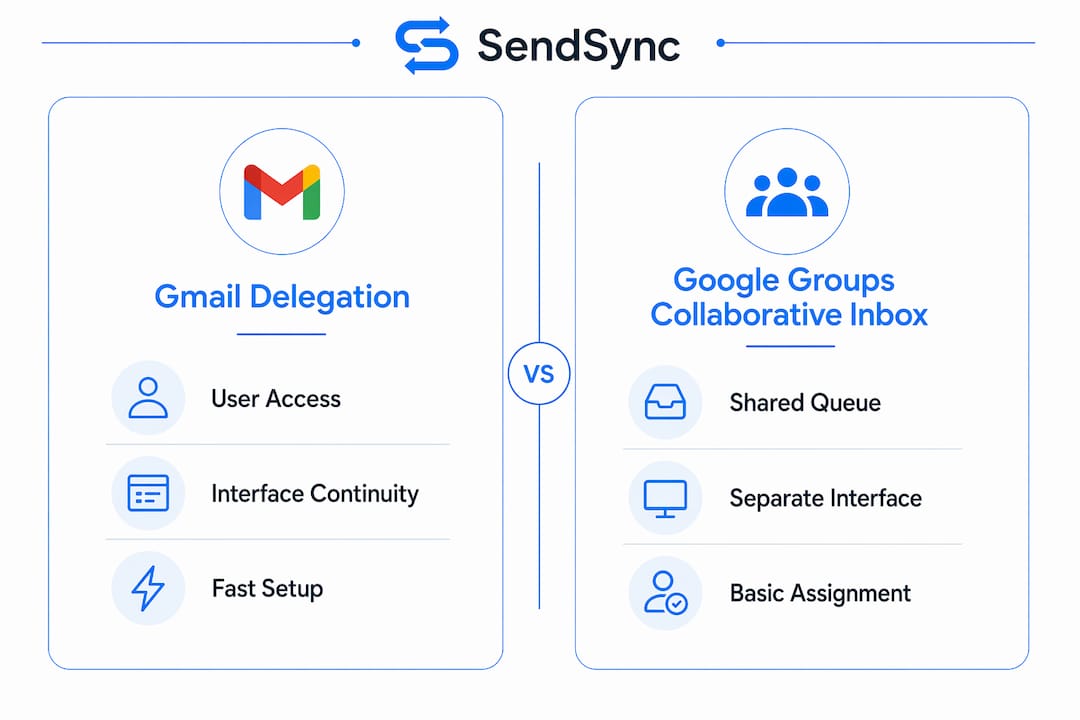
Pro Tip: If your team already lives inside Gmail all day, Google Groups Collaborative Inbox will feel like a detour. Test it with your actual workflow for one week before committing.
When should small businesses upgrade to third-party tools?
Free native options work until they don’t. The moment your team starts missing emails, sending duplicate replies, or losing track of who owns a thread, you have crossed the threshold where a professional tool pays for itself.
Free native options lack response time reporting, SLAs, and collision detection, making them unsuitable for teams handling customer-facing email at any real volume. Here is what that gap looks like in practice:
No collision detection. Two teammates reply to the same customer simultaneously. The customer receives conflicting answers and loses confidence in your business.
No SLA tracking. You have no visibility into how long emails sit unanswered. A lead that waits 48 hours is often a lost lead.
No automation. Every email gets manually triaged. As volume grows, triage becomes a job in itself.
No internal notes. Teammates cannot leave context on a thread without sending a separate email or using a chat tool.
No analytics. You cannot measure response times, team workload, or customer satisfaction trends.
When a missed customer email means a lost sale, a professional shared inbox tool is a revenue protection measure, not just an added expense.
Third-party tools integrate directly with Gmail to avoid interface switching and add all the features listed above. Hiver lives entirely inside Gmail as a Chrome extension. Front and Missive offer their own interfaces but connect tightly to Gmail accounts. Pricing for these tools typically runs $15–$49 per user per month, depending on features and team size.
The ROI calculation is straightforward. If your average customer is worth $500 and you lose two per month to slow or missed replies, a $30 per user per month tool pays for a five-person team in the first week. For scalable inbox workflows that grow with your team, professional tools are the only path forward.
How do you set up a shared inbox in gmail step by step?
Setup time varies significantly by method. Picking the wrong one and migrating later costs far more time than choosing correctly upfront.
Method | Setup Time | Best For | Key Limitation |
|---|---|---|---|
Gmail Delegation | ~5 minutes | 1–5 users, simple access sharing | No individual accountability |
Google Groups Collaborative Inbox | ~15 minutes | 2–10 users, basic assignment | Separate interface from Gmail |
Third-party tool (e.g., Hiver, Sendsync) | Under 1 hour | Growing teams, customer support | Monthly cost |
Setup times range from 5 minutes for Delegation to under one hour for professional tools. That gap reflects the difference in configuration depth, not complexity.
Setting up gmail delegation
Go to Gmail Settings, select the Accounts tab, and find “Grant access to your account.” Enter the delegate’s email address and confirm. The delegate accepts via a link in their inbox. The entire process takes about five minutes and requires no admin console access for personal Gmail, though Google Workspace admins may need to enable delegation at the domain level first.
Setting up google groups collaborative inbox
Create a new group at groups.google.com and select “Collaborative Inbox” as the group type. Add members, set their roles (Owner, Manager, or Member), and configure the group email address. Enable collaborative features like “Assign to member” and “Mark as resolved” inside the group settings. Budget 15 minutes and expect to spend another 10 minutes orienting your team to the groups.google.com interface.
Integrating a third-party tool
Most professional tools connect via Google OAuth. You authorize the tool to access your Gmail or Google Workspace account, configure your shared inbox address, and invite teammates. No DNS changes are required for tools that work as a layer on top of Gmail. For effective email assignment from day one, set up routing rules and ownership defaults before your team starts using the tool.
Pro Tip: Before going live with any shared inbox setup, send 10 test emails and walk through the full reply workflow with your team. Catching friction points in testing is far less costly than discovering them with a real customer.
What are the best practices for gmail shared inbox teams?
A shared inbox without clear protocols creates more confusion than a solo inbox. These practices apply regardless of which setup you choose.
Assign every email to one owner. Unassigned emails get ignored. Whether you use Gmail labels, Google Groups assignment, or a third-party tool, every thread needs a named owner before anyone moves on.
Use labels and statuses consistently. Labels like “In Progress,” “Waiting on Customer,” and “Resolved” give the whole team instant visibility without opening each thread. Agree on a label system before launch and document it.
Establish a no-reply-without-assignment rule. Duplicate replies are the most common failure mode in shared inboxes. The rule is simple: claim the thread first, then reply.
Keep internal communication inside the thread. Using a separate Slack channel or chat thread to discuss an email creates context gaps. Tools with internal notes solve this natively. With Gmail Delegation, a forwarded draft with notes in brackets is a workable substitute.
Set a response time standard and measure it. Even a simple goal like “all emails answered within four business hours” creates accountability. Without measurement, response times drift. For small team support workflows, documented standards are the difference between a reactive and a proactive team.
Know when to escalate. If email volume consistently exceeds your team’s capacity, a shared inbox is not the problem. It is a signal to hire, automate, or restructure your support process entirely.
Team size and email volume are the two key factors in choosing and managing the right shared inbox solution. Free options suit very small teams, but growing teams must adopt professional tools for SLA management and accountability.
Security is also worth addressing directly. A shared inbox means multiple people access sensitive customer data. Review your business email security practices regularly, especially when adding new team members or switching tools.
Key takeaways
The most effective Gmail shared inbox setup for a small business depends on team size, email volume, and whether a missed reply has real revenue consequences.
Point | Details |
|---|---|
No native Gmail shared inbox exists | Google Workspace offers Delegation and Google Groups as workarounds, not a true shared mailbox. |
Delegation suits the smallest teams | Gmail Delegation works best for 1–5 users and keeps the workflow inside the familiar Gmail interface. |
Google Groups adds friction | The Collaborative Inbox lives at groups.google.com, not inside Gmail, which slows teams down as they scale. |
Professional tools protect revenue | Third-party tools add collision detection, SLA tracking, and analytics that free options cannot provide. |
Setup time scales with complexity | Delegation takes 5 minutes; Google Groups takes 15; professional tools take under an hour. |
The tool choice that actually matters
Most articles about Gmail shared inboxes treat Google Groups Collaborative Inbox as a legitimate long-term option. My experience says otherwise. The interface friction alone, working in groups.google.com instead of Gmail, causes teams to revert to bad habits within weeks. I have watched teams set it up with good intentions and then quietly go back to forwarding emails to each other because the Groups interface felt like a detour.
Gmail Delegation is genuinely useful for very small setups. A founder and one assistant managing a support address? Delegation is the right call. It is fast, free, and keeps everything in Gmail. But the moment you have three or more people actively triaging the same inbox, you need collision detection. Without it, duplicate replies are not a risk. They are a certainty.
The workflow wall is real. Teams hit the limits of free tools and then face a painful migration under pressure, usually after a customer complaint or a missed deal. The smarter move is to adopt a professional tool before you hit that wall, not after. The cost of a good shared inbox tool is almost always lower than the cost of one lost customer relationship.
Simplicity has real value for teams under five people. But once email volume starts affecting your response times, simplicity becomes a liability. That is the moment to upgrade, not when things have already broken down.
— Nick
Why Sendsync is built for small teams on gmail
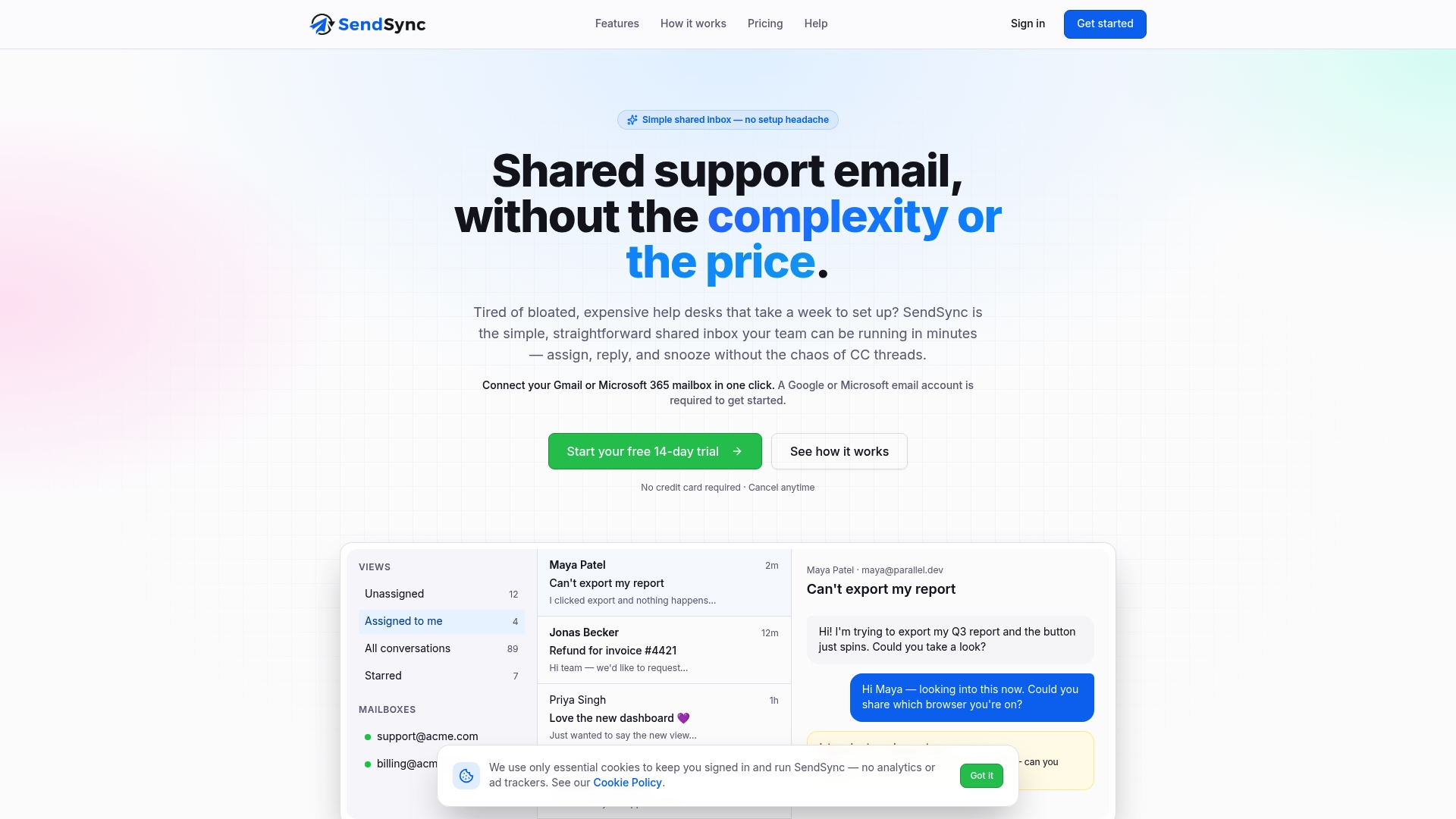
Sendsync connects directly to your Gmail or Google Workspace account in minutes, with no DNS changes and no complex configuration. Your team gets email assignment, internal notes, SLA tracking, and a clean shared queue without leaving the Gmail workflow they already know. Unlike per-seat tools that penalize you for growing, Sendsync offers unlimited users on competitive plans, so adding a new team member does not mean a surprise invoice. If your small business is ready to move past Gmail Delegation or Google Groups, try Sendsync and see how fast a proper shared inbox can be set up and running for your team.
FAQ
Does gmail have a built-in shared inbox feature?
Gmail does not offer a true native shared inbox. Google Workspace provides Gmail Delegation and Google Groups Collaborative Inbox as workarounds, each with distinct limitations.
What is the difference between gmail delegation and google groups collaborative inbox?
Gmail Delegation gives one or more users access to a single inbox inside Gmail, best for 1–5 people. Google Groups Collaborative Inbox creates a shared queue for 2–10 users but operates through a separate interface at groups.google.com.
How long does it take to set up a gmail shared inbox?
Gmail Delegation takes about 5 minutes. Google Groups Collaborative Inbox takes roughly 15 minutes. Third-party tools like Hiver or Sendsync typically take under one hour to configure.
When should a small business switch to a paid shared inbox tool?
Switch when your team starts sending duplicate replies, missing emails, or losing track of thread ownership. Free native options lack collision detection and SLA tracking, which become critical once email volume affects customer satisfaction.
Is it safe to share a gmail inbox with my team?
Gmail Delegation is safer than sharing a password because delegates access the inbox through their own Google accounts. For broader team access, review your email security practices and use tools that log individual actions for accountability.