
Shared Inbox on Mobile: How Teams Set It Up and Use It
Shared Inbox on Mobile: How Teams Set It Up and Use It ! Commuter checking a shared inbox on her phone You can open a shared inbox on your phone in two ways.

You can open a shared inbox on your phone in two ways. In Microsoft 365, add the shared mailbox inside the Outlook app. In Gmail, accept a delegate invitation. Both give you access. Neither tells your team who owns a conversation. For a support team, that is the part that matters on a phone, because two people answering the same customer from two couches is the most common mobile failure. A shared inbox layer on top of your existing Gmail or Microsoft 365 mailbox adds the assignment and notes. SendSync connects to those mailboxes without DNS changes, so the setup takes minutes, not days.
This guide covers the exact steps for each platform, the permissions that make or break mobile access, and a working routine for teams that answer email away from a desk.
TL;DR
- Outlook for iOS and Android can add a shared mailbox only if you have permission and both mailboxes sit in Exchange Online. An admin must grant access first.
- Full Access lets you read and manage the mailbox. Sending as the shared address needs Send As or Send on Behalf, granted separately.
- Gmail delegation is configured on a computer, and the Gmail mobile apps have documented gaps: no background sync of delegated mail and no notification settings for it.
- Neither tool shows who is handling a conversation. Assignment, internal notes and tags are what keep a mobile team from double replies.
- SendSync adds that layer to Gmail or Microsoft 365 with unlimited users, plans from $10 per month, and a 14-day free trial.
Table of Contents
- What a shared inbox on mobile actually is
- Before you start: the permissions that decide everything
- How to add a shared mailbox in Outlook for iOS or Android
- How to use a shared Gmail inbox on your phone
- What native mobile access still leaves open
- Add ownership, notes and tags on top of your mailbox
- A mobile routine for small support teams
- What it costs to give the whole team access
- Perspective
- Try it with your own mailbox
- FAQ
- Sources
What a shared inbox on mobile actually is
A shared inbox is one email address, such as support@ or info@, that several people monitor together. Microsoft describes a shared mailbox as a way for a group to monitor and send email from a common account. Nobody shares a password. Each person signs in with their own account and is given access to the shared one.
On a phone, that idea gets narrower. You are not using a special app for shared email. You are using your normal mail app with an extra mailbox added to it. That is why the experience depends so much on three things: which provider hosts your mail, what permissions your admin granted, and what the app supports on iOS or Android.
The benefit for a small team is real. A message sent from the shared mailbox is available to everyone with access, so a teammate can see what was already said. Replies can also appear from the shared address rather than from your personal one, which is what customers expect from a support team.
If you want the background on how these mailboxes are built in Microsoft 365, our explainer on what a Microsoft 365 shared mailbox is covers it in more depth.
Before you start: the permissions that decide everything
Most “it doesn’t work on my phone” problems are permission problems. Someone has to create the mailbox and add you before any app can show it. At one US organization’s IT guide, the instruction is plain: the organization must create the mailbox and add the user first, and if it is missing you request access from IT.
There are two permissions to understand in Microsoft 365:
| Permission | What it lets you do | What it does not do |
|---|---|---|
| Full Access | Open, read, modify, delete and manage items in the shared mailbox | Send mail |
| Send As | Send so the message appears to come directly from the shared address | Read the mailbox |
| Send on Behalf | Send with your name shown as sending on behalf of the mailbox | Read the mailbox |
These descriptions come from Microsoft’s documentation on shared mailboxes and on managing recipient permissions, which says an admin must grant each capability separately. Microsoft also advises blocking sign-in for the shared mailbox’s own account, so people only enter through their personal logins.
If you are the admin, grant Full Access and Send As together for anyone who will reply from a phone. Otherwise a teammate can read a customer’s email on their commute and find they cannot answer it. Our guide for admins on shared inbox permissions walks through the order, and the post on who creates an Outlook shared mailbox and how to get access is useful if you are the one waiting on IT.
How to add a shared mailbox in Outlook for iOS or Android
The steps are short once permissions are in place. Microsoft’s own instructions say to sign in to your primary account, tap Add Account, then tap Add a Shared Mailbox. In practice:
- Open Outlook on your phone and make sure your own work account is signed in.
- Open the account menu in the left navigation pane.
- Tap Add Account, then Add a Shared Mailbox.
- If you have more than one account, choose the one that has permission to the mailbox.
- Enter the shared mailbox address and confirm.
After setup, the shared mailbox appears in your account list, and you switch to it like any other account.
The requirement that trips people up
This only works under specific conditions. Microsoft states that Outlook for iOS and Android can add a shared mailbox when you have permission and both mailboxes are in Exchange Online using Microsoft’s native sync technology. A shared mailbox that still lives on an older on-premises server, or a mixed setup left over from a past migration, can fail without a helpful error.
Microsoft also says Outlook is the only supported app for reaching a shared mailbox on a mobile device. That means pointing the built-in iPhone Mail app at it is not the route to expect to work.
If the mailbox won’t appear and permissions look right, the cause is often how the tenant was configured or migrated. A Microsoft 365 migration done properly sorts out account types and sync, and that is usually the fix when the shared mailbox won’t sync to phones.
Replying: Send As versus Send on Behalf
When you reply from the shared mailbox, what the customer sees depends on the permission you hold. With Send As, the message appears to come directly from the shared mailbox. With Send on Behalf, the recipient sees that you sent it on behalf of the mailbox. For support, Send As is almost always what you want, because the customer sees one consistent address. Check the sender line before you tap send, especially when your phone offers several accounts.

How to use a shared Gmail inbox on your phone
Gmail does it differently. There is no shared mailbox object. Instead, the owner of an account delegates it to others. Google’s Gmail Help says delegates can read, send and delete mail, but cannot change the Gmail password or chat on the owner’s behalf.

The limits on numbers matter for planning. According to the same page, personal Gmail accounts can have up to 10 delegates, organizational accounts can add up to 1,000, and typical use permits 40 delegates to access an account at once.
The mobile experience has two practical catches:
- Setup happens on a computer. Google’s Android help page says delegation is configured on a computer, not in the Gmail app. An invited delegate can then accept and open the delegated inbox from Gmail on Android.
- Some mobile features are missing for delegated mail. The same page lists no background message synchronization, conversation summaries, notification settings or mail reminders in Gmail for Android, iPhone and iPad.
The practical effect: a delegated inbox on a phone will not reliably ping you when a new customer message arrives. For a team that promises same-day replies, that matters. Our Gmail shared inbox guide for small business covers the alternatives for Google Workspace teams.
What native mobile access still leaves open
Getting the mailbox onto the phone solves access. It does not solve coordination. Here is what a team typically runs into once several people can see the same inbox on their phones:
- No visible owner. A new message looks identical to everyone. Two people see it at the same time, and both start a reply.
- No place for context. A teammate wants to tell the next person “refund approved, just confirm the address.” In a plain mailbox that means a separate chat or a forwarded email.
- Weak triage. Urgent billing issues sit among newsletters and receipts, with nothing to tag or filter them on a small screen.
- Searching is slow. Finding a previous customer thread on a phone is harder when the mailbox holds everything.
The full set of problems on the Microsoft side is laid out in four Outlook shared mailbox limitations that break support teams, and if search is your pain point, the post on diagnosing shared inbox search helps you find the cause quickly.
This is the gap a purpose-built shared inbox is for. On a desktop you can wrestle with it. On a phone, with a thumb and thirty seconds between meetings, you need the answer to “is this mine?” to be visible at once.
Add ownership, notes and tags on top of your mailbox
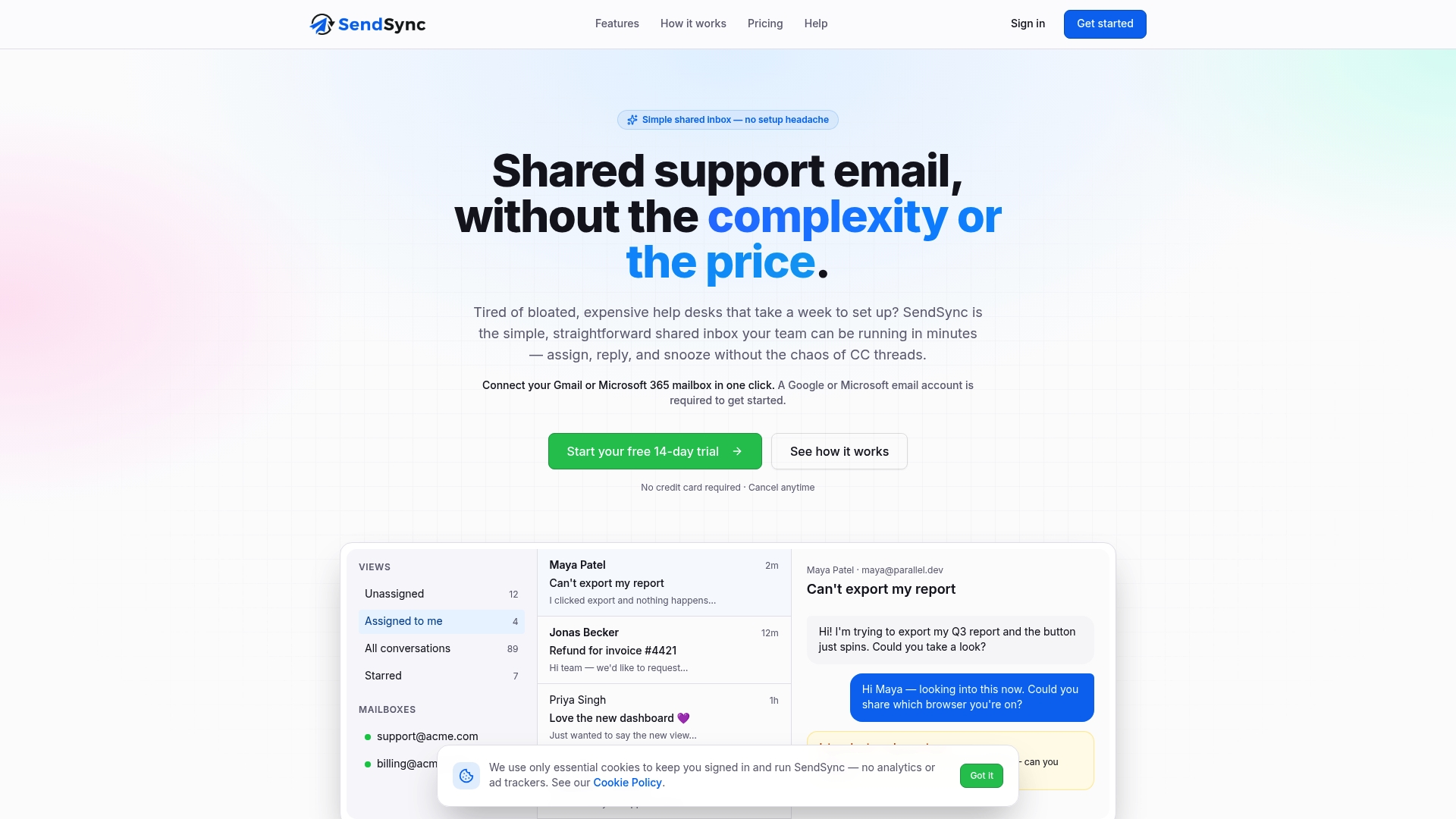
SendSync is a shared inbox for support teams that connects to your Gmail or Microsoft 365 mailbox. You connect the mailbox you already use, with no DNS setup, and the team works from one shared view. What it adds is the layer native mailboxes lack:
- Assignment. Each conversation can be assigned to a teammate, so the question of who is replying has one visible answer. Our post on how to assign emails to teammates effectively shows rules that work for small teams.
- Internal notes. Context stays attached to the conversation, not scattered across chat threads.
- Tagging and saved views. Billing, bugs and urgent requests can be filtered into their own views, so a short look at your queue shows what matters.
- Automation for email triage. Routine sorting is handled before a person has to touch it.
- Metrics dashboards. A manager can see how response times are trending.
If your team has been forwarding messages into a help desk and losing the thread, the guide to setting up a shared inbox without forwarding lays out a two-week rollout. And if customer records live in a CRM, see how to finish a working CRM shared inbox with lean setup and safe permissions.
A mobile routine for small support teams
Whatever tool you use, a phone-friendly team follows a few habits. These work with a plain shared mailbox and work better with an assignment layer.
- Decide who watches the inbox, and when. One person per shift is the default owner of anything new. Write the schedule down.
- Claim before you write. Before replying from your phone, mark the conversation as yours. With a shared inbox that is an assignment. Without one, that means a message in the team chat, which is slower and easy to miss.
- Reply from the shared address. Confirm the sender line each time. Customers who get answers from five personal addresses lose trust.
- Leave a note when you hand off. One line saying what was promised saves the next person from asking the customer to repeat themselves.
- Keep long answers for a desktop. A phone is ideal for acknowledging, triaging and short replies. Detailed troubleshooting with attachments is easier on a larger screen, so assign it and move on.
- Review the queue weekly. Look at which tags pile up and which messages wait longest, then adjust rules.
A worked example
Imagine a four-person online shop. Maya handles mornings, Jordan afternoons, and two founders cover evenings from their phones. A customer emails at 6 p.m. about a damaged order. With a plain shared mailbox, both founders see it while eating dinner. One replies with a refund offer; the other, not knowing, asks for photos. The customer gets two conflicting messages.
With assignment in place, the first founder to open it assigns it to themselves, adds a note that the order number checks out, and replies once. The second founder sees the assigned label in the list and moves on. Nothing about the customer’s experience changes, except it is now coherent.
What it costs to give the whole team access
Mobile access matters most when everyone can reach the inbox, including part-timers, founders and contractors. Per-seat pricing punishes that. SendSync plans include unlimited users with no per-seat fees, so adding a person never changes the bill:
| Plan | Price |
|---|---|
| Founder | $10 per month |
| Starter | $30 per month |
| Growth | $80 per month |
| Scale | $200 per month |
Prices are as published on the SendSync site, and every account starts with a 14-day free trial. For a freelancer or a two-person startup, the Founder plan keeps the cost low. A growing team can move up the plans without counting seats.
Perspective
We built SendSync around a simple observation: most small teams do not need a heavy help desk, they need to stop stepping on each other in the inbox.
Connecting a Gmail or Microsoft 365 mailbox should take minutes, not a project with DNS records and a consultant. And the team should not pay more each time someone joins, which is why every plan has unlimited users.
When a team works from phones, the value of a shared inbox is clarity. Who has this? What was already promised? What can wait until tomorrow? Assignment, internal notes, tags and saved views answer those questions in the place where the email already lives. That is the workflow we think a support team should start with.
Nick
Try it with your own mailbox
If your team is already sharing a Gmail or Microsoft 365 address and wants clear ownership without changing how email arrives, start with a mailbox you already use. SendSync offers a 14-day free trial, and its plans start at $10 per month with unlimited users.
For Microsoft 365 teams who want to see the whole path first, our Microsoft 365 team inbox setup guide walks through it step by step.
FAQ
Can I use a shared mailbox in the iPhone Mail app?
Microsoft states that Outlook is the only supported application for accessing a shared mailbox on a mobile device. Use Outlook for iOS or Android and add the shared mailbox through Add Account. Your admin must have granted you permission first.
Why can’t I add a shared mailbox in Outlook mobile?
The usual causes are missing permission or a mailbox that is not in Exchange Online with Microsoft’s native sync. Both mailboxes need to meet that condition, and you need access rights. Ask your admin to confirm Full Access and, if you need to reply, Send As.
Why does my reply show my name instead of the shared address?
That is what Send on Behalf does: it shows you as sending on behalf of the mailbox. Send As makes the message appear to come directly from the shared address. Ask your admin to grant Send As if you need that.
Does Gmail delegation work on my phone?
Partly. Delegation is set up on a computer, and an invited delegate can accept and open the inbox in Gmail on Android. Google lists gaps for delegated mail on mobile, including no background sync and no notification settings, so new messages may not alert you promptly.
How do we stop two people replying to the same email on mobile?
Use assignment. Whoever picks up a conversation claims it, and everyone else sees it is taken. A shared inbox with assignment and internal notes makes this visible in the list, instead of relying on chat messages.
Sources
- Shared mailboxes in Exchange Online | Microsoft Learn
- Manage permissions for recipients in Exchange Online | Microsoft Learn
- Add a shared mailbox to Outlook mobile | Microsoft Support
- Open and use a shared mailbox in Outlook Web/Mobile | Western National Parks Association help desk
- Delegate and collaborate on email | Gmail Help
- Delegate and collaborate on email, Android | Gmail Help
- Microsoft 365 migration | NEXTmsp