
Four Outlook Shared Mailbox Limitations That Break Support Teams
Four Outlook Shared Mailbox Limitations That Break Support Teams ! Support coordinator comparing shared mailbox access Outlook shared mailbox limitations show up fastest in four places: no assignment enforcement, no collision detection, no internal notes, and no per-agent analyti

Outlook shared mailbox limitations show up fastest in four places: no assignment enforcement, no collision detection, no internal notes, and no per-agent analytics. None of that is a bug; a shared mailbox was never built as a support tool. If your team is past roughly between five and ten agents or handles more than a moderate daily volume of emails, those gaps stop being annoying and start costing you response time, and tools like SendSync exist specifically to close them.
TL;DR:
- Shared mailboxes lack assignment enforcement, collision detection, internal notes, and detailed analytics, which become critical with more than five to ten agents or 50-plus daily emails.
- Migrating to a dedicated team inbox involves significant effort to preserve thread history, map identities, and manage organizational friction, often requiring staged transitions.
- Security and compliance are at risk because shared mailboxes typically log access through shared credentials, removing individual accountability and audit trails.
- Effective hosted inboxes should enforce assignment, provide collision warnings, attach internal notes, and offer SLA and performance analytics for scalable support.
- For teams handling fewer than 50 emails daily and under five agents, a well-managed shared mailbox may still work, but beyond that, switching to a team inbox is advisable to reduce response times and duplicate replies.
Table of Contents
- What Are the Core Functional Limitations of a Shared Mailbox?
- When Does a Shared Mailbox Stop Working for Your Team?
- Why Does Migrating Off a Shared Mailbox Get Complicated?
- Are Shared Mailboxes a Security or Compliance Risk?
- What Should You Require From a Hosted Shared Inbox?
- Should You Keep the Shared Mailbox or Switch to a Team Inbox?
- How Much Storage Do Shared Mailboxes Actually Give You?
- What Sending Restrictions Come With a Shared Mailbox?
- Do Outlook Clients and Mobile Apps Behave the Same Way?
- Can You Share Calendars and Contacts Through a Shared Mailbox?
- Why Is Managing Permissions So Complicated?
- What Do Support Teams Usually Get Wrong the First Time?
- How SendSync Fixes What a Shared Mailbox Can’t
- Sources
What Are the Core Functional Limitations of a Shared Mailbox?
A shared mailbox has no concept of ownership. Anyone can open a message, anyone can reply, and nothing marks it as “being handled.” That single design choice creates most of the daily chaos support teams complain about.
Team inbox tools provide assignment, collision detection, internal notes, status tracking, automation, and per-agent analytics, capabilities a native shared mailbox simply doesn’t have. Here’s what that absence looks like in practice:
- No assignment enforcement: two agents both think a ticket is theirs, or nobody does, and it sits untouched for a day.
- No collision detection: two people draft replies to the same email at the same time, and the customer gets two different answers minutes apart.
- No internal notes: context lives in Slack threads or someone’s memory instead of attached to the message, so the next agent starts from zero.
- No status tracking: there’s no way to tell “open,” “waiting on customer,” and “resolved” apart just by looking at the inbox.
- Thin analytics: native tools rarely expose per-user response-time data, so managers can’t see who’s overloaded or who’s falling behind.
Each gap compounds the others. A missed assignment becomes a missed SLA. A duplicate reply becomes a confused customer who now has two contradictory promises in writing.
When Does a Shared Mailbox Stop Working for Your Team?
The tipping point isn’t about company size. It’s about message volume hitting a shared inbox with no traffic control.
- Watch your agent count. Somewhere between 5 and 10 agents, coordination by memory or Slack pings breaks down predictably.
- Watch your daily volume. Once you’re handling 50 to 200 emails a day, manual triage stops scaling, regardless of team size.
- Track first response time weekly. A rising trend usually means messages are sitting unclaimed, not that agents are slower.
- Track emails per agent. Wide gaps between your busiest and quietest agent signal that assignment is happening by accident, not by design.
- Count duplicate responses. Even a handful per week is a reliable early warning that collision detection is missing, not a one-off mistake.
Smaller teams with light volume and disciplined habits can still make a shared inbox work, but the moment you can’t answer “who owns this thread right now” in five seconds, you’ve crossed the line.
Why Does Migrating Off a Shared Mailbox Get Complicated?
Migration is usually where teams underestimate the effort. Preserving thread history and mapping identities between the old shared mailbox and the new system is the part that eats the most time, not the sign-up process.
Two connection methods exist for most tools: mailbox delegation, which is faster but limited, and full connectors, which sometimes require DNS or admin-level changes that slow rollout by days. Training adds friction too. Agents used to a flat inbox need to relearn habits around claiming, tagging, and closing conversations, and skipping that step is how teams end up with lost context or duplicate replies during cutover.
A short migration checklist helps:
- Export or archive existing threads before switching over.
- Map every agent’s email address to their new account ahead of go-live.
- Run both systems in parallel for a short overlap window.
- Set a hard cutover date so nobody keeps checking the old inbox out of habit.
Pro Tip: Migrate one shared mailbox at a time instead of all of them at once. It’s slower, but it lets you catch identity-mapping mistakes before they multiply across every team.
Organizational friction, not the software itself, tends to cause the biggest delays during any workflow change, so budget time for process, not just setup.
Are Shared Mailboxes a Security or Compliance Risk?
Yes, and it’s often the most overlooked limitation. Shared mailboxes are usually accessed through one shared login or a set of forwarded credentials, which means there’s no reliable record of who actually read or replied to a given message.
Sharing a single username and password across a team eliminates your audit trail and opens the door to security incidents nobody can trace back to a person. Native mailbox logging in Outlook wasn’t designed for this use case, so it falls short of the per-user audit logs regulated industries expect during a compliance review.
If your team handles health data, financial records, or anything covered by an audit requirement, don’t wait for an incident to fix this. Move to per-user delegated access instead of shared credentials, and enforce a written access policy today, even before you change tools.
What Should You Require From a Hosted Shared Inbox?
Fixing shared mailbox limitations starts with process, not purchase. Before you evaluate any tool, put a few rules in writing: a claim policy for who takes ownership of a new thread, an escalation tier for anything untouched after a set time, a clear SLA target per priority level, and one agreed source of truth for where conversations live.
Once those rules exist, judge any hosted inbox against a feature checklist:
- Assignment that’s visible and enforced, not just suggested.
- Collision detection that warns agents in real time when someone else is already replying.
- Internal notes attached directly to the thread, not scattered across chat apps.
- Status fields that separate open, pending, and resolved at a glance.
- SLA alerts that flag a conversation before it breaches, not after.
- Exportable analytics covering first response time, resolution time, and emails per agent.
Real-world implementations report duplicate responses dropping close to zero once assignment and collision detection are in place together, which is the single clearest ROI signal to look for.
Pro Tip: If you’re not ready to switch tools yet, Outlook rules and strict naming conventions on subfolders can buy you a few extra months, but treat that as a stopgap, not a fix.
Weigh setup time against features honestly. A platform with unlimited-user pricing avoids the per-seat cost trap that punishes you for growing, while a heavier enterprise platform might add complexity your team doesn’t need yet. A dedicated team inbox usually pays for itself once duplicate handling drops.
Should You Keep the Shared Mailbox or Switch to a Team Inbox?
Run the decision through five quick filters: current message volume, agent headcount, how strict your SLA commitments are, whether compliance rules apply, and whether you actually need exportable analytics today.
- If volume is under roughly 50 emails a day and headcount is under five, a well-managed shared mailbox with clear operational rules can still hold up.
- If you’re past those numbers, or compliance requires an audit trail, pilot a team inbox on one department for 30 days.
- Measure three things during the pilot: average response time, duplicate reply count, and workload spread across agents.
Success after 30 days looks like fewer duplicate replies, a flatter workload distribution, and a first response time that’s dropped, not just held steady.
How Much Storage Do Shared Mailboxes Actually Give You?
Shared mailbox storage limits are one of the quieter problems teams run into, usually after months of accumulated attachments and CC’d threads. As a shared inbox fills with support tickets, receipts, screenshots, and every reply-all chain a customer sends, storage pressure builds faster than anyone expects, and there’s no built-in warning system tuned for support workflows specifically.
The bigger issue isn’t the ceiling itself. It’s that a shared mailbox has no archiving logic built around support use cases. Old resolved tickets sit next to active ones with no automatic aging or cleanup, so admins end up manually deleting attachments or asking customers to resend files, which looks unprofessional and wastes agent time. There’s also no per-conversation storage view, so you can’t easily tell which threads are hogging space until you’re already near the limit.
A hosted support inbox generally handles this differently by separating message metadata from attachment storage and giving admins visibility into what’s actually consuming space. That’s a structural difference, not a plan upgrade. Teams that outgrow shared mailbox storage rarely need “more space.” They need a system that treats old, resolved conversations differently from active ones, which a shared mailbox has no mechanism to do on its own.
What Sending Restrictions Come With a Shared Mailbox?
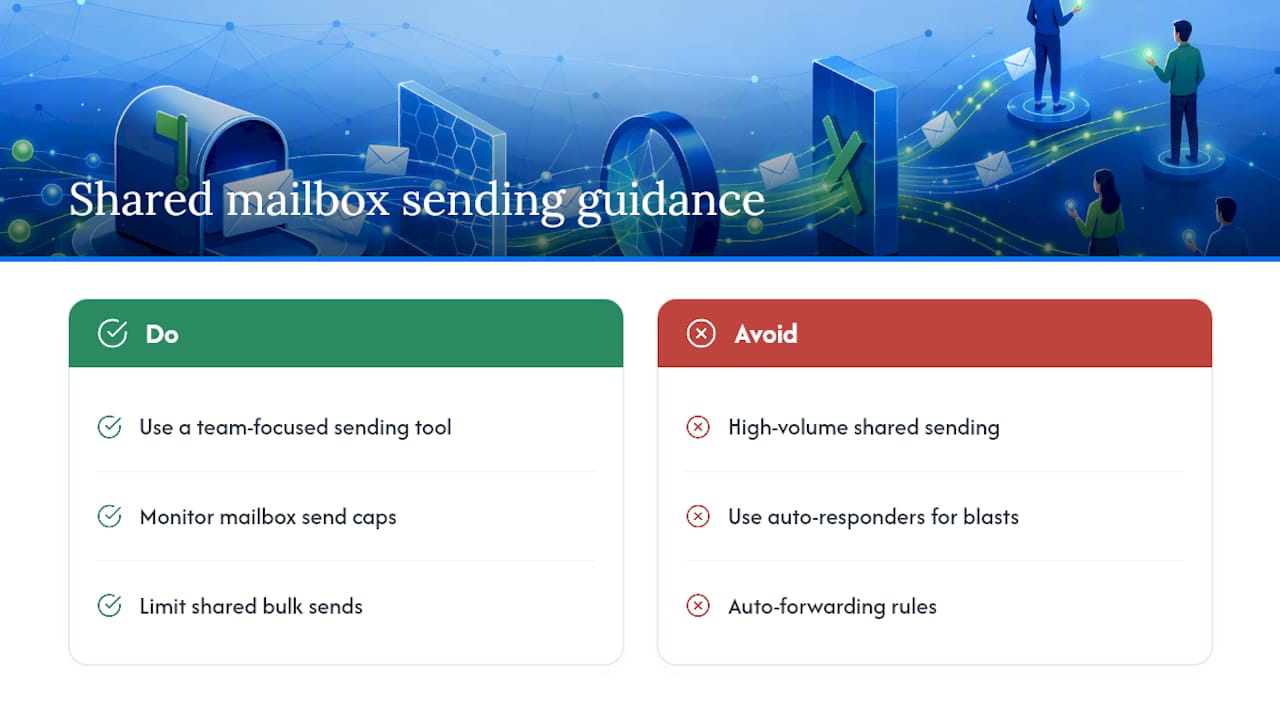
Sending limits on a shared mailbox are the same as sending limits on any other mailbox, which is the problem. There’s no separate, higher-volume allowance for a shared inbox handling hundreds of customer replies a day, even though it’s doing far more outbound traffic than a single person’s inbox ever would.
Daily send caps that are perfectly reasonable for one employee become a real constraint once five or six agents are all sending replies through the same shared address throughout the day. Teams that lean on auto-responders, bulk status updates, or forwarding rules to route messages to personal accounts often bump into these ceilings faster than they expect, especially during a support spike after a product incident.
Forwarding restrictions add another layer of friction. Rules that auto-forward shared mailbox messages to individual agents can trigger spam-prevention flags or get silently throttled, which means messages appear to “disappear” with no clear error message pointing to the cause. None of this is intuitive to diagnose unless you already know sending limits exist at the mailbox level rather than the team level. A support tool built around shared sending from the start avoids this because it’s designed to handle many agents replying from one identity as the normal case, not the edge case.
Do Outlook Clients and Mobile Apps Behave the Same Way?
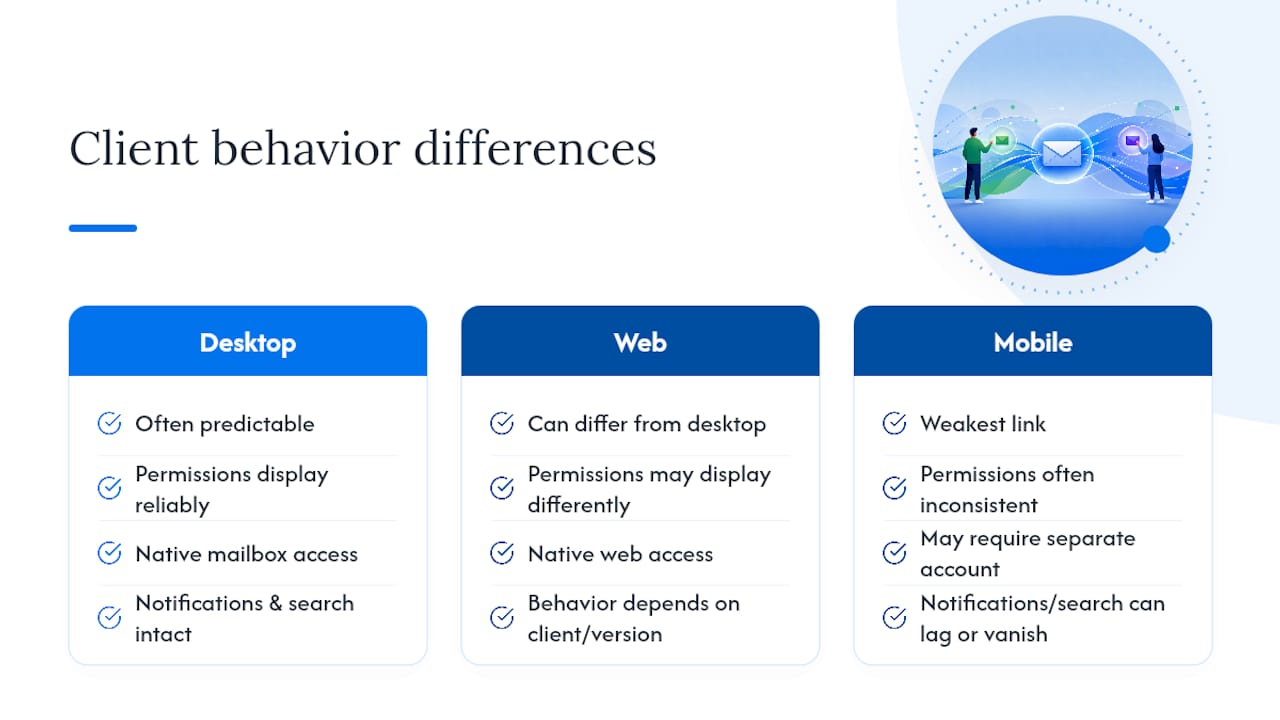
They don’t, and that inconsistency is one of the most underrated limitations. A shared mailbox that behaves predictably in the Outlook desktop app can behave differently in Outlook on the web, and differently again in the Outlook mobile app, particularly around how “Send As” versus “Send on Behalf” permissions display to the recipient.
Mobile access is the weakest link. Some configurations require agents to add the shared mailbox as a separate account on their phone rather than accessing it natively, which means notifications, search, and even basic folder visibility can lag behind or vanish entirely depending on the phone’s operating system and app version. An agent replying from a phone during an off-hours spike might not see notes or flags another agent added minutes earlier from the desktop client.
Older Outlook versions compound this. Teams running a mix of Outlook 2016, newer subscription versions, and the web client often discover that a feature working fine for one agent simply isn’t available for another, with no clear indicator of why. For a support team where speed and consistency matter every hour of the day, that unpredictability is a real operational cost, not a minor inconvenience. A browser-based shared inbox that works identically across every device sidesteps this problem by design.
Can You Share Calendars and Contacts Through a Shared Mailbox?
Calendar and contact sharing inside a shared mailbox is more limited than most teams expect going in. A shared mailbox does come with its own calendar, but permission handling around it is clumsy: granting one agent edit access to appointments often means granting broader mailbox permissions than intended, which isn’t a clean separation of duties.
Contact sharing has similar friction. Contacts saved inside the shared mailbox don’t sync cleanly with an individual agent’s personal address book, so agents frequently end up maintaining duplicate contact lists, one for their personal account and one attached to the shared inbox. That duplication is exactly the kind of manual overhead a support team can’t afford at volume.
For teams that rely on scheduling callbacks or tracking customer contact history alongside email threads, this is a real functional gap, not a nice-to-have missing feature. Support teams that need scheduling tied directly to a conversation, rather than a separate calendar entry someone has to remember to create, generally need a tool built around that link from the start rather than trying to bolt calendar logic onto a mailbox that was never designed to carry it.
Why Is Managing Permissions So Complicated?
Permission granularity is one of the most persistent Outlook permissions issues support managers run into. Native shared mailbox permissions are essentially binary: an agent has full access or they don’t, with limited middle ground for restricting someone to, say, reading messages without sending, or replying only within certain folders.
That lack of nuance creates real management overhead. Adding a new agent means an admin has to manually grant mailbox permissions through the admin center, and removing access when someone leaves the team requires the same manual step in reverse; miss it, and a former employee retains access far longer than anyone intended. There’s no built-in role system that separates, for example, a trainee who should only view messages from a senior agent who should be able to assign and close them.
This is where the limit on shared mailbox access really bites for growing teams. Every new hire adds administrative work that doesn’t scale, and every offboarding is a manual security task instead of an automated one. Tools built specifically for shared inbox management usually offer role-based permissions out of the box, which turns a recurring admin chore into a one-time setup decision.
What Do Support Teams Usually Get Wrong the First Time?
The most common mistake isn’t picking the wrong tool. It’s waiting too long to change the process, then blaming the software when duplicate replies pile up. Teams often notice the symptoms, an angry customer getting two different answers, an agent quietly duplicating another agent’s work, months before anyone connects it to the mailbox itself.
The fix usually isn’t complicated. It’s establishing an assignment and status rule before volume forces the issue, so the transition to a proper team inbox is a planned upgrade rather than a panic response to a customer complaint that went public.
Support teams that get this right treat shared mailbox limitations as a scaling signal, not a failure. Reading the warning signs early, rising response times, agents stepping on each other’s replies, is far cheaper than fixing the damage after a bad week.
— Nick
How SendSync Fixes What a Shared Mailbox Can’t
SendSync was built around the exact gaps this article walks through: no assignment enforcement, no collision detection, no internal notes, and no per-agent analytics. Connecting a Gmail or Microsoft 365 mailbox takes minutes, with no DNS changes and no drawn-out IT project standing between your team and a working inbox.

Every conversation in SendSync can be claimed, tagged, and tracked through a status field, so nobody has to guess who owns a thread. Collision detection stops two agents from replying to the same message at once, and internal notes keep context attached to the conversation instead of buried in a separate chat app. Pricing is structured to avoid per-seat fees, so adding agents during a growth spurt doesn’t increase costs in the usual way.
If your team is already seeing duplicate replies or slipping response times, that’s the signal to stop patching a shared mailbox and start running a 14-day trial to see how quickly assignment and collision detection cut down on the chaos.
Sources
- Shared Mailbox vs Team Inbox: Comparison and Best Practices (2026)
- Shared inbox vs ticketing system: how to choose in 2026 | eesel AI
- Email Management for Teams: A Practical Implementation Guide