
How to Assign Emails to Teammates Effectively
How to Assign Emails to Teammates Effectively ! Team leader assigning emails on laptop Assigning emails to teammates is the process of distributing incoming messages within a shared or collaborative inbox to specific team members, creating clear ownership, faster response times,

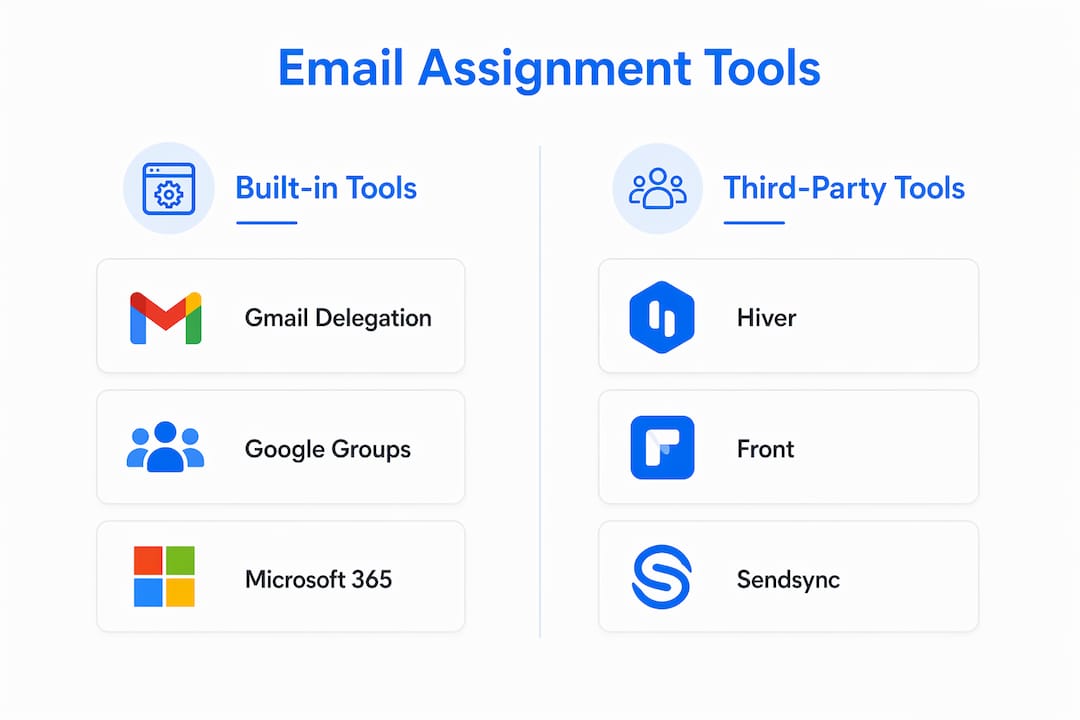
Assigning emails to teammates is the process of distributing incoming messages within a shared or collaborative inbox to specific team members, creating clear ownership, faster response times, and direct accountability. Without a structured assignment system, support teams fall into the same trap repeatedly: two agents reply to the same customer, urgent requests sit unread, and no one knows who owns what. The fix is not a bigger team. It is a smarter workflow. Gmail delegation, Microsoft 365 shared mailboxes, and third-party email assignment tools like Hiver, Front, and Sendsync each solve this problem differently, and choosing the right one depends on your team size and volume.
How to assign emails to teammates: tools and setups compared
The right tool for email assignment depends on three factors: team size, inbox volume, and how much accountability you need. Four main options exist, each with a distinct capability profile.
Gmail email delegation gives one or more users access to a primary Gmail account without sharing passwords. Gmail delegation is built directly into Gmail and supports up to 40 delegates for Google Workspace accounts. This is clean and simple, but it lacks any native assignment or collision detection. Two delegates can reply simultaneously without knowing it.

Google Groups Collaborative Inbox adds assignment, status tracking, and resolution tagging on top of a group email address. Turning a Google Group into a Collaborative Inbox gives teams the ability to claim conversations and mark them resolved. It works well for small to mid-size rotating teams, though setup takes more configuration than basic delegation.
Microsoft 365 shared mailboxes allow multiple authenticated users to send and receive from a single address. Shared mailboxes support up to 50 GB without additional license costs, making them a cost-effective option for teams already on Microsoft 365. The limitation is that native Outlook provides no assignment workflow. You can open the mailbox, but there is no built-in way to tag an email as “owned by Sarah.”
Third-party tools fill that gap. Platforms like Hiver, Front, and Sendsync layer assignment, collision detection, internal notes, and SLA tracking directly onto Gmail or Outlook. These tools provide one-click assignment and visibility into who is handling what, without requiring agents to switch to a separate help desk platform.
Tool | Best for | Assignment feature | Collision detection |
|---|---|---|---|
Gmail delegation | 1 to 3 users | None | None |
Google Groups Collaborative Inbox | Small to mid teams | Manual claim/assign | Partial |
Microsoft 365 shared mailbox | Mid to large teams | None (native) | None |
Third-party tools (Hiver, Front, Sendsync) | Any size, high volume | One-click assignment | Yes |
How to set up Gmail delegation and Google Groups for email assignment
Gmail-based teams have two practical paths: simple delegation for small setups, or a Collaborative Inbox for teams that need real assignment tracking.
Setting up Gmail delegation
Open Gmail and go to Settings (the gear icon), then See all settings.
Click the Accounts and Import tab.
Under “Grant access to your account,” click Add another account.
Enter the delegate’s email address and confirm.
The delegate accepts the invitation from their own inbox and can then manage your email from their own Google account login.
Delegated Gmail best suits 1 to 3 delegates and works well when a team leader wants an assistant to handle replies. It does not scale to rotating teams or high-volume support queues.
Setting up a Google Groups Collaborative Inbox
Go to groups.google.com and create a new group or open an existing one.
In Group Settings, set the group type to Collaborative Inbox.
Add team members and assign them roles (Owner, Manager, or Member).
Members can now open conversations, click Assign, and select a teammate.
Resolved conversations can be marked as Completed to remove them from the active queue.
Pro Tip: Establish a triage window, such as every 30 minutes during business hours, where one designated team member reviews unassigned conversations and routes them. Without a triage protocol, the Collaborative Inbox becomes another pile of unread email.
The Collaborative Inbox is a solid middle ground. It gives you assignment and status tracking without paying for a third-party tool. The tradeoff is that it requires discipline. There is no automation, no SLA clock, and no internal notes thread attached to each conversation.
How to assign emails in Microsoft 365 shared mailboxes
Microsoft 365 shared mailboxes are the standard setup for Outlook-based support teams. The setup process runs through the Exchange Online admin center, not Outlook itself.
Sign in to the Microsoft 365 admin center at admin.microsoft.com.
Go to Teams and groups, then Shared mailboxes, and click Add a shared mailbox.
Enter a display name and email address for the shared inbox (for example, support@yourcompany.com).
Once created, click the mailbox and select Edit under “Members” to add team members.
Grant Full Access so members can open and manage the mailbox, and Send As so they can reply from the shared address.
Full Access and Send As permissions allow team members to manage the mailbox and send from the shared email address with proper ownership tracking. One practical shortcut: rather than adding individuals one by one, grant permissions to a mail-enabled security group. Granting permissions to security groups simplifies onboarding and offboarding because you only update group membership, not the mailbox configuration itself.
Once set up, team members access the shared mailbox directly in Outlook by adding it as an additional account or finding it auto-mapped under their profile. The critical limitation remains: Outlook has no native “assign to teammate” button. Teams typically work around this by using categories, flags, or folder rules. These workarounds are fragile. A category label does not prevent two agents from opening and replying to the same thread simultaneously.
For teams handling more than 30 to 50 emails per day, a third-party layer on top of the shared mailbox is the practical answer.
Using third-party email assignment tools for better team collaboration
Third-party email assignment tools solve the problems that Gmail and Outlook leave open. They do not replace your inbox. They sit on top of it and add the workflow layer that native clients lack.
The core features that matter for support teams are:
One-click assignment: Assign any conversation to a specific teammate in a single action, visible to the whole team.
Collision detection: A real-time alert that shows when two agents have the same email open, preventing duplicate replies before they happen.
Internal notes: Threaded comments attached to a conversation that customers never see, so agents can hand off context without forwarding chains.
SLA tracking: Timers that flag conversations approaching or breaching response time targets.
Automated rules: Logic that routes emails based on keywords, sender domain, or agent availability without manual triage.
Sendsync connects directly to Gmail or Microsoft 365 mailboxes and adds all of these features without requiring DNS changes or lengthy configuration. For teams that have tried managing support through a raw shared mailbox and found it chaotic, the difference is immediate. Automated rules alone can eliminate 40 to 60 percent of manual triage work by routing emails from known customers or specific product lines directly to the right agent.
Pro Tip: Set up at least one automated rule on day one: route any email containing “urgent” or “down” in the subject line directly to your most senior available agent. This single rule prevents critical issues from sitting in a general queue.
Automated flows to assign emails work best when they do not modify conversation IDs or subject lines, since both can break thread integrity. Third-party tools handle this correctly by storing assignment data in metadata rather than altering the email itself.
Common mistakes when assigning emails and how to fix them
Even teams with the right tools make avoidable errors. These are the most common failure points in email assignment workflows.
Shared login credentials: Most failed team inboxes result from shared logins instead of unique user access, which undermines security and makes it impossible to track who replied to what. Every team member must have their own authenticated login.
Modifying subject lines for ownership tagging: Adding “Assigned to Alex]” to a subject line seems logical but [breaks email threads in most clients and confuses customers who reply to the modified subject. Use metadata labels or tool-based assignment instead.
No triage protocol: An email should never sit unassigned except when it is brand new. Teams without a defined triage window let emails age past SLA without anyone noticing.
Ignoring handoff context: When an agent reassigns a conversation, they must leave an internal note explaining the status. Without it, the receiving agent starts from scratch and often asks the customer to repeat themselves.
The single most expensive mistake in team email management is treating a shared inbox like a personal one. Personal inboxes have one owner. Shared inboxes need explicit rules for who owns what, when, and how handoffs work.
Clear ownership protocols matter as much as the tool itself. A well-configured Sendsync or Google Collaborative Inbox with no triage rules will still produce chaos. A basic shared mailbox with a disciplined team and clear assignment norms will outperform it.
Key takeaways
Assigning emails to teammates requires the right tool for your team size plus explicit ownership protocols to prevent duplicate replies and missed SLAs.
Point | Details |
|---|---|
Match tool to team size | Gmail delegation suits 1 to 3 users; larger teams need shared mailboxes or third-party tools. |
Use unique logins always | Shared credentials destroy accountability; every agent needs their own authenticated access. |
Avoid subject line tagging | Modifying subjects breaks thread integrity; use metadata labels or tool-based assignment instead. |
Automate triage rules | Keyword-based routing rules reduce manual triage and keep high-priority emails from aging. |
Add internal notes on handoffs | Context notes prevent agents from asking customers to repeat information already shared. |
What I have learned from watching teams manage shared inboxes
The teams that struggle most with email assignment are not the ones using the wrong tool. They are the ones using the right tool incorrectly. I have seen support teams with Hiver or Front still generating duplicate replies because no one defined who owns triage between 5 PM and 9 AM. The tool cannot enforce a protocol that was never written.
The most reliable setup I have observed combines three things: a platform with native assignment and collision detection, unique logins for every team member, and a written triage schedule that names who is responsible for unassigned emails at every hour of the business day. That combination works whether you are on Sendsync, a Google Collaborative Inbox, or a Microsoft 365 shared mailbox with a third-party layer.
One thing I push back on consistently is the idea that automation solves the ownership problem. Automated routing rules are genuinely useful for high-volume queues. But they create a false sense of security. An email routed to Alex is not the same as Alex knowing he owns it, understanding the customer’s history, and having the context to reply well. Automation handles distribution. Humans handle accountability.
My practical recommendation: start with the simplest tool that covers your current volume, add one automated rule for your highest-priority email type, and review unassigned conversations as a team every morning for the first two weeks. That review habit surfaces gaps in your assignment logic faster than any audit.
— Nick
See how Sendsync handles email assignment for support teams

If your team is managing customer email through a raw Gmail or Outlook shared mailbox, you are doing extra work that the inbox was never designed to handle. Sendsync connects directly to your existing Gmail or Microsoft 365 mailbox in minutes, adding one-click email assignment, collision detection, internal notes, and SLA tracking without DNS changes or complex configuration. There are no per-seat fees, which means your whole team gets access without the cost scaling against you. Support teams using Sendsync report faster response times and a measurable drop in duplicate replies from the first week. If you want to delegate emails to your team with real accountability and visibility, Sendsync is built exactly for that workflow.
FAQ
What does it mean to assign emails to teammates?
Assigning emails to teammates means routing a specific email conversation to one named team member who takes ownership of the reply and resolution. This prevents duplicate replies and ensures every customer message has a clear point of contact.
Can you assign emails in Gmail without a third-party tool?
Yes. Gmail delegation gives other users access to your inbox, and Google Groups Collaborative Inbox adds manual assignment and status tracking. Gmail delegation works best for teams of 1 to 3 people; larger teams benefit from a Collaborative Inbox or a dedicated tool.
Does Microsoft 365 have a built-in email assignment feature?
Microsoft 365 shared mailboxes allow multiple users to access one inbox, but Outlook has no native assignment button. Teams typically add categories or flags as workarounds, though third-party tools provide proper one-click assignment and collision detection on top of the shared mailbox.
Why do duplicate replies happen in shared inboxes?
Duplicate replies occur when two agents open the same email simultaneously and both send a response without knowing the other is working on it. Collision detection, available in tools like Sendsync, Hiver, and Front, shows a real-time alert when multiple agents have the same conversation open.
What is the biggest security risk in team email assignment?
Shared login credentials are the primary security and accountability risk. When multiple agents use one login, there is no way to track who sent what or hold individuals responsible for errors. Every team member should authenticate with their own unique account.