
Admins: Give Full Access and Send As First, or Add Shared Inbox Layer
Admins: Give Full Access and Send As First, or Add Shared Inbox Layer ! Hands setting mailbox permission tokens on desk Three permission types control shared mailbox access in Exchange Online: Full Access, Send As, and Send on Behalf.

Three permission types control shared mailbox access in Exchange Online: Full Access, Send As, and Send on Behalf. Full Access lets someone open, read, and manage a mailbox, but it does not let them send a single email under that address. For a working support mailbox, grant Full Access plus Send As, then assign both through the Microsoft 365 admin center for quick changes or PowerShell for anything at scale.
TL;DR:
- Assigning only Full Access grants mailbox management rights but does not enable sending, which often causes support tickets claiming sending issues.
- PowerShell is necessary for bulk permission management and for configuring Send on Behalf, as the admin center often does not expose these options easily.
- Delegates need separate licensed mailboxes to send mail, even if they have access to the shared mailbox, and permission changes may take up to an hour to replicate.
- Using security groups for permission assignment simplifies management and auditing, while frequent audits help prevent permission sprawl and security risks.
- Native external user delegation is unsupported, requiring complex workarounds like Azure AD B2B and trust configurations, which are not suitable for ad-hoc external collaborators.
Table of Contents
- What Do Shared Inbox Permissions Actually Control?
- How Do You Assign Permissions in the Admin Center?
- What PowerShell Commands Handle Shared Inbox Permissions?
- Why Can’t My Delegate Send Yet?
- Does a Shared Mailbox Need Its Own License?
- How Do You Troubleshoot Permission Problems?
- What Best Practices Keep Shared Inbox Permissions Secure?
- Can You Delegate Shared Inbox Access to External Users or Other Tenants?
- Why Permissions Are the Part Admins Underestimate
- A Simpler Layer on Top of Your Shared Mailbox
- Sources
What Do Shared Inbox Permissions Actually Control?
Each permission type does one job, and mixing them up is the single most common reason a “finished” shared mailbox setup doesn’t actually work.
Full Access lets a delegate open the mailbox, read messages, move folders, and delete items, as if it were their own inbox. It grants zero sending rights on its own, a distinction Microsoft’s own documentation on shared mailboxes spells out directly. Admins who assign only Full Access and call it done generate a predictable wave of “I can’t reply” tickets.
Send As lets the delegate send mail that appears to come directly from the shared address, with no trace of who actually typed it. Recipients see support@yourcompany.com in the From field, period.
Send on Behalf sends as the delegate but labels the message “Jane Doe on behalf of support@yourcompany.com.” It suits situations where accountability matters more than a clean brand voice.
- support@ or sales@ addresses: Full Access plus Send As, for a consistent customer-facing identity.
- reception@ or a shared calendar mailbox: Send on Behalf, so recipients know exactly who replied.
- automated workflows or scripts: Full Access assigned to a service account or security group, often paired with Send As for outbound alerts.
How Do You Assign Permissions in the Admin Center?
Most day-to-day permission work happens in the GUI, and the path is the same whether you’re in the Microsoft 365 admin center or the classic Exchange admin center (EAC).
- Go to the Microsoft 365 admin center, then Teams & groups > Shared mailboxes, and select the mailbox you’re managing.
- Open the Manage mailbox permissions or Edit panel for that mailbox.
- Under Full Access, click Edit, then Add permissions, and select the users or security group.
- Under Send As, repeat the same process, adding whichever users need to email as that address.
- Save your changes and confirm the new delegates appear in both permission lists.
Full Access assignments trigger automapping by default, so the mailbox appears automatically in the delegate’s Outlook without a manual “add shared folder” step. That’s convenient for a handful of users but becomes clutter fast if you assign Full Access broadly, since every delegate’s Outlook profile grows heavier. Assigning permissions to a group rather than individuals keeps the GUI cleaner and your audit trail simpler. One limitation worth knowing up front: the GUI in most tenants doesn’t expose Send on Behalf at all, which pushes that assignment to PowerShell.
Pro Tip: Screenshot or export your permission list before and after any bulk change. The admin center doesn’t keep a native change history, so your own snapshot is the only audit trail you’ll have if something breaks.
What PowerShell Commands Handle Shared Inbox Permissions?
PowerShell is faster for bulk work and it’s the only reliable route for Send on Behalf, which many admin center views don’t surface. Microsoft’s PowerShell examples for creating shared mailboxes show the standard pattern for building a mailbox and wiring up permissions in one pass:
New-Mailbox -Shared -Name "Support" -DisplayName "Support Team" -Alias support |
Set-Mailbox -GrantSendOnBehalfTo MarketingSG
Add-MailboxPermission -Identity "Support" -User MarketingSG -AccessRights FullAccess -InheritanceType All
Add-MailboxPermissionwith-AccessRights FullAccessgrants open/read/manage rights;-InheritanceType Allextends that to every folder.Set-Mailbox -GrantSendOnBehalfTois the cmdlet that actually exposes Send on Behalf, since the GUI often won’t.- For Send As, use
Add-RecipientPermission -Identity Support -Trustee MarketingSG -AccessRights SendAs. - Point every cmdlet at a mail-enabled security group instead of individual users whenever more than a few people need access.
Why Can’t My Delegate Send Yet?
Full Access alone still won’t let anyone send mail. This is the same limitation covered above, and it’s worth restating because it’s the number one support ticket admins generate for themselves.
Permission changes also don’t take effect instantly. Microsoft’s guidance on granting mailbox permissions notes that “you don’t have permission to send” errors typically clear within about an hour as changes replicate. Outlook desktop, Outlook on the web, and mobile clients don’t always refresh the mailbox list at the same speed, so a delegate might see the shared inbox appear in one client before another. Test with an actual send to an external address, check the message headers to confirm whether it went out as Send As or Send on Behalf, and run Get-MailboxPermission to verify the assignment landed correctly.

Does a Shared Mailbox Need Its Own License?
A shared mailbox itself typically doesn’t require a license, but every delegate accessing it needs their own licensed mailbox, according to Microsoft’s shared mailbox overview. Where licensing does matter is features layered on top:
- Archiving and litigation hold require assigning an Exchange Online Plan 2 license (or equivalent) directly to the shared mailbox.
- Storage beyond the default limit on a shared mailbox may also require a license upgrade.
- Concurrency limits exist too. A shared mailbox with dozens of simultaneous users can hit practical performance limits, and at that scale a Microsoft 365 group or a dedicated shared-inbox tool is usually the better architecture.
How Do You Troubleshoot Permission Problems?
Work through these in order before escalating anything:
- Run
Get-MailboxPermission -Identity "Support"andGet-RecipientPermissionto confirm what’s actually assigned, not what you think you assigned. - Verify the shared mailbox’s own sign-in is blocked. Microsoft’s guidance recommends blocking sign-in on the associated account to prevent direct password logins.
- Confirm every delegate has their own licensed mailbox. Send As failures are common when a delegate account was deprovisioned or downgraded.
- Give it up to an hour for replication, then re-test.
- Check the Microsoft 365 Service Health dashboard for Exchange Online incidents before assuming it’s a configuration error.
- If it’s still broken, open a support case with your tenant ID, the exact cmdlet output, and timestamps of the failed send attempts.
What Best Practices Keep Shared Inbox Permissions Secure?
Permission sprawl is the real long-term risk with shared mailboxes. Every ad hoc “just add me real quick” request that never gets cleaned up is a mailbox that outlives its usefulness and quietly accumulates access nobody remembers granting.
- Assign through security groups, not individuals. Add or remove someone from the group and their mailbox access updates automatically, which keeps your PowerShell scripts simple and your audit trail centralized.
- Document ownership. Every shared mailbox needs one named owner responsible for reviewing its access list, not a vague “the support team manages it.”
- Run scheduled audits. Quarterly reviews of Full Access and Send As assignments catch former employees and stale service accounts before they become a security incident.
- Default to least privilege. Grant Send on Behalf instead of Send As when accountability matters more than a clean brand identity, and don’t hand out Full Access to anyone who only needs to send.
- Build onboarding and offboarding into your checklist. New hires get added to the relevant security group on day one; departing employees get removed the same day, not “eventually.”
- Use naming conventions and alerts. A consistent naming scheme (SG-Support-FullAccess, SG-Support-SendAs) makes audit logs readable at a glance, and mailbox audit logging flags unusual access patterns automatically.
Pro Tip: Set a recurring calendar reminder tied to each shared mailbox’s owner, not to yourself. Permission reviews that depend on the admin team remembering tend to slip; reviews owned by the business team that actually uses the mailbox tend to happen.
Can You Delegate Shared Inbox Access to External Users or Other Tenants?
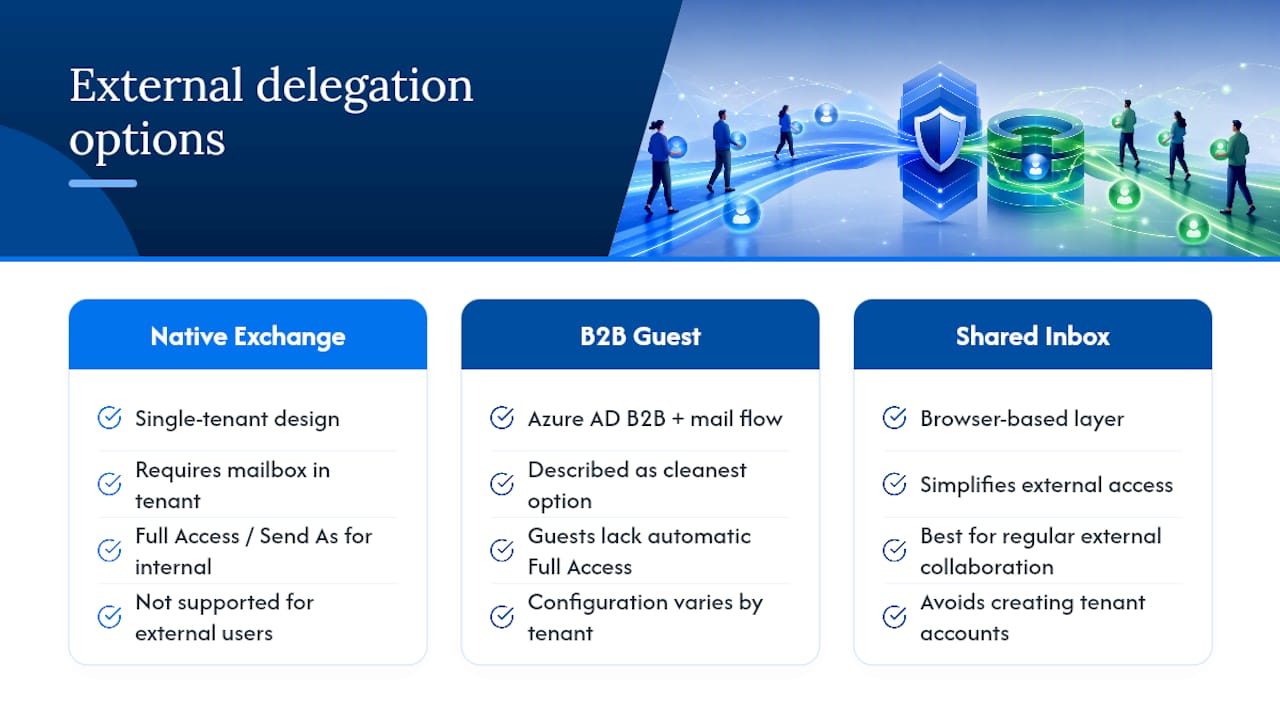
Native Exchange Online permissions were built for a single tenant, and that’s the biggest limitation admins run into when a partner agency, contractor, or client needs shared mailbox access. Full Access, Send As, and Send on Behalf all assume the delegate has a mailbox in the same tenant. Granting access to a genuinely external user, someone with no account in your directory, isn’t supported the same way, and the workarounds carry real tradeoffs.
The cleanest option is Azure AD B2B guest access combined with mail flow rules, but guest accounts don’t automatically get Full Access or Send As the way native users do, and configuration varies by tenant setup. Cross-tenant mailbox delegation is possible in some Microsoft 365 configurations but requires additional trust configuration between organizations, and it’s not something to improvise without testing in a non-production mailbox first.
If external collaboration on a shared inbox is a regular need, rather than a one-off, that’s usually a sign native Exchange permissions have hit their ceiling. Security groups and PowerShell scripting solve the internal delegation problem well, but they weren’t designed for agencies, freelancers, or partner organizations who need to triage tickets without a seat in your Azure AD tenant. That’s the gap where a browser-based shared inbox layered on top of Microsoft 365, rather than instead of it, tends to make the external-access question a lot simpler.
Why Permissions Are the Part Admins Underestimate
Most shared mailbox failures aren’t permission failures. They’re workflow failures wearing a permission costume. Full Access and Send As get assigned correctly, everyone can technically send and receive, and the mailbox still turns into chaos because five people are drafting replies to the same ticket with no visibility into who’s already responded.
Exchange permissions answer the access question well. They don’t answer the “who owns this conversation right now” question, which is the one that actually determines whether a support inbox scales past a handful of people. That gap is exactly why teams that have their permissions configured correctly still end up frustrated six months later.
The practical takeaway for admins: get the permission architecture right first, because a mailbox with confused Send As and Full Access assignments will break in ways no workflow tool can paper over. But once access is solid, evaluate whether raw Exchange permissions are still the right layer for coordinating a growing team, or whether it’s time to add assignment and internal notes on top.
— Nick
A Simpler Layer on Top of Your Shared Mailbox
Getting Full Access and Send As configured correctly solves the access problem. It doesn’t solve the assignment problem, the internal-notes problem, or the “who’s replying to this right now” problem that shows up the moment more than two or three people share an inbox.

Sendsync connects directly to your existing Gmail or Microsoft 365 mailbox in minutes, with no DNS changes and none of the permission scripting covered above. Once connected, your team gets ticket assignment, internal notes, automated triage rules, and shared visibility into every open conversation, all without per-seat fees no matter how many people you add. If your Exchange permissions are solid but your team still steps on each other’s replies, start a free trial and see whether a dedicated shared inbox layer closes that gap faster than another round of PowerShell.
Sources
For the exact cmdlet syntax and permission definitions covered here, keep Microsoft’s shared mailbox documentation and Outlook client guidance close at hand. Both get updated as Microsoft 365 evolves.
- Shared mailboxes in Exchange Online