
Shared Inbox Rollout: A 30-Day Plan for Small Teams
Shared Inbox Rollout: A 30-Day Plan for Small Teams ! Teammates assigning owners during inbox rollout planning A good shared inbox rollout takes about four weeks and mostly isn't about software.

A good shared inbox rollout takes about four weeks and mostly isn’t about software. You decide what the inbox is for, who gets access, how a message is claimed, and what “done” means. Then you pilot it with a few people, train the rest, and measure first response time before and after. The sections below give you that plan, with a checklist for each week.
TL;DR
- Week 1: define the purpose of each address (support@, info@, billing@), the owner, and a response-time goal.
- Week 2: connect the mailbox, set the fewest permissions people need, and write three or four ownership rules.
- Week 3: pilot with two or three people on real email, then fix the rules that fail.
- Week 4: train everyone in a practice setup, switch over, and measure first response time against your baseline.
- With SendSync you connect Gmail or Microsoft 365 in minutes, with no DNS changes and no per-seat fees.
Table of Contents
- What a shared inbox rollout actually involves
- Week 1: Decide before you configure
- Week 2: Choose the setup and connect the mailbox
- Permissions and notifications: fewest rights, clear alerts
- Write the ownership rules everyone follows
- Week 3: Pilot with real email
- Week 4: Train, switch over, and communicate
- Perspective: Why we keep the rollout small
- Measure whether the rollout worked
- Common rollout mistakes
- Try it with your own mailbox
- FAQ
- Sources
What a shared inbox rollout actually involves
A shared inbox is one email address, such as support@yourcompany.com, that several people read and answer using their own logins. That differs from sharing one password, which leaves nobody accountable for who replied. It also differs from forwarding or distribution lists, where each person gets a copy and nobody knows whether someone else already answered.
A rollout is the move from whatever you do today (forwarding, CC chains, a shared password, one person’s overloaded Gmail) to a single place where every conversation has an owner and a status. It has four parts:
- Decisions: purpose, owners, response goals.
- Setup: connecting the mailbox, permissions, notifications.
- Habits: claim-before-reply, statuses, notes.
- Proof: metrics that show whether it worked.
Most failed rollouts skip the first and third parts and spend all their energy on the second. If you want the background on why teams make the switch at all, our piece on why small teams need a shared inbox covers it.
Week 1: Decide before you configure
Open a document and answer these questions for every address you plan to move.
Purpose and owner
Write one sentence per inbox. “support@ handles customer questions about orders and accounts.” “info@ handles general inquiries and partnership requests.” If an address serves two very different audiences, such as customers and vendors, consider splitting it. A separate client-facing inbox keeps priorities clear, and we explain the reasoning in why a separate client inbox matters.
Name one owner per inbox. This is the person who reviews rules, approves access and answers the question “who is watching this today?” It doesn’t have to be a manager. It has to be a named person.

Response-time goal
Pick a first-response target you can actually meet, then tighten it later. Many teams start with one business day for email and shorten it once the inbox is stable. For reference points by channel, see our first response time benchmarks for small teams. Write the goal down, because you will measure against it in week 4.
Your baseline
Before you change anything, capture a few numbers from your current setup, even if they are rough:
- Average time from a customer email arriving to the first reply.
- Emails received per week on each address.
- Number of times in the last month two people answered the same message, or nobody did.
The last one is an honest count from the team’s memory. It does not need to be precise to be useful. Without a baseline, you can’t say the rollout helped.
Week 2: Choose the setup and connect the mailbox
Small and remote teams usually pick between three routes.
| Route | How it works | Best fit |
|---|---|---|
| Built-in shared mailbox or group in your email suite | Uses the tools included with Microsoft 365 or Google Workspace | Very low volume, a few people, little need for assignment or status |
| Full help desk | Separate platform with its own ticketing, often DNS and domain setup | Larger teams with complex routing and reporting needs |
| Lightweight shared inbox on top of your existing mailbox | Connects to Gmail or Microsoft 365 and adds assignment, notes, tags and statuses | Small teams that want ownership and visibility without a long setup |
The third route is what we built SendSync for. You connect a Gmail or Microsoft 365 mailbox, your address stays the same, and nobody has to touch DNS records. Teams can usually be live the same day, which matters during a rollout because a fast first setup keeps momentum. If you’re comparing options by type, our roundup of the best shared inbox tools lays out the criteria.
Setup checklist
- Connect the mailbox for one address first, not all of them.
- Invite the pilot group only.
- Create the tags you expect to need (for example billing, bug, feature request, refund). Keep it under ten.
- Set up a few saved views: unassigned, assigned to me, waiting on customer.
- Add a short email signature template so replies look consistent.
Permissions and notifications: fewest rights, clear alerts
Before launch, give each person only the access they need. Guidance on team email security recommends granting the fewest permissions needed and reviewing delegated access regularly, since overly broad access and stale permissions are among the common risks of shared inboxes.
In practice:
- Separate admins from agents. Two or three people manage settings. Everyone else works conversations.
- Use individual logins. Every reply should be traceable to a person, which helps with quality reviews and handoffs.
- Remove access the day someone leaves. Add it to your offboarding checklist, next to laptop return and password resets.
- Review access monthly. Put a recurring reminder on the inbox owner’s calendar.
- Watch for impersonation and phishing. Shared addresses are public, so they attract suspicious mail. Agree that nobody clicks links or opens attachments from unknown senders without a second pair of eyes, and note it in your rules.
If an IT person is involved, our guide to shared inbox security goes deeper on auditing and access.
For notifications, resist the urge to alert everyone about everything. A workable default:
- New unassigned email: notify the person on duty, not the whole team.
- Assigned to you: notify you.
- Reply from customer on a conversation you own: notify you.
- Everything else: visible in the inbox, no alert.
Too many alerts train people to mute them, and a muted shared inbox is how messages get missed.
Write the ownership rules everyone follows
This is the part that removes duplicate and missed replies. Guidance for team inboxes consistently points to the same habit: claim a message before you reply, and use visible statuses such as New, In Progress, Waiting on customer and Resolved, so everyone can see who has what.
Keep your rules short enough to fit on one screen:
- Claim before you reply. Assign the conversation to yourself before you start typing.
- One owner at a time. If you can’t finish, reassign it with a note, don’t leave it.
- Update the status when it changes. Waiting on the customer is not the same as unanswered.
- Use internal notes for anything internal. Questions to a teammate, context, and decisions go in notes, not in side chats.
- Tag on close. One tag per conversation is enough to make reporting useful later.
- Escalate by reassigning, not forwarding. The history stays attached to the conversation.
We’ve written up more detailed examples in our shared inbox workflows guide and a set of scalable inbox workflow examples. Pick the one that fits your team size and adapt it. Don’t try to copy a large team’s setup on day one.
A simple triage routine
Whoever is on duty at the start of the day scans the unassigned view and does three things with each message: assign it, tag it, or archive it as noise. That takes minutes and means nothing sits unseen. For remote teams spread across time zones, a rotating duty schedule works better than “whoever sees it first.” Our remote team inbox collaboration guide covers handoffs across time zones.
Week 3: Pilot with real email
Run the pilot with two or three people for one week, on real traffic. Choose one experienced person, one newer person, and one skeptic. The skeptic finds the problems everyone else politely ignores.
During the pilot:
- Forward or route only one address to the new setup.
- Hold a ten-minute check-in at the end of each day. What confused you? What did you almost do twice?
- Keep a running list of rule changes. Fix the rules, not the people.
- Compare the pilot week to your baseline. Even a rough first-response number is useful here.
Typical findings: too many tags, a status nobody uses, a notification that fires at the wrong time, or an unclear rule about who handles messages that arrive after hours. Each of these is a ten-minute fix when caught in week 3 and a lasting annoyance if caught in month 3.
Week 4: Train, switch over, and communicate
Train by doing

Slide decks and videos are a weak substitute for practice. Rollout guidance for support teams recommends a practice environment where agents handle realistic tasks such as assignments and escalations rather than relying only on demo videos or written guides.
A 45-minute session is enough for a small team:
- Five minutes: why you’re switching and what changes for each person.
- Ten minutes: walk through the six rules above.
- Twenty minutes: everyone works through five sample emails (a simple question, a billing issue, a request that needs a teammate, a message that belongs to someone else, and a spam-looking one).
- Ten minutes: questions, then a one-page cheat sheet stays pinned in your team chat.
Switch over cleanly
- Pick a low-volume day, early in the week, not a Friday.
- Move one address at a time.
- Tell the team exactly when the old process stops. Two parallel systems create the very duplication you’re trying to remove.
- Keep the old shared password or forwarding rule disabled but documented for a few days in case something was missed, then delete it.
Your customers should notice nothing except faster, more consistent answers. Because the address and sender stay the same, there’s no customer-facing announcement to make.
Perspective: Why we keep the rollout small
We built SendSync because we kept watching small teams avoid a proper support setup. They were not lazy. The tools wanted DNS changes, long configuration and a seat for every person. By the time a team had it running, the email chaos had already cost them customers.
Our view is that a rollout should be judged by how fast a team gets to the first well-handled conversation. That is why SendSync connects to Gmail or Microsoft 365 mailboxes in minutes, with no DNS work. The team can start in the afternoon, and the rules and habits described above matter far more than any feature list.
We also believe that per-seat pricing quietly punishes good habits. If adding a part-time teammate, a founder who jumps in on busy days, or a freelancer costs extra, people stay out of the inbox and the same two people answer everything. Our plans include unlimited users, so the whole team can see what is happening and help when it matters.
Our advice is to start with the essentials: assignment, internal notes, tags, saved views and a few automations for triage. Add more only when a real problem calls for it.
Nick
Measure whether the rollout worked
At the end of week 4, and again at day 60, compare against your baseline. Three numbers are enough.
- First response time. This is the time from when a new conversation arrives in the shared inbox until the first team reply is sent, as one team’s rollout write-up defines it. Measure the median as well as the average, because one forgotten thread skews an average.
- Unassigned time. How long messages sit before someone claims them. This is the earliest signal that your triage routine works.
- Duplicate or missed replies. Go back to the monthly count you took in week 1. It should fall toward zero.
A dashboard that shows these without manual spreadsheet work makes the review honest. Set the review as a recurring 20-minute meeting, look at the trend, and change one rule at a time. More tips for the ongoing routine are in our shared inbox best practices for support teams.
Common rollout mistakes
- Migrating every address at once. Start with one.
- No named owner. Rules drift and permissions go stale.
- Too many tags and statuses. If people need a manual to pick one, they will pick randomly.
- Skipping the baseline. You can’t show improvement without a starting point.
- Treating training as a one-time event. Do a 15-minute refresh after the first month, using real examples from the inbox.
- Letting side channels return. If teammates keep asking in chat “can you take this one?”, move that exchange into an internal note on the conversation.
Try it with your own mailbox
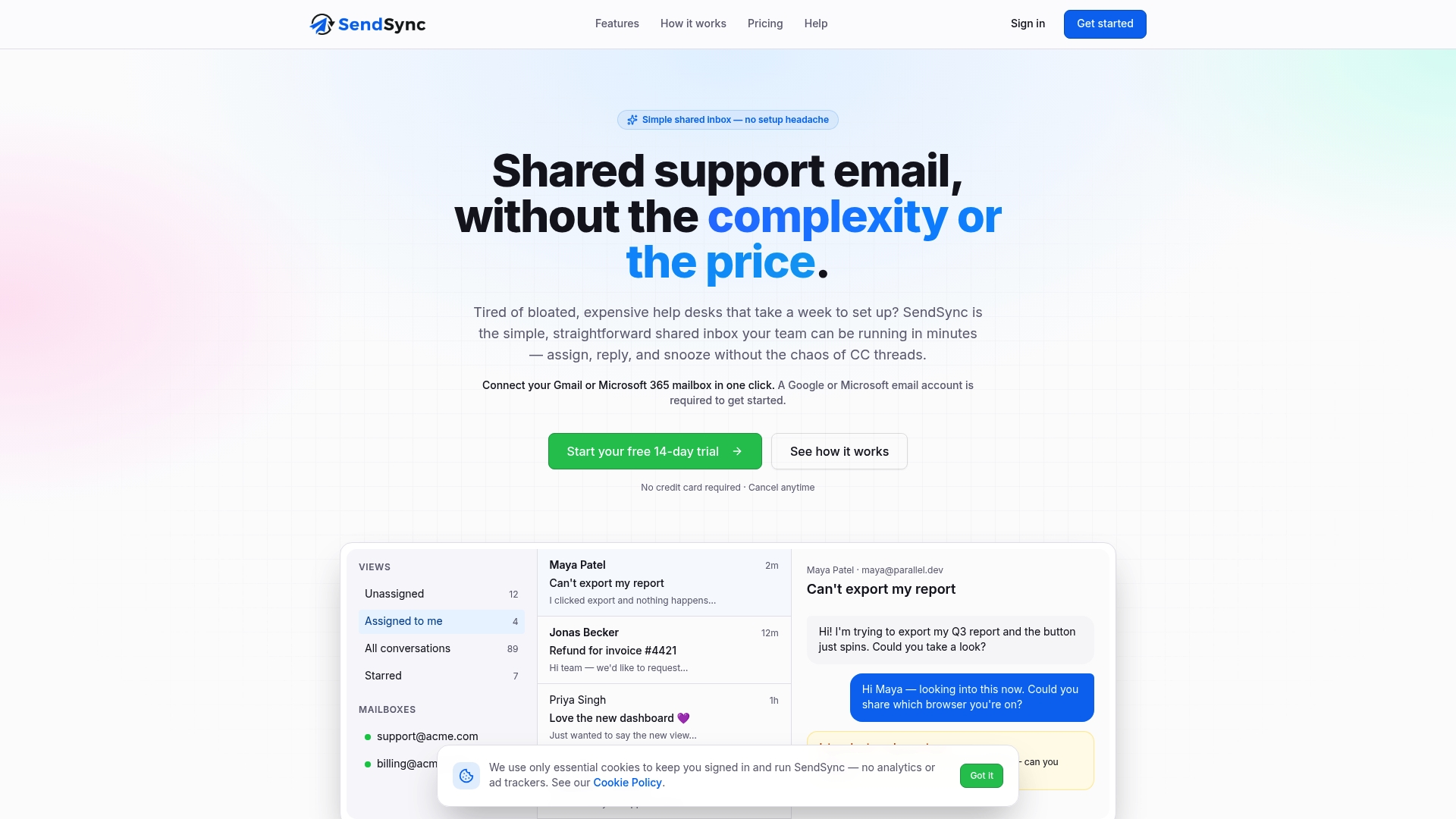
If you’re ready to pilot, SendSync offers a 14-day free trial, which fits neatly into the week 2 to week 4 plan above. Plans are flat-priced with unlimited users: Founder is $10 per month, Starter is $30 per month, Growth is $80 per month and Scale is $200 per month. Connect a Gmail or Microsoft 365 mailbox, invite your pilot group and run your first real week.
See the plans and start your trial at SendSync.
FAQ
How long does a shared inbox rollout take?
For a small team, plan on about four weeks: one for decisions, one for setup and permissions, one for a pilot, and one for training and switchover. The technical connection can take minutes. The time goes into agreeing on rules and giving people a chance to practice them.
Do we need to change our email address or DNS records?
Not with SendSync. You connect your existing Gmail or Microsoft 365 mailbox, so your address stays the same and there are no DNS changes. Check any other tool you evaluate for its own domain requirements before you commit to a timeline.
Who should have access to the shared inbox?
Give access to the people who answer customers, plus one or two admins who manage settings. Keep permissions to what each person needs, use individual logins, and review the list monthly. Remove access on a person’s last day.
How do we stop two people from answering the same email?
Make claim-before-reply a team rule: assign the conversation to yourself before you write, and keep the status current. Saved views for unassigned and in-progress conversations make ownership visible at a glance.
How do we know the rollout improved anything?
Record your first response time and weekly email volume before you start, then compare at the end of week 4 and at day 60. If first response time falls and duplicate or missed replies drop, the new habits are working.
Sources
- Team Email Management: Secure Inbox Guide 2026
- A Beginner’s Guide to Shared Team Inboxes
- Helpdesk Migration: From Shared Inbox
- How EasyDesk Improved Response Time for a Growing Team