
High Volume Email Support: HVE Limits and Shared Inbox Options
High Volume Email Support: HVE Limits and Shared Inbox Options ! Administrator configuring high-volume email service "High volume email support" usually means one of two things.

“High volume email support” usually means one of two things. Either you are an admin trying to get Microsoft 365 High Volume Email (HVE) working, or you run a support team whose inbox is drowning. This guide covers both: how HVE works, what it costs and why it fails, and what to use when the volume is customers writing to you rather than apps writing to staff.
The short version: HVE sends automated email to people inside your own organization. It is not a way to answer customers, and it does not manage a busy support queue.
TL;DR
- Microsoft 365 HVE is built for apps and devices that send large volumes of internal, automated email, such as alerts and reports.
- As of 2025, Microsoft moved HVE to internal recipients only, so it cannot send to customers.
- HVE bills at $42 per million recipients, and an account without a valid billing policy is blocked from sending.
- If your problem is inbound customer email, you need a shared inbox with assignment, notes and tagging, not a bulk sender.
- Most sending and authentication errors trace back to billing policy, port and TLS settings, or security defaults.
Table of Contents
- What Microsoft 365 High Volume Email actually is
- Can HVE email external recipients?
- HVE limits and costs at a glance
- How admins set up HVE and authenticate
- Troubleshooting HVE errors
- When the volume is inbound: customers writing to you
- Perspective: why we built a thin inbox
- Choosing the right tool for the job
- Try SendSync on your own mailbox
- FAQ
- Sources
What Microsoft 365 High Volume Email actually is
HVE is an Exchange Online service that lets applications and devices send large volumes of email without touching user mailboxes or hurting service health. Microsoft designed it for automated, transactional and operational messages: IT alerts, HR notifications, reports generated by devices and similar.
Think of a line-of-business app that needs to tell 8,000 employees about a policy update, or a scanner that emails PDFs. Those jobs used to be shoehorned into a regular mailbox, which ran into per-mailbox sending limits. HVE gives them their own lane.
If your business relies on Microsoft 365 for operations, a managed Microsoft 365 services provider can help you decide which automated messages belong in HVE and which belong elsewhere.

Can HVE email external recipients?
No. Microsoft announced that HVE would focus exclusively on internal recipients within the tenant and that the ability to send to external recipients would be removed. Community reports confirm the practical result: external sending stopped working in 2025.
The reasoning, as one analyst put it, is that Microsoft wants external bulk mail to go through Azure Communication Services, whose fees are minimal and comparable to third-party email services.

This matters for support teams. If someone suggested HVE as the way to “handle high volume email” for customers, it cannot do the job. It sends. It does not receive, sort, assign or track replies.
HVE limits and costs at a glance
| Item | What Microsoft states |
|---|---|
| Recipient and message rate limits | None |
| Message size | 10 MB per message |
| Recipients per message | 50 |
| HVE accounts per tenant | Up to 100 |
| Billing policy | Required on every HVE account |
| Price | $0.000042 per expanded delivered recipient, or $42 per million |
All of these figures come from Microsoft’s HVE documentation.
A quick worked example: an internal notification that goes to a distribution list of 2,000 people counts as 2,000 recipients, because billing is on expanded recipients. Send it 30 times a month and you have 60,000 recipients, which is about $2.52 at the published rate. HVE is cheap at internal scale. The real cost is admin time when something breaks.
How admins set up HVE and authenticate
Setup happens in the Exchange admin center or through PowerShell. You create the HVE account, then assign a billing policy tied to an Azure subscription. Without that policy, the account does not send.
For authentication, applications can use either:
- Basic authentication, using the HVE account credentials.
- Modern authentication, using an OAuth token.
Both submit mail through the smtp.hve.mx.microsoft endpoint on port 587, per the Microsoft documentation. Microsoft has said it plans to keep supporting basic authentication until September 2028, so new builds should still start with OAuth.
Billing began in 2026
HVE reached general availability in March 2026, with billing starting June 1, 2026 at the rate above. Any app that was quietly sending during the preview should be checked against a billing policy now.
Troubleshooting HVE errors
Most failures fall into a few buckets. Work through them in this order:
- Billing policy. Accounts without a valid billing policy, or with a problem on the linked Azure subscription, are blocked from sending. Check this first.
- SMTP settings. Confirm the server, port 587 and TLS are set correctly. Older devices that cannot negotiate TLS are a common culprit.
- Authentication method. If tenant security defaults are on, basic authentication is disabled. Custom authentication policies can also block the method you chose. Switch the app to OAuth or adjust the policy.
- Recipient scope. If a message to a customer address fails, that is the internal-only rule, not a bug. Route external mail through another service.
- Message shape. Keep messages under 10 MB and 50 recipients each, and split larger sends.
Microsoft’s troubleshooting page lists the OAuth SMTP error codes and what each one means.
When the volume is inbound: customers writing to you
Many people who search this phrase don’t have a sending problem. They have 400 emails a day landing in one support@ mailbox, three people answering the same thread, and nobody sure who owns what.
Bulk senders do not fix that. What fixes it is a workflow:
- One owner per conversation. Assignment prevents the double reply. Our guide on assigning emails to teammates covers the rules that hold up under load.
- Internal notes beside the thread. Context stays with the conversation rather than in a side chat.
- Tags and saved views. A “billing, waiting on customer” view beats scrolling.
- Triage automation. Simple rules route refund requests, outages and sales questions before a human reads them.
- Metrics. First response time and open count by person show you where the queue is stuck.
We have also collected common email management mistakes that make inboxes worse as volume grows, and examples of scalable inbox workflows you can copy.
Shared mailbox or shared inbox?
A Microsoft 365 shared mailbox is the free starting point, and many teams begin there. If you want to understand what it does and where it stops, read what a Microsoft 365 shared mailbox is. When you need assignment, notes and reporting on top of your existing mailboxes, see the Microsoft 365 team inbox setup guide.
A practical setup for a busy queue
Here is how a five-person team handling a few hundred emails a day can structure the first week:
- Connect the support mailbox rather than forwarding it, so threads stay intact.
- Create five tags: billing, bug, how-to, sales, urgent.
- Save a view per tag plus one for “unassigned.”
- Set a rule so anything tagged urgent is assigned to the on-call person.
- Agree that nobody replies to a thread they don’t own, and reassign instead.
- Review median first response time every Friday and adjust staffing or rules.
The goal is not zero email. It is that every message has a visible owner and a status.
Perspective: why we built a thin inbox
We talk to support teams every week, and the pattern is consistent. They don’t need a bigger system. They need their email to stop being chaotic.
Traditional help desks often ask for DNS changes, long configuration and a seat for every person who might ever touch a ticket. For a ten-person team or a founder answering their own customers, that is a lot of overhead before the first reply goes out. So we built SendSync to connect to the Gmail or Microsoft 365 mailboxes you already have, with no DNS work, and to get you running in minutes.
We also think pricing should not punish you for adding a teammate. Our plans have unlimited users and no per-seat fees, so you can bring in a part-timer or a contractor during a busy season without a budget conversation.
Volume is a workflow problem long before it is a software-size problem. Assign clearly, keep notes with the thread, tag consistently, and automate the obvious triage. A thin tool that does those things well beats a heavy one that nobody configures.
Nick
Choosing the right tool for the job
| Your situation | What fits |
|---|---|
| Apps or devices emailing employees at scale | Microsoft 365 HVE |
| Bulk email to customers or the public | A dedicated external sending service, such as Azure Communication Services |
| Customers emailing a support address | A shared inbox with assignment and notes |
| A growing team on a per-seat help desk | A flat-price shared inbox on your own mailboxes |
If you are weighing a move away from a heavy help desk, our post on moving from a help desk to a shared inbox walks through the steps. If you juggle many accounts, see multi client email management. And if support needs to see customer records, the guide to a CRM shared inbox covers a lean setup with safe permissions.
Try SendSync on your own mailbox
SendSync connects to Gmail or Microsoft 365 so your team can assign, reply and manage conversations together, with internal notes, tagging, saved views, triage automation and metrics dashboards. Every plan has unlimited users. Published monthly prices are Founder at $10, Starter at $30, Growth at $80 and Scale at $200, and you can start with a 14-day free trial.
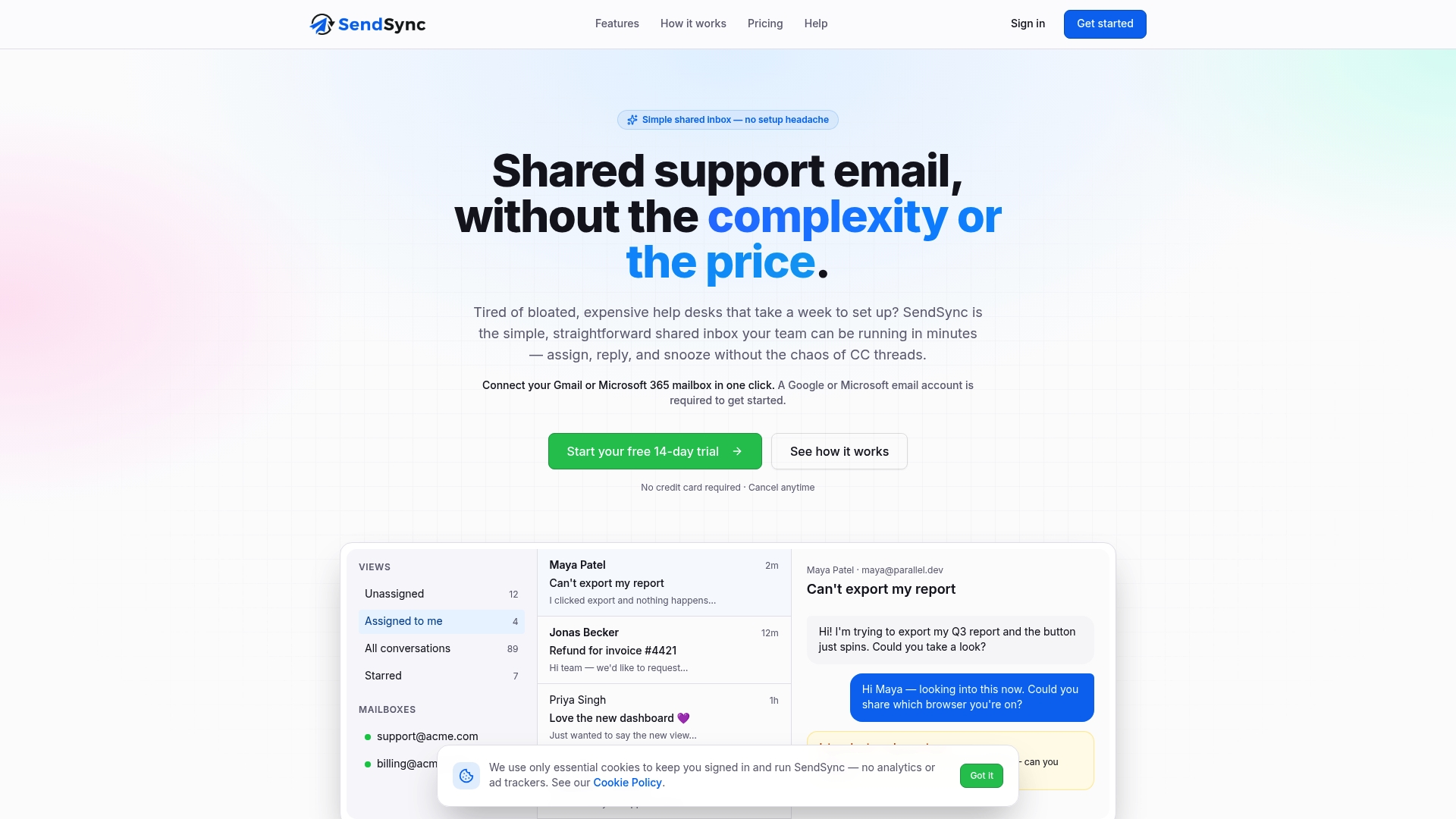
See the plans and start your trial on the SendSync site.
FAQ
Can High Volume Email send to customers?
No. Microsoft limited HVE to internal recipients within your tenant, and external sending is no longer supported. For customer-facing bulk mail, use a separate external sending service.
How much does HVE cost?
Microsoft charges $0.000042 per expanded delivered recipient, which equals $42 per million recipients. An HVE account also needs a billing policy linked to an Azure subscription, or it cannot send.
Why is my HVE account blocked from sending?
The most common reason is a missing or invalid billing policy, or a problem with the linked Azure subscription. If billing is fine, check SMTP server, port 587, TLS, and whether security defaults disable basic authentication.
How do I handle a high volume of customer support email?
Start by giving every conversation one owner, then add tags, saved views and simple triage rules. A shared inbox that connects to your Gmail or Microsoft 365 mailbox lets the whole team work the same queue without per-seat costs.
Sources
- Manage High Volume Email for Microsoft 365, Microsoft Learn
- Troubleshoot issues with high volume email for Microsoft 365, Microsoft Learn
- High Volume Email: Continued support for Basic Authentication and other updates, Microsoft Tech Community
- Microsoft Changes Strategy for High Volume Email, Practical365
- High Volume Email to Restrict Email Delivery to Internal Recipients, Petri