
Support Managers: Shared Mailbox Limits Often Start at 50 Emails/Day
Support Managers: Shared Mailbox Limits Often Start at 50 Emails/Day ! Manager reviewing shared mailbox workflow Native shared mailboxes hold up fine for a two-person team fielding a few dozen emails a day.

Native shared mailboxes hold up fine for a two-person team fielding a few dozen emails a day. Once you see duplicate replies, a growing pile of unassigned messages, or leadership asking for response-time reports you can’t produce, the mailbox has become the bottleneck, not the tool. That’s the moment to evaluate a purpose-built shared inbox like Sendsync instead of adding more workarounds. The limitations fall into a few clear buckets: assignment, collision, reporting, and integration, and each one gets worse as volume grows.
TL;DR:
- Once unassigned messages and duplicate replies become frequent, a dedicated support tool improves efficiency and reduces collision risks.
- Native shared mailboxes lack features like ownership, SLA tracking, and integrated history, causing support delays and oversight issues at higher volumes.
- Teams exceeding roughly three to five members or handling over 50 emails daily face increased collision, backlog, and permission management challenges.
- Using governance strategies can extend a shared mailbox’s lifespan, but migrating to purpose-built tools offers more scalable and reliable support management.
- Sendsync provides an easy, scalable alternative with explicit assignment, collision prevention, and support reporting that easily integrates with existing email systems.
Table of Contents
- What Are the Warning Signs of Shared Mailbox Limitations?
- Where Native Shared Mailboxes Fall Short for Support Work
- What Volume or Team Size Signals a Need to Switch?
- How Can You Extend a Shared Mailbox’s Useful Life?
- How Purpose-Built Shared Inboxes Close These Gaps
- How Many People Can Actually Use a Shared Mailbox?
- Are There Security and Permission Gaps in Shared Mailboxes?
- What Happens to Delegation and Forwarding Rules?
- Can You Use a Shared Mailbox on Mobile Devices?
- Do Shared Mailboxes Work Well With Other Email Tools?
- A Manager’s Checklist for Making the Call
- Sendsync Fits Support Teams Ready to Move Past a Shared Mailbox
- Sources
What Are the Warning Signs of Shared Mailbox Limitations?
The switch decision shouldn’t hinge on headcount. A five-person team handling simple, low-touch requests can run a shared mailbox for years without trouble, while a three-person team fielding complex, multi-step tickets can hit a wall in months. What matters is what’s actually happening inside the inbox, and experts recommend making this call based on operational signals rather than fixed team-size thresholds.
Watch for these concrete symptoms:
- First response time creeping up week over week, especially on messages nobody has visibly claimed.
- An unassigned backlog that never hits zero, even after a slow day.
- Duplicate replies, where two agents answer the same customer within hours of each other.
- “I thought someone else had this” showing up in Slack or in person more than once a week.
- No way to answer “how fast are we responding?” when a manager or client asks.
Pro Tip: If your team sees frequent duplicate replies daily, or an unassigned backlog that regularly remains high, treat that as an immediate triage signal, not a scheduling inconvenience. Waiting for it to resolve itself rarely works, because the root cause is structural, not seasonal.
Where Native Shared Mailboxes Fall Short for Support Work
Shared mailboxes were built for internal coordination, not customer support. That mismatch shows up in a specific, predictable set of gaps.
- No real ownership. Outlook and Gmail shared mailboxes have no built in concept of “this ticket belongs to Maria.” Anyone can reply, which means anyone can also assume someone else already did. Sent items often land in the shared mailbox’s sent folder rather than the agent’s own, so tracing who actually answered a customer requires digging through headers.
- No collision prevention. There’s no presence indicator, no “someone is typing,” no soft lock on an open thread. Two agents can open the same email at the same time and both send replies within minutes.
- No SLA timers or per-agent reporting. You can’t see average first response time, resolution time, or which agent is carrying the heaviest load. Shared mailboxes simply weren’t designed to enforce service-level agreements or produce support metrics.
- No integrated knowledge base or customer history. Every reply starts from scratch unless someone manually scrolls back through old threads.
- Limited automation. Power Automate can add basic routing or auto-replies, but connector and trigger support for shared mailboxes is limited, and workflows get complicated fast to build and maintain.
- Mobile access and identity confusion. Sending “as” the shared address from a phone is clunky, and replies sometimes appear to come from an agent’s personal account instead of the team address.
- Storage and performance drag. Shared mailboxes have storage ceilings that, once approached, slow down search and folder loading, forcing archiving that pulls historical context out of the active queue.
Shared mailboxes lack ticket assignment, collision detection, SLA enforcement, an integrated knowledge base, and any real support reporting. Teams outgrow them quickly as volume and complexity rise.
None of these gaps are exotic. They’re the same nine or so issues that show up in nearly every audit of a support team still running on a shared inbox.
What Volume or Team Size Signals a Need to Switch?
There’s no single magic number, but practitioner sources converge on a rough range. Many teams hit friction once volume passes roughly 50 emails a day or the team grows past three to five people, while other guidance points to a broader ceiling closer to 500 tickets a month depending on how complex the workflow is.
The gap between those numbers comes down to workflow, not arithmetic. A team answering simple, one-touch questions can handle far more volume than a team juggling multi-step troubleshooting, refunds, or escalations, because each of those threads stays open longer and multiplies the odds of collision.
When deciding where to put your attention, prioritize in this order:
- Persistent SLA misses that show up two weeks in a row, not just on a bad Monday.
- Repeated duplicate replies, since these directly damage the customer experience.
- Leadership requests for reporting you can’t fulfill, which usually signals the mailbox has already become a business risk.
- Backlog that grows faster than the team can staff for it.
Comparisons between shared inboxes and dedicated team-inbox tools consistently show shared inboxes winning on simplicity for low volume, while purpose-built tools win once assignment, reporting, and scale matter. Treat the thresholds above as a sanity check, not a rulebook.
How Can You Extend a Shared Mailbox’s Useful Life?
Before ripping out the mailbox, a few governance moves buy real time, and some teams run these successfully for a year or more.
- Document ownership. Every shared mailbox should have a named owner, a stated purpose, and a list of who’s supposed to have access.
- Audit permissions quarterly. Remove access for people who’ve changed roles or left, and check that nobody has silent forwarding rules routing mail elsewhere.
- Run dormancy reviews. If a shared mailbox hasn’t had meaningful traffic in 90 days, retire it instead of letting it become a security blind spot.
- Use contact-first routing. Route unknown senders into a review queue instead of the main working view, which cuts noise and reduces the security risk of an open shared inbox.
- Adopt claiming conventions. A simple rule, like tagging the subject line with your initials before replying, cuts collisions even without software support. Our shared inbox best practices guide covers more of these conventions in detail.
- Keep automation modest. Power Automate can handle auto-acknowledgments or basic keyword routing, but each additional rule adds maintenance overhead, and connector limitations mean complex logic breaks easily.
Pro Tip: Write your inbox rules down somewhere every agent can see them, not just in one manager’s head. Tribal knowledge about “how we handle the shared inbox” evaporates the moment that person goes on vacation.
These tactics are stopgaps, and it’s worth naming them as such. They reduce friction; they don’t add ownership, SLA tracking, or reporting. If you find yourself building an increasingly elaborate stack of Outlook rules and naming conventions just to simulate features a dedicated tool ships with out of the box, that complexity is technical debt, not a solution. For teams juggling several external contacts or client accounts inside one address, this guide to handling multiple clients in a single inbox is a useful next stop before considering a bigger change.
How Purpose-Built Shared Inboxes Close These Gaps
A dedicated shared-inbox tool maps directly onto the gaps a native mailbox leaves open. Assignment becomes explicit instead of implied. Collision detection stops two agents from answering the same thread. SLA timers and per-agent reporting exist by default instead of requiring a manual spreadsheet.
| Native shared mailbox gap | What a dedicated shared inbox adds |
|---|---|
| No ticket ownership | Explicit assignment per conversation |
| No collision detection | Real-time locking or “someone is viewing” indicators |
| No SLA tracking | Built-in response-time and resolution reporting |
| No shared customer history | Internal notes and conversation history in one view |
| Limited automation | Native triage rules and tagging without custom scripting |
Sendsync connects directly to Gmail or Microsoft 365 without DNS changes, and lets teams assign, tag, and leave internal notes on conversations without leaving the inbox. Pricing covers unlimited users with no per-seat fee, which matters for growing teams that don’t want every new hire to increase the bill.
Before committing to a full migration, pilot a specialized tool on a narrow slice of your workflow first. Test:
- Whether historical threads migrate cleanly.
- Whether sending “as” the shared address (SPF and send-as behavior) works without breaking deliverability.
- Whether SLA reporting actually reflects your real response times.
- Whether collisions and duplicate replies drop measurably within the first two weeks.
How Many People Can Actually Use a Shared Mailbox?
Technically, a shared mailbox can have dozens of people with access. Practically, usability collapses long before you hit any hard cap. Once several agents are working the same inbox, nobody can tell at a glance who’s handling what, and the “claim it before someone else does” dynamic turns into a race that slows everyone down.
The limitation isn’t really a number, it’s coordination overhead. Every additional person added to a shared mailbox increases the odds two agents open the same thread simultaneously, because there’s no assignment layer telling anyone it’s already spoken for. Teams that try to solve this with more people, rather than better assignment, usually end up with more duplicate replies, not fewer.
There’s also a permissions ceiling most teams don’t think about until they hit it: managing access for a large group means auditing who can send as the mailbox, who can only read it, and who forwarded mail to a personal account months ago and forgot to remove the rule. That audit gets harder, not easier, as the user list grows. A mailbox designed for five people rarely scales cleanly to fifteen without a governance structure layered on top, and that structure is exactly what dedicated shared-inbox tools build in from the start rather than leaving it to manual tracking.
Are There Security and Permission Gaps in Shared Mailboxes?
Shared mailboxes offer only broad strokes when it comes to permissions. You can typically grant someone full access, send-as rights, or send-on-behalf rights, but there’s no granular way to say “this agent can view billing threads but not HR requests,” or “this person can reply but not delete.”
That coarseness creates real exposure. A departing employee’s access sometimes lingers because removing it means a manual step someone forgets, and a forwarding rule set up months ago can quietly route customer mail to a personal account with nobody noticing until an audit turns it up. Because there’s no activity log built for support oversight, tracing who actually sent a specific reply, or who deleted a message, requires digging through admin logs most support managers never touch.
Regular permission audits and dormancy reviews close some of this gap, and they’re worth doing on a set schedule rather than only after something goes wrong. But they’re detective controls, catching problems after the fact, not preventive ones. A tool built for support work generally offers role-based access at the conversation or tag level, which stops the wrong person from ever seeing sensitive threads in the first place, instead of relying on someone remembering to check.
What Happens to Delegation and Forwarding Rules?
Delegation and forwarding are where shared mailboxes quietly create the most risk. Delegated access, where one person’s mailbox forwards to or grants rights to another, tends to accumulate over time as roles shift, and nobody circles back to clean it up. A support agent who moved to sales eighteen months ago might still have full access to the shared support address, and nobody would notice unless they went looking.
Forwarding rules cause a subtler problem. A rule set up temporarily, say, to route overflow to a manager during a busy season, often stays active long after the reason for it disappears. Worse, forwarding can silently duplicate a customer’s message into two inboxes, which is exactly the setup that produces the duplicate-reply problem described earlier in this article.
There’s also a visibility issue: forwarding rules configured at the mailbox level aren’t always visible to every admin, especially in a Microsoft 365 environment where rule creation permissions vary by role. That means a rule someone set up years ago can persist unnoticed, sending customer correspondence somewhere nobody’s checking. Auditing forwarding rules should be part of the same quarterly permission review as access control, not treated as a separate, lower-priority task.
Can You Use a Shared Mailbox on Mobile Devices?
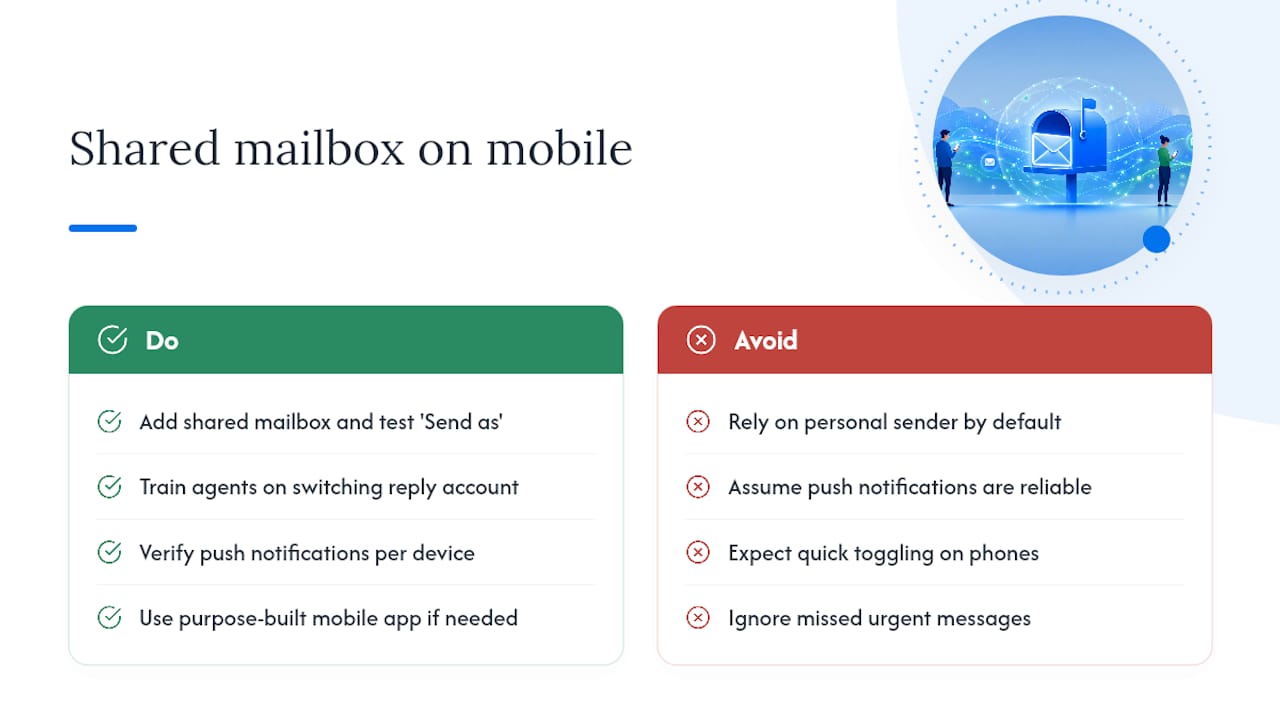
Mobile access to a shared mailbox works, but it works awkwardly. On Outlook’s mobile app, agents can typically add a shared mailbox as an additional account, but sending “as” that shared address instead of their own personal account requires extra setup steps that not every agent gets right the first time. The result: customers sometimes receive replies that appear to come from an individual’s personal work email rather than the shared support address, which looks inconsistent and unprofessional.
Gmail’s mobile app has a similar quirk. “Send mail as” delegation works, but switching between accounts to reply from the correct address adds friction that desk-bound agents don’t experience. On a phone, during a quick reply between meetings, it’s easy to miss that toggle entirely.
Notifications compound the problem. Push notifications for shared mailboxes on mobile are often less reliable than for a personal inbox, especially when multiple people have the mailbox configured on their own devices. That means an urgent customer message can sit unseen for longer than it would in a personal inbox, precisely because nobody’s phone reliably flagged it. For teams with agents who need to respond outside standard desk hours, this gap alone is often the tipping point toward a purpose-built mobile experience.
Do Shared Mailboxes Work Well With Other Email Tools?
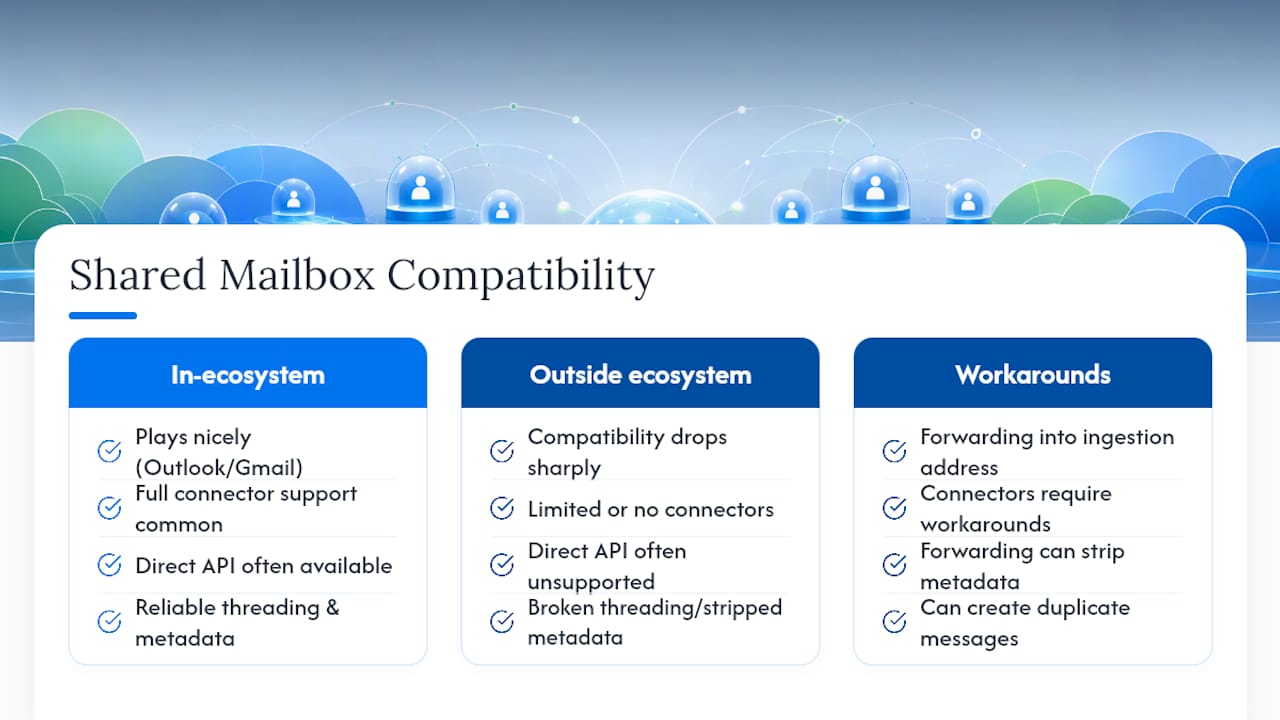
Shared mailboxes integrate reasonably well within their own ecosystem, Outlook plays nicely with other Microsoft 365 tools, and Gmail connects cleanly to other Google Workspace apps, but compatibility drops sharply outside that walled garden. Third-party CRM tools, help desk platforms, and automation services often support shared mailboxes only through limited connectors, or require workarounds like forwarding mail into a separate ingestion address rather than reading the shared mailbox directly.
That forwarding-versus-direct-ingestion distinction matters more than it sounds. Forwarding can strip metadata, break reply threading, or create duplicate copies of a message in two systems at once. Direct API access, where available, tends to be more reliable but isn’t universally supported for shared mailboxes the way it is for personal accounts.
Email clients outside the two major ecosystems, think smaller desktop clients or older IMAP-based tools some agents still prefer, run into inconsistent behavior with shared mailbox permissions, particularly around send-as functionality and folder syncing. Workflow automation tools built for general use cases can layer routing logic on top of a shared mailbox, but they’re working around a system that wasn’t designed for support handoffs in the first place, not solving the underlying compatibility gap. If your support stack depends on more than two or three connected tools, that’s usually a sign the shared mailbox has become the weak link in an otherwise capable toolchain.
A Manager’s Checklist for Making the Call
Measure two numbers this week: first response time and the size of your unassigned backlog. If either is trending the wrong way, don’t wait for a quarterly review to act on it.
Run a one-week pilot with a single inbox and two agents before touching your whole team’s workflow. Testing collision reduction and assignment behavior on a small scale surfaces the real friction points fast, without the risk of a full migration gone wrong.
Keep your governance rules and lightweight automations running while you pilot. They’re not wasted effort, they’re your safety net if the new tool doesn’t fit.
— Nick
Sendsync Fits Support Teams Ready to Move Past a Shared Mailbox
Sendsync gives you the assignment, collision prevention, and reporting a native shared mailbox never had, without the multi-week setup a traditional help desk demands. You connect your existing Gmail or Microsoft 365 mailbox in minutes, no DNS changes, no migration project, and agents keep working from an inbox that already looks familiar.

It suits teams that have already seen the warning signs covered above: duplicate replies, a backlog nobody owns, or a manager asking for response-time numbers you can’t produce. Pricing covers unlimited users, so adding your next hire doesn’t mean renegotiating your bill. If you’re coming from this article because your shared mailbox is starting to show cracks, that’s exactly the situation Sendsync was built for.
Start a trial and connect your existing mailbox at Sendsync to see how much of that backlog clears in the first week.
Sources
- Help Desk vs Shared Inbox: How to Choose
- Exchange shared mailboxes, help desks and customer support
- Outlook Shared Mailbox for Support: Why It Breaks and What to Use Instead | Robylon
- Shared Mailbox vs Team Inbox: Comparison and Best Practices (2026)