
Examples of Scalable Inbox Workflows for Teams
Examples of Scalable Inbox Workflows for Teams ! Team collaborating on scalable inbox workflows Scalable inbox workflows are systems that combine automation, AI-assisted triage, and shared inbox management to handle growing email volumes without adding headcount.

Scalable inbox workflows are systems that combine automation, AI-assisted triage, and shared inbox management to handle growing email volumes without adding headcount. The best examples of scalable inbox workflows use tools like Gmail Filters, Microsoft Power Automate, n8n, and AI models such as Google Gemini 2.5 Flash or Anthropic Claude to classify, route, and draft responses at speed. Teams that implement these systems shift from reactive email management to a structured, repeatable process that holds up whether you’re handling 50 messages a day or 5,000.
Examples of scalable inbox workflows: core building blocks
Before picking a specific tool or pipeline, every effective scalable email management system shares a set of foundational design elements. Understanding these patterns helps you build something that won’t collapse under load.
The most reliable workflows are built around four core components:
Automation triggers: Time-based triggers (scheduled polling every 15 minutes) and event-based triggers (new email received via webhook) determine when your workflow fires. Event-based triggers reduce latency; time-based triggers are easier to debug.
AI-assisted classification: Labels and tags applied by an LLM or rule-based classifier sort incoming mail into categories like “urgent,” “billing,” “spam,” or “needs reply.” Personal inbox automation built with approximately 60-node low-code tools like n8n can run this classification at zero monthly cost using free-tier AI APIs.
Confidence-scored routing: Not every email should be auto-handled. A confidence score attached to each classification decision determines whether the system auto-approves, queues for human review, or rejects outright.
Audit logging and idempotent processing: Append-only logs record every state transition from ingestion through routing to approval, so you can reconstruct any decision and avoid duplicate actions when a workflow retries.
Role-based access control: Shared inboxes work best when permissions are scoped. A billing agent shouldn’t see security escalations, and a junior rep shouldn’t be able to close tickets without review.
Pro Tip: Start with a manual version of your intended workflow for one week. Log every decision you make on each email. That log becomes your classification schema and your confidence threshold baseline.
Multi-account management setups and personal automation workflows both use these same building blocks. The difference is scale and the number of humans in the loop.

AI-powered email triage and response drafting
The most impactful category of automated inbox processes uses AI to reduce the cognitive load of reading and composing emails. Instead of writing replies from scratch, your team reviews and approves drafts the AI already generated.
A well-documented example is the 9-step unified pipeline that fetches up to 20 unread emails per account, classifies them into 7 categories, generates AI summaries, and produces draft replies for human review. This means a support agent opens their queue and sees pre-written responses waiting for a single click of approval, not a blank compose window.
The three-tier decision structure is the key architectural choice here:
Auto-approve: High-confidence, low-risk replies (order confirmations, FAQ responses) go out without human review.
Human review: Medium-confidence replies or emails touching sensitive topics get flagged for a team member to read and approve.
Auto-reject or escalate: Low-confidence classifications or flagged keywords trigger an alert rather than a draft.
Three-tier confidence routing reduces cognitive load by shifting human work from composing replies to quick validation of AI drafts. That shift matters more than it sounds. Composing a reply from scratch takes 3 to 5 minutes. Approving a well-written draft takes 20 seconds.
“The biggest impact of AI in inbox workflows is shifting human work from composing replies to quick validation of AI drafts, reducing fatigue.” — AI triage system with confidence scoring
Urgent email alerts can also be pushed to Slack or Telegram automatically, so critical messages never sit unread in a queue. This is especially useful for remote teams spread across time zones, where a VIP customer complaint at 2 AM needs to reach someone without requiring that person to monitor their inbox around the clock.
How shared inboxes and horizontal distribution improve scalability
Single-inbox setups break at scale for two reasons: one person becomes a bottleneck, and high sending volumes trigger spam filters. Horizontal distribution solves both problems at once.
Distributing email volume across multiple inboxes prevents spam flags and keeps sending domains healthy. Professional infrastructure manages SPF, DKIM, and DMARC automatically and rotates sending volume among inboxes, limiting daily sends per account to stay within safe thresholds. This is the email organization strategy that outbound sales teams and high-volume support operations rely on most.
Platforms like Reply.io take this further by automating the entire mailbox lifecycle. Mailbox warm-up starts immediately after setup, with campaigns launching on day 14 once sender reputation is established through peer-to-peer networks. That removes the manual work of managing reputation from scratch every time you add a new sending address.
For support teams, the shared inbox model works differently. The goal isn’t volume distribution for outbound sends. It’s collaborative access to a single queue without creating chaos.
Pro Tip: Assign ownership at the conversation level, not the inbox level. When two agents can both see an email but neither “owns” it, you get duplicate replies. Tools that lock a conversation to one assignee at a time prevent this.
Role-based access controls reduce central IT workload while preserving consistency across domains. Governance doesn’t have to mean bureaucracy. A well-configured shared inbox lets you delegate routine tasks to junior staff while keeping escalation paths clear for senior agents.
Centralized dashboards that surface all mailboxes in one view are the practical payoff of this architecture. Your team stops switching between tabs and starts working from a single, organized queue.
Comparing tools for scalable inbox workflows
Choosing the right platform depends on your team size, technical capacity, and whether your primary need is outbound volume, inbound triage, or collaborative support.
Tool | Best for | Key strength | Limitation |
|---|---|---|---|
n8n | Technical teams building custom pipelines | Open source, 60+ node workflows, free tier | Requires self-hosting and maintenance |
Microsoft Power Automate | Microsoft 365 organizations | Native integration with Outlook and Teams | Per-user licensing adds cost at scale |
SendScale | High-volume outbound email | Automated DNS, inbox rotation, deliverability | Focused on outbound, not support queues |
Sales teams scaling outreach | Warm-up automation, campaign scheduling | Not designed for inbound support workflows | |
Sendsync | Customer support teams | Shared inbox, no per-seat fees, fast setup | Focused on support, not outbound campaigns |
Key criteria for selection:
Volume threshold: Under 200 emails per day, a well-configured Gmail Filter setup with manual review handles most needs. Above that, you need automated classification.
Team size: Solo operators benefit most from personal automation tools like the local Gmail triage daemon that uses layered decision pipelines and learns from email moves over time. Teams of five or more need shared access and assignment logic.
Budget: n8n on a free tier costs nothing beyond server time. Enterprise platforms like Microsoft Power Automate scale in cost with users.
Audit requirements: Regulated industries need append-only logs. Most consumer tools don’t provide this natively, which is why production-grade pipelines are often custom-built.
Choosing the right workflow for your team’s situation
Not every team needs a 9-step AI pipeline. Matching workflow complexity to actual volume and risk is how you avoid over-engineering a solution that becomes harder to maintain than the problem it solved.
Use this framework to assess your situation:
Under 100 emails per day: Rule-based filters in Gmail or Outlook, combined with a shared inbox tool, cover most needs. No AI required.
100 to 500 emails per day: Add AI-assisted classification and draft generation. Human review of medium-confidence replies keeps quality high without slowing throughput.
Over 500 emails per day: Full pipeline automation with confidence-scored routing, audit logging, and horizontal distribution across multiple inboxes becomes necessary. This is where tools like n8n or custom-built systems earn their complexity.
Remote or distributed teams: Prioritize shared inbox tools with time-zone-aware assignment rules and Slack or Telegram alert integration for urgent items.
Customer support teams: Collaborative assignment, conversation locking, and response templates matter more than raw automation. Sendsync’s model of connecting Gmail or Microsoft 365 mailboxes without DNS configuration fits this profile well.
Audit-sensitive environments: Build append-only logging into your workflow from day one. Retrofitting audit trails into an existing pipeline is significantly harder than including them at the start.
The inbox workflow best practices that apply universally are: start simple, measure everything, and add automation only where you have clear data showing manual handling is the bottleneck.
Key takeaways
Scalable inbox workflows work because they combine AI classification, confidence-scored routing, and shared access controls to reduce manual effort without sacrificing accuracy or accountability.
Point | Details |
|---|---|
AI triage shifts human work | Teams review AI drafts in seconds rather than composing replies from scratch, cutting per-email time significantly. |
Confidence scoring prevents errors | Three-tier routing (auto-approve, review, reject) keeps humans in the loop for ambiguous or high-risk emails. |
Horizontal distribution protects deliverability | Spreading volume across multiple inboxes with managed SPF, DKIM, and DMARC prevents spam flags at scale. |
Audit logs are non-negotiable | Append-only state logs make every routing decision reconstructable and are standard in production-grade pipelines. |
Match complexity to volume | Teams under 100 emails per day need filters, not AI pipelines. Over 500 per day, full automation pays for itself. |
What I’ve learned building inbox workflows that actually hold up
Most teams I’ve seen get this wrong in the same direction. They automate too much, too fast, and skip the audit infrastructure entirely. Then something breaks, a VIP customer gets an auto-rejected reply, and the whole system gets blamed instead of the specific misconfiguration that caused it.
The teams that get it right treat the first two weeks as a calibration period. They run the AI classification in shadow mode, meaning it labels emails but doesn’t act on them, and a human reviews every label for accuracy. That data tells you exactly where your confidence thresholds should sit before you let the system make real decisions.
I’d also push back on the idea that open source tools are only for technical teams. n8n with a free-tier AI API is genuinely accessible to anyone who can follow a tutorial. The personal automation workflows built on these tools often outperform expensive enterprise software because they’re tuned to a specific team’s actual email patterns rather than a generic use case.
The one thing I’d never skip, regardless of budget or team size, is the audit log. Not because regulators require it, though sometimes they do. Because when a workflow misbehaves at 3 AM and you’re trying to figure out what happened, an append-only log is the only thing that tells you the truth. Every other diagnostic is a guess.
Start with the simplest workflow that handles your current volume. Add complexity only when you have data showing where the bottleneck is. That approach builds systems that scale without becoming systems that nobody understands.
— Nick
How Sendsync helps teams run scalable inbox workflows
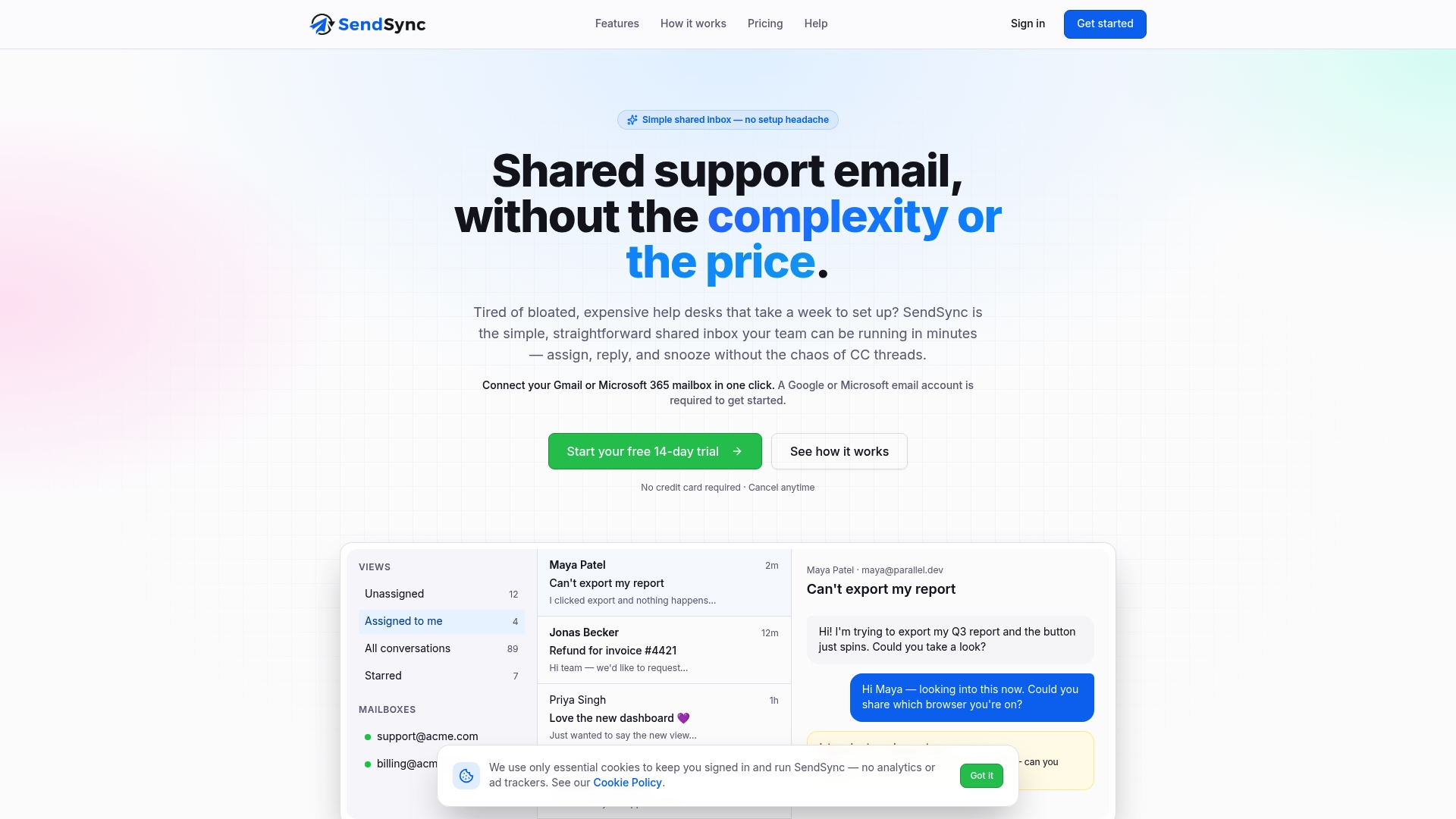
Sendsync is built for support teams that need a shared inbox without the setup overhead of a traditional help desk. You connect your Gmail or Microsoft 365 mailbox in minutes, no DNS configuration required, and your team gets immediate access to a centralized queue with assignment, reply, and conversation management built in. Sendsync offers unlimited users with no per-seat fees, which means your workflow scales with your team without your costs scaling in parallel. For teams looking to add automation on top, Sendsync integrates with the workflow tools covered in this article to handle routing and triage at volume.
FAQ
What is a scalable inbox workflow?
A scalable inbox workflow is a system combining automation triggers, AI classification, and routing rules to manage growing email volumes without proportional increases in manual effort. It typically includes confidence-scored triage, shared access controls, and audit logging.
How does AI improve inbox workflow efficiency?
AI shifts the human role from composing replies to approving pre-written drafts, reducing per-email handling time from several minutes to under 30 seconds. Three-tier confidence routing ensures humans review only the emails where AI certainty is low.
What tools are used to build scalable inbox workflows?
Common tools include n8n for custom low-code pipelines, Microsoft Power Automate for Microsoft 365 environments, and shared inbox platforms like Sendsync for collaborative support queues. The right choice depends on team size, email volume, and whether the primary need is inbound triage or outbound distribution.
Why do scalable workflows need audit logs?
Audit logs record every state transition in a workflow, from ingestion through routing to approval, making it possible to reconstruct any decision and diagnose errors. Without them, debugging automated pipelines relies on guesswork rather than evidence.
When should a team switch from manual to automated inbox management?
Teams handling more than 100 emails per day consistently benefit from automated classification and draft generation. Below that threshold, well-configured filters and a shared inbox tool typically handle the load without the added complexity of AI pipelines.