
The Common Email Management Mistakes Killing Your Team's Inbox
The Common Email Management Mistakes Killing Your Team's Inbox ! Hands assigning status tokens on team inbox trays Diffusion of responsibility is the single biggest reason shared support inboxes fall apart.

Diffusion of responsibility is the single biggest reason shared support inboxes fall apart. Nobody replies because everybody assumes someone else will. Fix that one failure and most of the chaos in your info@ or support@ inbox disappears.
Four rules solve the majority of shared-inbox problems:
- Assign one owner to every conversation the moment it lands.
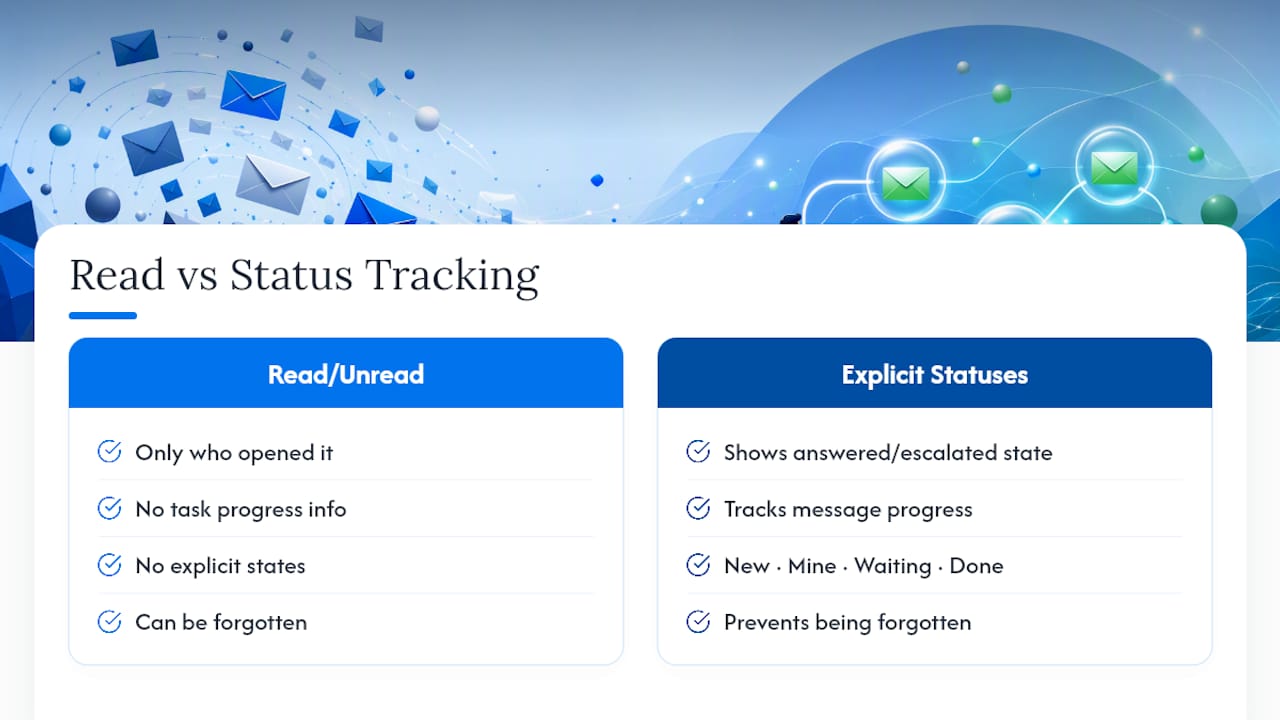
- Use explicit statuses (new, mine, waiting, done) instead of read/unread.
- Set per-address SLAs so response-time targets are known, not assumed.
- Run a daily triage rota so nothing sits in the queue unclaimed.
A tool like SendSync builds these four rules into the inbox itself, but you can start applying them today with the Gmail or Microsoft 365 setup you already have.
Key Takeaways
Shared inbox failures are usually a single root cause wearing different disguises: nobody owns the message, so nobody replies to it.
| Point | Details |
|---|---|
| Fix ownership first | Assign one owner to every conversation the moment it arrives to stop diffusion of responsibility. |
| Replace read/unread | Use explicit statuses (new, mine, waiting, done) so progress is visible, not assumed. |
| Set SLAs per address | Publish response-time targets for each address so urgency isn’t left to guesswork. |
| Run daily triage | Clear the unassigned queue every day and route unknown senders to a review queue. |
| Consider a purpose-built tool | SendSync applies these rules directly inside Gmail and Microsoft 365 without DNS setup or per-seat fees. |
Table of Contents
- Common Email Management Mistakes and Their Immediate Fixes
- A 7-Day Playbook to Fix Your Shared Inbox
- Metrics and Governance That Keep the Fix Working
- The Daily and Weekly Triage Checklist
- How SendSync Removes the Setup Friction
- Neglecting to Unsubscribe From Unwanted Newsletters
- Ignoring Email Security Best Practices
- Overloading the Inbox With Too Many Folders
- Using Vague or Unclear Subject Lines
- Failing to Prioritize by Urgency or Importance
- Not Regularly Backing Up Important Emails
- What Actually Moves the Needle
- Try SendSync Without the Setup Headache
- Primary Sources and Further Reading
- Frequently Asked Questions
- Sources
Common Email Management Mistakes and Their Immediate Fixes
Most shared-inbox breakdowns trace back to a small set of repeatable errors. Here’s each one, and what to change before your next shift starts.
1. No clear ownership per conversation
When five people can see a message, five people assume someone else will handle it. That’s diffusion of responsibility in action, and it’s the single most common cause of missed replies in shared inboxes. The fix: assign one owner to every thread the second it arrives, using Gmail labels, Outlook categories, or an assignment feature built for the job.

2. Treating read/unread as a workflow
Marking a message “read” tells you nothing about whether it’s been answered, escalated, or forgotten. Explicit statuses like New, Mine, Waiting, and Done actually track progress. Read/unread only tracks who clicked on it.
3. Duplicate replies and reply collisions
Two agents answering the same customer within an hour looks unprofessional and wastes time. Set a hard rule: nobody replies to a thread they don’t own. Pair that with an on-duty indicator or collision alert so agents can see, in real time, that a colleague already has the message open.
4. Skipping a daily triage routine
Without a scheduled sweep, messages sit untouched until someone happens to notice them. A daily triage routine that clears the unassigned queue every morning is what prevents that drift.
5. No templates for repeat questions
If your team answers the same billing question 20 times a week, typing it fresh each time is lost hours. Saved templates or macros in Gmail and Outlook cut response time and keep wording consistent across agents.
6. Moving mail into personal folders
The moment someone drags a thread into a personal folder “to handle later,” it disappears from the team’s shared visibility. That’s how urgent tickets get lost for days. Keep everything in the shared mailbox and archive resolved threads instead of relocating them.
7. Shared passwords and unaudited permissions
Sharing a single login across the team means you can’t tell who sent what, and you can’t revoke access for one person without changing the password for everyone. Use delegated access per user and audit permissions on a set schedule.
8. No SLA per address
An unspoken assumption that “someone will get to it eventually” is not a service standard. Define response-time targets per address, publish them internally, and hold the team accountable to them.
9. Weak automation and loose allowlisting
Automation rules that are too broad let spam and phishing attempts sit in the primary queue next to real customer messages. Route known contacts to the primary workspace automatically, and send unrecognized senders to a separate review queue instead of the main flow.
Pro Tip: Run a two-week test where every agent tags their own replies with a status before sending. You’ll spot your worst bottleneck (usually “waiting”) within days.
A 7-Day Playbook to Fix Your Shared Inbox
You don’t need a quarter-long project to turn this around. A week is enough if you work through it in order.
- Day 1: Get the team in a room for 20 minutes. Agree on the ownership rule (no replying to threads you don’t own) and name a triage lead for the week.
- Day 2: Roll out explicit statuses. Label every open thread New, Mine, Waiting, or Done, and walk the team through what each one means.
- Day 3: Pull your 20 most common questions and write templates for each one, saved directly in Gmail or Outlook.
- Day 4: Set SLA targets per address, for example same business day for info@, a tighter window for support@, and publish the targets where the whole team can see them.
- Day 5: Build automation rules that route known senders to the main queue and unknown senders to a review folder.
- Day 6: Audit permissions. Remove access for anyone who’s left the team and check that delegate access matches current roles.
- Day 7: Capture your first week of metrics: first response time, resolution time, and unassigned backlog. Fix any template or rule that’s already drifting.
Pro Tip: Don’t skip Day 7. The first metrics snapshot is what tells you whether Days 1 through 6 actually stuck, or just felt good in the moment.
Metrics and Governance That Keep the Fix Working
Four numbers matter: first response time, resolution time, unassigned backlog, and volume by inquiry type. Track them weekly, not monthly, so drift gets caught early.
You don’t need special software to capture these. Saved searches and labels in Gmail, or message trace reports in Microsoft 365, can produce rough numbers, and a simple CSV export covers the rest if you want to chart trends over time.
Governance is what keeps the system from decaying after the initial push wears off:
- A written creation standard for any new shared inbox (who approves it, who gets access by default).
- A recurring permission audit schedule, not a one-time cleanup.
- Offboarding controls that revoke access the day someone leaves the team.
- Rule-change logging so nobody quietly breaks an automation rule without the team knowing.
Teams that skip governance tend to see inbox drift creep back in within a few months of the initial fix.
The Daily and Weekly Triage Checklist
Give this to whoever runs triage this week. It takes ten minutes at the start of a shift and saves hours of cleanup later.
Daily:
- Clear the unassigned queue completely, no exceptions.
- Confirm every thread marked “Mine” actually has an active owner, not someone who moved on to something else.
- Check “Waiting” threads for ones that have stalled past a reasonable window.
- Scan the outsider/review queue for anything that needs escalating or releasing.
Weekly: review templates for outdated wording, check whether automation rules have drifted from their original intent, audit permissions, and look at the KPI trend line, not just the current snapshot. Rotate the triage lead role weekly so the burden (and the visibility) spreads across the team evenly.
How SendSync Removes the Setup Friction
Most of the fixes above are process changes you can start today with the inbox you already have. But process alone breaks down without tooling built to enforce it. SendSync connects directly to Gmail or Microsoft 365 without DNS changes or a lengthy setup window, which matters because label-based workarounds start to strain past roughly three people sharing an inbox.
What actually reduces friction:
- Assignment and internal notes that replace label workarounds entirely.
- Explicit statuses instead of read/unread guesswork.
- Automation for triage and routing, so known senders don’t sit in a review queue.
- Unlimited users with no per-seat fees, so growing the team doesn’t grow the bill.
For deeper reading on the operational side, see SendSync’s guide to shared inbox best practices for support teams and its breakdown of why support teams miss customer emails.
Neglecting to Unsubscribe From Unwanted Newsletters
Shared inboxes accumulate newsletter subscriptions the way a garage accumulates boxes. Someone signed up for a vendor’s mailing list two years ago, a former employee subscribed to industry updates that never applied to the team, and now every triage sweep has to mentally filter out a dozen irrelevant emails before finding the ones that matter.
This isn’t a cosmetic problem. Every newsletter that lands in support@ or info@ competes for attention with a real customer message, and it slows down the person doing triage that day. Over months, the noise-to-signal ratio in a shared inbox degrades badly enough that agents start skimming subject lines instead of reading carefully, which is exactly how a genuine ticket gets missed.
Build a five-minute unsubscribe pass into your weekly triage checklist. Anyone running triage that week should scan for recurring newsletter senders and unsubscribe on the spot, rather than deleting the same email every week indefinitely. If a subscription is genuinely useful (a vendor status page, a compliance update), move it to a personal inbox or a dedicated internal distribution list instead of leaving it in the customer-facing mailbox.
The goal isn’t a zero-newsletter inbox. It’s making sure the shared mailbox stays reserved for things that require a team response, so triage stays fast and nothing real gets buried under promotional noise.
Ignoring Email Security Best Practices
A shared inbox is a bigger phishing target than any individual employee’s mailbox, because it’s the address customers, vendors, and job applicants all know to use. That visibility is exactly why attackers target support@ and info@ addresses more aggressively than internal team accounts.
The mistakes that create real exposure are usually simple ones: an agent clicks a link in a message that looks like it came from a known vendor, someone opens an attachment from an unfamiliar sender because “it might be a customer,” or the whole team shares one login with no way to trace who did what. Shared credentials in particular are a governance failure, not just a security one, since nobody can tell who sent a given reply when everyone logs in with the same password.
Three habits close most of the gap. First, route unknown senders to a separate review queue automatically rather than letting them land in the main working view next to trusted contacts. Second, require delegated access per user instead of shared logins, so every action traces back to a person. Third, run a short phishing-awareness refresher with the team every few months, focused specifically on the kinds of messages that target support addresses (fake invoice disputes, spoofed vendor emails, urgent “account suspended” language).
None of this requires new software. It requires treating the shared inbox with the same caution you’d apply to any public-facing system, because that’s exactly what it is.
Overloading the Inbox With Too Many Folders
A folder structure that made sense with three people and 50 emails a week turns into a maze once the team grows and volume climbs. Support managers often respond to inbox chaos by creating more folders: one for each product line, one for each escalation type, one for “follow up later.” The result is an inbox nobody can navigate quickly, because finding a message now requires guessing which of fifteen folders it might be sitting in.
Excessive folders don’t organize anything. They just relocate the problem. A message that’s been filed into “Product Questions > Billing Related > Needs Follow-Up” is functionally lost, because nobody remembers to check that specific path during a busy shift.
Status-based organization solves this more reliably than folder hierarchies. Instead of sorting messages by topic into a dozen locations, sort by workflow state: new, mine, waiting, done. That’s a structure agents can hold in their head, and it maps directly to the action needed rather than to a category that might be useful for reporting but useless for daily triage.
If you genuinely need topic-based organization for reporting purposes, use tags or labels layered on top of the status system, not a separate folder for each topic. A message can carry a “billing” tag and a “mine” status at the same time, searchable either way, without forcing anyone to remember which folder it physically lives in.
Using Vague or Unclear Subject Lines
“Question,” “Help,” and “Re: Re: Re:” tell a triage lead nothing about what’s inside a message, how urgent it is, or which agent should take it. Vague subject lines force every reader to open the email just to find out what it’s about, which adds seconds to every triage pass and adds up to real time lost across hundreds of messages a week.
The fix starts on the customer-facing side: if your contact form or support widget lets customers type their own subject line, encourage a brief description of the issue rather than leaving the field blank or defaulting to “Support Request.” On the team’s side, when an agent replies or forwards a thread internally for escalation, they should update the subject line to reflect the current state, not leave the original vague line intact through five rounds of back-and-forth.
A subject line like “Refund request, order #4521, urgent” tells a triage lead everything needed to assign it correctly in two seconds. “Question” tells them nothing. That difference compounds across a week of triage into meaningful time saved, especially for whoever is scanning the queue first thing each morning.
Failing to Prioritize by Urgency or Importance
Not every message in a shared inbox deserves the same response speed, but plenty of teams handle their queue strictly in chronological order, first in, first out, regardless of what’s actually inside each message. A billing dispute that could churn a customer sits behind three newsletter unsubscribes and a routine question, purely because of arrival time.
This is where SLAs per address earn their value again. If support@ carries a 2 to 4 hour target and billing@ carries a same-day target, urgency is already partly built into the address structure before a human even looks at the message. But within a single address, the team still needs a quick way to flag genuine urgency: an angry customer, a service outage, a time-sensitive request.
A simple tagging convention (urgent, standard, low-priority) applied during triage, not left to whoever happens to open the message first, keeps the queue honest. The triage lead’s job each morning is to sort by urgency before anyone starts replying, not to let the order messages arrived in dictate the order they get handled.
Not Regularly Backing Up Important Emails
Shared inboxes hold institutional knowledge: pricing agreements negotiated over email, complaint histories that matter if a customer disputes something months later, records of exactly what a support agent promised. If that inbox is compromised, accidentally deleted, or locked out during an account issue, that history disappears with it unless it’s backed up somewhere else.
Most small teams assume Gmail or Microsoft 365’s built-in retention is enough, and for basic accidental deletion, it often is. But retention policies have limits, and neither platform protects against every failure mode: a compromised account, an admin error during an offboarding process, or a dispute that surfaces a year after the fact when the original messages have aged past retention windows.
A quarterly export of critical threads, particularly anything tied to contracts, refunds, or documented complaints, is worth the hour it takes. Keep the export somewhere separate from the inbox itself, whether that’s a shared drive, a dedicated archive tool, or even a simple PDF export filed by quarter. It’s not a habit most teams build until after they’ve lost something they needed, which is exactly the wrong time to learn the lesson.
What Actually Moves the Needle
Most advice on this topic treats every mistake as equally urgent, and that’s where it goes wrong. If you fix ownership and statuses first, the newsletter clutter and folder sprawl stop mattering nearly as much, because a clean workflow makes noise easier to ignore even when it’s still technically there.
The overrated fix is more automation rules stacked on top of a broken assignment structure. Teams love adding rules because it feels like progress, but a dozen clever filters can’t compensate for the fact that nobody actually owns the thread once it lands. Fix ownership first. Everything else, templates, SLAs, security habits, works better once that foundation is in place, and most of it barely matters without it.
If you’re a small team weighing whether to formalize this with a tool or just tighten up your existing Gmail or Outlook setup, size is the deciding factor — this client intake workflow guide explains how structured intake processes can improve your shared inbox management. Three people can survive on labels and discipline. Once you’re past that, the coordination cost of manual workarounds starts exceeding the cost of adopting something purpose-built, and that’s usually the point where teams start looking for a shared inbox tool instead of another folder.
Try SendSync Without the Setup Headache
Traditional help desks ask you to configure DNS records, map out routing rules, and wait days before your team can actually use the thing. SendSync skips that entirely: connect your Gmail or Microsoft 365 mailbox and your team is assigning conversations, setting statuses, and triaging together within minutes, not days.

The 14-day trial gives you full access to assignment, internal notes, automation rules, and unlimited users with no per-seat pricing, so you can run the exact 7-day playbook above inside the tool itself and see whether it sticks before committing to anything. If your team is past the point where labels and good intentions are enough, start a free trial at SendSync and set up your first shared inbox this afternoon.
Primary Sources and Further Reading
- Serif’s shared inbox best practices — ownership, statuses, and SLA guidance.
- KeepKnown’s shared inbox management guide — triage routines and governance.
- TimeToReply on shared mailbox practices — process and ownership consistency.
- Emailmeter’s shared mailbox guide — permissions and credential mistakes.
Frequently Asked Questions
What is the most common email management mistake in shared inboxes? Lack of clear ownership. When multiple people can see the same message, everyone assumes someone else will respond, and the thread stalls.
How do statuses differ from read/unread for tracking email workflow? Statuses like new, mine, waiting, and done describe where a conversation stands in the process. Read/unread only shows whether someone opened it, not whether it was handled.
How often should a support team audit inbox permissions? Run a permission audit on a fixed recurring schedule, not just when something goes wrong, and always revoke access the same day someone leaves the team.
Can Gmail or Microsoft 365 handle shared inbox needs without extra software? Labels and categories work for small teams, but they tend to strain once more than a few people share one inbox, which is when purpose-built assignment tools start paying off.
What should be tracked to know if a shared inbox is improving? First response time, resolution time, and unassigned backlog size are the three numbers that show whether your fixes are actually working week over week.
Sources
- How to Run a Shared Inbox: 9 Best Practices for info@, support@, and billing@ | Serif
- Shared Inbox Management: Your 2026 Master Guide
- Shared mailbox best practices for your team | timetoreply
- Shared Mailbox Best Practices That Actually Work