
Email Threading Issues: Why Threads Split and How Teams Fix Them
Email Threading Issues: Why Threads Split and How Teams Fix Them ! Support specialist comparing a split email conversation Email threads split, merge unrelated messages or drop replies because every mail app decides on its own which messages belong together, using hidden headers,

Email threads split, merge unrelated messages or drop replies because every mail app decides on its own which messages belong together, using hidden headers, subject lines, recipients and timing. For one person that is an annoyance. For a support team sharing a mailbox it means duplicate replies, missed follow-ups and customers answered twice. This guide explains the rules behind threading, shows how to diagnose a broken thread in a few minutes, and lays out how a team keeps conversations intact. A shared inbox that connects to your existing Gmail or Microsoft 365 mailboxes, like ours, is built for exactly this.
TL;DR
- Threading is not a standard: Gmail and Outlook use different signals, so the same messages can look grouped in one app and scattered in another.
- The usual culprits are a changed subject line, missing reply headers, a long gap between messages and automated mail that shares a sender.
- To debug a thread, compare the Message-ID, In-Reply-To and References headers of two messages.
- For teams, the real cost is not the split itself but that nobody knows who owns the conversation.
- A shared inbox with assignment, internal notes and tags keeps ownership clear even when the mail app regroups messages.
Table of Contents
- What an email thread is and how apps decide what belongs together
- The most common threading problems
- How to diagnose a broken thread in five minutes
- Quick fixes inside Gmail and Outlook
- Why threading problems hurt support teams most
- What rules and labels can and cannot do
- A shared inbox puts a stable layer on top of threading
- Perspective
- Getting started with SendSync
- A short checklist for your team
- FAQ
- Sources
What an email thread is and how apps decide what belongs together
An email thread is a group of related messages shown as one conversation. You will also hear it called an email chain, a conversation or a topic thread. The idea is simple, but the grouping logic is not defined by one universal rule.
Google says Gmail groups messages based on timing, matching reference headers, and the same recipients, senders or subject. The reference headers are the key part. When you hit Reply, your mail app writes the ID of the message you answered into a header called In-Reply-To and adds the chain of earlier IDs to a header called References. These are invisible in the normal view, but they are the strongest signal that two messages are related.
Outlook works differently. According to the Nylas developer documentation on Gmail and Outlook threading, Gmail relies on References and In-Reply-To plus the subject, while Outlook uses an Exchange ConversationId together with subject, recipients and reply headers. The same documentation notes that this means apparently identical mail can be displayed differently in the two systems, including differences in identifiers and folder behavior.
Postmark, an email delivery service, adds a useful caveat: threading depends on the email client and cannot be guaranteed for every client. It also lists conditions that clients such as Gmail commonly follow: matching reference headers, matching participants or subject, and a delivery window of about one week.
Two practical conclusions follow:
- Your teammate and your customer may literally see different conversations from the same exchange.
- Any fix that depends on how one app groups mail will not hold for the whole team.
The most common threading problems
The subject line changes
Google states that in Gmail a conversation breaks into a new one if the subject changes, or if it grows past 100 emails (Gmail Help). A customer who replies and rewrites the subject from “Order 4471 not arrived” to “Still waiting!” starts a fresh thread for Gmail users, even though the reply headers still point to the original.
Teammates cause this too. Editing the subject to add a ticket number or a note such as “URGENT” looks harmless, but it can detach your reply from the original conversation on the recipient side.
Replies lose their reference headers
Some systems write the new message without carrying the parent’s Message-ID forward. Contact forms, order notification tools, forwarding rules and some mobile or older apps can all do this. The reply arrives as a brand new message and lands in a separate thread. In a support context, that is the classic “customer replied but we never saw it in the conversation” problem.
Forwarding is a common trigger. When you forward a message instead of replying, the forward is a new message with a new subject prefix, so the original recipients do not see it in their thread.
Unrelated automated messages get grouped
Google notes that automated messages can be grouped when they are sent within a week, have matching reference IDs and share recipients, senders or subject (Gmail Help). An online shop that sends every order confirmation from the same address with the same subject line can end up with many different orders stacked in one Gmail conversation. A Gmail Community member described exactly this: orders from a website grouped into a single email that was hard to categorize.

For a support inbox, this means a customer’s new request can hide inside an old, already resolved conversation, where nobody is looking.
Different apps, different threads
Because Outlook and Gmail use different signals, a conversation you see as one thread might appear as three in a colleague’s mailbox. The new Outlook client has also caused trouble in some contact-center setups, where replies produced a different thread than expected. If half your team uses Gmail and half uses Outlook, expect disagreement about what the “conversation” is.
Long conversations and time gaps
The 100-email limit in Gmail is rarely hit by one customer, but it is easy to hit with an internal CC chain or an automated feed. And a delivery window of around a week, as Postmark describes, means a customer who writes back after a long silence may be grouped differently by some clients.
How to diagnose a broken thread in five minutes
When a thread splits or merges, do not guess. Look at the headers. The migosmtp guide to threading headers recommends viewing the original source of two messages and comparing the Message-ID, In-Reply-To and References values, and making sure the parent’s ID appears exactly as sent, including the angle brackets.
Here is the routine:
- Pick two messages that should be in one thread. Take the original and the reply that landed elsewhere.
- Open the raw source. In Gmail, open the message, choose the three-dot menu and select “Show original.” In Outlook, open the message properties to see the internet headers.
- Find the original’s Message-ID. It looks like a string in angle brackets with an @ sign and a domain.
- Check the reply’s In-Reply-To and References. The original’s Message-ID should appear in both, character for character. A missing value, a stripped bracket or a different ID means the sending system broke the chain.
- Compare the subjects. Ignoring prefixes like “Re:”, did the wording change?
- Compare the participants. Did someone drop off or a new address get added?
- Check the dates. A gap of more than about a week can matter in some clients, per Postmark’s description above.
If the headers are intact but the thread still splits in one app, the cause is that app’s grouping logic, not the sender. If the headers are broken, the fault is upstream: a form tool, a forwarding rule or the customer’s client.
When to escalate
Nylas support advises that when messages are not threading, you should inspect the headers of all the messages to confirm there is a relationship between them. If the messages are threaded at the provider but not in the tool you use, contact that tool’s support. If the headers are broken at the source, your email administrator or the sender’s administrator is the right contact, because only they can change how outbound mail is built.
Quick fixes inside Gmail and Outlook
If the problem is how you personally see mail, the settings are simple.
- Gmail: Google says users can turn conversation grouping on or off. Turning it off shows every message separately, which helps when an old conversation is hiding a new request.
- Outlook.com: Microsoft explains that you can disable grouping under Settings, Mail, Layout, Message organization, then choose “Do not group messages” (Microsoft Support).
- Long conversations: Microsoft notes that a conversation can contain many items, and that to find an attachment you scan the messages in the conversation for the paperclip indicator (Microsoft Support). In a long thread, that scan costs real minutes.
These are personal view settings. They change what you see, not what your teammates see, and they do nothing about who is responsible for the reply.
Why threading problems hurt support teams most
A solo user with a split thread loses a few seconds. A team loses more, because threading problems combine with the other weak spot of a shared mailbox: unclear ownership.
Consider a typical day with a shared address such as support@ delivered to several people:
- A customer replies with a new subject. It lands in a separate thread, so the person who handled the first message never sees it.
- Two teammates each see the new thread and both answer, or each assumes the other will.
- A forwarded copy goes to a manager, who replies to the customer from a personal mailbox. Now the history is spread across three inboxes.
- A new request hides in an old resolved conversation and sits unread.
None of these is a software bug. They follow from the way email threads are built: a loose set of hints, interpreted separately by every app. The practices that help do not try to make every client agree. They add a layer on top that does not depend on threading.
Practices that reduce the confusion
- Reply in the thread, never beside it. Use Reply or Reply All rather than composing a fresh message, so the reference headers carry forward.
- Leave the subject line alone. If you need to track something, put it in a tag or internal note, not the subject.
- Avoid forwarding to continue a conversation. Add colleagues by bringing them into the same conversation, and tell them why. A short line of context saves them reading the whole chain.
- Give every conversation one owner. A visible assignee ends the “I thought you had it” problem. Our guide on email ownership for small teams covers how to set that up in Gmail and Outlook.
- Keep side discussion out of the customer thread. Internal comments in CC chains clutter the thread and can end up in front of the customer.
- Separate automated mail from human mail. Notifications that share a sender and subject get stacked together, so route them to their own label or view.
- Review unassigned and stale conversations daily. A saved view of open, unanswered conversations catches the requests that were swallowed by an old thread.
What rules and labels can and cannot do
Many small teams start with filters and rules in their mail app. They are fine for sorting: moving invoices to one folder, labeling messages from a certain domain. We wrote about where that approach holds up in keeping Outlook rules until your team reaches three or four people. Beyond that size, rules sort mail but do not tell anyone who owns a message, and threading still behaves differently in each person’s client.
Search is the other pain point. When threads split, finding the full history means searching several variants of the subject. Our walkthrough on diagnosing shared inbox search shows how to find out quickly why a conversation does not come up.
A shared inbox puts a stable layer on top of threading
A shared inbox does not rewrite the rules of email. It gives the team a single view of each conversation with an owner attached, so a split thread is something you notice and merge rather than something a customer discovers when no one answers.
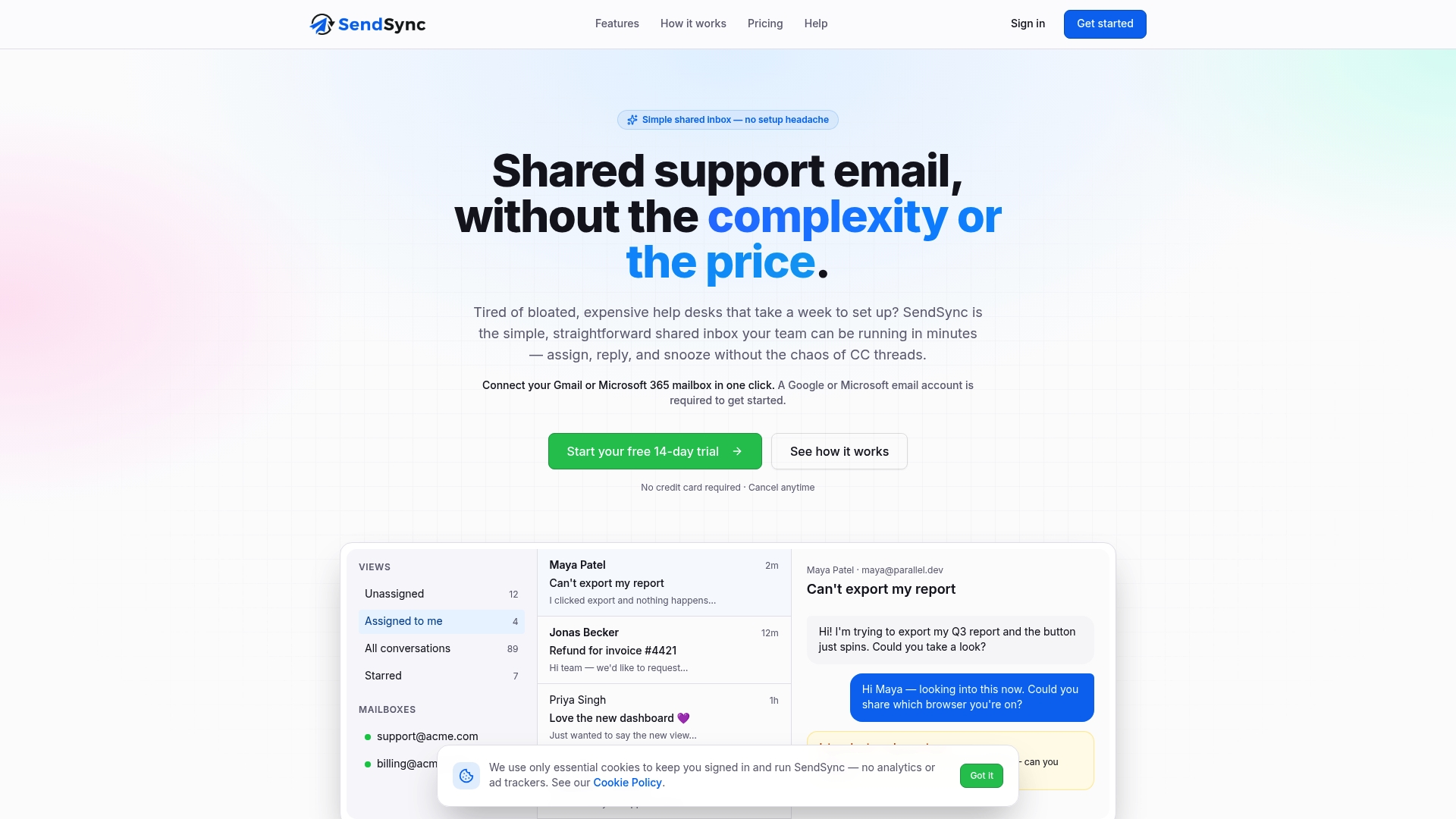
SendSync is a shared inbox built for support teams that already use Gmail or Microsoft 365. Here is what that means for threading problems, using only what the product does:
- One place for every conversation. The team works from a shared inbox connected to your Gmail or Microsoft 365 mailboxes, so people are not comparing what each of them sees in a personal client.
- Assignment. Each conversation can be assigned, so a reply that lands in a separate thread still has someone responsible for it.
- Internal notes. Teammates can discuss a case inside the conversation instead of forwarding or CC’ing, which keeps the customer-facing thread clean.
- Tagging and saved views. Tags and saved views make it easy to pull up all open conversations for one customer or topic, which helps when the same issue is spread over more than one thread.
- Automation for email triage. Automations can sort incoming mail, so automated notifications do not bury human requests.
- Metrics dashboards. Dashboards show how conversations are moving, which makes stalled ones visible.
If your mailboxes are on Gmail, the guide to connecting a Gmail team inbox walks through the setup. For teams comparing options for a small business, the Gmail shared inbox guide for small business explains what to look for.
Perspective
Threading problems look like a technical puzzle, but the damage is organizational. The thread split is a one-minute event. The two hours that follow, when nobody is sure who answered and the customer writes again, are the real cost.
That is why we built SendSync to be thin. You connect your Gmail or Microsoft 365 mailbox, with no DNS work, and the team gets assignment, internal notes, tags and saved views on top of the mail you already have. We think a support team needs a clear owner for every conversation more than it needs a heavier tool to configure.
We also think pricing should not punish you for adding a teammate. Our plans have unlimited users and no per-seat fees, so bringing a colleague into a conversation is never a budget decision.
Nick
Getting started with SendSync
SendSync is subscription software with a 14-day free trial. Plans are priced per month with unlimited users on every tier: Founder at $10 per month, Starter at $30 per month, Growth at $80 per month and Scale at $200 per month. You can connect a Gmail or Microsoft 365 mailbox in minutes, so your team can see every conversation, assign it and keep notes in one place. See the plans on the SendSync site.
Freelancers and very small teams can begin with the Founder plan, while a growing support team that needs more room can move up as volume grows. For people who handle several clients from one account, the multi-client email management guide shows how to keep each client’s conversations separate.
A short checklist for your team
Print this or paste it into your onboarding notes:
- Reply in the existing thread. Do not start a new message for a follow-up.
- Do not edit subject lines in replies.
- Do not forward to continue a customer conversation. Bring people in with context.
- Assign every conversation to one named person.
- Use internal notes for team discussion, not CC.
- Review unassigned conversations and stale threads every day.
- When a thread splits, compare the Message-ID, In-Reply-To and References headers before blaming anyone.
- Send header problems to the email administrator or the sender’s system owner.
FAQ
Why does Gmail put unrelated emails in the same conversation?
Gmail groups messages with matching reference headers and the same senders, recipients or subject, and it can group automated messages sent within a week of each other (Gmail Help). Order confirmations or alerts from one address with a repeated subject are the usual example. Turning conversation view off shows them individually.
Why did a customer’s reply start a new thread?
The most common reasons are that the subject changed, or that the reply was sent without the original message’s reference headers, which happens with some forms, forwarding rules and older apps. Compare the Message-ID of the original with the In-Reply-To and References headers of the reply to find out which it was.
Can I make Gmail and Outlook thread messages the same way?
No. Gmail uses References and In-Reply-To plus the subject, and Outlook uses an Exchange ConversationId together with subject, recipients and reply headers, according to Nylas documentation. The practical answer is to make ownership and status visible in one shared place, so the team does not depend on how each client groups mail.
What does looping someone into an email mean?
It means adding a person to an ongoing conversation so they are informed or can give input. State why you are adding them and give brief context, so they do not have to read the entire thread. Inside a shared inbox, an internal note or an assignment does the same job without adding anyone to the customer’s thread.
What is another name for an email thread?
It is often called an email chain, a conversation or a topic thread. Gmail and Outlook both label the grouped view “conversation.”
Sources
- Group emails into conversations, Gmail Help
- Email threading in Gmail vs Outlook, Nylas developer documentation
- How to thread messages or prevent threading, Postmark support
- Get help with Outlook.com, Microsoft Support
- Email Threading Headers Explained, migosmtp
- Why are my emails not threaded, Nylas support