
Team Inbox Reporting: What to Track and How to Read It
Team Inbox Reporting: What to Track and How to Read It ! Support lead reviewing team inbox metrics Team inbox reporting is the practice of measuring how a group of people handles one shared stream of email: how fast customers get a first reply, which conversations are still open,

Team inbox reporting is the practice of measuring how a group of people handles one shared stream of email: how fast customers get a first reply, which conversations are still open, and who is carrying the load. You don’t need a data analyst for it. You need an inbox where every conversation has an owner and a status, plus a short list of numbers you check on a schedule. Below are the numbers worth watching, how to read them, and how to set the whole thing up in an afternoon.
TL;DR
- Team inbox reporting differs from ordinary email stats: it measures conversations, owners and statuses, not just messages sent and received.
- Start with four numbers: first response time, unreplied email by age, open conversations per person, and the share of replies that meet your target.
- Use the median next to the average, so one stuck thread doesn’t hide how the team normally performs.
- Tags and saved views turn a pile of email into reportable categories without extra tooling.
- Review weekly, change one thing, and look again the following week.
Table of Contents
- What team inbox reporting is, and how it differs from ordinary email reporting
- The four numbers that matter most
- A worked example
- How to use reports to find slow replies, stuck conversations and uneven workloads
- Setting up team inbox reporting in an afternoon
- What to filter by when you read a report
- Reporting for freelancers and very small teams
- Common mistakes in team inbox reporting
- Our perspective
- Try it on your own inbox
- FAQ
- Sources
What team inbox reporting is, and how it differs from ordinary email reporting
Ordinary email reporting counts messages. Marketing email reports, for example, track opens and clicks on what you send out. Team inbox reporting looks at the other direction: messages that arrive at an address like support@ or hello@ and the work of answering them.
The unit changes from a message to a conversation. A customer writes, three colleagues touch the thread, an internal note gets added, someone replies, the customer follows up. A useful report treats that as one item with a start time, an owner, a status and a time to first reply.
That is why reporting is hard in a plain shared mailbox or a mailing-list alias. Nobody is recorded as responsible, so nobody can be measured, and the same email may be answered twice or not at all. Reporting works only after the inbox has a few basic habits:
- Ownership. Every conversation is assigned to one person.
- Status. Every conversation is open, waiting on the customer, or done.
- Categories. Every conversation carries at least one tag, such as billing, bug or question.
Our shared inbox workflows guide walks through how to put those three habits in place for a small team.
The four numbers that matter most
There are dozens of possible metrics. A team of two to fifteen people gets most of the value from four.
1. First response time
First response time is the gap between a customer’s email arriving and the first human reply. It is the number customers feel most, because it is the wait before they know anyone has seen their problem.
Published benchmarks vary widely by industry and by how each study counts replies. One 2026 roundup puts the typical B2B email first response at roughly 12 hours, with a very large spread between the fastest and slowest teams. Treat any benchmark as context only. Your real target is the one you set for your own customers and then meet.
Two habits keep this metric honest:
- Report the median and the average. The average is dragged up by a handful of emails that sat over a weekend. The median tells you what a typical customer experienced.
- Count business hours if you don’t work weekends. A Friday 5 p.m. email answered Monday at 9 a.m. is not a 64-hour failure if your hours say Monday to Friday.
For realistic targets for small teams, see our first response time benchmarks.
2. Unreplied email by age
Averages hide the emails that matter most: the ones nobody has answered yet. Instead of one total, bucket unreplied conversations by age: older than 4 hours, older than 24 hours, older than 48 hours. Some teams use 24, 48 and 72 hours.
This works as an early warning. A conversation that has crossed your oldest threshold is almost always one of three things: it was never assigned, it was assigned to someone who is out, or it needs an answer nobody has. Each has a different fix, and the age bucket tells you which to look for.
The same principle applies outside support. A guide on following up with investors within 48 hours rests on the idea that a fixed time limit on unanswered messages keeps important conversations from going cold, which is exactly what age buckets do for a support queue.
3. Open conversations per person
This is the workload view. Count open, assigned conversations for each teammate. If one person holds twenty and another holds three, you have found the reason for your slow replies, and no amount of urging people to “be faster” will fix it.
Look at it alongside tags. If one person has all the billing questions because they are the only one who understands them, the real issue is knowledge, not capacity. A short internal note on how to handle the common cases can spread that load within a week.
4. Share of replies within target
Pick a target for each kind of request and measure how often you hit it. A simple structure from a 2026 productivity guide sets tighter targets for outages (30 to 60 business minutes), a few hours for requests that affect customers, one business day for ordinary questions, and no target for purely informational mail. It suggests expressing the goal as a percentile, such as answering 95% of urgent emails within four hours, so one outlier doesn’t fail the whole month.
You don’t need that many tiers. Small teams do well with two: urgent and everything else. Our guide to service level objectives for small teams explains how to start with just two metrics this week.

A worked example
Imagine a five-person team handling a shared support address. In one week they receive 200 conversations. The numbers look like this:
| Metric | Result |
|---|---|
| Average first response | 9 hours |
| Median first response | 2 hours |
| Unreplied over 24 hours | 11 conversations |
| Open per person | 4, 5, 6, 7, 31 |
| Replies within 4-hour target | 78% |
The average of 9 hours looks alarming and the median of 2 hours looks fine. The gap says most customers are served well and a few are waiting very long. The open-per-person row shows why: one teammate holds 31 conversations. Reassigning half of them, and checking the 11 conversations older than 24 hours first, will do more than any new tool or policy. The numbers here are illustrative, not a benchmark.
How to use reports to find slow replies, stuck conversations and uneven workloads
Slow replies
Sort the slowest conversations of the week and read the five worst. Ask of each: was it a handoff that stalled, nobody owning it, or missing information? Patterns appear fast. If three of five were forwarded between teammates, your handoff rule needs work. If two were missing order numbers, add a line to your auto-acknowledgment asking for them.
Unresolved conversations
Separate “waiting on us” from “waiting on the customer.” Mixing them makes your backlog look worse than it is and hides what you actually owe people. Review the waiting-on-customer group every few days and send a single follow-up, then close what stays silent.
Uneven workloads
Compare open conversations per person at the same time each week, not just in a snapshot. If the same person is always overloaded, look at how conversations get assigned. Manual picking tends to favor whoever is fastest or most visible, which is the person most likely to burn out.
For how these checks fit into a daily routine, see our shared inbox best practices for support teams.
Setting up team inbox reporting in an afternoon
You can do this without a project plan. The steps below take a small team about half a day, most of it spent agreeing on definitions.
- Define your hours and your targets. Write down when the team is working and what reply time you promise. One sentence each is enough.
- Move email into one shared inbox. Reporting needs one source of truth. With SendSync you connect a Gmail or Microsoft 365 mailbox directly, with no DNS changes, so the team can be live in minutes rather than waiting on an IT ticket.
- Assign every conversation. Ownership is what makes per-person numbers possible. SendSync lets teammates assign, reply and add internal notes inside the conversation, so the discussion about a customer stays out of the customer’s thread.
- Create a short tag list. Five to eight tags is plenty: billing, bug, how-to, sales, feedback, urgent. Too many tags mean nobody uses them.
- Save the views you check every day. Unassigned, assigned to me, waiting on customer, and older than a day are the usual four. SendSync supports saved views, so each person opens the same list every morning.
- Open the metrics dashboard weekly. Block fifteen minutes on the same day each week. Read the four numbers above, pick the one that looks worst and decide on one change.
- Automate the triage. Rules that tag and route incoming mail by keyword or sender remove manual sorting, which keeps your categories clean and your reports more accurate.
The mistake to avoid is measuring everything. Four numbers reviewed weekly beat thirty reviewed never.
What to filter by when you read a report
A raw total rarely tells you anything. These filters make the numbers answer questions:
- Date range. Compare this week with the previous one, not with an arbitrary month, so seasonal spikes don’t mislead you.
- Tag. Response time on bug reports may differ greatly from billing questions. Filtering by tag shows where the delay actually lives.
- Assignee. Use this for workload balance and for coaching, not for ranking people against each other.
- Customer or domain. If one client generates a third of your volume, that is a conversation to have with them, or a sign they need better documentation.
- Business hours versus clock hours. Confirm which one your report uses before you compare anything.
If you handle several clients from one mailbox, our guide on how to handle multiple clients in a single inbox shows how tags and views keep each client’s numbers separate.
Reporting for freelancers and very small teams
If you work alone or with one partner, the same logic applies in a lighter form. You don’t need per-person workload, but you do need unreplied email by age and a median reply time. A client who waits three days for an answer rarely tells you; they just stop recommending you. Our freelancer inbox management checklist covers a minimal version.
Remote teams gain the most from visibility. When people work across time zones, nobody can glance across the room to see who is replying to what. A shared view of open and assigned conversations replaces that, and it is the reason real-time inbox visibility matters more for distributed teams than for those in one office.
Common mistakes in team inbox reporting
- Reporting the average only. One forgotten email can double it. Pair it with the median.
- Counting auto-replies as first responses. An instant “we got your message” proves nothing about service. Measure the first reply from a person.
- Using reports to rank people. Once numbers become a scoreboard, people close conversations early or avoid hard ones. Use them to find process problems.
- Changing five things at once. You won’t know which one worked.
- Skipping the review. A dashboard nobody opens is decoration. Put the fifteen minutes in the calendar.
Our perspective
We built SendSync on a simple observation: small teams don’t fail at reporting because they lack charts. They fail because the inbox has no structure, so there is nothing reliable to measure. Once every conversation has an owner, a status and a tag, a handful of numbers tells you almost everything.
That is why we kept the product thin. You connect Gmail or Microsoft 365, skip the DNS work, and start assigning and tagging the same day. Internal notes keep the team’s discussion beside the conversation, saved views give everyone the same morning list, and the metrics dashboard gives you the weekly read.
We also think the price of a team inbox shouldn’t grow with every person you add. Plans include unlimited users, so a growing team or a freelancer bringing in a part-time helper doesn’t have to decide who gets access to the numbers.
Nick
Try it on your own inbox
SendSync is a shared inbox for support teams that connects to Gmail or Microsoft 365, with unlimited users on every plan. Plans are Founder at $10 per month, Starter at $30 per month, Growth at $80 per month and Scale at $200 per month, and each starts with a 14-day free trial. See the plans on the SendSync site.
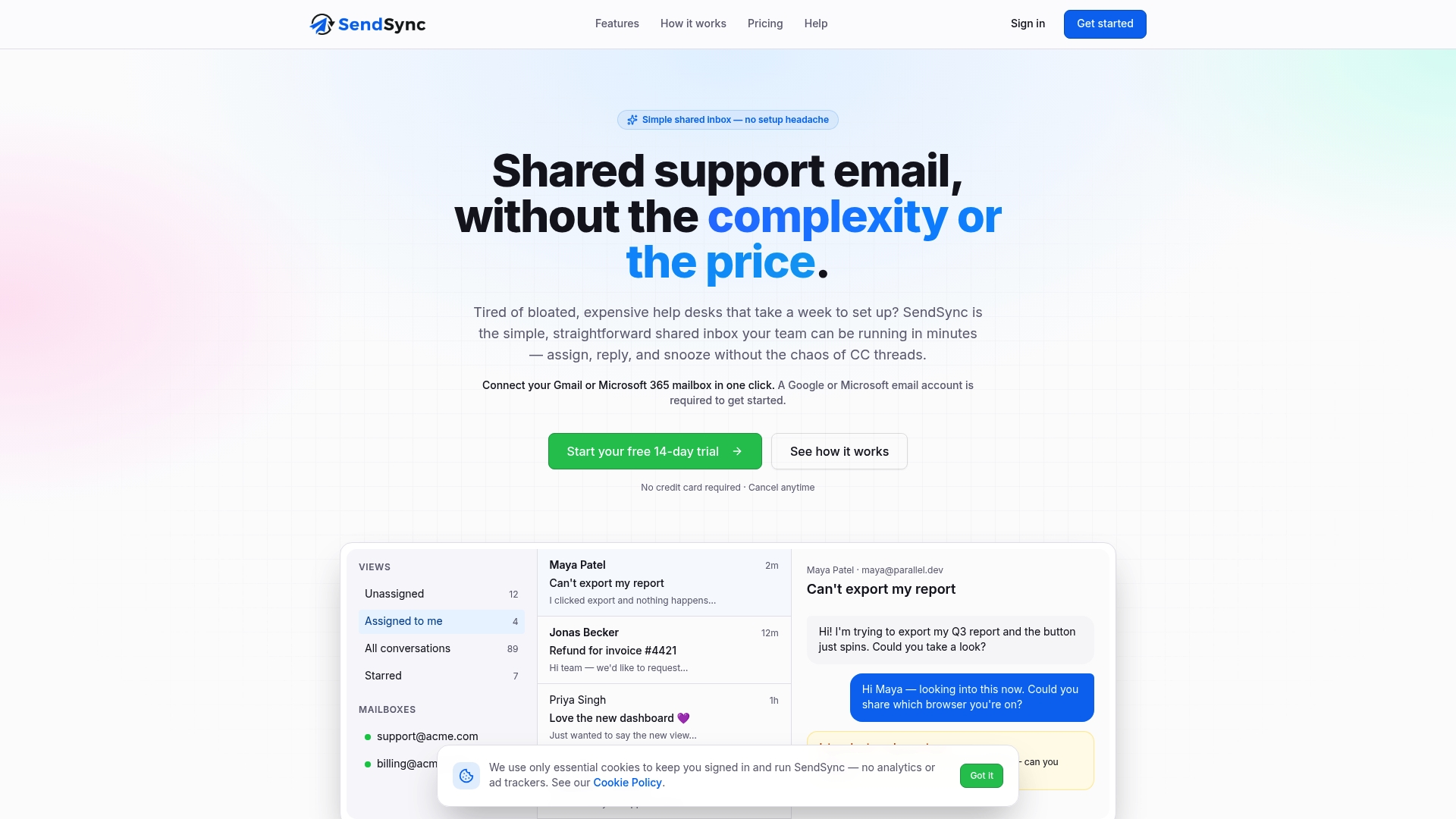
If you want a sense of the shared inbox habits behind good reporting first, our piece on why a separate client inbox matters is a good place to begin.
FAQ
What is a good first response time for a small team?
It depends on your customers and your hours. Many small teams aim for a few business hours on email, and published benchmarks for B2B email vary widely, with some roundups placing the typical figure near half a day. Choose a target you can meet 90% or more of the time, then tighten it once you do.
How often should we review team inbox reports?
Weekly is enough for most small teams. Check unreplied email by age daily, because that one needs fast action, and look at the full set of four metrics once a week. Monthly reviews are too slow to catch a workload problem before customers notice.
Should we use the average or the median response time?
Track both. The average shows the effect of extreme cases, while the median shows what a typical customer experienced. When the two are far apart, a few conversations are stuck, and reading those threads usually reveals the cause.
Do we need a lot of tags to get useful reports?
No. Five to eight tags cover most support teams. Make sure every conversation gets at least one, since untagged mail can’t be broken down by topic in a report.