
Handle Multiple Clients in a Single Inbox
Handle Multiple Clients in a Single Inbox ! Woman managing multiple client emails at desk Client inbox management is the practice of consolidating communications from multiple clients into one organized, centralized email workspace.

Client inbox management is the practice of consolidating communications from multiple clients into one organized, centralized email workspace. Freelancers and small business owners who handle multiple clients in a single inbox report fewer missed follow-ups, less context switching, and faster response times. The tools that make this possible include Microsoft 365 Shared Mailboxes, Google Workspace aliases, and task systems like Microsoft To Do. Without a unified setup, scattered client data creates hidden failure points that require heavy reconciliation to fix. Getting this right is not complicated. It requires the right tools, a repeatable workflow, and a clear understanding of where things break.
How to handle multiple clients in a single inbox
The foundation of managing multiple client inboxes from one place is choosing the right email architecture. Two options dominate for freelancers and small business owners: shared mailboxes and email aliases.
Microsoft 365 Shared Mailboxes give multiple users the ability to read, send, and manage a shared email address. Microsoft 365 Shared Mailboxes support three permission levels: Full Access (read and manage), Send As (send email appearing as the shared address), and Send on Behalf (send with visible sender info). Full Access triggers automapping, which adds the shared mailbox directly to Outlook. Shared mailboxes under 50GB require no additional license, making them a cost-effective option for small teams.

Google Workspace aliases work differently. Google Workspace supports up to 30 aliases routing all mail into one inbox. That setup works well for a solo freelancer managing several client email addresses. It breaks down when multiple team members need to reply, because aliases offer no visibility into who responded to what.
The table below compares the three main options:
Tool | Best for | Team visibility | License cost |
|---|---|---|---|
Microsoft 365 Shared Mailbox | Small teams, multiple users | Full | None under 50GB |
Google Workspace Alias | Solo freelancers | None | Included in plan |
Google Groups (Collaborative Inbox) | Teams needing ticket assignment | Partial | Included in plan |
Pro Tip: If you are a solo freelancer using Gmail, aliases are the fastest setup. If you have even one other person handling client replies, use a shared mailbox or Google Groups Collaborative Inbox instead.
For prerequisites, you need at least one Microsoft 365 or Google Workspace account, client-specific email addresses or aliases configured, and delegation or permission settings reviewed before going live. Skipping the permission review is the most common setup mistake.
How to organize client communications within one inbox
A single inbox for clients only works if the structure inside it is deliberate. Without folders, labels, or task integration, a unified inbox becomes a different kind of chaos.
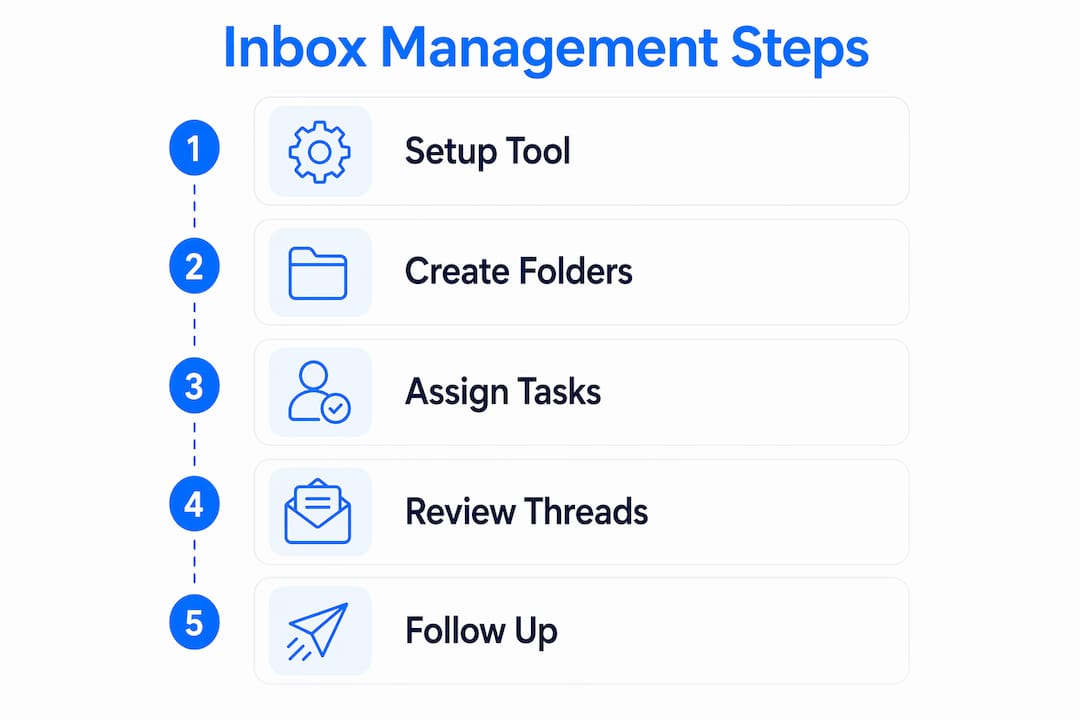
The most effective approach starts with a dedicated folder or label for each client. In Gmail, labels act as tags, so one email can carry multiple labels. In Outlook, folders are exclusive, so create a top-level folder per client and use subfolders for projects or invoice threads. Either way, the goal is the same: one click to see everything related to a specific client.
Beyond folders, converting flagged emails into tasks using Microsoft To Do is one of the most underused workflows in client email management. Microsoft’s current approach focuses on turning inbox messages into trackable action items rather than just archiving or deleting them. A flagged email in Outlook automatically appears in the To Do “Flagged Email” list. From there, you assign a due date and add it to “My Day.”
A practical daily workflow looks like this:
Open your inbox at a set time each morning. Do not check email before this.
Flag every email that requires a response or action. Do not reply yet.
Move flagged emails to the relevant client folder.
Open Microsoft To Do and review your “My Day” list. Add 3–5 priority tasks.
Work through tasks in order. Reply to emails only when the task requires it.
At end of day, clear flags on completed items and archive resolved threads.
This workflow separates reading from responding. That separation alone reduces the feeling that your inbox controls your schedule.
Pro Tip: Build a simple client workspace document for each client: one file that holds their contact info, active project status, payment terms, and links to key email threads. A unified client workspace prevents work from slipping through the gaps between your inbox, your invoicing tool, and your project notes.
For teams using a shared inbox workflow, assign each incoming client thread to a specific person. Unassigned threads in a shared inbox are the leading cause of duplicate replies and missed follow-ups.
What are common challenges when managing multiple clients in one inbox?
Even a well-configured inbox runs into problems. Knowing the failure points in advance saves hours of troubleshooting.
Thread confusion is the most frequent issue. When multiple clients discuss similar topics, threads blur together. The fix is strict labeling and a habit of checking the “From” field before replying. One mislabeled reply sent to the wrong client is a relationship problem, not just an inbox problem.
Automapping delays catch many Microsoft 365 users off guard. Shared mailbox automapping can take up to an hour after permissions are granted, and the mailbox will not appear in Outlook until the user restarts the application. If a team member reports not seeing the shared mailbox, the fix is almost always an Outlook restart, not a permission change.
Send permission conflicts are a separate issue. Full Access permission controls mailbox visibility. Send As and Send on Behalf are sending rights only. Granting Full Access does not automatically grant Send As rights. These must be configured separately in the Microsoft 365 admin center.
Duplicate replies happen when two people in a shared inbox respond to the same thread. Google Groups Collaborative Inbox solves this with ticket assignment, preventing overlapping responses. For Microsoft 365 teams, the same result requires a shared inbox tool with assignment features.
Scattered client information across inboxes and apps creates hidden failure modes. Invoice tracking in one place, project notes in another, and email threads in a third means any one of those systems can fail silently without the others catching it.
Missing follow-ups are the most costly failure. A client email that gets read but not flagged disappears into the archive. The solution is a non-negotiable rule: if an email requires action, it gets flagged before you close it. No exceptions.
How do CRM and pipeline tools complement single inbox management?
A single inbox works well up to a point. As client counts grow, inbox-centric management hides pipeline visibility, making it easy to miss revenue opportunities and forget follow-ups that were never written down.
The shift from inbox to CRM is not about abandoning email. It is about adding a layer that tracks where each client relationship stands. A CRM records the last contact date, the deal stage, and the next action. Your inbox records the conversation. Both are necessary.
Approach | Strengths | Weaknesses |
|---|---|---|
Inbox only | Fast setup, low cost | No pipeline view, easy to miss follow-ups |
Inbox plus CRM | Full visibility, deal tracking | Requires data entry discipline |
Full CRM with email sync | Automated logging, reporting | Higher cost, longer setup |
For freelancers managing fewer than five active clients, a well-organized inbox with a task system covers most needs. Beyond that threshold, a CRM-oriented system that provides pipeline visibility becomes the difference between managed growth and reactive chaos.
Tools like Copper integrate directly with Gmail, pulling email threads into client records automatically. That integration removes the manual data entry barrier that causes most freelancers to abandon CRM tools within the first month. For teams already using Microsoft 365, the inbox delegation and visibility features in a shared inbox tool can bridge the gap before a full CRM investment makes sense.
The practical transition path: start with a shared inbox and client folders, add a task system for follow-up tracking, then introduce a CRM when you find yourself losing track of where client relationships stand rather than just where individual emails are.
Key Takeaways
Managing multiple clients from a single inbox requires the right architecture, a daily workflow, and a clear escalation path to CRM tools as client volume grows.
Point | Details |
|---|---|
Choose the right tool first | Use Microsoft 365 Shared Mailboxes for teams and Google Workspace aliases for solo freelancers. |
Separate reading from responding | Flag emails before replying and use Microsoft To Do to track follow-ups by due date. |
Label every thread by client | Create one folder or label per client to prevent thread confusion and mislabeled replies. |
Know the technical failure points | Shared mailbox automapping delays up to an hour; Send As rights must be set separately from Full Access. |
Add CRM when inbox visibility breaks down | Transition to a pipeline tool when client counts make follow-up tracking unreliable in email alone. |
What I’ve learned managing client inboxes for years
The advice most freelancers get about inbox management focuses on tools. Get the right app, set up the right folder structure, and everything will work. That is only half true.
The real problem is discipline, not software. I have seen freelancers with perfectly configured Microsoft 365 Shared Mailboxes still miss client follow-ups because they read emails without flagging them. The tool does nothing if the habit is not there.
The second thing most guides miss: your inbox is not your project management system. Treating it like one is where the chaos starts. Email is for communication. Tasks, deadlines, and deliverables belong in a separate system, even if that system is just a plain text file per client. The moment you try to track project status inside an email thread, you have lost the thread.
The third observation is about complexity. Freelancers often reach for the most feature-rich tool available, then spend more time managing the tool than managing clients. A shared inbox with assignment and a simple task list beats an over-configured CRM that nobody updates. Start lean. Add complexity only when a specific problem demands it.
Shared inboxes, when used well, also protect client relationships. A client who emails your support address and gets a reply from a named team member, assigned and tracked, feels like they are dealing with a real operation. That perception matters more than most freelancers realize.
— Nick
Sendsync makes client inbox management practical
Managing client communication across multiple accounts does not have to mean constant tab switching or missed threads.
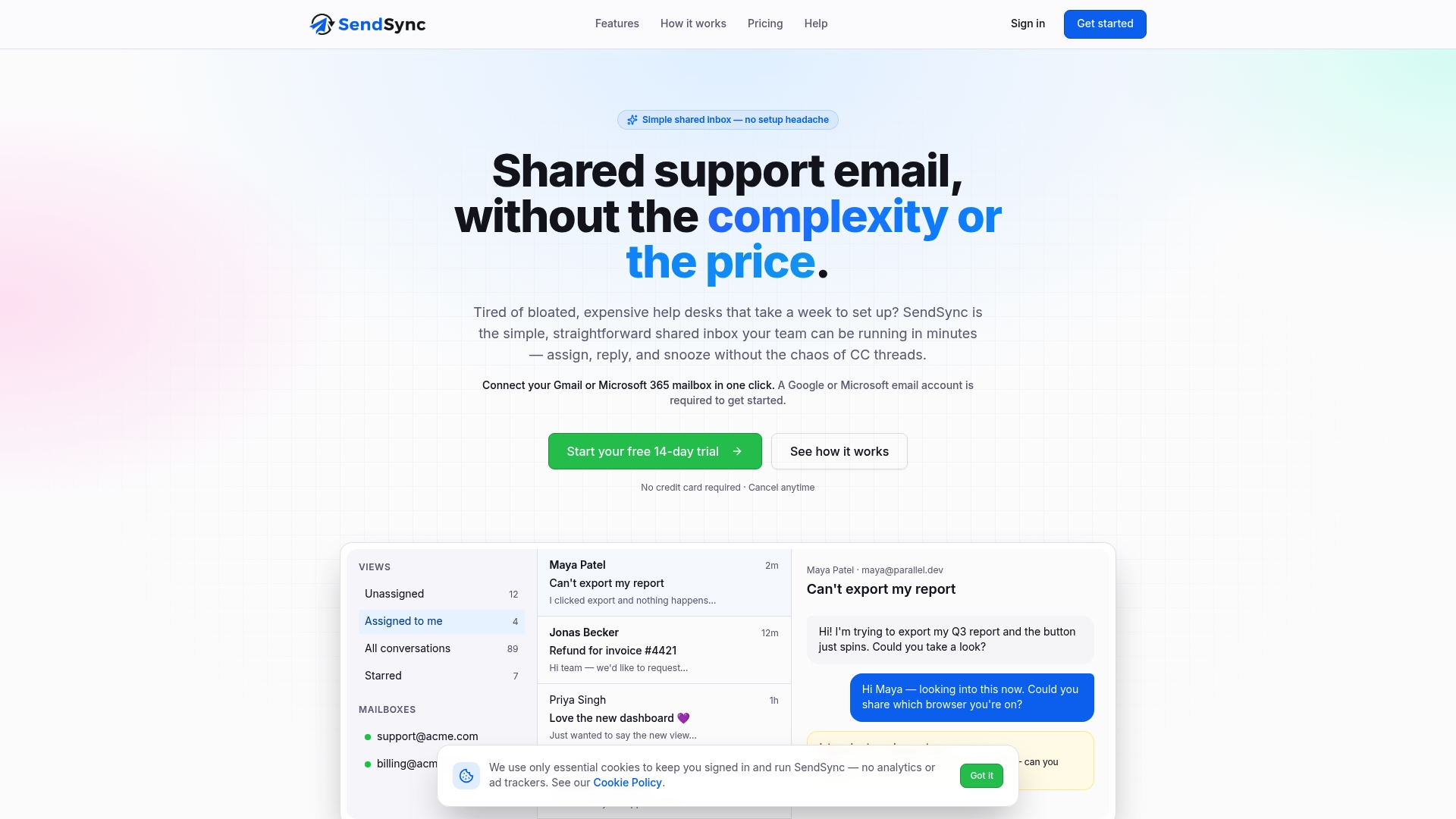
Sendsync connects directly to Gmail or Microsoft 365 mailboxes in minutes, with no DNS configuration or lengthy setup. Teams can assign incoming client threads to specific members, track reply status, and manage conversations without the overlap problems that plague standard shared mailboxes. Sendsync offers unlimited users with no per-seat fees, which makes it a practical fit for small teams and growing freelance operations. If your current inbox setup is causing missed replies or duplicate responses, try Sendsync and see how a purpose-built shared inbox changes the daily workflow.
FAQ
What is client inbox management?
Client inbox management is the practice of organizing, prioritizing, and responding to emails from multiple clients within a single, structured email workspace. The goal is to prevent missed follow-ups and reduce the time spent searching for client communications.
Can one inbox handle emails from multiple clients?
Yes. Microsoft 365 Shared Mailboxes and Google Workspace aliases both route multiple client email addresses into one inbox. Google Workspace supports up to 30 aliases in a single account.
How do I prevent duplicate replies in a shared client inbox?
Assign every incoming thread to a specific team member before anyone replies. Google Groups Collaborative Inbox and dedicated shared inbox tools like Sendsync both support thread assignment to eliminate overlapping responses.
When should I move from inbox management to a CRM?
Move to a CRM when you find yourself losing track of where client relationships stand, not just where individual emails are. A pipeline-based system becomes necessary as client counts grow and follow-up timing becomes harder to track in email alone.
Does a Microsoft 365 Shared Mailbox require a paid license?
A Microsoft 365 Shared Mailbox under 50GB requires no additional license. Storage above that threshold requires a standard Exchange Online license assigned to the mailbox.