
Shared Inbox Training: How to Onboard Your Team in 4 Weeks
Shared Inbox Training: How to Onboard Your Team in 4 Weeks ! Support lead coaching a teammate on inbox ownership Good shared inbox training teaches your team four things: who owns each conversation, what the statuses mean, how to hand work off, and how to reply in a way that matc

Good shared inbox training teaches your team four things: who owns each conversation, what the statuses mean, how to hand work off, and how to reply in a way that matches your standards. Teach those in the first month, with supervised practice on real messages, and most duplicate replies and missed emails disappear. Below is a four-week plan, the access setup that comes first, the rules worth writing down, and the numbers that show whether it worked.
TL;DR
- Train on workflow, not buttons: one named owner per conversation, shared statuses, and a clear handoff routine.
- Set up access properly first. Shared mailboxes and delegation in Microsoft 365 and Google Workspace have specific rules your admin needs to know.
- Write a one-page inbox charter (purpose, hours, urgent criteria, escalation contacts) before the first training session.
- Practice on sample and supervised live messages, then review the first weeks for unassigned, stale and duplicated conversations.
- Measure first-response time with percentiles and backlog age, not just averages.
Table of Contents
- What you are really training people to do
- Step 0: Get access right before anyone is trained
- Step 1: Write the one-page inbox charter
- Step 2: Teach ownership and statuses
- Step 3: Make handoffs boring
- Step 4: Standardize replies without sounding robotic
- Step 5: Run the four-week plan
- Rules, rotations and response times
- Mistakes to train out early
- Measure whether the training worked
- Our perspective
- Try the workflow in a real inbox
- FAQ
- Sources
What you are really training people to do
Most teams treat a shared inbox like a bigger personal inbox. That is where the trouble starts. In a personal inbox, reading a message means you will deal with it. In a shared one, reading means nothing: three people can open the same email and each assume someone else has it.
The useful distinction is between access and workflow. A shared mailbox gives several people access to the same email history. A shared inbox turns each message into a piece of work with an accountable owner and a visible status, as one comparison of the two puts it. Your training has to build the second habit on top of the first tool.
So the goal of training is not “everyone knows where the Reply button is.” It is:
- Everyone knows what the inbox is for and what it is not for.
- Every active conversation has exactly one owner.
- Everyone uses the same statuses in the same way.
- Handoffs leave nothing implicit.
- Replies sound like one company, not five individuals.
If you already use or plan to use a dedicated tool, our guide to shared inbox workflows for small teams shows what this looks like day to day.
Step 0: Get access right before anyone is trained
Nothing derails a first training session like half the room not seeing the inbox. Sort access first, and keep it clean.
Microsoft 365
Microsoft describes shared mailboxes as a fit for support, reception and other team addresses, where people are granted permission to send as, or on behalf of, the mailbox. Three practical points for your admin:
- An administrator creates the mailbox and adds each person as a member. Users cannot self-serve this. In new Outlook, the mailbox normally appears after a restart, or people can add it through the Add shared folder or mailbox option, according to Microsoft’s Outlook support page.
- An unlicensed shared mailbox can hold up to 50 GB. Past that limit it may eventually stop sending and receiving, and larger storage or advanced compliance features can require extra licensing, per Microsoft’s documentation. Build archiving into your routine so you never find out the hard way.
- The shared mailbox account itself should not be used to sign in. Nobody should be taught a shared password.
For a deeper walk-through, see our explainer on what a Microsoft 365 shared mailbox is and the Microsoft 365 team inbox setup guide.
Google Workspace
In Google Workspace, an administrator can create or convert a shared address and add users as delegates. Delegates can read, send and delete messages, and view and add contacts. Two details matter when you schedule training:
- Delegation invitations expire after one week, and delegation can take up to 24 hours to take effect, according to Google’s delegation documentation. Send invitations a few days before the first session.
- Google separates Gmail delegation (labels, archiving, filters) from Google Groups collaborative inboxes, where members can assign conversations and track them as tasks, per the same documentation. Decide which model you are using, because the training differs.
If you connect Gmail to a team inbox tool instead, our Gmail team inbox guide covers the setup.
Step 1: Write the one-page inbox charter
Before you train anyone, answer these questions on a single page. It becomes the first slide of your session and the reference people return to.
- Purpose: What arrives here? Support requests, billing questions, partnership inquiries?
- Out of scope: Where do messages that do not belong go, and who forwards them?
- Coverage hours: When is the inbox actively watched, and by whom? Name a primary and a backup.
- Urgent criteria: What makes a message urgent (an outage, a payment failure, a legal notice)? What do you do within the first hour?
- Escalation contacts: Who gets pulled in when an agent cannot resolve something, and how?
- Response targets: A realistic first-response target by priority, based on your actual staffing.
Keep targets honest. A promise of a one-hour reply from a three-person team with one person on vacation is a promise you will break. Set a target you can meet on a bad week, then tighten it as the numbers improve.
Also name responsibility at three levels: a business owner who decides what the inbox is for, an operational owner who watches queue health, and a technical owner who manages permissions, rules and offboarding. One governance guide argues that these three roles should be explicit, and for a small team it can be the same two people wearing three hats. What matters is that the names are written down.
Step 2: Teach ownership and statuses
This is the core of the training. Keep it simple enough to remember under pressure.
One conversation, one owner
Every active conversation has one named owner. Not “the team,” not “whoever sees it first.” Teach people to claim a conversation the moment they start reading it, and to release it explicitly if they cannot finish. In a tool with assignment, this is one click; in a plain shared mailbox, it is a rule such as tagging or categorizing with your name. Our piece on assigning emails to teammates goes through the common patterns: round robin, by topic, and by account.
Four statuses, defined
Use the same shared states for everyone. A simple set is New, In progress, Waiting and Done. One onboarding guide uses this set and warns that a message being read or opened does not mean work is active or resolved. Write down what each state means:
| Status | Meaning | Who moves it |
|---|---|---|
| New | Arrived, nobody owns it yet | Automatic |
| In progress | An owner is actively working on it | The owner |
| Waiting | Blocked on the customer or a colleague, with a note saying on what | The owner |
| Done | Resolved, or closed with a final reply | The owner |
The training point people miss: Waiting is not a parking lot. Every Waiting item needs a note on what it is waiting for and a date to look again.
Internal notes beat side chats
Teach people to put context in internal notes attached to the conversation, not in private messages or hallway talk. The next person who picks it up should be able to understand the history in under a minute.

Step 3: Make handoffs boring
Handoffs are where conversations get lost: a shift ends, someone goes on leave, a billing question needs finance. Train a fixed routine:
- Write down the issue in a sentence or two.
- Record what has been checked and anything promised to the customer.
- List the remaining work, any deadlines and any risks.
- Transfer ownership visibly, not just by mentioning someone.
- The incoming owner acknowledges it.
This five-part record mirrors the handoff advice in the onboarding guide. Run it as a role-play: give each pair a half-finished conversation and have one hand it over. If the receiver has to ask a question, the handoff note was incomplete, and that is exactly what practice is for.
For teams with several dedicated groups, routing rules matter as much as handoffs. A US trade-press description of an insurance agency model combines dedicated teams, automatic and manual routing, standardized completion guidelines and confirmation templates, with client interactions logged in the agency’s management system. You do not need that scale, but the shape is a good template: route, complete to a standard, confirm, log.
Step 4: Standardize replies without sounding robotic
Templates save time and keep quality consistent, but only when people know when to use them. In your training:
- Document approved responses for your top ten question types.
- Teach when an agent must personalize, verify or escalate instead of sending the standard text. Anything involving a refund over a set amount, a complaint, or a legal threat is not a template job.
- Agree on a signature format and a tone. A short style sheet with three good replies and one bad one teaches more than a page of rules.
If your team handles several customers or accounts from one inbox, add a short section on keeping them separate; our guide to handling multiple clients in a single inbox covers that.
Step 5: Run the four-week plan
Training is a month, not an afternoon. Here is a schedule that works for a team of three to fifteen.
| Week | Focus | Activity |
|---|---|---|
| 1 | Charter, access, statuses | 60-minute walkthrough with a live demonstration; everyone confirms they can see the inbox and send correctly |
| 2 | Supervised practice | Agents work sample messages, then live ones with a lead reading over their shoulder; role-play two handoffs |
| 3 | Independent work | Full coverage rotation starts; daily 10-minute check on unassigned and stale items |
| 4 | Review and adjust | Review the numbers, update the charter and templates, retire rules nobody uses |
The onboarding guide recommends demonstrations, then supervised practice, then a review of the early weeks for unassigned conversations, stale waiting items, duplicate replies, unclear escalations and coverage gaps. Treat that list as your week-four checklist.
Freelancers and solo operators can compress this into a weekend. The freelancer inbox management checklist is a shorter version of the same idea.
Rules, rotations and response times
Once people can use the inbox, keep it predictable.
- Coverage rotation: Name a primary and a backup for each time block. Post the schedule where everyone sees it.
- Inbox rules and automation: Keep them few and documented. Triage rules (tagging by topic, routing by keyword) help; a tangle of rules nobody remembers does not. Revisit them in your regular retrospective.
- Escalation paths: Write down who to call for an outage, a billing dispute, a press inquiry.
- Response targets by priority: Urgent, normal, low, each with a realistic target.
The response standard should be realistic and measured against actual staffing, as one team-inbox guide recommends. That is the same advice as above, and it holds whether you have five agents or fifty.
Mistakes to train out early
- Shared passwords. Use permissions, not a password on a sticky note. Microsoft’s guidance is that the shared mailbox account stays blocked from sign-in.
- Unclear ownership. If two people can say “I thought you had it,” the process failed.
- Skipping onboarding for new hires. The month-one plan is the plan for every new person.
- Moving emails to personal folders. Anything that leaves the shared space leaves the team’s view.
- Never reviewing performance. Training without measurement drifts back to old habits.
- Letting the inbox pile up. Archive Done items on a schedule.
Measure whether the training worked
Pick a handful of numbers and look at them weekly during the first month, then monthly.
- Average and median first-response time, plus response time by team member and by day or hour.
- Workload distribution across the team.
- Unreplied emails after 24, 48 and 72 hours.
- SLA compliance and volume trends.
That list follows a shared-mailbox monitoring guide. Add backlog size and age, and use percentiles such as p50 and p90 rather than averages alone, because averages can hide a long tail of customers waiting far past your target, as a team email metrics guide explains.
A caution for plain Microsoft 365 shared mailboxes: response measurement can compare message arrival to first and final replies using conversation identifiers, but those identifiers are imperfect when people change recipients or start new threads. Treat the numbers as a strong signal, and spot-check a few conversations by hand. A tool with built-in metrics dashboards removes most of that manual work.
Our perspective
Most shared inbox problems we see are not people problems. They are setup problems. Teams ask people to follow a process that the tools make hard to follow, then blame the people.
That is why we built SendSync as a razor-thin shared inbox. You connect a Gmail or Microsoft 365 mailbox in minutes, with no DNS work, and your team can assign, reply and manage conversations in one place. Assignment, internal notes, tagging and saved views are part of the daily flow, so the ownership and handoff habits in this article are things people do naturally, not rules they have to remember.
We also think training should not get more expensive as you grow. Our plans include unlimited users with no per-seat fees, so you can bring in the part-timer, the founder and the new hire without recalculating the bill. A simpler tool means a shorter training session, and that is the point.
Nick
Try the workflow in a real inbox
If you want your team practicing on a tool built around ownership, statuses and handoffs, SendSync offers a 14-day free trial. Plans start at $10 per month for Founder, then Starter at $30 per month, Growth at $80 per month and Scale at $200 per month, all with unlimited users. You can compare them on the SendSync plans page.
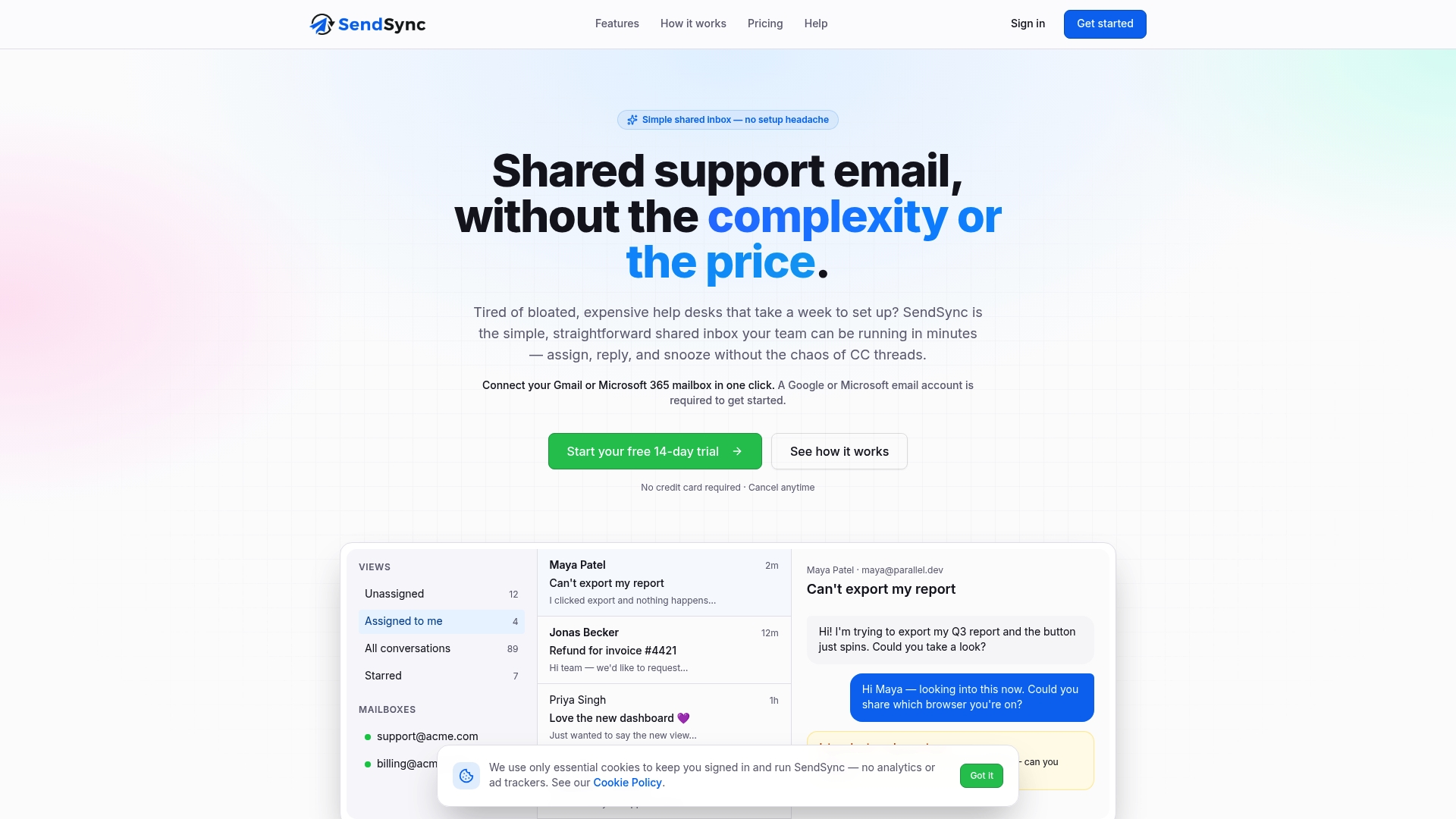
Connect your Gmail or Microsoft 365 mailbox, invite the whole team, and run week one of the plan above on live conversations.
FAQ
How long should shared inbox training take?
Plan a 60-minute kickoff and a month of light follow-up. The first week covers the charter, access and statuses. Weeks two and three are supervised and then independent practice, and week four is a review of your numbers and rules. New hires repeat the same sequence.
What is the difference between a shared inbox and a shared mailbox?
A shared mailbox is one address that several people open with their own logins. A shared inbox adds workflow on top: each message becomes work with an owner and a status. Training for the second is mostly about habits like claiming, noting and handing off.
How do we stop two people replying to the same email?
Require an owner before anyone replies, and make ownership visible in the inbox, whether through assignment, a status or a category. Train people to check for an owner first. In your week-four review, look specifically for duplicate replies and fix the gap that caused them.
Which metrics should we watch first?
Start with first-response time (median and p90), unreplied emails after 24 hours, and backlog age. They show speed, reliability and the long tail without needing a complicated report. Add SLA compliance once your targets by priority are settled.
Sources
- About shared mailboxes in Microsoft 365
- Open and use a shared mailbox in Outlook
- Create a shared inbox, Google Workspace
- Delegate and collaborate on email, Google
- Measuring KPIs like response times for shared mailboxes
- Shared inboxes, Rough Notes
- Shared mailbox vs team inbox
- Shared inbox onboarding: workflow, access and team training
- Shared inbox management guide
- Managing a team inbox across different work hours
- How to monitor a shared mailbox
- Email productivity metrics for teams