
Support Managers: Run Your Remote Support Team With a Shared Inbox in Days
Support Managers: Run Your Remote Support Team With a Shared Inbox in Days ! Manager coordinating remote support inbox The fastest way to manage a remote support team is to run a shared inbox with clear message ownership, a coverage rota, and written SLAs for first response and r

The fastest way to manage a remote support team is to run a shared inbox with clear message ownership, a coverage rota, and written SLAs for first response and resolution. Assign every conversation to one person, define what “done” actually means, and back it with templates for repeat questions. SendSync sets this up in an afternoon by connecting straight to Gmail or Microsoft 365, no DNS changes required. The payoff shows up fast: faster first replies, fewer double-replies, and a team that knows exactly who owns what.
TL;DR:
- Managing a shared inbox requires distinct addresses for support, billing, and sales, with clear ownership and roles to prevent chaos.
- Routine practices like daily triage, short support huddles, and a rotating triage owner help maintain team coordination and prevent burnout.
- Essential tools include assignment, collision detection, templates, routing automation, and reporting, all of which improve response times and consistency.
- Connect directly to Gmail or Microsoft 365 without DNS changes using SendSync, enabling a team to be operational within a day or two.
- Tracking key metrics such as first response time, resolution time, volume by category, and reopened rate guides improvements and identifies emerging issues.
Table of Contents
- Setting Up a Shared Inbox to Manage a Remote Support Team
- Daily and Weekly Routines That Keep Remote Agents Coordinated
- What Tools and Integrations Actually Matter Here
- Metrics That Tell You Whether the Inbox Is Actually Working
- Where Managers Actually Go Wrong in the First 30 Days
- Get Your Remote Team Running on SendSync This Week
- Sources
Setting Up a Shared Inbox to Manage a Remote Support Team
Getting the foundation right takes a few focused days, not weeks. Rushing this step is the single biggest reason shared inboxes turn chaotic within a month.
Start with these five moves, in order:
- Separate addresses by function. Keep support@, billing@, and sales@ distinct, and name one person who owns triage for each. A shared inbox centralizes conversation history so everyone sees the same thread, but that only helps if someone is actually watching each address.
- Define roles and permissions. Decide who can assign, who can close a thread, and who can edit templates. Write a one-page etiquette guide covering internal notes, tone, and when to loop in a manager.
- Build routing and auto-tagging rules. Route by sender domain, subject keyword, or phrase so refund requests land with billing and technical issues land with tier two automatically.
- Set explicit statuses. Use new, mine, waiting, and done instead of relying on read and unread. Explicit statuses with a clear definition of done stop threads from quietly rotting in someone’s inbox for a week.
- Draft your top 20 templates first. Pull your last month of tickets, find the 20 most common questions, and write templates for each before you go live.
That fifth step matters more than people expect. A SendSync guide on inbox collaboration covers how to structure this rollout so agents aren’t learning the tool and writing from scratch on day one.
Daily and Weekly Routines That Keep Remote Agents Coordinated
Setup gets you running. Routine keeps you from falling apart three weeks later, when the novelty wears off and messages start slipping through cracks nobody assigned.
Run a triage sweep at the start of every shift: someone opens the inbox, assigns or archives every unassigned message, and flags anything that’s been sitting more than four hours for escalation. Rotating triage duty weekly prevents the same person from quietly absorbing invisible work month after month, which is how burnout starts on distributed teams.
Your coverage rota should follow the sun, not the clock on headquarters’ wall. If your team spans US, European, and Asian time zones, build handoff checklists so an agent ending their shift leaves clear notes on anything mid-conversation, not just an assignment tag.
Keep support huddles short, 10 to 15 minutes, three or four times a week. Cover only: what’s stuck, what’s escalating, and what pattern is showing up in tickets today. A daily huddle framework works well for teams spread across three or more time zones, since it forces the meeting to stay tight instead of sprawling into status theater.
Build a simple escalation matrix: technical issues past a certain complexity go to engineering, billing disputes over a dollar threshold go to a manager, anything mentioning legal or churn goes straight up the chain. And set etiquette rules early: use internal notes instead of Slack side-channels for conversation context, and always reply from the shared address, never a personal one, so history stays intact when someone’s on vacation.
Pro Tip: Assign one person as “triage owner” for the week, not permanently. Rotating the role means everyone learns to spot patterns in incoming volume, not just the one person who’s always done it.
For distributed teams, communication norms matter as much as the tooling. A partner guide on remote communication strategies covers the leadership side of this, worth a read if your huddles keep drifting off-topic.
What Tools and Integrations Actually Matter Here
Not every feature marketed at shared inboxes earns its place. Six actually change your daily outcomes: assignment, collision detection, internal notes, routing automation, saved templates, and reporting. Everything else is decoration.
- Assignment stops the “everyone assumes someone else replied” failure mode that kills response times.
- Collision detection warns agents when a teammate is already typing a reply, so customers don’t get two contradictory answers.
- Internal notes keep context attached to the thread instead of scattered across Slack messages nobody can find later.
- Routing automation tags and delivers predictable requests to the right owner without a human sorting every message by hand.
- Templates keep tone and accuracy consistent across a team that’s never sat in the same room.
- Reporting turns the inbox into a source of operational signal instead of just a place emails go to die.
Gmail and Microsoft 365 integration matters more than most managers realize until they’ve lived through a traditional help desk setup. Legacy tools often demand DNS changes, MX record edits, and a setup window measured in weeks. SendSync connects directly to your existing Gmail or Microsoft 365 mailbox with no DNS work, which means a team can be live the same day instead of scheduling an IT ticket first. A Microsoft 365 collaboration overview breaks down why that integration path saves real setup time for teams already living inside the Microsoft ecosystem.
Native shared mailboxes hold up fine for very small operations. Past that, assignment, statuses, and reporting justify moving to a dedicated tool, since generic mailboxes have no concept of “who owns this” beyond who happened to click reply first.
| Signal you’re outgrowing a native mailbox | What it looks like day to day |
|---|---|
| Team size | More than three people touching the same address |
| Daily volume | 30 or more conversations a day |
| Ownership confusion | Multiple people drafting replies to the same thread |
| Reporting gaps | No way to see response time or category volume without manual counting |
To connect and enable collision detection: link your Gmail or Microsoft 365 account, confirm inbound and outbound send permissions, turn on collision alerts in settings, then invite your team, unlimited users, no per-seat pricing to negotiate around.
Metrics That Tell You Whether the Inbox Is Actually Working
Five numbers matter more than the rest combined: first response time (FRT), resolution time, volume by category, reopened rate, and workload per agent. Track them weekly at minimum.
- First response time tells you how fast a human acknowledges the customer, separate from how fast the issue actually gets solved.
- Resolution time measures the full arc, open to close, and flags where a category is quietly eating hours.
- Volume by category shows which question types are climbing, so you catch a product bug or policy confusion before it floods the inbox.
- Reopened rate exposes threads marked “done” that weren’t actually done, which is often a template or training gap, not an agent problem.
- Workload per agent keeps one person from silently absorbing double the tickets of everyone else.
Pairing category volume with response time is where the real insight lives. Tracking those two together surfaces upstream fixes, like a confusing checkout step generating 40 tickets a week that a one-line UI fix could eliminate entirely. Third-party frameworks on CSAT, FCR, and AHT are worth layering in once your basics are stable.
Review numbers weekly with the team lead, monthly with leadership. Run three small experiments a quarter: test a new template on your top-volume question, try a different rota shift pattern, or pilot auto-tagging on one category and measure the FRT change before rolling it out wider.
Where Managers Actually Go Wrong in the First 30 Days
The mistake I see most isn’t a tooling problem. It’s confusing “someone read this” with “someone owns this.” Read and unread are not statuses. They’re an accident waiting to happen, because three people can mark a message read and none of them will reply to it.
The second mistake is skipping the rota because the team feels “small enough to just handle it.” Small teams without a rota are exactly where messages go quiet over a long weekend.
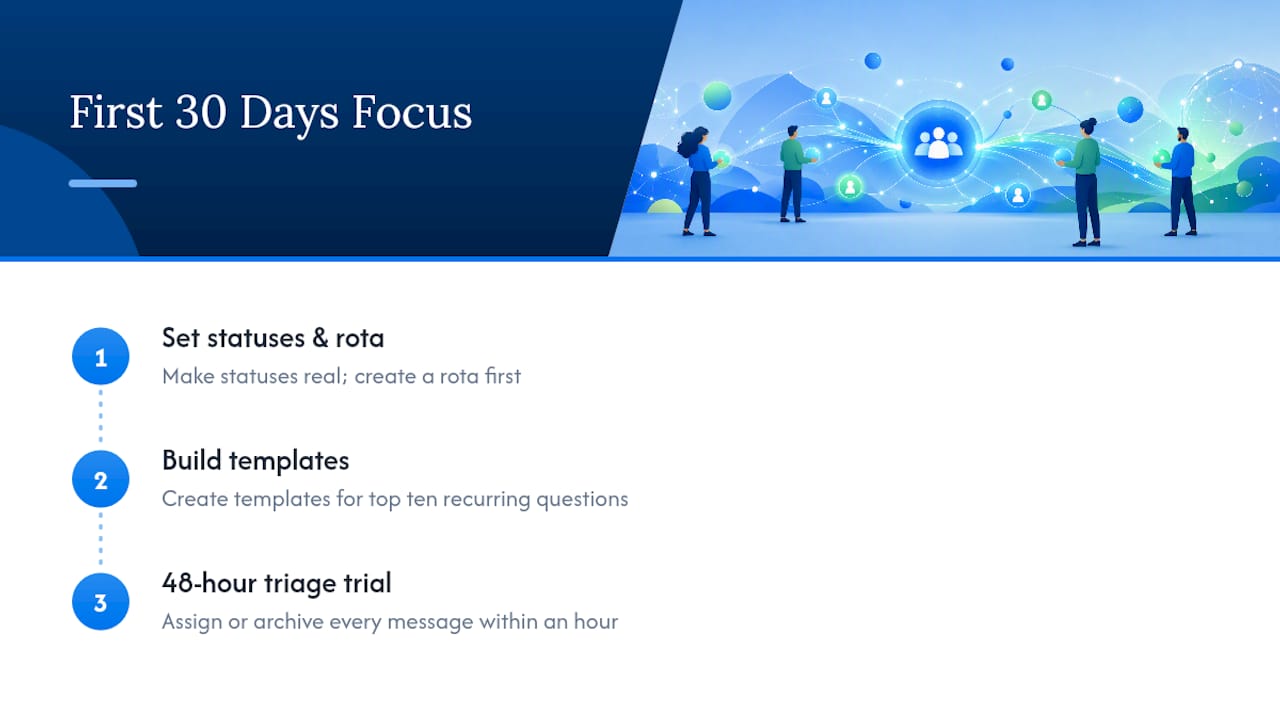
Spend your first 30 days on three things, in this order: set statuses and a rota before touching anything else, build templates for your top ten recurring questions, then run a 48 hour triage trial where every message gets assigned or archived within the hour. Teams that skip straight to automation before locking down these basics usually end up automating a broken process, which just breaks faster.
— Nick
Get Your Remote Team Running on SendSync This Week
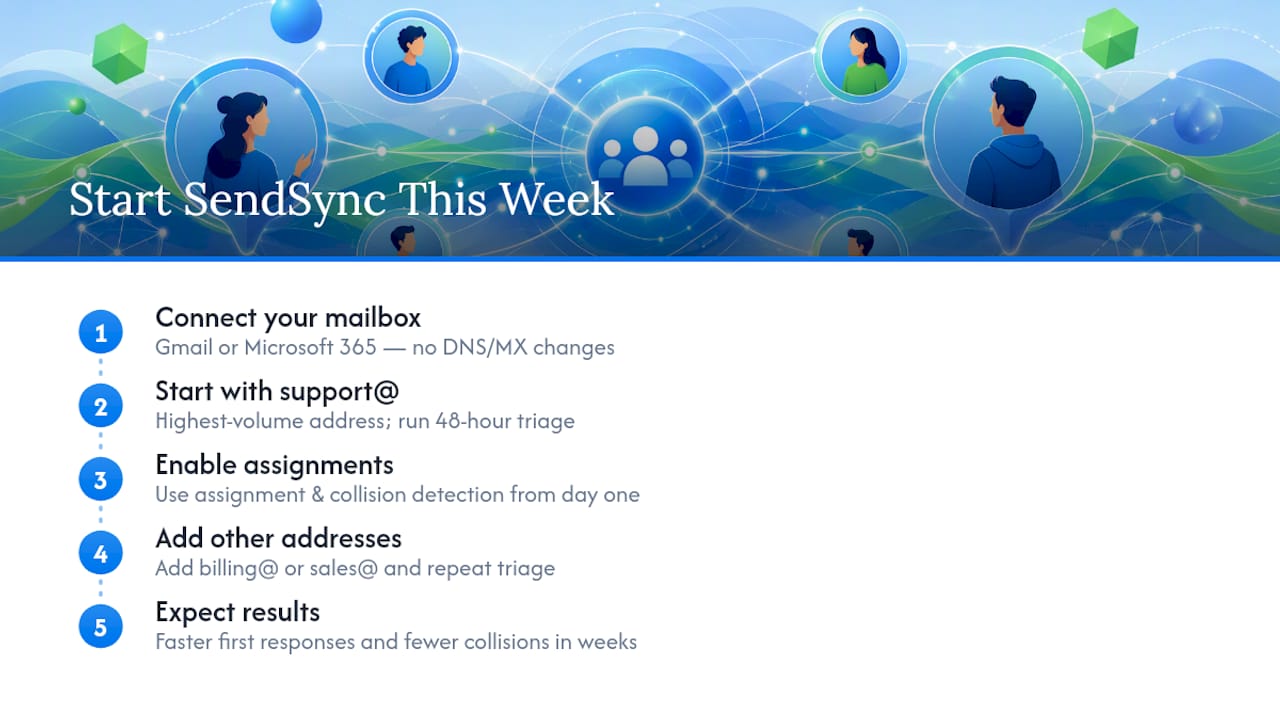
SendSync gets you the process described above running in days, not the weeks a traditional help desk setup usually demands. Connect your existing Gmail or Microsoft 365 mailbox directly, no DNS records, no MX changes, no waiting on IT. Every plan includes unlimited users, so adding agents as your team grows never turns into a per-seat pricing negotiation.

Start with the highest-volume address you have, usually support@, and run the 48 hour triage trial from the perspective section above using SendSync’s assignment and collision detection from day one. Once that address is stable, add billing@ or sales@ the same way. For the setup steps in order, the shared inbox best practices guide walks through templates, statuses, and rota design in more detail than fits here.
The expected result within a couple of weeks: faster first response time and noticeably fewer collision replies. Start a free trial on SendSync and connect your mailbox today.
Sources
A few resources worth bookmarking as you build out the routines covered above:
- Shared Inbox Customer Service and Support: Best Practices
- How to Run a Shared Inbox: 9 Best Practices for info@, support@, and billing@ | Serif
- Inboxdone
- Shared Inbox: What It Is, Why You Need One, and How to Choose | Skode