
How to Handle Out of Office Replies for You and Your Team
How to Handle Out of Office Replies for You and Your Team ! Woman setting an out-of-office reply on laptop To handle an out of office well, do three things: switch on an automatic reply in Outlook or Gmail, write it so the sender knows your return date and who to contact, and mak

To handle an out of office well, do three things: switch on an automatic reply in Outlook or Gmail, write it so the sender knows your return date and who to contact, and make sure someone actually owns the mail that arrives while you are gone. The first takes two minutes. The third is where small teams get hurt, because an auto reply only tells people you are away. It does not answer anyone. If you run support from a shared mailbox, the reply is the easy part, and coverage is the real job.
This guide walks through all three: the exact settings, the wording, and a coverage routine for teams that share one support address.
TL;DR
- In Outlook, use Automatic Replies. In Gmail, use the Vacation responder. Set a date range so the reply turns itself off.
- Say when you return, who to contact for urgent matters, and nothing more. Do not promise to reply the day you are back.
- Write a separate message for internal and external senders where your account allows it.
- For a support inbox, a name in the auto reply is not coverage. Assign the conversations to a person before you leave.
- A shared inbox with unlimited users lets the whole team pick up the mail you would otherwise return to.
Table of Contents
- Set up an automatic reply in Outlook
- Set up a vacation reply in Gmail
- What an out of office message should say
- Before you switch it on
- Why an auto reply is not enough for a support team
- Shared inbox coverage with SendSync
- Our perspective on being away
- FAQ
- Sources
Set up an automatic reply in Outlook
Outlook’s automatic replies send a customized message once to each sender during your absence, can be scheduled for specific dates, and can use different text for colleagues and outside contacts. The menu path depends on which version you use.
New Outlook: choose View, then View settings, then Accounts, then Automatic Replies. Turn automatic replies on, set a time period, optionally limit replies to your contacts, and select Save.
Outlook on the web: open Settings, then Account, then Automatic replies. Toggle them on, check the box to send replies only during a time period, set start and end times, add your message and save. Stanford’s IT guide lists the same steps.
Classic Outlook for Windows: choose File, then Automatic Replies (Out of Office), select Send automatic replies, and set a date and time range. The University of Colorado’s tech tip suggests including when you will return and who to contact for immediate help.
Two details save you trouble. First, setup differs by account type: Microsoft 365 and Exchange accounts have the built-in feature, while POP and IMAP accounts work differently, so check which you have. Second, Outlook on the web can also block your calendar, decline new invitations and cancel existing meetings for the away period. Turn that on if you do not want people booking time with you while you are gone.

Set up a vacation reply in Gmail
Gmail calls it the Vacation responder. Google’s instructions are short: open Settings, select See all settings, scroll to Vacation responder, switch it on, fill in the first day, last day, subject and message, optionally tick the box so only your contacts see it, and click Save Changes. Your Gmail signature is added at the bottom.
Know how the timing behaves, because it surprises people:
- The reply starts at 12:00 AM on your start date and ends at 11:59 PM on your end date.
- It is usually sent only the first time someone writes to you.
- If the same person writes again after four days while the responder is still on, they get it again.
- Editing the reply restarts it.
That last point matters if you tweak your wording halfway through a trip: everyone who already received the first version may get the new one. Finish the wording before you save.
If you use Google Workspace, Google’s out-of-office guide for Workspace adds that the account must be at least 24 hours old to use the feature.
What an out of office message should say
Most messages fail by saying too much about the trip and too little about what the sender should do next. CASE’s guidance lists a friendly greeting, the dates you are away or at least your return date, who to contact in your absence, and a sign-off. It also advises saying explicitly if you will not check email while you are gone.
The pieces, in order of importance:
- Return date. Specific beats vague. “Back on Monday, March 9” is better than “back soon.”
- Who to contact. Give a name, a role and an address or phone number, and say which topics they cover if you list more than one person. G2’s template guide makes the same point.
- Whether you will check mail. If you will not, say so. If you will check once a day, say that.
- A brief reason, optional. “Out of the office” is enough. The BBC, citing the etiquette consultancy Debretts, recommends a polite, concise reply that avoids oversharing holiday details.
- Sign-off. Short and warm.
Do not promise a response date
G2 warns against giving an exact response date or an “asap” promise, because catching up takes time. CASE agrees: do not promise to answer the day you return. If you want to set an expectation, make it realistic, such as “I will reply within a few business days of my return.” Shopify’s guide also warns against unattainable promises, too much detail, informal language and typos.
Subject line
Put the status and the date in the subject so the message is clear at a glance. Mailchimp’s best-practices guide suggests a format like “Out of Office: Returning [Date].” Keep it plain.
A template you can copy
This model message from Mitel’s guide covers the essentials. Adapt the brackets:
Thank you for your message. I will be out of the office from [starting date] until [return date]. I will respond to messages when I return. If you have an urgent request about [topic], please reach out to [colleague’s name], [colleague’s title] at [colleague’s phone and email]. Sincerely, [your signature].
To make it stronger, replace “when I return” with a realistic window, and name the topic each backup covers. For a support role, a version for outside senders might read:
Thanks for writing. I am away from [date] to [date] and will not be checking email. Your message has been seen by our support team, who will reply to you. For anything about billing, contact [name] at [address]. For account access, contact [name] at [address].
That second version only works if it is true. If nobody is actually assigned to the conversation, the line promising a reply is the kind of promise that gets broken. Which brings us to coverage.
Internal versus external messages
Colleagues need different information than customers. Internally you can say who has your projects and how to reach you in a real emergency. Externally you should stay brief and avoid detail about your whereabouts. Outlook lets you write both messages, and the BBC piece also suggests ticking both the internal and external options so no one gets silence. In Gmail, the contacts-only checkbox is the closest equivalent, so decide whether strangers should get the reply at all.
Before you switch it on
A good reply starts with a good handoff. Run through this list a few days before you leave:
- Pick a backup and ask them. Mitel advises checking with backup colleagues before you list them as contacts. Naming someone who does not know they are covering turns your reply into a trap for customers.
- Brief the backup. Mailchimp stresses that the people you name should be prepared on ongoing projects and likely issues, not just named in a message. A short written status note covering open items, deadlines and key contacts does this well. If you hand work to clients or other teams, these project handover templates give you a structure to follow.
- Warn critical people early. A heads-up email to the customers or partners who depend on you means the auto reply is not their first notice.
- Check your calendar. Decide whether to block it and decline invitations for the away period.
- Set the end date. A date range means the reply turns itself off. The BBC also lists switching it off when you return, so confirm it is off if you set it without an end.
- Send yourself a test. Write to your address from a personal account and see exactly what a stranger sees.
One more setting: Mitel suggests configuring the reply to fire on the first message rather than down a long thread. Gmail does that by default, and Outlook sends once per sender, so you mostly need to confirm it rather than build it.
Why an auto reply is not enough for a support team
An out of office reply solves a politeness problem. A support team has a different problem: customers are waiting on a person, and the person is away. The reply only says so.
This is how it breaks in practice for small teams:
- Support mail lands in one person’s mailbox. If the conversation lives in your inbox, nobody else can see it, so the backup you named has to ask you for context, and you are on a beach.
- Forwarding hides history. Forwarded threads lose assignment, notes and who said what to the customer.
- Two people answer the same email. With no assignment, a backup and a teammate both reply, or neither does.
- The return pile. You come back to a few hundred messages and no way to tell which ones were handled.
The fix is not a better auto reply. It is moving shared mail out of any one person’s inbox, so that absence is just a reassignment. We cover the mechanics of that in our guides to email ownership on small teams and setting up a shared inbox without forwarding.
A coverage routine for the days before you leave
- List what is open. Pull up every conversation assigned to you, and sort by customer urgency.
- Reassign, do not forward. Give each open conversation to a named teammate so ownership is visible to everyone.
- Leave notes on the conversation. Write what you promised, what you are waiting on and what the customer already knows. Internal notes keep this attached to the thread instead of in a chat message that gets lost.
- Hand over the routine work. Triage, tagging and saved views for your usual queue should move to someone else for the period. Our piece on support team handoff best practices goes deeper on this.
- Set the reply. Now the auto reply can say something true: a teammate has your open conversations.
- Plan the return. Do not try to reread everything. Filter to the conversations still assigned to you and start there.
Urgent mail while you are away
If you cannot reassign everything, give senders a way to flag what matters. Some guides suggest asking people to put a word like “urgent” in the subject line so your backup can spot it. That only helps if someone is looking at the inbox with a filter or a saved view for that word, so decide who checks it and how often, and say so in the message. Do not leave it to chance.
The tone of your automated message is a policy question too. If your support address sends an automatic acknowledgment, make sure it does not conflict with your personal out of office. Our auto reply best practices for support teams explain how to keep the two from contradicting each other. And if the problem is timing rather than absence, for example replying across time zones, scheduling support emails to send later in Gmail or Outlook is a simple way to keep replies landing when the customer is awake.
Shared inbox coverage with SendSync
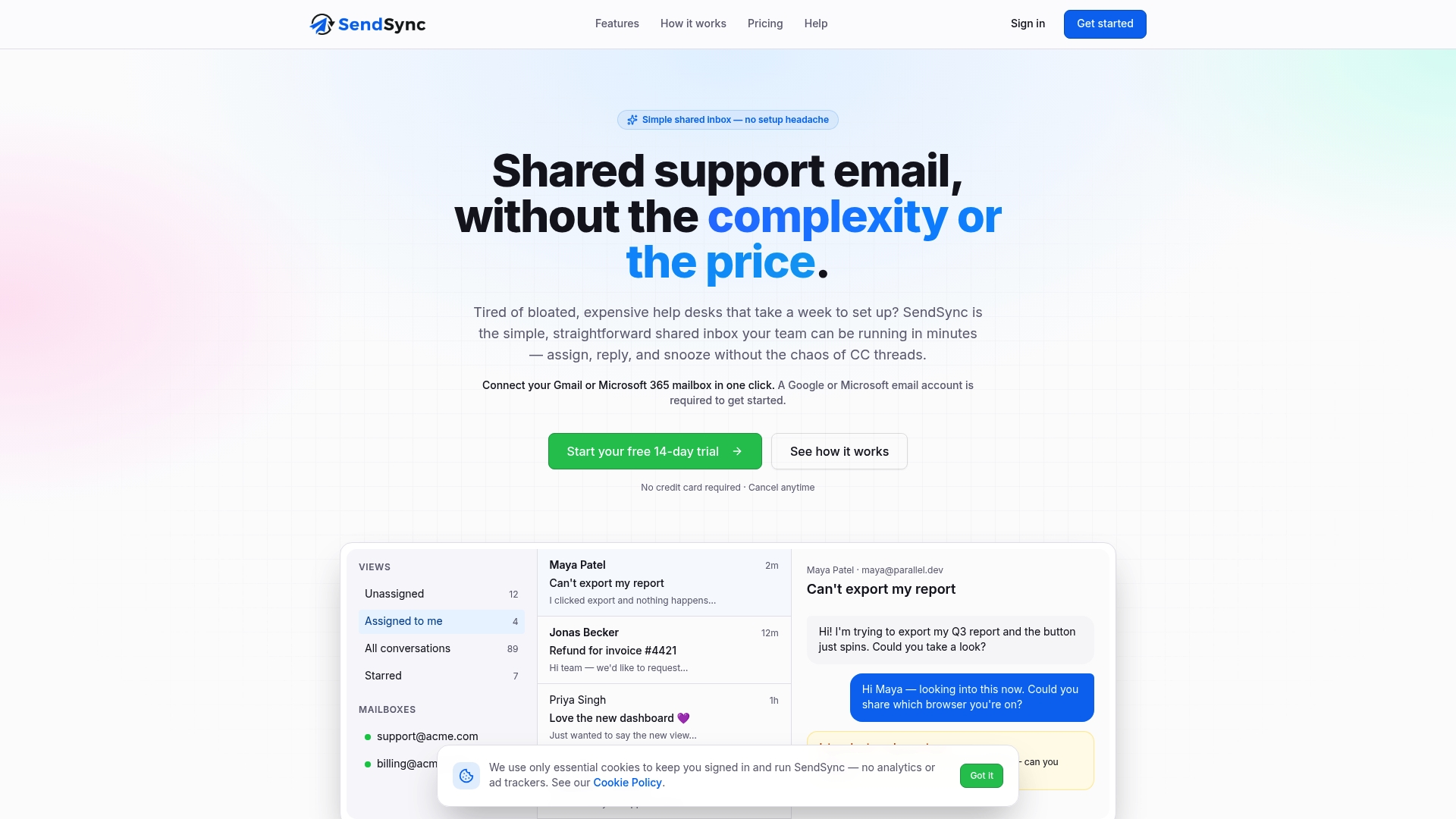
SendSync is a shared inbox for support teams. You connect a Gmail or Microsoft 365 mailbox, and there is no DNS setup, so it can be live in minutes. Team members can assign, reply to and manage conversations from one place, add internal notes, and use tagging, saved views and automation for email triage. A metrics dashboard shows how the team is doing.

For out of office planning, the useful part is simple. Plans have unlimited users and no per-seat fees, so the backup, the part-time contractor and the founder can all be in the inbox without adding to the bill.
The plans, as published on our site:
| Plan | Price |
|---|---|
| Founder | $10 per month |
| Starter | $30 per month |
| Growth | $80 per month |
| Scale | $200 per month |
Every plan starts with a 14-day free trial. If you are on Gmail, our Gmail shared inbox guide for small businesses walks through connecting it, and the Microsoft 365 team inbox setup guide does the same for Outlook users.
If your next absence is coming and your support mail still lives in one person’s inbox, start a trial at sendsync.com and move the shared address over before you go.
Our perspective on being away
We think of an out of office message as the last step, not the first one. By the time you write it, the real decision has already been made: either someone else can see and answer your customers’ emails, or they cannot.
Most small teams reach for a vacation responder because it is free and already in the mailbox. That is a sensible habit for personal email. For a support address it leaves a gap, because the message promises help that only exists if the conversations belong to the team and not to one person.
That is why we built SendSync around a shared inbox that connects to the Gmail or Microsoft 365 mailbox you already use, with no DNS work and no per-seat fees. When every teammate can be added without a price penalty, covering for someone is an everyday event, not a scramble. Assign the thread, leave a note, and the person who is away can actually be away.
Write the reply kindly, name a real backup, and then make sure the backup can see the mail.
Nick
FAQ
How do I do an automatic out of office reply in Outlook?
In new Outlook, go to View, View settings, Accounts, then Automatic Replies. Turn them on, set the dates, write your message and save. In classic Outlook, use File, then Automatic Replies (Out of Office). Microsoft’s support page covers each version.
How do I set an out of office in Gmail?
Gmail calls it the Vacation responder. Open Settings, choose See all settings, scroll to Vacation responder, turn it on, add dates, a subject and a message, and click Save Changes. It is usually sent only the first time someone writes to you.
Should I give an exact date when I will reply?
Give an exact return date, but avoid promising a reply date. Catching up takes longer than people expect. A phrase like “within a few business days of my return” sets a realistic expectation.
Who should I name as my contact?
Name a person who knows they are covering, with their role and contact details, and say which topics they handle. If you have several contacts, match each one to a type of request so senders know where to go.
What if several people share one support inbox?
Reassign open conversations to teammates before you leave, and leave notes on each one. A shared inbox keeps ownership visible, so your auto reply can truthfully say the team will respond.
Sources
- How to set up out of office automatic replies in Outlook, Microsoft Support
- Create a signature and automatic reply, Microsoft Support
- Create a vacation reply, Gmail Help
- Delegate work when you’re out of office, Google Workspace
- Setting Up Automatic Replies, Stanford University IT
- Setting up automatic out-of-office replies, University of Colorado
- Write (Better) Out-of-Office Email Messages, CASE
- 22 Out-of-Office Message Templates, G2
- The dos and don’ts of writing an out of office, BBC
- Out-of-Office Email Best Practices, Mailchimp
- Out of Office Message: How To Write One, Shopify
- How to Write the Perfect OOO Message, Mitel
- 5 Project Handover Templates, Freelance PMs