
How to Schedule Send Support Emails in Gmail and Outlook
How to Schedule Send Support Emails in Gmail and Outlook ! Support agent scheduling an email on a laptop To schedule a support email, write your reply, open the arrow next to Send and choose Schedule send.

To schedule a support email, write your reply, open the arrow next to Send and choose Schedule send. In Gmail and in new Outlook, you then pick a time and the provider’s servers deliver the message, even if your computer is off. The harder part for a support team is deciding when to send, and making sure two people don’t schedule the same reply. This guide covers both.
TL;DR
- In Gmail and new Outlook, use the dropdown next to Send, then Schedule send, and pick a preset or a custom date and time.
- Both schedule on the server, so the message goes out with your laptop closed. Classic Outlook for Windows is the exception: it needs to be running.
- Match send time to the customer’s time zone and working hours, and re-check recipient, attachments and time zone before you confirm.
- Cancel a scheduled reply the moment the customer writes back, or you will send a chaser to someone who has already answered.
- On a team, one owner per conversation is what prevents duplicate and mistimed scheduled messages.
Table of Contents
- Why support teams schedule replies at all
- How to schedule send in Gmail
- How to schedule send in Outlook
- What happens if you close the app or shut down
- When to send: choosing the right time
- Check before you schedule
- Avoid duplicate and mistimed replies on a team
- Perspective
- Run it from one shared inbox
- FAQ
- Sources
Why support teams schedule replies at all
Support doesn’t stop when your team clocks out. A customer in another time zone writes at midnight your time, you finish the answer at 11 p.m., and sending it right then puts it at the bottom of their inbox before they wake up. Scheduling lets you work when it suits you and deliver when it suits them.
It also helps with three other common situations:
- Promised follow-ups. You told a customer you’d check back on Friday. Write the note now, schedule it, and stop carrying it in your head.
- Batching. One person clears the queue in a focused block, and replies leave through the day instead of arriving in a burst.
- Off-hours courtesy. Internal handoffs and replies to colleagues don’t land outside their working hours.
Microsoft frames its own feature the same way: schedule send suggestions in Outlook reduce email disruptions for colleagues outside their working hours or when they are away.
How to schedule send in Gmail
Per Google’s Gmail Help, the steps on a computer are:
- Open Gmail and click Compose.
- Write your email.
- Click the down arrow next to Send and select Schedule send.
- Choose a suggested time, or click Pick date & time.
Two limits matter for a busy inbox. Gmail allows up to 100 scheduled emails at a time, and a scheduled message may go out a few minutes after the time you picked. Don’t schedule anything where the exact minute matters.
View, change or cancel a scheduled email in Gmail
Open the Scheduled folder, select the email and click Cancel send. The message turns back into a draft. Make your edits, then use the arrow next to Send and Schedule send again with a new time.
Canceling is the step people forget. A scheduled follow-up will go to a customer who replied yesterday unless you stop it, a point that Consis AI’s blog on automated follow-ups makes too.

How to schedule send in Outlook
The steps depend on which Outlook you use. In new Outlook for Windows and Outlook on the web, Microsoft Support describes it this way: select the dropdown next to Send, choose Schedule send, pick a default option or a custom time, then select Send. The message stays in your Drafts folder until delivery time.

Classic Outlook for Windows works differently. You delay delivery, and the message waits in the Outbox. That detail is the reason the next section exists.
What happens if you close the app or shut down
There are two architectures, and the difference decides whether your customer gets the reply.
| Setup | Where the message waits | Sends if your computer is off? |
|---|---|---|
| Gmail (browser or app) | Google’s servers | Yes |
| New Outlook and Outlook on the web (Microsoft 365 or Exchange accounts) | Microsoft’s servers | Yes |
| Classic Outlook for Windows | Your Outbox | No, it sends once Outlook is running and connected again |
| Apple Mail on iPhone | Your device | No, the device must be on and online |
This comes from Swizero’s guide to scheduling in Gmail, Outlook and Apple Mail. MailGenius describes the divide as server-side scheduling, where the provider dispatches the message, versus client-side scheduling, where a local application has to be running, connected and able to process the queue.
MailGenius also lists failure patterns worth knowing: a classic Outlook message stuck in the Outbox because the app was closed, and Gmail’s Schedule send reverting to immediate sending after a browser crash or interrupted workflow. After a crash, open the Scheduled folder and confirm the message is still there.
Some third-party mail apps keep scheduled messages on their own servers instead. Spark’s help page says its Send Later stores encrypted copies on its servers and sends even if Spark is closed.
Rule for support teams: if your agents are on classic Outlook, don’t rely on it for anything time-sensitive. Move them to new Outlook or Outlook on the web, or schedule from a server-side client.
When to send: choosing the right time
There is no universal best minute. There are a few defensible defaults.
- Use the recipient’s morning. Hostinger’s scheduling tutorial advises matching send time to the recipient’s time zone and working hours, since an email arriving at 3 a.m. their time gets buried before they log in.
- Aim just before the workday gets busy. Mailbutler suggests 9:25 a.m. rather than 7 a.m., and five minutes before the hour rather than exactly on it, to avoid colliding with meetings.
- Follow up while context is fresh. Hostinger also recommends scheduling follow-ups right after a meeting, proposal or deadline, instead of waiting until you remember.
A practical default for a US support team: for a customer on the East Coast writing late at night, schedule the reply for 8:55 a.m. Eastern. For a West Coast customer, the same reply at 8:55 a.m. Pacific. Write down each customer’s time zone in the conversation so the next teammate doesn’t guess.
There’s one case where you shouldn’t wait: a customer who is blocked, locked out or being charged wrongly. Send that now. Scheduling is for replies where the timing helps the customer, not where it just helps you.
Check before you schedule
A scheduled email skips the last look you’d give a message you send on the spot. Hostinger’s tutorial says it plainly: confirm the recipient, attachments, dates and time zone, because you won’t be there when it goes. A short checklist:
- Recipient. Right customer, right thread, nobody extra on Cc.
- Attachment. Attached, correct version, no internal file.
- Facts and dates. Any date in the body still makes sense on the day it sends. “Tomorrow” and “today” shift when you schedule.
- Time zone. Gmail sends according to the time zone you were in when you scheduled the email. If you travel before it goes, Hostinger notes you should check your device clock matches the zone you intended.
- Time and date. Confirm the selected preset or custom time before you click Schedule.
The TrekMail webmail docs give the same advice for their client: review recipients, subject and attachments, and confirm the date or preset.
Avoid duplicate and mistimed replies on a team
Personal scheduling is easy. Team scheduling is where mistakes pile up. A scheduled message lives in one person’s Drafts or Scheduled folder, so nobody else sees it. Picture this: Maria schedules a reply for 9 a.m., the customer writes again at 8, and Dev answers that second message at 8:30. At 9 a.m. the customer gets two conflicting replies.
These habits prevent it.
One owner per conversation
The person who schedules a reply is the person who owns the thread until it sends. If ownership changes, the scheduled message gets canceled or sent by the old owner first. Our guide to assigning emails to teammates covers how to make ownership explicit, and Gmail labels for small support teams shows a lightweight way to mark who has a thread before anyone replies.
Mark scheduled threads where everyone can see
Tag or label any thread that has a pending scheduled reply, with the send time in an internal note. A teammate opening the thread then knows a reply is on its way and doesn’t write a second one. Remove the tag when the message goes out.
Cancel when the customer replies first
Make it a standing rule: a new customer message on a thread with a scheduled reply means the owner reopens it, reads it, and either cancels or rewrites. Don’t let the scheduled version go out on autopilot. This matters just as much for status updates, where the goal is to avoid status update emails that repeat what a client already knows.
Write a team convention for time zones
Agree on one reference: the customer’s local time, stored in the thread notes. Then “send at 9 a.m.” has one meaning for everyone, including teammates who work remotely in other zones.
Keep a short daily check
Once a day, one person scans the Scheduled folders of the team’s mailboxes and the stuck Outbox items on any classic Outlook machines. It takes five minutes and catches the reply that never left.
A clean inbox helps all of this. If your backlog is part of the problem, our 30-day plan for clearing support email backlog gives a sequence to follow.
Perspective
Scheduling is a small feature that exposes a big problem: most support mistakes aren’t about timing, they’re about not knowing who has a conversation and what’s already been said.
We built SendSync around that. You connect your Gmail or Microsoft 365 mailboxes in minutes, with no DNS setup, and the team works from one shared inbox where each conversation is assigned, tagged and annotated with internal notes. When a reply is planned for later, the note says so, and the owner is visible to everyone.
We also think the economics matter. Support teams shouldn’t ration seats to keep software affordable, because the person who covers the late shift or the weekend is exactly who prevents duplicate replies. That’s why our plans have unlimited users and no per-seat fees.
Use your provider’s schedule send for the timing. Use a shared inbox for the coordination around it.
Nick
Run it from one shared inbox
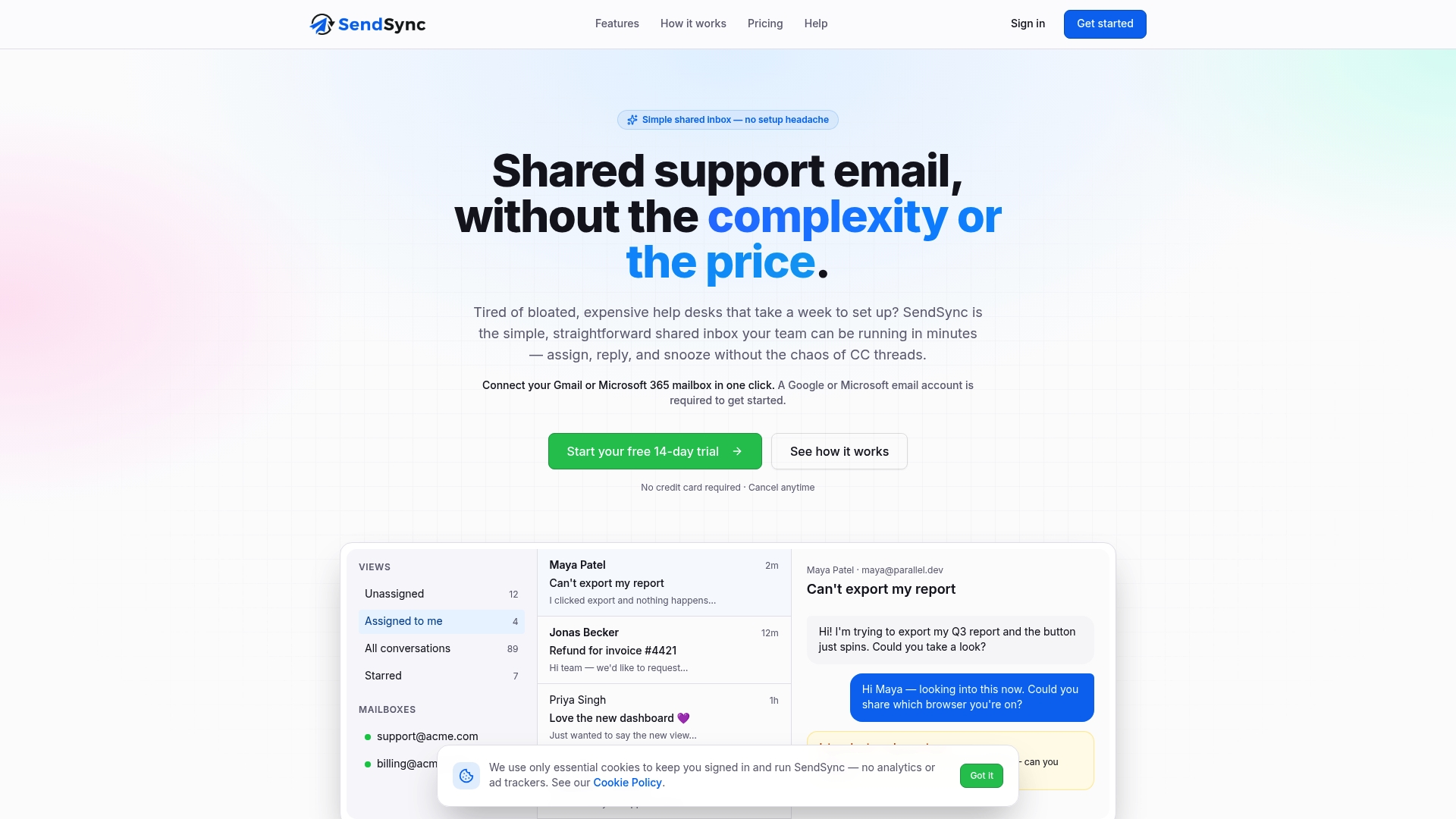
If your team is tired of guessing who is handling what, SendSync connects to your Gmail or Microsoft 365 mailboxes and gives everyone one shared view with assignment, internal notes, tags, saved views and metrics. Plans are priced flat with unlimited users: Founder is $10 per month, Starter $30, Growth $80 and Scale $200, and every plan begins with a 14-day free trial. See the plans on SendSync and get your first mailbox connected in a few minutes.
Not sure where to start? Our guides to connecting a Gmail team inbox and to setting up an Outlook shared mailbox walk through each provider.
FAQ
Can I schedule a reply to a customer’s email, not just a new message?
Yes. Open the reply in the thread, click the arrow next to Send and choose Schedule send in Gmail. New Outlook offers the same dropdown on replies. The scheduled reply stays in the thread’s context, so check the quoted text and recipients before confirming.
Will a scheduled email send if my computer is off?
In Gmail, new Outlook and Outlook on the web, yes, because the provider sends it from its servers. In classic Outlook for Windows, no: the message waits in the Outbox until Outlook is open and connected. Apple Mail on iPhone needs the device on and online.
How do I stop a scheduled email once the customer has replied?
In Gmail, open the Scheduled folder, select the message and click Cancel send. It becomes a draft you can edit, reschedule or delete. In new Outlook, the message sits in Drafts until delivery, so open it there and change it before it goes.
How many emails can I schedule at once in Gmail?
Google’s Gmail Help says up to 100 scheduled emails at a time. Scheduled messages may also leave a few minutes after the chosen time. For a team, that limit applies to each mailbox separately, so a heavy scheduler may want to batch differently.
What time should support replies be scheduled for?
Usually the start of the customer’s workday in their own time zone, a few minutes before the hour so it doesn’t collide with meetings. Urgent problems like lockouts or billing errors should be sent immediately instead.
Sources
- Schedule emails to send - Gmail Help
- Delay or schedule sending email messages in Outlook - Microsoft Support
- Automate Follow-Up Emails: Gmail & Outlook - Consis AI
- How to Schedule an Email: Gmail, Outlook, and Apple Mail - Swizero
- Schedule Send Email Across Gmail, Outlook, and ESPs - MailGenius
- Schedule an email to send later - Spark Knowledge Base
- How to schedule an email - Hostinger
- How Experts Schedule Emails to Send Later - Mailbutler
- Compose and Send Emails in TrekMail Webmail
- Status Update Emails From Your ERP - Ampwise AI