
Auto Reply Best Practices for Support Teams
Auto Reply Best Practices for Support Teams ! Hands adjusting wireless headset by laptop Good automated support replies do three things: confirm receipt with a ticket ID, commit to a response window you can actually meet, and route urgent or ambiguous cases to a human.

Good automated support replies do three things: confirm receipt with a ticket ID, commit to a response window you can actually meet, and route urgent or ambiguous cases to a human. That’s the whole framework. Everything else is implementation detail.
The one-line verdict: An auto reply that acknowledges the specific issue, sets a realistic timeline, and provides a fast-track path for urgent cases will reduce follow-up noise and build customer trust faster than any scripted pleasantry.
The five rules that separate effective auto reply strategies from noise:
- Include the ticket ID in the subject line, not just the body
- State the response window anchored to your slowest day, not your best
- Surface one relevant self-service link matched to the topic
- Name who or what team will follow up
- Route low-confidence or emotionally charged contacts to a human immediately
Pro Tip: Set your response-window promise based on your 90th-percentile actual reply time, not your target. Customers remember the one time you missed, not the nine times you hit it.
Key Takeaways
Effective auto reply strategies require a confidence gate, a realistic response window, and a clear escalation path before any template goes live.
| Point | Details |
|---|---|
| Ticket ID in subject line | Every auto reply must include a ticket ID in the subject to reduce follow-up noise. |
| Realistic response window | Anchor your promised window to your slowest-day SLA, not your target. |
| Confidence gate before auto-send | Auto-send only when the system meets your confidence threshold; otherwise draft for human review. |
| Draft-to-autonomy rollout | Start in draft-only mode, move to supervised auto-send, then full autonomy per topic as accuracy stabilizes. |
| Sendsync for shared inbox | Sendsync integrates with Gmail and Microsoft 365, supports draft-first workflows, and tracks deflection and escalation metrics. |
Table of Contents
- What types of automated support replies should you send?
- What every automated support reply must include
- How do you keep auto replies on-brand without sounding robotic?
- Technical and deliverability rules for automated replies
- How automated replies should fit into a shared inbox workflow
- How do you measure whether auto replies are actually working?
- Copy-ready templates you can paste into your system
- Common pitfalls and US legal considerations
- Step-by-step rollout checklist for small teams
- What small teams actually get wrong about auto replies
- Sendsync connects your inbox to these auto-reply workflows
- Sources
What types of automated support replies should you send?
A five-layer framework maps each reply type to a trigger and a measurable threshold: acknowledgment, triage/SLA, self-service routing, escalation notices, and out-of-hours acknowledgments.
- Acknowledgment (ticket receipt): Fires on every new inbound ticket. Confirms receipt, issues a ticket ID, states the response window.
- Triage/SLA autoresponder: Fires when a ticket matches a priority keyword (e.g., “refund,” “billing error,” “account locked”) or a CRM flag (VIP customer). Adjusts the promised window accordingly.
- FAQ/self-service routing: Fires when keyword or AI classification matches a documented policy topic. Includes a direct link to the relevant help article.
- Escalation notice: Fires when a ticket breaches an SLA threshold or when confidence in an automated answer falls below your defined gate.
- Out-of-hours acknowledgment: Fires outside business hours. States when the team is back and what to do if the issue is urgent.
Trigger sources worth mapping: new ticket arrival, keyword matches, CRM flags, payment or webhook events, and time-since-arrival thresholds.
Before you decide which mode to run, match the reply type to the right operational mode:
| Mode | How it works | Risk level | Best for |
|---|---|---|---|
| Draft-only (copilot) | AI drafts, human sends | Low | New topics, ambiguous cases |
| Supervised auto-send | Auto-sends above confidence threshold | Medium | Stable, policy-bound topics |
| Full autonomy | Sends without review | Higher | High-volume, fully documented FAQs |
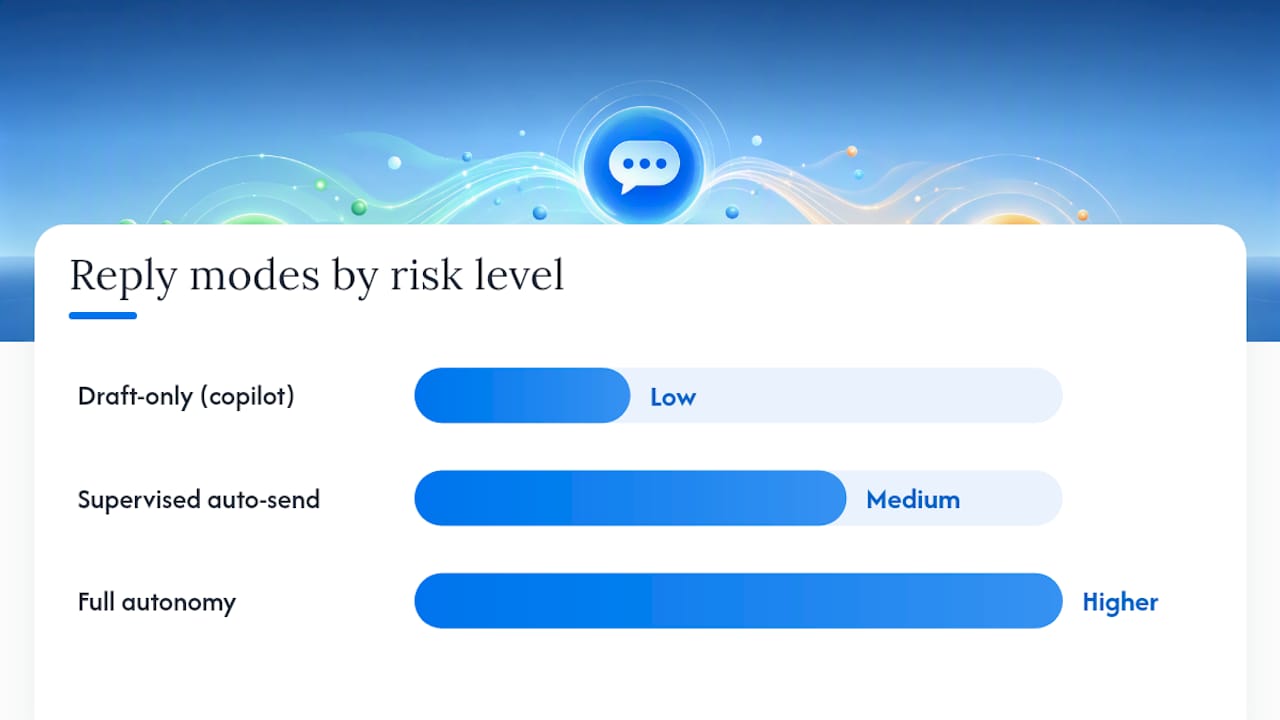
Starting in draft-only mode and graduating to supervised auto-send as accuracy stabilizes is the safest path for most small teams.
What every automated support reply must include
Three rules separate good auto-replies from bad ones: acknowledge the specific topic, promise an achievable response window, and provide a fast-track for urgent cases. Build those into a checklist every template must pass before it goes live.
Mandatory fields:
- Ticket ID in the subject line (format:
[Ticket #12345]) - Response-time commitment tied to your slowest-day SLA
- Escalation path or direct contact for urgent issues
- One self-service link relevant to the detected topic
Contextual fields (add when data is available):
- One-line issue summary mirroring the customer’s own language
- Expected next action (“A support agent will review your billing question by Thursday”)
- Channel and owner (“Our billing team handles this — expect a reply from billing@yourcompany.com”)
Acknowledgment emails that include a ticket ID and a realistic response window reduce “did you get my message?” follow-ups by roughly 40% in observed examples. That alone justifies the two minutes it takes to add the field.
Pro Tip: Never surface account data you haven’t verified. If your system can’t confirm the customer’s plan tier, don’t reference it. A wrong assumption in an auto reply damages trust faster than a generic one.
How do you keep auto replies on-brand without sounding robotic?
Personalization beats length every time. A short reply that mirrors the customer’s topic and uses their first name reads more human than three paragraphs of corporate boilerplate.
Practical personalization rules:
- Use the customer’s first name if it’s in the record
- Mirror the subject or topic in the opening line (“We received your question about your March invoice”)
- Avoid global pronouns that imply you know more than you do (“We see your account is in good standing” — only say this if you’ve verified it)
- Drop platitudes entirely: “Your call is important to us” and “We value your business” add zero information
Multi-language replies: At the shared-inbox level, language detection can route tickets to localized template sets. Gmail and Microsoft 365 both support conditional rules that can trigger different templates based on detected language. Keep a primary English template and at least one Spanish variant if your customer base warrants it. The key rule: localize the entire template, not just the greeting.
Pro Tip: Test your tone by reading the auto reply aloud as if you were the customer who just sent a frustrated message. If it sounds dismissive or bureaucratic, it is.
Technical and deliverability rules for automated replies
Deliverability and threading failures are invisible until they cause a crisis. Get the headers right before you scale.
- Threading: Use proper
In-Reply-ToandReferencesheaders so automated replies attach to the original thread, not start a new one. - Reply-To: Set
Reply-Toto the shared inbox address, not the sending service’s default. Customers who reply must land in the right queue. - Loop prevention: Add a rule that blocks auto-replies to addresses that already received one in the last 24 hours. Also suppress replies to
noreply@,mailer-daemon@, and any address that bounced. - Ticket reference in subject: Format as
[Ticket #XXXXX]and keep it consistent across all reply types so threading works in every mail client.
Deliverability checklist:
- SPF, DKIM, and DMARC records aligned for your sending domain
- Sending infrastructure tied to Gmail (Google Workspace) or Microsoft 365, not a third-party relay that shares IP reputation
- No spam-trigger patterns: avoid ALL CAPS, excessive punctuation, or phrases like “FREE” and “ACT NOW” in auto-reply subject lines
- Monitor bounce rates and spam complaint rates weekly during any new rollout
Combining keyword rules for predictable cases with AI classification as a fallback reduces both false classifications and API costs while keeping coverage high.
How automated replies should fit into a shared inbox workflow
Automation that runs outside a clear assignment workflow creates duplicate replies. That’s the single most common failure mode in shared inboxes, and it’s entirely preventable.

Understanding why duplicate replies happen starts with the assignment layer: every auto reply should trigger an assignment action simultaneously, so agents know the ticket is “auto-acknowledged” before they touch it.
Workflow rules to enforce:
- Route by tag, subject keyword, or CRM flag before any auto reply fires
- Auto-tag every automated reply with its type (e.g.,
auto:acknowledgment,auto:triage) for audit trail visibility - Set SLA priority flags at the same moment the auto reply sends
- Block agents from sending a manual reply until they’ve reviewed the auto-reply log for that thread
Internal metadata to attach to every automated reply:
- Ticket ID
- Automation type tag
- Confidence score (if AI-generated)
- Timestamp of auto-send
Pro Tip: Add a visible “auto-reply sent” note in the thread’s internal notes field the moment the automation fires. Agents who open the ticket later will know exactly what the customer already received, which prevents a second “we received your message” reply going out manually.
For scalable inbox workflow patterns that pair with these automation rules, the assignment and tagging layer is where most small teams find the biggest efficiency gains.
How do you measure whether auto replies are actually working?
Track five metrics from day one: deflection rate, escalation rate, CSAT on auto-resolved tickets, first-reply time, and complaint/bounce rate.
| Metric | Formula | Trouble threshold |
|---|---|---|
| Deflection rate | Tickets closed without agent reply ÷ total tickets | Below 40% suggests templates aren’t matching topics |
| Escalation rate | Tickets escalated after auto-reply ÷ total auto-replied | Above 30% suggests confidence gate is too loose |
| CSAT (auto-resolved) | Positive ratings ÷ total ratings on auto-closed tickets | Below 70% signals tone or accuracy problems |
| First-reply time | Time from ticket creation to first sent reply | Rising trend indicates routing delays |
| Complaint/bounce rate | Spam complaints + hard bounces ÷ total auto-sent | Above 0.1% requires immediate deliverability review |
A/B test plan for a single category:
- Split incoming tickets in that category 50/50 between draft-mode and supervised auto-send
- Run for 7–14 days or until you have at least 100 tickets per variant
- Compare escalation rate and CSAT between variants
- Promote the better-performing variant; document the threshold
One practitioner built a workflow using GPT-4o-mini that handled 80% of tickets through classification and templated replies, routing the remainder to humans. The key was logging every automated reply with its automation type and confidence score, then analyzing agent edits to identify where templates needed updating.
Log every automated reply with: automation type, confidence score, whether an agent edited before send, and whether the ticket escalated. That dataset is your iteration engine.
Copy-ready templates you can paste into your system
Every template below follows the checklist: ticket ID, response window, self-service link, fast-track path.
1. Standard acknowledgment
We received your message and created ticket #[TICKET_ID]. Our team will reply by [DATE/TIME]. For faster help, visit [HELP_LINK]. If this is urgent, reply with “URGENT” and we’ll prioritize your case.
2. Billing/invoice triage
Thanks for reaching out about your [MONTH] invoice (ticket #[TICKET_ID]). Billing questions are handled by our billing team, and you’ll hear back within [WINDOW]. Check your account summary at [BILLING_LINK] while you wait.
3. Password reset / account access
We got your account access request (ticket #[TICKET_ID]). Most resets resolve instantly at [RESET_LINK]. If that doesn’t work, an agent will follow up within [WINDOW].
4. Escalation notice
Your case (#[TICKET_ID]) has been escalated to a senior agent. You’ll receive a direct reply within [WINDOW]. No action needed on your end.
5. Out-of-hours acknowledgment
We’re out of the office right now. Your message is saved as ticket #[TICKET_ID] and we’ll reply when we’re back at [RETURN_TIME]. For urgent issues, email [URGENT_CONTACT].
6. VIP / priority path
Hi [FIRST_NAME], we received your message (ticket #[TICKET_ID]) and flagged it as priority. Your dedicated contact, [AGENT_NAME], will reply within [WINDOW].
Language-localized variation (Spanish): Mirror the full English template in Spanish. Don’t translate only the greeting. A customer who writes in Spanish expects the entire reply in Spanish, including the self-service link destination.
Common pitfalls and US legal considerations
The biggest pitfalls are overpromising and letting automation answer questions outside documented policy. Both are fixable with a confidence gate and a regular knowledge base audit.
Pitfall checklist:
- Auto-sending on low confidence: Set a minimum confidence threshold before any auto-send fires. Below that threshold, draft only.
- Stale knowledge base: Review auto-reply source documents monthly. An outdated policy answer is worse than no answer.
- Missing escalation path: Every auto reply must include a way to reach a human. No exceptions.
- Duplicate replies: Enforce the assignment-first rule before automation fires.
- Billing and dispute mishandling: Never auto-reply with a resolution on a billing dispute. Acknowledge receipt and route to a human.
US compliance notes:
| Area | Rule | Mitigation |
|---|---|---|
| SMS auto-replies | Include opt-out instructions in every automated SMS | Add “Reply STOP to opt out” to every SMS template |
| Regulated advice | Don’t give legal, medical, or financial guidance in an auto reply | Route those topics to a human with a disclaimer |
| Data logging | Log consent-sensitive interactions per your privacy policy | Assign a data owner to review auto-reply logs quarterly |
Pro Tip: If a customer’s message mentions a dispute, a legal threat, or a health issue, your confidence gate should automatically drop to zero and route to a human. Build that as a keyword rule, not a judgment call.
Step-by-step rollout checklist for small teams
Use a three-phase rollout: audit, pilot, then scale.
Phase 1: Audit (Days 1–30)
- Pull 90 days of past tickets and categorize by topic
- Identify the top five high-volume, low-ambiguity categories (order status, password reset, policy-eligible refunds)
- Audit your knowledge base for accuracy on those five topics
- Set up SPF/DKIM/DMARC and verify threading headers
- Define your confidence threshold and escalation keywords
Phase 2: Pilot in draft mode (Days 31–60)
- Build templates for the top two categories
- Run in draft-only mode for two weeks
- Track agent edit rate: if agents change more than 30% of drafts, the template needs work
- Run a simulation against historical tickets before live rollout
- Decision gate: move to supervised auto-send only when edit rate drops below 15%
Phase 3: Scale (Days 61–90)
- Enable supervised auto-send on approved categories
- Add the remaining three categories in draft mode
- Set up your metrics dashboard (deflection, escalation, CSAT, bounce rate)
- Schedule a monthly KB review and a quarterly compliance check
Pro Tip: Assign a single owner to sign off on each category before it moves from draft to auto-send. One person accountable beats a committee every time.
For a startup support inbox setup that pairs with this rollout plan, the audit phase is where most teams find they’ve been automating the wrong topics first.
What small teams actually get wrong about auto replies
Most teams flip auto-send on before they’ve fixed the knowledge base. The result is confident-sounding wrong answers, which are worse than no answer at all. The automation isn’t the problem. The source material is.

The second mistake is treating auto replies as a cost-cutting move rather than a quality signal. Customers notice when an auto reply actually addresses their issue. They also notice when it doesn’t. A well-built acknowledgment that mirrors their topic and sets a real deadline does more for trust than a faster human reply that opens with “Thanks for reaching out.”
For small teams specifically: save repetitive, policy-bound work first. Password resets, order status, return policy questions. Keep humans on anything emotionally charged, legally sensitive, or genuinely ambiguous. That boundary is where automation earns its keep and where ignoring it causes the most damage.
Sendsync’s shared inbox resources cover the implementation side of this in more depth, particularly around assignment rules and tagging workflows that prevent the collision problems that make auto replies look worse than they are.
Sendsync connects your inbox to these auto-reply workflows
Faster auto-reply implementation starts with an inbox that doesn’t require a week of DNS configuration. Sendsync connects directly to Gmail (Google Workspace) and Microsoft 365, preserves email threading with correct In-Reply-To headers, and supports draft-first workflows so your team reviews before anything sends automatically.

The features that map directly to this rollout plan: assignment rules that fire alongside auto-replies to prevent duplicate sends, auto-tagging for audit trail visibility, saved views filtered by automation type, and a metrics dashboard tracking first-reply time and escalation rate. Unlimited users means your whole team works from the same queue without per-seat costs adding up as you scale.
Start a 14-day free trial at Sendsync and run a simulation against your last 90 days of tickets before you commit to any auto-send settings.
Sources
These sources informed the templates, rollout patterns, and triage frameworks in this article:
- Email response automation: a practical guide for support | eesel AI
- Auto Reply Templates and Examples: 40+ Real Samples (2026)
- Automated Email Response Templates for Customer Support
Before going live, run a simulation against your last 90 days of tickets. Sendsync’s shared inbox supports simulation testing against historical tickets as part of the setup process.