
Gmail Support Aliases: How to Set Them Up and When a Team Outgrows Them
Gmail Support Aliases: How to Set Them Up and When a Team Outgrows Them ! Owner setting up a support email alias A Gmail support alias is a second address, like support@yourcompany.

A Gmail support alias is a second address, like support@yourcompany.com, that delivers into an existing inbox. In Google Workspace an admin adds it in a few clicks and the user can reply from it. That is enough for a freelancer or a one-person help desk. Once two or more people need to read, assign and answer that mail, an alias alone gives you no way to see who owns what. At that point a shared inbox such as SendSync, which connects your Gmail or Microsoft 365 mailbox without DNS changes, is the cleaner answer.
This guide covers both halves: how to create and use a support alias correctly, and how to tell when it is time to add a shared inbox on top.
TL;DR
- A plus address (name+support@gmail.com) works on any Gmail account with no setup, but it is a sorting trick, not a professional support address.
- A Google Workspace alias is a real address on your own domain. An admin adds it, and it forwards into one user’s inbox.
- Only one user can receive mail from an alias. Google recommends delegation when several people need the address.
- To reply from the alias, set up “Send mail as” and tick “Treat as an alias”, so replies leave from the address the customer wrote to.
- When the questions become “who has this?” and “did anyone answer?”, move the queue into a shared inbox with assignment and notes.
Table of Contents
- Plus addresses versus Workspace aliases
- How to create a support alias in Google Workspace
- How to reply from the alias
- What a support alias cannot do for a team
- The native routes for more than one person
- Signs your alias has become a bottleneck
- A worked example: a five-person team
- Moving from an alias to a shared inbox
- Our perspective
- Try it with your own support address
- FAQ
- Sources
Plus addresses versus Workspace aliases
People search for “Gmail aliases” and get two different things.
The plus address. On any Gmail account, anything you add after a plus sign still reaches you. Messages to janedoe+school@gmail.com or janedoe+notes@gmail.com arrive in janedoe@gmail.com, and you can build filters that label, forward, archive or delete them. It costs nothing and needs no setup. It is useful for sorting newsletters and sign-ups. As a public support address it looks improvised, and it sits on a personal @gmail.com domain rather than your own brand.
The Workspace alias. If your company uses Google Workspace, an admin can attach extra addresses to a user’s account. Mail sent to support@yourcompany.com lands in that user’s primary inbox. Admins can add up to 30 aliases per user at no extra cost, and an alias cannot duplicate an existing account name in the organization.

For a support address that customers see on your website, the Workspace alias is the one that matters. The rest of this guide is about that.
How to create a support alias in Google Workspace
This part belongs to an administrator, so on a small team it is usually the owner or whoever manages the domain.
- Open the Admin console. Go to Directory, then Users, and open the person who will receive support mail.
- Add the alternate email. Click Add Alternate Emails, enter the name you want (for example, support), pick the secondary domain if you have more than one, and save.
- Wait for it to apply. Google says changes can take up to 24 hours, though they typically happen faster. Test by sending a message to the new address from an outside account.
Where this goes wrong: the alias name is already taken by a user or group, or the address was added to the wrong person. Check the user’s page before saving. If you ever need more than 30 aliases on one person, Google’s answer is to create a separate Google Account.
How to reply from the alias
Receiving is only half the job. If a customer writes to support@ and the reply comes from jane@, the customer sees a stranger and your brand loses consistency. The user who owns the alias sets up a custom From address in Gmail.
- In Gmail, open Settings, then Accounts and Import, then “Send mail as”.
- Add the alias address and keep “Treat as an alias” ticked. Google explains the choice: tick it to receive messages in the same inbox, and untick it only when you are sending on behalf of another account whose mail you read elsewhere.
- Choose “Reply from the same address the message was sent to”. Rice University’s IT guide documents this setting, which makes Gmail pick the right From address automatically. The same guide notes it cannot be configured from the mobile app, so do it on a computer.
One date matters if you were planning to send from outside addresses. Google’s Gmail Help states that from January 2027 Gmail will stop supporting “Send as” for third-party addresses such as Yahoo or Outlook.com ones. Workspace aliases and other Gmail addresses you own are unaffected, so a support alias on your own domain is on the safe side of that change. The same page says you can send from up to 99 different addresses.
What a support alias cannot do for a team
The alias works exactly as designed. The design is the limit.
- One person receives the mail. Google defines an alias as a forwarding address that routes to one user’s inbox. That person signs in to their own account to read and respond. Only one user can use it.
- It is not an account. You cannot sign in with an alias or assign delegates to it, because it is not a Google Account.
- It is not private. Google warns that a recipient’s search for one address can also surface messages sent to that person’s alias. Whoever owns the alias sees everything sent to it, and everything else in that mailbox.
- Nothing says who is handling a message. Even when several people send from the alias, nothing marks a thread as taken, so two people can answer the same customer.
The last point is the one that hurts. A single alias owner becomes a bottleneck: when they are out, support mail waits. Google’s own comparison says aliases suit small organizations where one user holds multiple roles, and delegation suits larger ones where others must read, send and delete messages for another account.
The native routes for more than one person
Google Workspace offers a few ways to let several people touch the same address. Each solves part of the problem.
Delegation. Google’s support-team tips recommend adding staff as delegates so they can monitor and reply to incoming questions, with replies going out from a support alias such as it-support@your-company.com instead of a personal address. Delegation needs a real account behind the address and has to be enabled by an admin first.
Google Groups. A group address can fan mail out to a team. An administrator can give a group up to 30 aliases, for example help@ pointing at support@, and messages to any of them land in the same group. A group is a distribution tool, though. Everyone receives a copy, and the group itself does not record who took the conversation.
Both routes get mail to several people. Neither tells the team, at a glance, what is open, who owns it and what was said internally. If you want the full comparison of the native paths, our guide to a Google Workspace shared inbox walks through them.

Signs your alias has become a bottleneck
You do not need a formal threshold. These are the symptoms that show up in small support teams:
- Customers get two different answers to the same question.
- Someone asks in chat, “Did anyone reply to the refund email?”
- The alias owner forwards threads to colleagues, and the history ends up scattered across personal inboxes.
- You cannot say how long first replies take, because the data sits in several mailboxes.
- A teammate goes on vacation and a whole queue goes with them.
Labels and filters help for a while. We cover that approach in Gmail labels for small support teams, and the habit of claiming a message before answering is the core of assigning emails to teammates. Both work better with software that makes ownership visible instead of relying on discipline.
If customers also reach you through messaging channels, the change from Google Business Messaging to RCS, described in this look at Google Business Messaging and RCS, is a reminder that the way people contact a business keeps shifting. A support address that your whole team can work from is the stable part of that picture.
A worked example: a five-person team
Say a small online shop uses Workspace, with support@ as an alias on the owner’s account. Orders grow, and four more people start handling email.
With the alias alone, the owner reads everything. The others get forwards. Replies go out from personal addresses, or each person sets up Send mail as and answers blind to what the others are doing. The owner becomes a human router.
With delegation, the four colleagues open the support account directly. That removes the forwarding, but two people can still open the same thread at once.
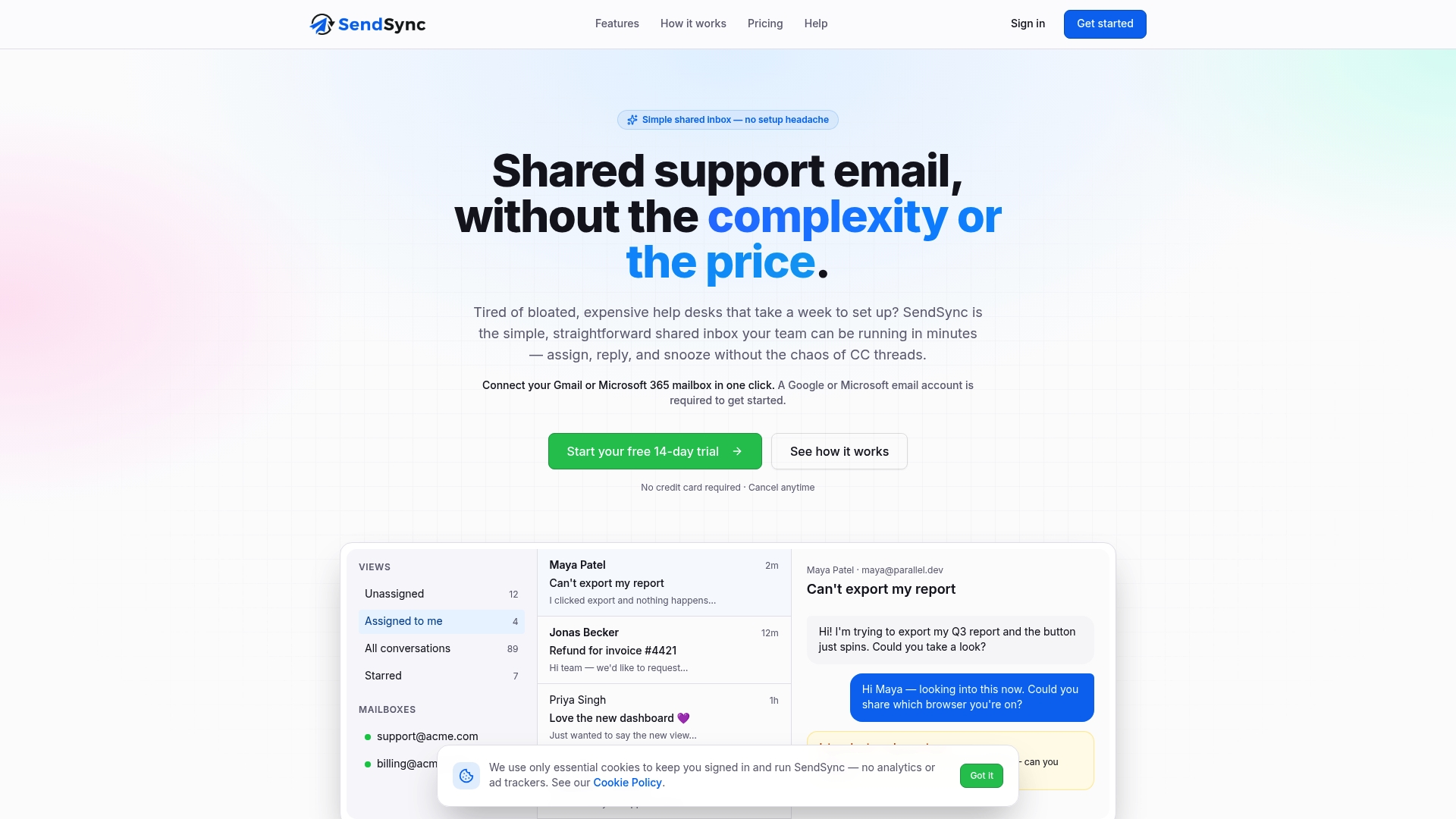
With a shared inbox, the same mailbox shows each conversation as assigned or unassigned, with internal notes next to the thread, so the question “who has this?” is answered on screen. That is the problem the next section addresses.
Moving from an alias to a shared inbox
A shared inbox does not replace your Gmail or Microsoft 365 mailbox. It sits on top of it. SendSync connects Gmail or Microsoft 365 mailboxes without DNS setup, so the team can start in minutes instead of reconfiguring mail records. Our walkthrough on connecting a Gmail team inbox in minutes shows the steps.
What the team gets once the mailbox is connected:
- Assignment. Each conversation has an owner, so replies are not duplicated.
- Internal notes. Context lives beside the thread instead of in chat.
- Tagging and saved views. Refunds, shipping and bugs can each have their own view.
- Automation for triage. Incoming mail can be sorted before a person touches it.
- Metrics dashboards. Response times are visible in one place.
- Unlimited users. There are no per-seat fees, so adding a part-time teammate or a contractor does not change the bill.
If you currently use a Google Group as the front door, we have a dedicated guide on how to migrate Google Groups to shared inboxes and keep history. For a broader picture, see Gmail shared inbox for small business and how to run staff email support as a team.
Our perspective
We built SendSync around one observation: small teams do not fail at support because they lack features. They fail because email has no owner. An alias gives you a good address. It does not give you a process.
The usual answer is a help desk that takes weeks to configure, charges per seat and asks you to change your DNS. A five-person team ends up paying for a system larger than the problem. We would rather you connect the Gmail or Microsoft 365 mailbox you already use, assign conversations, leave notes and see your response times, with unlimited users on flat pricing.
Keep the alias. A clean support@ address on your own domain is good practice. Then let the shared inbox do the part an address cannot: show who is handling every customer.
Nick
Try it with your own support address
SendSync plans are Founder at $10 per month, Starter at $30 per month, Growth at $80 per month and Scale at $200 per month, all with unlimited users, and every plan starts with a 14-day free trial. A freelancer can begin on Founder, and a growing team can move up as volume grows. See the plans at SendSync.
FAQ
Can you create aliases in Gmail?
Yes, in two ways. Any Gmail account can use plus addresses such as name+support@gmail.com, which arrive in your main inbox. On Google Workspace, an admin can add a proper alias on your own domain under Directory, then Users, then Add Alternate Emails.
What is the difference between an alias and a group address?
An alias forwards to one user’s inbox, and only that user can receive its mail. A group address distributes messages to several members. Neither one assigns a conversation to a person, which is why teams add a shared inbox once volume grows.
Can several people send from the same support alias?
Yes. Google notes that although only one user can receive mail from an alias, multiple users can send from it if each sets up a custom From address. Receiving still goes to one person, so the others cannot see incoming mail unless it is forwarded or delegated.
Why do replies come from my personal address?
Usually the alias was added without choosing “Reply from the same address the message was sent to”, or “Treat as an alias” was unticked. Open Settings, then Accounts and Import, and check both on a computer. The mobile app cannot change this setting.
Sources
- Send emails from a different address or alias - Gmail Help
- Add or delete an alternate email address (email alias), Google Workspace Admin Help
- Add or delete an alternate email address (email alias), Google Workspace Help
- Should I uncheck “Treat as an alias” in Gmail?
- Changing Your Default Sending Address in Gmail, Rice University
- Overview: Add additional email addresses for users
- Tips for technical support, Google Workspace Learning Center
- Give a group an additional alias address