
Assign Before You Reply: Gmail Labels for Small Support Teams
Assign Before You Reply: Gmail Labels for Small Support Teams ! Support specialist assigning an email thread The fastest fix for chaotic support email is a small, prefixed label taxonomy across three dimensions (STATE, TOPIC, PRIORITY) paired with a hard rule: no reply without an

The fastest fix for chaotic support email is a small, prefixed label taxonomy across three dimensions (STATE, TOPIC, PRIORITY) paired with a hard rule: no reply without an assigned owner. Ditch read/unread as your status system entirely. Automate only the low-risk, high-confidence categories like password resets, and route everything else, especially anything ambiguous or sensitive, to a human.
TL;DR:
- Using a strictly controlled taxonomy with numeric prefixes for states ensures the support workflow remains logical and sorted automatically by Gmail.
- Automating only low-risk, high-confidence email categories, such as password resets, reduces misrouting and maintains control over sensitive or ambiguous tickets.
- Daily triage routines should involve assigning owners, setting labels, and escalating VIP or risky threads immediately, with performance tracked through key indicators like response time and backlog size.
- Once support volume exceeds 30 to 50 conversations daily or collision issues become frequent, a dedicated shared inbox tool with ownership and collision protection becomes necessary.
- Establishing disciplined label hygiene and ongoing maintenance prevents the growth of unmanageable label clutter and protects reporting accuracy.
Table of Contents
- How Should You Structure Gmail Labels for Support?
- Turning Labels Into a Working SLA and Assignment System
- What Does a Daily Triage Routine Look Like?
- When Should You Automate Support Email Labeling?
- How Do You Keep Labels From Becoming a Mess?
- Why Taxonomy Discipline Beats Clever Labels
- Ready to Move Past Label Workarounds?
- Sources
- FAQ
How Should You Structure Gmail Labels for Support?
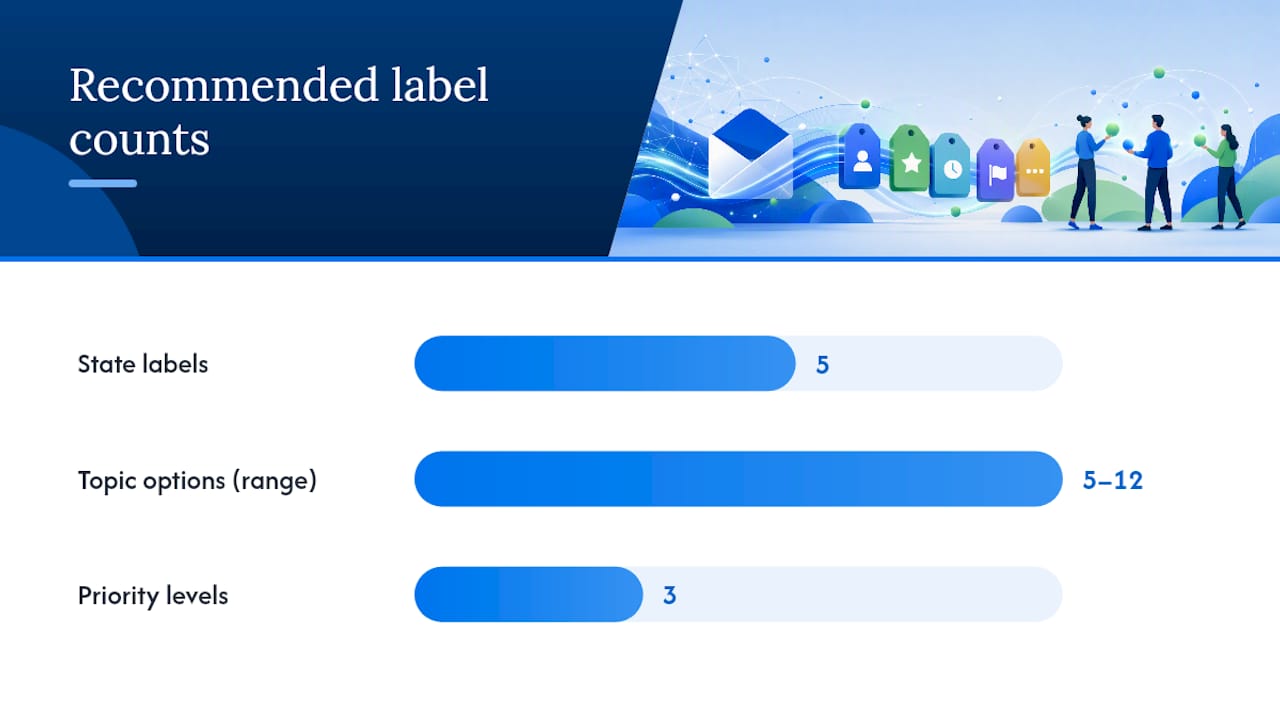
A clean taxonomy has exactly three dimensions, and skipping any one of them is where most teams start losing conversations. STATE is mandatory and singular: every thread carries exactly one status label, never zero, never two. TOPIC covers the subject matter, and you want somewhere between 5 and 12 options, no more. PRIORITY has three levels, full stop.
Here’s a state list that works for most small teams, using numeric prefixes so Gmail’s alphabetical sort actually follows your workflow instead of scrambling it:
- STATE/1-New
- STATE/2-Assigned
- STATE/3-InProgress
- STATE/4-WaitingCustomer
- STATE/5-Resolved
Numbers matter more than they look like they should. Gmail sorts labels alphabetically, so without prefixes “Resolved” sits above “New” in your sidebar and your queue reads like nonsense. Numbered state labels keep the workflow order intact no matter how the label list grows.
Resist the urge to create a label for every teammate. Per-person labels (“Sarah’s tickets,” “Mike’s queue”) multiply fast and tell you nothing about status or urgency. If you need explicit ownership beyond an assignment field, use a short-lived ASSIGNED label that gets removed the moment the thread moves to a resolved state, not a permanent tag with someone’s name on it.
Teams following a two-tier tagging structure with a mandatory Tier 1 topic and optional Tier 2 subtopics tend to keep tagging fast without losing the detail that makes reporting useful later.
Pro Tip: Name your priority labels PRIORITY/1-Urgent, PRIORITY/2-Standard, PRIORITY/3-Low instead of High/Medium/Low. The numbers force correct sort order and stop the inevitable argument over whether “High” or “Urgent” ranks first.
Turning Labels Into a Working SLA and Assignment System
Labels only earn their keep when they trigger action. Map each STATE label to a specific behavior:
- STATE/1-New triggers the triager to assign an owner within minutes, not hours.
- STATE/2-Assigned means the owner replies, no exceptions, before anyone else touches the thread.
- STATE/3-InProgress covers active back-and-forth research or internal escalation.
- STATE/4-WaitingCustomer pauses your clock and triggers a follow-up rule if the customer goes silent for a set number of days.
- STATE/5-Resolved closes the loop and removes any ASSIGNED tag.
SLAs should vary by address, not apply as one blanket number across your whole inbox. A billing@ address handling refund disputes needs a faster first response than info@ fielding general questions. First response time and resolution time are separate metrics and worth tracking separately.
Build saved searches so the queue tells you where the risk sits, rather than scrolling to find it:
is:unread label:STATE/1-Newfor the unassigned backloglabel:STATE/2-Assigned to:mefor your own queuelabel:STATE/4-WaitingCustomer older_than:2dfor stalled threadsolder_than:1d label:STATE/1-Newfor SLA risk that’s about to breach
Enforce “assign before reply” with a filter that surfaces only STATE/2-Assigned threads in your default reply view. If a thread isn’t assigned, nobody should be typing a response into it.
Templates cut resolution time hard when you use them right. Pull your last 200 inbound messages and you’ll usually find a small handful of questions account for most of your volume, refund status, login trouble, shipping delays. Build a fast acknowledgment template for anything you can’t resolve immediately, and a full-reply template for the recurring questions you can.
What Does a Daily Triage Routine Look Like?
Two sweeps a day beats constant checking. Run one at the start of the day and one after lunch, each handled by whoever’s on triage duty that week.
The rota matters more than most teams realize. Rotate triage weekly rather than letting one person absorb it permanently, since a designated triager running consistent sweeps is what keeps coverage predictable instead of accidental.
Each sweep follows the same four steps:
- Assign an owner to every unassigned thread
- Set the TOPIC and PRIORITY labels
- Archive obvious noise (newsletters, auto-replies, spam that slipped through)
- Escalate VIP or high-risk senders immediately, don’t let them sit in the general queue
Claiming discipline is the part people skip and regret. Add the assignment label or field before drafting a reply, not after, and use internal notes to flag context for whoever picks it up next if you can’t finish it yourself.
Track key indicators to know if triage is working: time-to-first-response, count of unassigned threads at the end of each sweep, and how many threads appear close to breaching SLA targets. If unassigned count creeps up over time, your rota may need more hands or shorter sweep intervals.
When Should You Automate Support Email Labeling?
Automation earns its place only on the boring, predictable stuff. Good candidates: routine billing questions, password reset requests, standard onboarding confirmations, anything where the pattern is obvious and the stakes are low.
Set a confidence threshold and respect it. Below that threshold, the message goes to a human reviewer instead of getting auto-labeled, and that human-review zone should always catch ambiguous phrasing, multilingual messages, attachment-heavy threads, and anything touching legal or VIP accounts. Confidence thresholds with a defined review zone are what separate automation that helps from automation that quietly misroutes your angriest customer.
Every automated decision should output a small set of fields your team can verify at a glance:
- Category
- Priority
- Confidence score
- Route_to (which queue or person)
- Human_review_required (yes/no)
Roll out in stages, not all at once. Validate against a batch of historical tickets first, run a period where automation only suggests labels for a human to confirm, and move to full auto-routing on a category only after you’ve measured its accuracy and trust it.
Pro Tip: Start automation with your single highest-volume, lowest-risk category, password resets are a common first choice and expand one category at a time. Trying to automate five categories at once makes it impossible to tell which one is causing the misroutes.
How Do You Keep Labels From Becoming a Mess?
Collisions get worse as headcount grows. Once more than three people touch the same inbox, a claim-first habit, assign before you draft, becomes non-negotiable, paired with internal notes and a visible assignment field everyone can see.
Label hygiene needs a real schedule, not good intentions. Prune anything under 1% usage every quarter and keep a one-line definition for every label that survives the cut, since a governed tag set is the difference between useful reporting and a graveyard of abandoned tags nobody remembers creating.
Watch for these signals that you’ve outgrown labels alone:
- You’re handling more than 30 to 50 conversations a day
- Collisions (two people replying to the same thread) happen regularly
- You need reporting and analytics labels can’t produce on their own
VIP, security, and legal flags should always bypass automation and route straight to a human reviewer, regardless of how confident your system claims to be.
Why Taxonomy Discipline Beats Clever Labels
Consistent labels are what let automation, SLAs, and reporting function at all. Skip the taxonomy step and every downstream system, saved views, auto-routing, even basic handoff between shifts, inherits that mess.
The failure modes I keep seeing are the same three: teams that never move past read/unread, teams that build a label for every person instead of every status, and teams that build a beautiful taxonomy nobody maintains past month two. A replacement for read/unread built around real status labels fixes the first problem immediately.
Labels get you far. Past a certain team size, you need assignment built into the tool itself, not bolted on with tags, and that’s when a lightweight shared inbox earns its cost.
— Nick
Ready to Move Past Label Workarounds?
Labels get you a long way, but they eventually hit a wall: no built-in ownership, no collision protection, no way to see who’s overloaded without opening ten threads. Sendsync picks up exactly where the taxonomy runs out. It connects directly to your Gmail or Microsoft 365 mailbox, no DNS changes, no migration headache, and gives you real assignment, collision detection, and reporting on top of the inbox you already use.

Setup takes minutes, not weeks, and for tailored technical help beyond workflow design, consider email setup and troubleshooting services in Brisbane to get started efficiently, with no per-seat pricing to punish you for growing the team. The Founder plan starts at $10 per month with unlimited users included, and Starter, Growth, and Scale tiers scale up from there as your volume and reporting needs grow. If your team has outgrown the label-and-hope approach, or you’re tired of tracking down who’s handling what, connect your inbox to Sendsync and see the assignment view running against your real queue today.
Sources
- Shared Mailbox Management Best Practices (2026 Guide)
- Shared Inbox Customer Service and Support: Best Practices
- Ticket Tagging: How to Build a Tagging Taxonomy That Gets Used
- AI-Powered Email Sorting | Cognaptus
FAQ
What Are the Best Gmail Labels for Support Teams?
The core set covers three dimensions: STATE (New, Assigned, InProgress, WaitingCustomer, Resolved), TOPIC (5 to 12 categories matching your product or service areas), and PRIORITY (three levels, from urgent to low). Numeric prefixes on each keep them sorted in workflow order rather than scrambled alphabetically.
Should I Use Read and Unread Instead of Status Labels?
No. Read/unread only tells you whether someone opened a message, not who owns it or what stage it’s in. Explicit state labels give your whole team visibility that read/unread simply can’t.
How Many Labels Should a Support Inbox Have?
Keep TOPIC labels between 5 and 12, plus your fixed STATE and PRIORITY sets. A small taxonomy covering most of your ticket volume beats a sprawling one nobody maintains, and you can always add a category later if a genuine gap appears.
When Should a Team Switch From Labels to a Shared Inbox Tool?
Once you’re past roughly 30 to 50 conversations a day, or collisions between teammates start happening regularly, labels alone stop scaling. That’s the point where a tool like Sendsync, which adds real assignment and collision protection on top of Gmail, starts paying for itself.
What Does Sendsync Cost for a Small Support Team?
Sendsync’s Founder plan runs $10 per month with unlimited users, and Starter, Growth, and Scale plans go up to $30, $80, and $200 per month respectively as your team’s needs grow. None of the tiers charge per seat.