
Send As Multiple Addresses: Gmail, Outlook and Team Setups
Send As Multiple Addresses: Gmail, Outlook and Team Setups ! Team lead choosing an email sender address "Send as multiple addresses" can mean two different jobs.

“Send as multiple addresses” can mean two different jobs. You may want to send from more than one address, such as support@ and billing@ from a single mailbox. Or you may want to send one message to many addresses without exposing anyone. Both are doable in Gmail and Outlook, and this guide covers each, with the limits that decide when a plain mailbox stops being enough.
TL;DR
- To send from several addresses, add them as aliases: Gmail’s “Send mail as” setting or an Outlook alias in the From dropdown.
- To email many people at once, Bcc hides recipients from each other, but a reply-all can still expose the list. Mail merge gives each person a separate copy.
- Free accounts and paid workspaces have daily recipient caps, and they count recipients, not messages.
- When several teammates share addresses like support@ or sales@, a shared inbox is cleaner than sharing a password.
Table of Contents
- Two meanings of “send as multiple addresses”
- Send from multiple addresses in Gmail
- Send from multiple addresses in Outlook
- Send to multiple addresses without exposing anyone
- Know the limits before you send
- When a team shares several addresses
- Perspective
- Try a shared inbox for your team addresses
- A quick checklist before your next send
- FAQ
- Sources
Two meanings of “send as multiple addresses”
It helps to separate the two jobs, because the settings you need are completely different.
Many sender addresses, one mailbox. You pick which verified address appears in the From field. The recipient sees support@yourcompany.com, even though you logged in with a personal address. This is about identity.
Many recipient addresses, one send. You choose how a group of people receives the message: all visible in To, copied, blind-copied, or each getting their own individual copy. This is about privacy and volume.

The standards allow a From header to carry more than one address, but this is seldom seen in practice, so the realistic way to send from several addresses is to switch between them one message at a time.
Send from multiple addresses in Gmail
Gmail lets you add other addresses you own and choose between them when you write. According to Google’s documentation, you can add up to 99 send-as addresses under Settings, then Accounts and Import, then “Send mail as”.
The basic flow:
- Open Gmail on a computer and click the gear icon, then See all settings.
- Go to the Accounts and Import tab.
- Under “Send mail as”, click Add another email address.
- Enter the name and address you want to send from.
- Confirm ownership by following the verification message Gmail sends to that address.
Verification requires that you actually control the address. If the address lives on a custom domain, the safest setup is usually to send through that address’s own mail server rather than Gmail’s, so the message authenticates properly with the domain.
Once added, a From dropdown appears on the compose window. You can also tell Gmail to reply from the address the original message was sent to, which keeps conversations consistent for the customer.
Send from multiple addresses in Outlook
Outlook gives you a few routes, and which one you see depends on how your account is set up.
Multiple accounts. If you have more than one account configured, the From button appears when you write a message, and you can click it to pick the sender.
Microsoft 365 aliases. Admins can give a user extra addresses. Microsoft’s documentation says you can create up to 400 aliases per user in Microsoft 365 for business. To let people send from those aliases, an admin sets the organization option SendFromAliasEnabled to true. Users then pick the alias from the From dropdown when composing.
Desktop app. If the From field is hidden, open a new message, go to the Options tab and choose From in the Show Fields group.
One warning: an address showing up in the From list does not guarantee the message will go out. Outlook sends successfully only when the address is tied to your account, set up as an alias, or covered by the right permissions. Shared mailboxes, delegate mailboxes and groups behave differently from one another, so ask your admin which one you actually have.
Send to multiple addresses without exposing anyone
Now the other meaning. You have a list of recipients and want to keep their addresses private.
Bcc: quick, but with one catch
In Gmail, people in the Bcc field cannot see the name or address of anyone else in Bcc. Outlook on the web works the same way: Bcc names are hidden from other recipients.
The catch is reply-all. A blind-copied person who hits Reply All does not reach the other Bcc recipients, but they reveal their own address to everyone in the visible To and Cc lines. And if anyone in To or Cc replies to all, the whole visible list gets the response. Reply-all risks are real, even when Bcc is used correctly.
A practical habit for Bcc: put your own address in To and the recipients in Bcc. That way nothing looks odd and no one is exposed.
Mail merge: a separate copy for each person
If you want each recipient to get an email addressed only to them, with their first name in the greeting, use mail merge. In Gmail, it works on eligible Google Workspace plans: write the message, add recipients in To, click Use mail merge and enter tags such as @firstname. Each recipient receives a unique copy and cannot see who else got the message.
In Outlook, the classic approach uses Excel for the recipient data, Word for the message and merge fields, and Outlook to send each message in the background.
Which one to choose
| Method | Recipients see each other? | Personalized? | Best for |
|---|---|---|---|
| To or Cc | Yes | No | Small groups who know each other |
| Bcc | No (but reply-all can expose senders) | No | One-off notices to a small outside group |
| Mail merge | No | Yes | Individual copies with names and details |
| Shared inbox | No, each customer has their own thread | Replies are one-to-one | Ongoing conversations handled by a team |
A simple rule: if the recipients do not know each other, or the list is longer than a handful, skip To and Cc.
Know the limits before you send
Sending from several addresses does not give you extra quota. Limits apply to the account, and they count recipients rather than messages. As Mailmeteor explains, one email to 50 people counts as 50 toward the daily quota, whether they sit in To, Cc or Bcc.
Typical ceilings, as reported by research on provider limits:
- Free Gmail: about 500 recipients per day.
- Google Workspace: up to 2,000 messages per user per rolling 24 hours, with mail merge at 1,500 recipients per message and 1,500 per day.
- Microsoft 365 business: 10,000 recipients per day and 500 per message, though brand-new tenants can be capped lower.
- Free Outlook.com: roughly 300 recipients per day.
Published figures shift over time, so check Google’s and Microsoft’s current admin pages before you plan a large send.
There is also a deliverability angle. A large Bcc line can look like spam: sending more than 50 messages at once through Bcc may get the message flagged. If your email is marketing rather than a service message, US law applies too. The same North Carolina Bar piece notes that CAN-SPAM covers email whose primary purpose is commercial promotion, and that it makes no exception for business-to-business email. That means honest sender details, truthful subject lines, a postal address and a working opt-out.
If your recipients are in the EU, an email address counts as personal data under GDPR, so exposing a list of addresses can become a breach. If you run a Shopify store that collects customer data, GDPR-ready customer accounts are one way to keep consent and personal data in order alongside your email habits.

When a team shares several addresses
Aliases work well for one person. They get messy when a team of five answers support@, billing@ and hello@ from the same pool of mailboxes. Common symptoms:
- Two people answer the same customer.
- Nobody knows who owns a thread.
- Replies go out from the wrong address.
- Passwords get shared, which makes it impossible to see who sent what.
The fix is not another set of aliases. It is a shared inbox where each address feeds one visible queue, and each conversation has an owner. Our guides on assigning emails to teammates and on email ownership in small teams walk through how to set that up. If you are starting from Gmail, the Gmail shared inbox guide for small business shows the lean route.
For teams that use Bcc to keep colleagues in the loop, better alternatives to BCC explain how internal notes and assignments replace silent copies. And if your sending volume is climbing, the high volume email support article covers limits and inbox options in more depth.
Perspective
Most email trouble with multiple addresses is not a settings problem. It is an ownership problem. Aliases tell the customer who you are, but they do not tell your team who is handling the message.
We built SendSync around that gap. You connect your Gmail or Microsoft 365 mailboxes, and your team can assign, reply and add internal notes in one place. Our setup is designed to take minutes, with no DNS changes, so you do not need a long configuration project just to share support@.
We also think pricing should not punish you for growing the team. Our plans include unlimited users with flat pricing, so adding a teammate does not add a seat fee. Teams that start with Bcc and forwarding usually find that a shared inbox with tags, saved views and simple automation for triage removes the chaos without adding a heavy help desk.
Nick
Try a shared inbox for your team addresses
If your team sends from support@, sales@ or billing@, SendSync connects the Gmail or Microsoft 365 mailboxes you already use and turns them into a shared inbox with assignment, internal notes, tagging, saved views and metrics dashboards. You can start with a 14-day free trial.
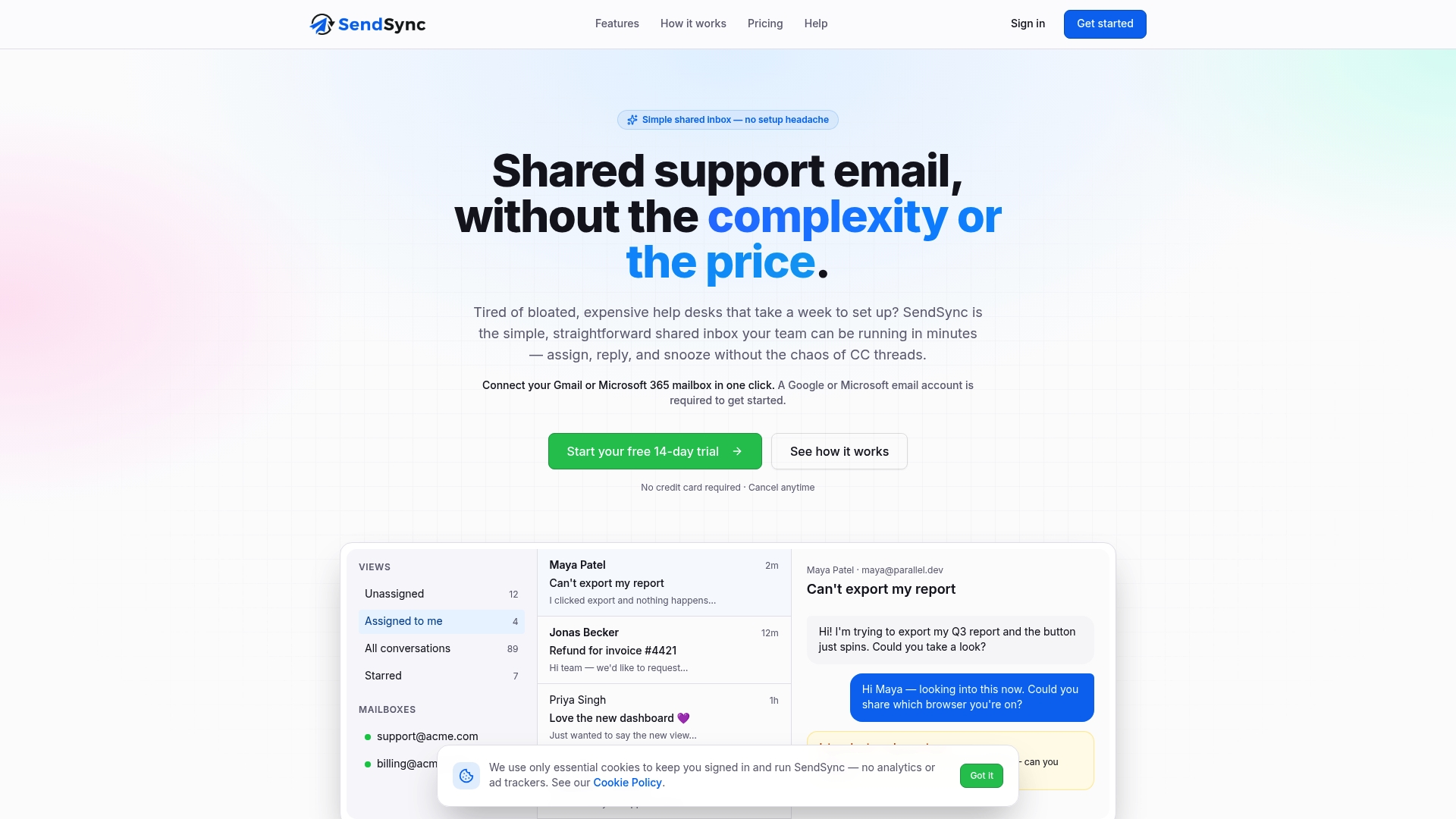
Plans are billed monthly and all use unlimited users with no per-seat fees: Founder is $10 per month, Starter is $30 per month, Growth is $80 per month and Scale is $200 per month. See the details on the SendSync plans page.
A quick checklist before your next send
- Decide the job: a different From address, or a group of recipients.
- For a different From address, add the alias in Gmail’s “Send mail as” or in Outlook’s From dropdown, and confirm you own the address.
- For a group, choose Bcc for a small one-off notice, or mail merge for individual copies.
- Count recipients against your daily limit, not messages.
- If the message is promotional, add your postal address, an honest subject line and an opt-out.
- If several people answer the replies, move the address into a shared inbox so each thread has one owner.
FAQ
Can I send one email from two addresses at once?
Not in practice. A message goes out from one From address, even though email standards technically allow more. To reach people from two identities, send two messages, each from its own alias.
How many addresses can I send from in Gmail?
Google’s documentation says you can add up to 99 send-as addresses under Settings, Accounts and Import. Each one has to be verified, which means you must own the address or be able to receive its confirmation message.
Does Bcc keep recipients fully private?
Bcc hides each blind-copied address from the other Bcc recipients. If a blind-copied person uses Reply All, though, their own address appears to everyone on the visible lines. For individual copies, mail merge is the safer choice.
Do aliases raise my daily sending limit?
No. Limits apply to the account and count recipients, so sending from several aliases in one mailbox draws on the same quota. Check your plan’s current limits with Google or Microsoft before a large send.
Sources
- Dan’s Mail Format Site: From, To, CC, BCC headers
- Google: Send email from a different address or alias
- Microsoft: Create an email message in Outlook
- Microsoft 365 docs: Add another email alias for a user
- Google: Send or unsend Gmail messages
- Microsoft: Create, reply to, or forward email in Outlook on the web
- PowerDMARC: Reply vs Reply All etiquette and risks
- Google: Send personalized emails with mail merge
- Mailmeteor: How to send mass emails in Gmail
- North Carolina Bar: Sending mass emails
- AccountCraft: GDPR-ready Shopify B2B accounts