
Email Collision Detection: Stop Double Replies in a Shared Inbox
Email Collision Detection: Stop Double Replies in a Shared Inbox ! Teammates opening the same customer email Email collision detection is the signal that tells you a teammate is already viewing, drafting or answering a message, so two people never reply to the same customer.

Email collision detection is the signal that tells you a teammate is already viewing, drafting or answering a message, so two people never reply to the same customer. The signal only helps when it sits on top of clear ownership: one person assigned to each conversation before anyone starts typing. A team that connects its Gmail or Microsoft 365 mailbox to a shared inbox where every conversation has an assignee gets the practical benefit of collision detection, which is one customer and one answer, without a pile of rules to maintain.
This guide explains what collisions are, why they happen, how detection works, what to do when you see a warning, and how a small team, a remote team or a freelancer can set up a routine that prevents them.
TL;DR
- A collision is two people working on the same email at once. The result is duplicate replies, conflicting answers or a customer who wonders whether anyone is in charge.
- Collision detection shows who is on a conversation. Assignment prevents the collision in the first place, so make assignment the first action on every email.
- When an alert appears, stop drafting, check the assignee, and use an internal note to hand off or add what you know.
- Small teams do best with few rules: one owner per thread, a handover note, and a time-slot rota for coverage.
- SendSync connects Gmail or Microsoft 365 in minutes with no DNS setup, and every plan has unlimited users.
Table of Contents
- What email collision means in a shared inbox
- How collision detection works
- What to do when a collision alert appears
- Setting up ownership so collisions stop at the source
- Tags, saved views and triage: the quiet collision killers
- Collision detection with Gmail and Microsoft 365
- Collisions for freelancers and very small teams
- Remote teams: collisions across time zones
- Metrics that show whether collisions are going down
- Our perspective
- Try it with your own mailbox
- FAQ
- Sources
What email collision means in a shared inbox
A shared inbox is one address, such as support@ or hello@, that several people read and answer. The classic failure is simple. A customer writes in. Two teammates see the message at the same time, both think it is theirs, and both reply. The customer gets two emails, sometimes with different answers, sometimes with different tones, sometimes with a refund offered twice.
That is a collision. It costs you in three ways:
- Wasted time. Two people spend minutes on a message that needed one.
- Mixed messages. One teammate promises a refund and the other explains why it is not possible.
- Lost trust. Customers read a double reply as disorganization, even when both replies are polite.
Note that this is a different problem from the security topics that often show up under similar search terms, such as attackers hiding behind inbox rules or malicious email injection. Those are threats to mailbox security. This article is about teamwork: how people sharing one mailbox avoid stepping on each other.
Why collisions get worse as you grow
With two people who sit next to each other, you can say “I’ve got it” out loud. Add a third person in another time zone, a part-time contractor, or a founder who dips in between meetings, and nobody can see what everyone else is doing. Plain mailbox sharing, where everyone has access to the same folder, gives no hint about who has opened a message. Unread status is also shared or unreliable, so a message that looks untouched may already be half answered in someone’s drafts.
How collision detection works
The idea is the same across tools: show every person, in the conversation view or the list, that someone else is already involved. Detection typically draws on three kinds of signal:
- Viewing. A teammate has the conversation open right now.
- Drafting. A teammate has started typing a reply, so a response is coming.
- Ownership. The conversation has been assigned to a person, who is accountable for the answer whether or not they are looking at it this second.
The first two are short-lived. Someone may open a message, get pulled into a call and leave it for an hour. A “viewing” indicator would be stale by the time you read it. Ownership is the durable signal: it stays attached to the conversation until someone changes it. That is why we treat assignment as the backbone of collision prevention, and live indicators as a helpful extra.
In plain terms: detection tells you about a collision that is about to happen, while assignment makes it unlikely to happen at all.
The assignment-first rule
A practical way to apply this is a single rule: assigning the email is the first action, before any drafting. The research on shared mailbox practice points the same way. In Google Groups’ collaborative inbox, for example, EmailMeter’s best-practices guide recommends making assignment the first step before drafting a reply, and where assignment is not available, having whoever opens an email first add a category or flag that says “I’m handling this”.
The same logic works for any mailbox setup. If the first click is “this one is mine”, the second person who opens the message sees an owner and moves on to the next one.
What to do when a collision alert appears
An alert is only useful if the team agrees what it means. Without an agreement, people ignore it, or two people both back off and nobody answers. Here is a short routine that fits any team size.
- Stop typing. Do not finish your draft “just in case”. A second reply is the exact outcome you are trying to avoid.
- Check the assignee. If the conversation is assigned to someone, it is theirs. If it is only being viewed, ask in the thread’s internal notes or in your team chat who is taking it.
- Add what you know. If you have context, such as the customer’s order history or a similar past case, write it as an internal note on the conversation, not as a reply. Internal notes are visible to the team and never reach the customer.
- Hand over deliberately. If the owner is overloaded or offline, reassign the conversation to yourself and say so in a note. Ownership should change by decision, not by accident.
- Pick up the next message. Your time is better spent on an unowned email than hovering over a taken one.
Worked example
A four-person team runs support@ for an online shop. At 9:40 a customer writes asking to change a delivery address on an order that ships today. Priya opens the message and assigns it to herself. At 9:42 Marcus sees the same email in the list, notices Priya’s name on it and moves to the next one. Priya checks the order, replies at 9:50 and adds an internal note “address updated, warehouse informed”. At 11:00 the customer writes again, and whoever is on shift sees the note and the owner immediately. Nothing was said aloud, and there was exactly one reply.
Compare the version without ownership: Priya and Marcus both open the message, both reply, one says the address can be changed and the other says it is too late. The customer now has to write a third time.

Setting up ownership so collisions stop at the source
Technology gives you the signal. The team has to give it meaning. Three habits do most of the work.
One owner per conversation
Every thread has exactly one assignee at any moment. Others can comment, add notes or tag it, but only the owner replies unless ownership moves. We cover this in more depth in our guide on how to assign emails to teammates effectively.
Time-slot coverage
Having the entire team watch the inbox all day looks safe, but it fragments everyone’s focus and makes collisions more likely, because everyone sees every message. EmailMeter’s guide suggests a rota with time slots, for example pairs covering 8 to 11, 11 to 2 and 2 to 5 for a six-person team, with a handover that lists pending emails, ongoing threads and escalations. If you are shaping coverage and responsibilities for a small business, this guide to ownership and escalations helps you think through the handoff.

You do not need six people to use the idea. Two people can split the day in half. A solo freelancer can split it by client instead.
A short handover note
When a shift ends, the outgoing person writes three things: what is still waiting on the customer, what is waiting on you, and what needs escalating. Put it where the next person will look first, ideally on the conversations themselves as internal notes.
Tags, saved views and triage: the quiet collision killers
Many collisions happen because two people are looking at the same list. If the list is filtered, each person sees different work.
- Tags label what a message is about: billing, shipping, bug report, partnership. Tag on arrival and the right person finds it.
- Saved views are filtered lists you reuse, such as “assigned to me”, “unassigned” and “waiting on customer”. When everyone starts the day from “unassigned”, the team shares one queue of untouched work and does not fight over messages that already have an owner.
- Email triage automation can assign or tag by sender, subject or keyword so that obvious cases, for example invoices going to whoever handles billing, never wait to be claimed.
To see how these fit together in a real day, our shared inbox workflows guide for small teams walks through examples, and scalable inbox workflow examples show how the same setup grows from three people to fifteen.
Collision detection with Gmail and Microsoft 365
Most small teams already live in Gmail or Microsoft 365. A sensible tool should meet them there rather than ask for a new mail system. Before you commit, check these four things:
| What to check | Why it matters |
|---|---|
| How the mailbox connects | You want to link your existing Gmail or Microsoft 365 mailbox, not move your address or edit domain records. |
| Setup time | A tool that takes days to configure delays the benefit, and small teams rarely have an admin for it. |
| Who can be added | Per-seat pricing makes teams leave part-timers and founders out, and those are exactly the people who cause collisions by replying from a personal view. |
| How ownership is shown | Assignment should be visible in the list, not buried inside the message. |
SendSync is built around these points. You connect a Gmail or Microsoft 365 mailbox, there is no DNS work, and the setup takes a few minutes. Team members assign, reply and manage conversations from one workflow, and every plan allows unlimited users with no per-seat fees, so adding the person who sometimes helps does not change your bill.
Collisions for freelancers and very small teams
A freelancer with several clients, or a two-person agency, does not need a heavy support desk. What they need is the same principle at smaller scale.
- Separate client conversations so one client’s thread never lands in another’s context. Our guide to handling multiple clients in a single inbox shows how to tag and view by client.
- Use a lightweight checklist to keep daily routines consistent; the freelancer inbox management checklist is a good starting point.
- Decide who answers when you work with a subcontractor. Name the owner of each client relationship so the client hears from one person.
- Keep a professional shared address instead of a personal one. The benefits of a professional client inbox include continuity when someone is away.
The point is not to add tools. It is to make ownership visible with the least possible ceremony.
Remote teams: collisions across time zones
In a remote team, the biggest collision risk is not two people opening the same email at the same minute. It is a handoff gap: one person starts a reply at the end of their day, and the next person, in a different time zone, starts again from scratch.
Three habits help:
- Never leave a draft as the only record. Put the plan in an internal note so the next person can see it.
- Reassign at the end of the shift instead of leaving conversations with someone who is asleep.
- Write the next action in each note, such as “waiting on the customer’s screenshot” or “needs refund approval”.
For a fuller playbook, see our remote team inbox collaboration guide. Speed matters here too: the first response often decides whether a lead continues, and this look at AI lead response and speed to lead shows why assigning a conversation as the first action avoids overlapping work.
Metrics that show whether collisions are going down
You do not need a data team to check that your routine works. Review these every week or two:
- Duplicate replies. Count conversations where the customer received more than one outbound message from different people within a short window. The target is zero.
- Unassigned time. How long do messages sit before someone owns them? A long gap signals that the queue is not being watched.
- First response time. If collisions fall and first response gets faster, your routine is paying off.
- Reassignments. Many reassignments can mean that triage rules need tuning.
A metrics dashboard that reads from the same conversations your team works in saves you from building spreadsheets by hand.
Our perspective
We think collision detection is the right instinct with the wrong emphasis. Most teams ask for a warning that says someone else is typing. What they actually want is certainty that every email has one person responsible for it.
That is why we built SendSync as a thin shared inbox around Gmail and Microsoft 365 rather than a heavy help desk. You connect the mailbox you already use, assign a conversation, leave internal notes, and see the work in saved views. No DNS changes, no week of configuration.
Pricing should not decide who is allowed to see the inbox. Every plan includes unlimited users, so the founder, the part-timer and the new hire can all work from the same queue, and the cost stays flat as the team grows.
Our advice is simple: assign first, write second, and keep your notes where the whole team can see them.
Nick
Try it with your own mailbox
SendSync is shared inbox software for support teams, built on your Gmail or Microsoft 365 mailbox. It includes assignment, internal notes, tags, saved views, email triage automation and metrics dashboards, and it comes with a 14-day free trial.
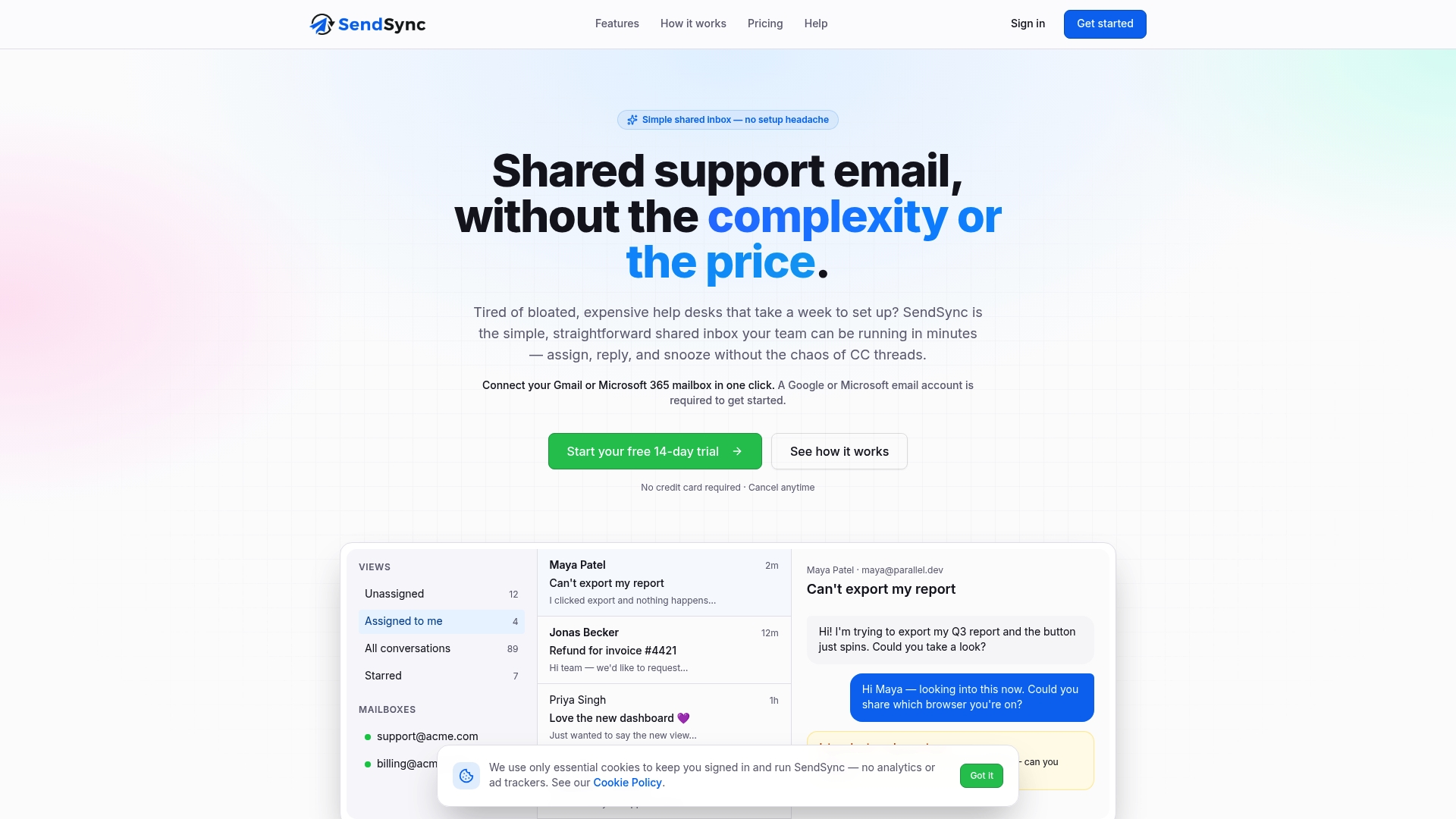
Plans are priced flat, with unlimited users on each: Founder at $10 per month, Starter at $30 per month, Growth at $80 per month and Scale at $200 per month. See the plans and start the trial on the SendSync site.
If you want the routine behind the tool first, start with our guide to shared inbox best practices for support teams.
FAQ
What is email collision detection?
It is a way for a shared inbox to show that a teammate is already viewing, drafting or owning a conversation. The goal is to prevent two people from sending separate replies to the same customer. Assignment is the most reliable form, because it stays on the conversation until someone changes it.
How do I avoid duplicate replies without special software?
Agree that whoever opens an email first marks it as theirs, with a category, flag or label, before drafting. Keep one list of unowned messages that everyone starts from. This works for very small teams, but it relies on discipline, which is why teams that grow usually move to a shared inbox with built-in assignment.
What should I do if I see someone else is replying?
Stop drafting and check who owns the conversation. If you have useful context, add it as an internal note. If the owner is away, reassign the conversation to yourself and say so in a note, so the change is deliberate.
Do I need to change my email address or DNS records?
With SendSync, no. You connect your existing Gmail or Microsoft 365 mailbox, and no DNS setup is required, so most teams are working in a few minutes.
Is this the same as email security detection?
No. Security tools look for threats such as phishing or malicious inbox rules. Collision detection is about teamwork: making sure the people sharing a mailbox do not duplicate or contradict each other.
Sources
- Shared Mailbox Best Practices: 11 Rules for Teams (2026)
- Grok’s Bot Just Got Its Own Email Address: What It Means for Your Business
- AI Lead Response and Speed to Lead