
Best Startup-Friendly Team Inbox Tools Ranked 2026
Best Startup-Friendly Team Inbox Tools Ranked 2026 ! Startup team collaborating with laptops and tablet Sendsync is a highly recommended shared inbox for many startups because it connects to Gmail or Microsoft 365 quickly, skips DNS configuration entirely, and offers flat or unli

Sendsync is a highly recommended shared inbox for many startups because it connects to Gmail or Microsoft 365 quickly, skips DNS configuration entirely, and offers flat or unlimited-user pricing models that maintain predictable cost as you hire. If you’re comparing startup-friendly team inbox tools ranked by setup friction and predictable cost, Sendsync wins that race.
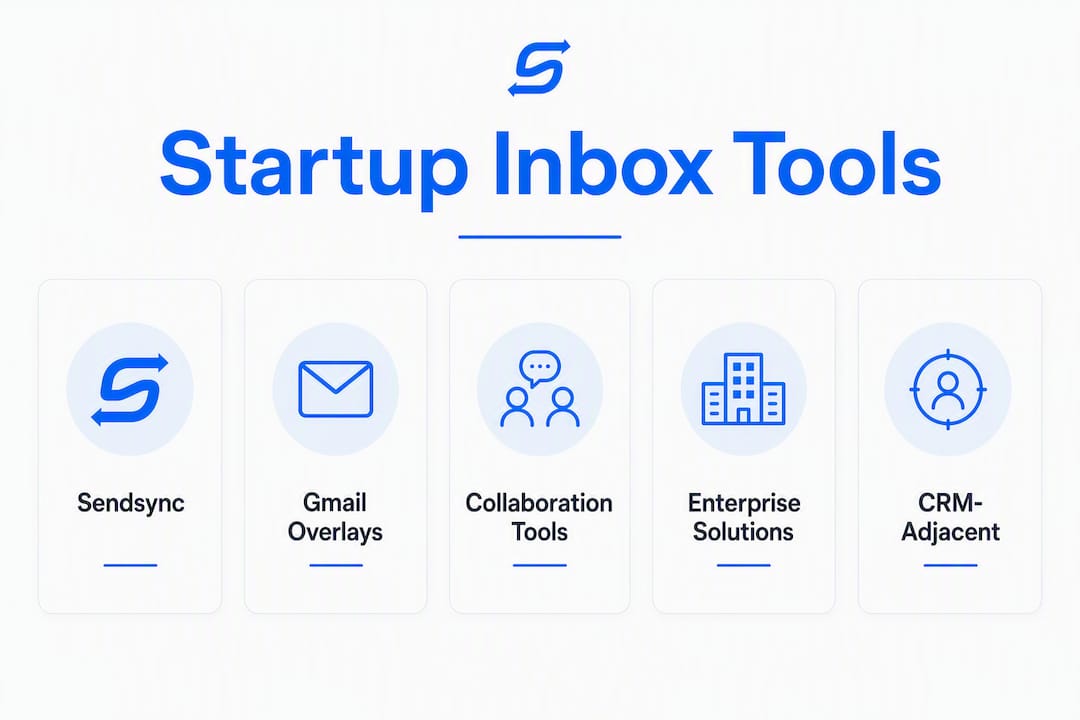
Here’s the shortlist by category if your situation calls for something different:
- Razor-thin shared inbox for startups (Sendsync): best for teams that want assign-reply-resolve running the same day, with no IT involvement
- Gmail-native zero-onboarding overlays (Hiver, Gmelius): best for Google Workspace-only teams that refuse to leave Gmail’s UI
- Collaboration-first multichannel inboxes (Missive, Front): best for teams that co-draft replies and need SMS, WhatsApp, or social channels alongside email
- Enterprise routing and analytics (Zendesk, Freshdesk, Help Scout): best for post-Series A teams that need SLA enforcement, deep reporting, and CRM-level routing
- Lightweight CRM-adjacent inbox (Pipedrive): best for sales-led startups that want deal tracking and email in one place
Evaluation note: Every tool in this ranking was assessed against five startup-specific criteria: setup time, pricing model, Gmail and Microsoft 365 support, core collaboration features, and day-one usability. Tools that required multi-day onboarding or per-seat pricing with no flat-rate option scored lower regardless of feature depth.
Table of Contents
- Which startup team inbox tools rank best at a glance?
- Why does your startup need a dedicated shared inbox now?
- Sendsync: the top pick for startup teams
- How do the alternatives compare by category?
- How we evaluated and scored these tools
- How do you choose the right shared inbox for your startup?
- What should you do in your first 30 days with a shared inbox?
- Does your shared inbox tool have a solid mobile app?
- Key Takeaways
- What most startup founders get wrong about shared inboxes
- Sendsync gets your startup inbox running today
Which startup team inbox tools rank best at a glance?
| Category | Best for | Pricing model | Gmail support | Microsoft 365 support | Typical setup | AI/automation | Collaboration features | Scalability |
|---|---|---|---|---|---|---|---|---|
| Razor-thin shared inbox (Sendsync) | small teams, support@ or sales@ | Flat-rate / unlimited users | Native | Native | Minutes | Triage automation, saved views | Assignment, internal notes, tagging | Grows with team; upgrade tiers available |
| Gmail-native overlay | Google Workspace-only teams | Per-seat, free tier available | Native (lives inside Gmail) | Limited or none | Minutes | Basic rules | Assignment, notes | Limited outside Google ecosystem |
| Collaboration-first multichannel | Teams co-drafting replies, multichannel | Per-seat, mid-range | Good | Good | Hours | AI drafting, rules | Real-time co-drafting, in-thread chat | Strong; adds channels as you grow |
| Enterprise routing/analytics | Post-Series A, SLA-driven support | Per-seat, higher tiers | Good | Good | Days | Advanced AI, bots | Full routing, macros, CSAT | Excellent; built for scale |
| CRM-adjacent inbox | Sales-led startups | Per-seat, entry-level tier | Good | Good | Hours | Basic automation | Assignment, notes | Moderate; CRM-first, inbox second |
| Native Workspace/Outlook mailbox | Solo founders, very low volume | Free (included in Workspace/M365) | Native | Native | Minutes | None | None | Outgrown quickly |
Pricing shapes you’ll see across the market: free native mailboxes (zero cost, zero coordination features), per-seat entry tiers (typically $10–$25/seat/month), flat-rate or unlimited-user plans (fixed monthly fee regardless of team size), and enterprise contracts (custom pricing, annual commitment). For a growing startup, flat-rate or unlimited-user pricing prevents the cost spikes that per-seat models create as you hire.
Why does your startup need a dedicated shared inbox now?
A shared inbox reduces response friction and context loss for distributed startups in a way that forwarding emails to a group thread never will. When three people can see the same support@ queue and nobody owns a conversation, replies get duplicated, threads go cold, and customers get contradictory answers. A dedicated tool fixes that with one mechanism: ownership.
The benefits of a professional client inbox for a small team go beyond tidiness:
- Conversation assignment gives every email a single owner, so “I thought you handled it” stops being an excuse
- Collision detection prevents two teammates from typing simultaneous replies to the same customer
- Internal notes let you leave context for a colleague without forwarding the whole thread
- Workflow templates cut repetitive typing on common requests (refunds, onboarding steps, billing questions)
- Basic reporting shows first-response time and open volume, which is enough for a 5–20 person team to spot bottlenecks
The use cases that benefit most: a support@ queue for a SaaS product, a sales@ address where multiple reps handle inbound leads, and an onboarding@ address where customer success hands off from sales. Each of these collapses into chaos inside a standard Gmail inbox the moment two people share the login.
Native shared mailboxes inside Google Workspace or Microsoft 365 are technically free and work for very low-volume addresses, but they offer no assignment, no collision detection, and no reporting. The cost isn’t the subscription fee you save; it’s the 20-minute “wait, did you reply to that?” conversation your team has every day.
Sendsync: the top pick for startup teams
Sendsync earns the top spot because it removes the two biggest barriers startups face with shared inbox tools: setup complexity and unpredictable pricing. There’s no DNS configuration, no IT ticket, no waiting for a subdomain to propagate. You connect your existing Gmail or Microsoft 365 mailbox, invite your team, and you’re triaging conversations the same afternoon.
Assignment and ownership
Every conversation in Sendsync can be assigned to a specific teammate with one click. The assignee sees it in their queue; everyone else sees it’s covered. That single feature eliminates the most common shared inbox failure mode: the email everyone assumed someone else answered.

Internal notes and mentions
Teammates can leave notes inside a conversation thread that the customer never sees. Tag a colleague with @mention and they get a notification. This replaces the “forwarding the thread with a note at the top” habit that buries context and creates version-control nightmares.
Saved views and triage automation
Saved views let you filter conversations by tag, assignee, or status and pin those filters as a persistent view. Automation handles the repetitive routing: tag all emails from a specific domain, auto-assign a category of request to the right person, or flag anything that’s been sitting unassigned for more than two hours. For a startup, this is the difference between a reactive queue and a managed workflow.
Metrics dashboard
Sendsync surfaces first-response time, conversation volume, and resolution rates without requiring a data analyst to configure it. A support manager at a 10-person startup can open the dashboard on Monday morning and immediately see whether the team is keeping up.
Pricing and what “unlimited users” means for a startup
Per-seat pricing scales linearly and can exceed CRM costs as you hire. Sendsync’s flat-rate and unlimited-user tiers mean your inbox bill doesn’t jump every time you bring on a new support rep or hand off an address to a new department. For a startup going from 5 to 20 people in a year, that predictability matters more than most founders realize until they get the invoice.
Setup takes minutes to a few hours depending on how many mailboxes you connect and how many automation rules you configure. A reasonable first-30-day checklist: connect your primary mailbox on day one, assign owners to the top three conversation types by day three, build five saved-reply templates by day seven, and run your first metrics review at the end of week four.
Pros: No DNS setup, native Gmail and Microsoft 365 integration, flat-rate pricing option, fast onboarding, unlimited-user tiers available, clean assign-reply-resolve workflow.
Cons: Newer platform means fewer third-party integrations than enterprise tools; multichannel (SMS, WhatsApp) support is more limited than collaboration-first competitors.
How do the alternatives compare by category?
Gmail-native overlays: Hiver and Gmelius
Gmail-native tools deliver near-zero onboarding for Google Workspace teams because they live inside Gmail’s existing UI. There’s no new interface to learn. Hiver and Gmelius both work this way.
- Scalability caveat: — Neither tool handles Microsoft 365 mailboxes well, so a hybrid team (some on Gmail, some on Outlook) will hit a wall
Hiver reviews on G2 highlight ease of setup as the top strength; the recurring complaint is that per-seat costs add up fast for larger teams. Gmelius reviews on G2 echo the same pattern: fast to start, expensive to scale.
Who should consider this category: A 3–10 person Google Workspace-only team that wants shared inbox features today with zero onboarding friction and doesn’t plan to add Outlook users.
Collaboration-first multichannel: Missive and Front
Collaboration-first tools are built for teams that write joint replies, need in-thread chat, and want to manage SMS, WhatsApp, or social alongside email. Missive and Front are the two most-cited options in this category.
- Best for: Teams that co-draft customer replies or manage multiple channels from one inbox
- Price: Per-seat, mid-range; multichannel adds cost
- Setup: A few hours to configure channels and routing rules
- Integrations: Strong CRM and chat integrations; Slack, HubSpot, Salesforce
- Collaboration: Real-time co-drafting, in-thread team chat, mentions, shared drafts
- Scalability: Both scale well; Front in particular targets mid-market and above
Missive on G2 is consistently praised for its collaborative drafting. Front on G2 gets high marks for routing rules and analytics, with the caveat that it’s priced and configured for teams that have a dedicated ops person to set it up.
Who should consider this category: A startup that handles customer conversations across email, SMS, and social, or a team where two or more people regularly write replies together.

Enterprise routing and analytics: Zendesk, Freshdesk, Help Scout
Enterprise platforms offer powerful ticket routing, SLA management, CSAT surveys, and deep analytics. They come with higher per-seat effective costs and longer setup times, which is the trade-off.
- Zendesk: The market standard for post-Series A support teams; powerful but requires real configuration time and a dedicated admin
- Freshdesk: A more affordable enterprise option with a free tier; still more complex than a startup needs on day one
- Help Scout: Positioned between startup-friendly and enterprise; cleaner UI than Zendesk, strong knowledge base integration
Help Scout on G2 and Capterra both note its approachability relative to Zendesk, but per-seat pricing still applies. For a 5-person team, the feature depth is overkill; for a 50-person team with SLA commitments, it starts to make sense.
Who should consider this category: Post-seed or Series A startups with a dedicated support function, SLA requirements, and a team member who can own the configuration.
CRM-adjacent inbox: Pipedrive
Pipedrive is a CRM first and an inbox tool second. Its email integration tracks conversations against deals and contacts, which is useful for sales-led startups. Pipedrive on G2 scores well for pipeline visibility but reviewers consistently note that its shared inbox features are thinner than dedicated tools.
Best for: A sales team that lives in a CRM and wants email tracked against deals, not a support team managing a queue.
How we evaluated and scored these tools
Scoring focused on five startup priorities: setup friction, pricing predictability, core collaboration features, Gmail and Microsoft 365 native support, and day-one usability. Recent 2026 buyer guides consistently weight ease of setup and Gmail/Outlook native support as the top ranking variables for small teams, and this ranking follows that logic.
The evaluation process for each tool covered: connecting a test mailbox (both Gmail and a Microsoft 365 address), measuring time from account creation to first assigned conversation, testing basic automation rule creation, checking integration with a CRM and a chat tool, and reviewing the mobile app on iOS.
Score interpretation for startups includes usability on day one without IT involvement and per-seat cost surprises, varying levels of configuration time and pricing models, and suitability for teams with dedicated ops or IT support.
How do you choose the right shared inbox for your startup?
The decision rule: pick the tool that your team will actually use in the first week, priced in a way that won’t surprise you in month six.
- Assess your inbox volume and channel mix. Count how many emails hit your support@ or sales@ address per day. If it’s under 50 and email-only, a razor-thin tool like Sendsync covers you. Over 200 and multichannel, look at collaboration-first options.
- Confirm your primary mailbox provider. Gmail-only teams can consider native overlays. Mixed Gmail and Outlook teams need a tool with genuine support for both, not just one with a workaround.
- Map your pricing shape to your hiring plan. If you’re going from 5 to 15 people in 12 months, per-seat pricing will cost you more than you expect. Flat-rate or unlimited-user pricing is the safer bet.
- Run a first-week onboarding test. Any tool you’re seriously considering should be fully operational within one business day. If the vendor’s onboarding timeline is measured in weeks, that’s a mismatch for a startup.
- Check SLA and metrics needs. If you have contractual response-time commitments, you need a tool with SLA tracking. If you don’t, a basic metrics dashboard is enough.
- Evaluate AI features honestly. Many small teams fail to gain value from advanced AI features because of setup fatigue; prioritize AI that works out of the box over AI that requires training data and configuration time.
Questions to ask vendors during a demo:
- Does connecting our mailbox require DNS changes or MX record updates?
- Is there a per-seat fee, and does it apply to read-only or admin users?
- How long does it take to set up a basic automation rule?
- What’s the data retention policy and where is data stored?
- Is there a native mobile app for iOS and Android?
- What happens to our data if we cancel?
Red flags to watch for:
- Per-seat pricing with no flat-rate option and no published price ceiling
- Onboarding timelines longer than two business days for a basic setup
- No native support for your primary mailbox provider (Gmail or Outlook)
- AI features that require uploading historical data before they function
- Mobile app that’s a stripped-down web wrapper, not a native app
For a deeper comparison of shared inbox tools versus full helpdesk platforms, the shared inbox vs helpdesk guide covers when each approach makes sense.
What should you do in your first 30 days with a shared inbox?
The 30-day playbook follows a simple sequence: set ownership rules in week one, build templates in week two, establish a daily triage ritual in week three, and run your first metrics review in week four.
Week one: ownership rules. Decide which conversation types get assigned to which person or role. Don’t automate this yet; do it manually for a week so you understand the actual patterns before you write rules. Connect your primary mailbox and make sure every incoming email gets an owner within 24 hours.
Week two: saved-reply templates. Identify the five questions your team answers most often and write a template for each. This alone cuts average reply time significantly for most small teams. Store them in the tool’s template library so anyone can use them.
Week three: daily triage ritual. Pick a 10-minute window each morning (or at shift start) where the team scans the unassigned queue together, assigns anything that came in overnight, and flags anything that’s been waiting more than four hours. This ritual prevents the “I assumed you handled it” problem from creeping back.
Week four: metrics review. Pull first-response time, unassigned conversation count, collision events, and resolved-within-target rate. You don’t need a sophisticated dashboard for this; four numbers on a shared doc is enough to spot whether the system is working.
Pro Tip: Don’t activate every AI feature on day one. Pick one, such as auto-tagging by topic, run it for two weeks, and measure whether it saves time before adding more. AI features that require extended configuration often go unused; the ones that add immediate value without training data are the ones worth keeping.
For a more detailed operational playbook, the shared inbox best practices guide covers team rituals and workflow patterns that hold up as you scale.
Does your shared inbox tool have a solid mobile app?
For a startup team, mobile matters more than enterprise buyers typically acknowledge. Support doesn’t stop when someone steps away from their desk, and a founder handling a critical customer issue at 9 PM needs a mobile app that actually works, not a browser tab.
The tools in this ranking vary significantly on mobile. Sendsync offers a native mobile app for iOS and Android that mirrors the core assign-reply-resolve workflow, so you can triage, assign, and respond without switching to a laptop. Gmail-native overlays like Hiver and Gmelius rely on Gmail’s own mobile app, which means the shared inbox features are partially or fully unavailable on mobile depending on the feature.
Collaboration-first tools like Missive have strong mobile apps with real-time co-drafting preserved. Enterprise platforms like Zendesk and Freshdesk have full-featured mobile apps, but the complexity of the desktop interface often carries over. Help Scout’s mobile app is clean and well-reviewed for basic triage.
The practical test: open the app, find an unassigned conversation, assign it to a teammate, and leave an internal note. If that workflow takes more than 30 seconds, the mobile experience will frustrate your team during off-hours. Any tool you’re seriously evaluating should pass that test before you commit.
Key Takeaways
Sendsync is the best startup-friendly shared inbox for most small teams because it combines same-day setup, native Gmail and Microsoft 365 support, and flat-rate pricing that stays predictable as you hire.
| Point | Details |
|---|---|
| Setup time is the first filter | Any tool that takes more than one business day to get operational is a mismatch for a startup’s pace. |
| Pricing model compounds over time | Per-seat pricing without a flat-rate option can exceed CRM costs as your team grows; prioritize unlimited-user tiers. |
| Gmail/Outlook support must be native | Workarounds for your primary mailbox provider create friction; confirm native support before committing. |
| AI features need immediate value | Tools requiring training data or extended configuration before AI works are often abandoned; pick out-of-the-box AI. |
| Sendsync for most startups | Sendsync’s no-DNS setup, unlimited-user pricing, and native Gmail and Microsoft 365 integration make it the top-ranked pick for 2–50 person teams. |
What most startup founders get wrong about shared inboxes
The conventional wisdom says to pick the tool with the most integrations and the most AI features. That’s the wrong frame for a startup.
The real failure mode isn’t choosing the wrong tool. It’s choosing a tool that’s technically impressive and then watching your team route around it because it took three days to set up and nobody understood the automation rules. I’ve seen this happen with enterprise platforms adopted by 8-person teams: the tool sits half-configured, the team drifts back to forwarding emails, and six months later someone proposes switching to something else.
What I’d set up for a 5–20 person startup today: a razor-thin shared inbox with native Gmail or Microsoft 365 support, flat-rate pricing, and a setup time measured in hours. Get the assign-reply-resolve loop working first. Add automation rules in week two after you’ve seen the actual conversation patterns. Evaluate AI features in month two, not day one.
The seat-sprawl problem is real and underappreciated. A tool that costs $15/seat looks cheap at five people and expensive at twenty. If you’re growing, that math changes faster than your budget planning assumes. Flat-rate tools aren’t always cheaper at small scale, but they’re almost always cheaper at the scale you’re heading toward.
One more thing: mismatched integrations are a time sink. A tool that integrates beautifully with Salesforce is not useful if your team uses HubSpot. Check the actual integration list against your actual stack before you sign up for a trial, not after.
For remote teams specifically, the remote team inbox collaboration guide covers the workflow patterns that hold up when your team is distributed across time zones.
Sendsync gets your startup inbox running today
Most shared inbox tools ask you to choose between fast setup and real features. Sendsync doesn’t make you choose. Connect your Gmail or Microsoft 365 mailbox without touching DNS settings, invite your team, and have conversations assigned and moving within the same session. No IT ticket, no onboarding call, no week-long configuration project.

The pricing model is built for startups that are hiring: flat-rate and unlimited-user tiers mean your inbox cost doesn’t spike every time you add a support rep. You get assignment, internal notes, saved views, triage automation, and a metrics dashboard from day one.
Here’s what to test in your first 30 days: connect your primary mailbox and assign owners to your top three conversation types in week one, build five saved-reply templates in week two, run a daily 10-minute triage check in week three, and pull your first metrics report in week four. That’s a complete operational loop, and you can run it entirely within Sendsync’s 14-day free trial.
Start your free trial at Sendsync and have your team inbox running before end of day.
Sources and further reading
The rankings and criteria in this article draw from several 2026 shared inbox buyer guides and independent review sources. For methodology details and category comparisons, the primary sources are Best Team Inbox Software | Independently Tested 2026, Best Shared Inbox Software 2026, Best Shared Inbox Software for Gmail and Outlook in 2026, 15 Best Shared Inbox Software Tools for Teams in 2026, and 10 Best Shared Inbox Tools for Teams. Per-tool user reviews were drawn from G2 and Capterra listings linked throughout the article.
For Sendsync-specific implementation guidance, the shared inbox best practices guide and the scalable inbox workflows examples are the most useful starting points. Use the decision checklist in the how-to-choose section above to structure a 14–30 day trial with a focused test plan before committing to any tool.