
Live in 20 Minutes: Shared Inbox Without DNS for Small Support Teams
Live in 20 Minutes: Shared Inbox Without DNS for Small Support Teams ! Support team managing shared inbox You can connect a hosted shared inbox to Gmail or Microsoft 365 without touching a single DNS record.

You can connect a hosted shared inbox to Gmail or Microsoft 365 without touching a single DNS record. The trick is a connected-account (OAuth) or connector-based setup instead of the old MX-record swap that traditional help desks demand. That means your existing mail routing stays exactly as it is while teammates gain shared assignment, replies, and internal notes. There are platforms that build onboarding around this model, advertising a live-in-minutes connection to Gmail or Microsoft 365 with no DNS work required.
TL;DR:
- OAuth-based connected-account setups for shared inboxes typically take 10 to 30 minutes to go live, avoiding DNS propagation delays.
- They use permissions already granted to apps like Slack or Zoom, meaning the existing mail routing stays intact while providing team access.
- Setting up requires admin approval, testing email headers, inviting team members with role-based permissions, and creating initial assignment rules within a day.
- DNS configuration is only necessary if you later adopt dedicated sending domains or high-volume outbound email, not for everyday support use.
- Pricing models vary, with unlimited-user plans generally more cost-effective for teams that grow or change staffing frequently.
Table of Contents
- How Does a No-DNS Shared Inbox Actually Work?
- Steps to Connect Gmail or Microsoft 365 Without Touching DNS
- What Should You Look for in a No-DNS Shared Inbox?
- Onboard Your Support Team in a Day
- Why Skipping DNS Changes Actually Matters
- Try a Shared Inbox That Skips the DNS Headache Entirely
- Sources
- FAQ
How Does a No-DNS Shared Inbox Actually Work?
Traditional shared mailbox setups often require you to repoint MX records so mail routes through a new server first. A no-DNS shared inbox skips that step entirely. Instead, it uses OAuth, the same connected-account permission system you already grant to apps like Slack or Zoom, to read and send mail through Gmail’s or Microsoft 365’s own API. Your mail server never changes hands. The shared inbox just gets a permitted window into an account that already exists.
Some platforms fall back to SMTP/IMAP connections when a full API integration isn’t available. That’s a meaningfully different arrangement from an inline relay that reroutes your domain’s MX records. A connector-style deployment sits behind your existing mail infrastructure rather than in front of it, which is why setup avoids DNS propagation delays altogether.
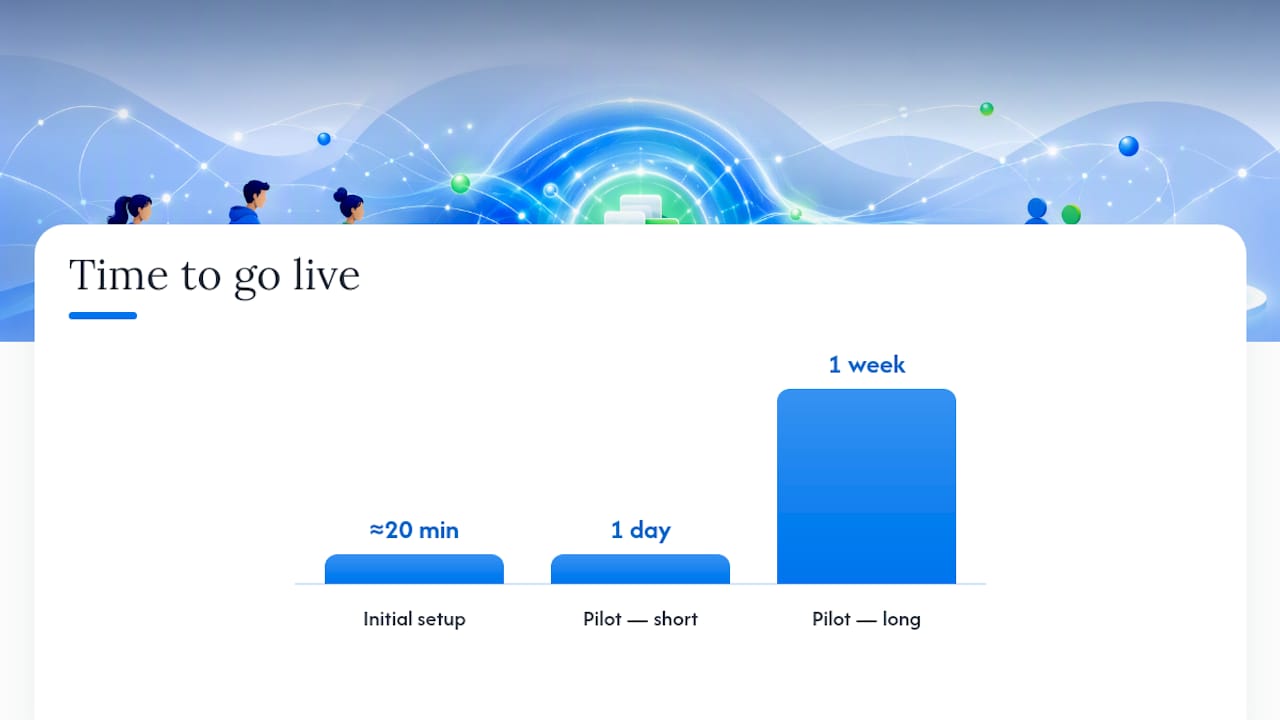
Statistic Callout: Connector-style deployments are commonly cited as taking 10 to 30 minutes to go live, versus the hours or days that DNS propagation can add to a traditional MX-based setup.
A few things worth knowing before you connect anything:
- Send-as and reply-as behavior varies. Some tools send from the connected mailbox directly, keeping your original address in the From header. Others route through their own servers with a “via” tag. Test this before rollout, since customers do notice header differences if replies suddenly look unfamiliar.
- Admin consent is required. Google Workspace and Microsoft 365 both flag OAuth requests for review, and an admin has to approve the scopes the app requests, not just an individual user.
- DNS still shows up in edge cases. If you later want a dedicated sending domain for marketing blasts, or you need a separate outbound relay for high-volume automated sends, that’s when SPF, DKIM, and DMARC configuration becomes relevant again.
For day-to-day customer support, none of that applies. You’re working inside the mailbox you already own.
Steps to Connect Gmail or Microsoft 365 Without Touching DNS
Getting a shared inbox live doesn’t require a project plan. It requires about twenty minutes and someone with admin rights.
- Confirm admin access first. You’ll need either Google Workspace admin permissions or Microsoft 365 admin center access to approve the connection. If you’re not the admin, get that person in the room before you start.
- Authorize the app through the connected-account flow. You’ll see a standard OAuth consent screen listing exactly what permissions the shared inbox is requesting, typically read, send, and label/folder access.
- Send a test message and check the headers. Confirm the From address, Reply-To behavior, and that a reply actually lands back in the shared inbox rather than the original personal account.
- Invite teammates by role, not by password. Set up individual logins with defined permissions rather than sharing one login across the team. Vendor documentation consistently recommends role-based invites over shared credentials, since it keeps an audit trail of who touched what.
- Set one basic assignment rule and run a pilot. Route new mail to a single teammate or a rotation, then watch it work for a day or a week before you open it up to the whole team.
Pro Tip: Run your pilot with a real support address, not a test account. Fake traffic won’t tell you how attachments, forwarded threads, or CC chains behave once the shared inbox is handling live customer conversations.
SendSync’s own Gmail connection guide walks through this exact flow, and its Microsoft 365 setup guide covers the admin-center specific screens if your team runs on Exchange instead.
What Should You Look for in a No-DNS Shared Inbox?
Not every “no DNS” claim means the same thing in practice. Some platforms genuinely need zero DNS work for the core use case. Others quietly ask for a TXT record the moment you want branded sending or custom automation. Read the fine print before you commit a team to a tool.
The connection method matters most. An OAuth-based connected-account flow is generally the simplest and most auditable option, since it works within permissions Google and Microsoft already built and review. An SMTP/IMAP connector is a reasonable fallback but gives you less visibility into what the vendor is doing with your credentials.
Pricing shape matters almost as much as the technical setup. A per-seat pricing model punishes exactly the growth you want, since adding a teammate becomes a budget conversation instead of a two-click invite. Unlimited-user pricing removes that friction for small teams that flex staffing seasonally or bring on part-time support help.
| Criterion | What to check | Why it matters |
|---|---|---|
| Connection method | OAuth/connected-account vs. SMTP/IMAP | Affects security review and setup speed |
| Pricing model | Per-seat vs. unlimited users | Determines cost as your team grows |
| Core features | Assignment, tags, saved views, internal notes | Covers daily support workflow needs |
| Deliverability | Whether DNS becomes necessary later | Matters for future marketing or high-volume sending |
| Onboarding support | Setup docs, in-app guidance, trial length | Reduces the risk of a stalled rollout |
Feature depth matters too, but don’t overbuy. A five-person support team rarely needs the full automation suite built for a 200-agent help desk. Look for assignment rules, tags, saved views, and internal notes as the baseline, and treat anything beyond that as a bonus rather than a requirement.
Onboard Your Support Team in a Day
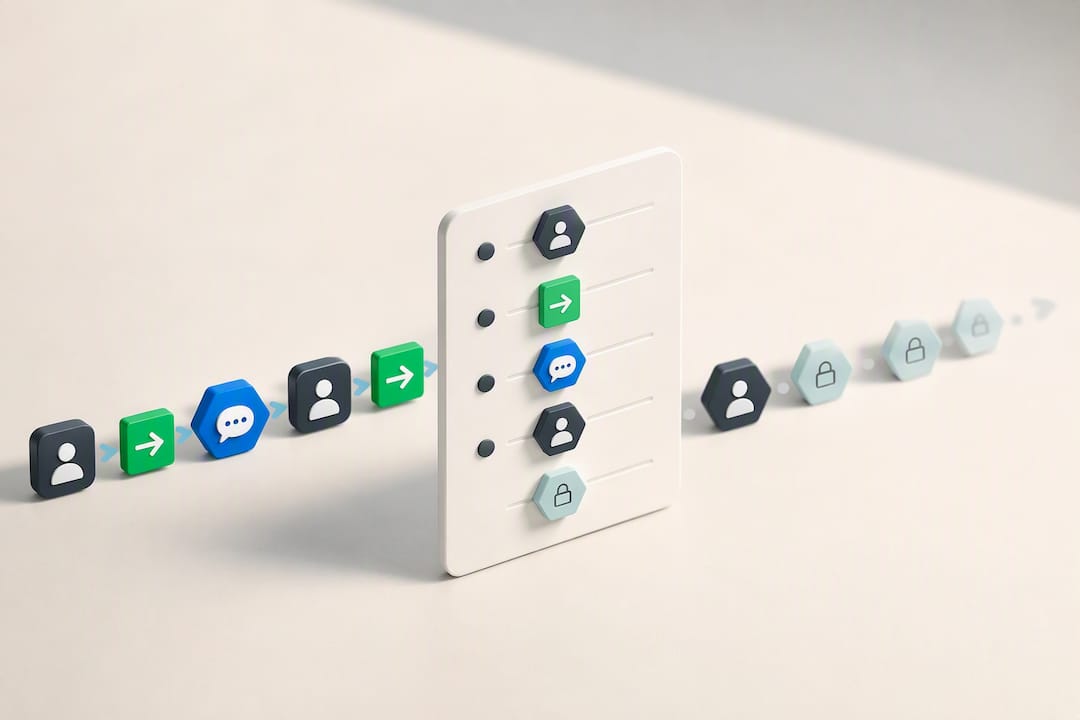
A no-DNS setup means the bottleneck is people, not propagation windows. Structure the rollout in three phases so nobody gets thrown into a live inbox unprepared.
Day zero: Get admin access confirmed, authorize the mailbox connection, and designate one primary admin responsible for audit logging. This is also when you should verify OAuth consent status in the Google Workspace or Microsoft 365 admin console.
Hour one: Send test emails, confirm replies route correctly, invite your first two or three teammates, and build one assignment rule plus a saved view for open conversations.
- Test send and reply behavior end to end.
- Invite teammates with defined roles, not shared logins.
- Create at least one assignment rule and one saved view.
- Brief the team on how internal notes differ from customer-facing replies.
First week: Run real customer traffic under light supervision. Watch for assignment gaps and header confusion before declaring it fully live.
Pro Tip: Check your audit log at the end of week one. It tells you who’s actually working the inbox versus who forgot their login existed.
Why Skipping DNS Changes Actually Matters
Most advice on shared inboxes buries the DNS question under feature comparisons, but for a five or ten-person support team, DNS is the entire decision. Waiting on IT to approve an MX change, or waiting out a 48-hour propagation window, kills momentum precisely when a team is motivated to fix a messy support process. Connector and OAuth flows remove that dependency completely, which means the person who wants the fix can often be the person who implements it.
The tradeoff shows up later, not now. If you eventually run high-volume marketing sends or need a dedicated sending domain for strict deliverability requirements, DNS configuration comes back into the picture. For everyday customer support, though, that’s a future problem, not a launch blocker.
Try a Shared Inbox That Skips the DNS Headache Entirely
Certain shared inbox solutions enable rapid signup to a working shared inbox in minutes, with connection to Gmail or Microsoft 365 mailboxes through straightforward authorization flows, supporting team invites without per-seat costs, and allowing assignment of conversations promptly.

Start with the 14-day trial, connect a single mailbox, and run a real pilot before rolling it out wider. During that trial, verify three things: that the From and Reply-To headers behave the way your customers expect, that teammate invites and role-based permissions work the way your team needs, and that basic automations like tags and assignment rules cover your actual ticket volume. Plans run from the Founder tier at $10 per month up to Scale at $200 per month, all with unlimited users and no per-seat fees. If the pilot goes well, moving the rest of the team over takes an afternoon, not a migration project.
Sources
FAQ
Is a No-DNS Shared Inbox Secure?
Yes, when it uses OAuth-based connected accounts, since that method relies on permission scopes reviewed and approved inside your own Google Workspace or Microsoft 365 admin console. Vendor guides also recommend inviting teammates with individual role-based logins rather than sharing one password, which keeps an audit trail of who handled each conversation.
Will Customers Notice a Different From Address?
It depends on the platform’s send-as configuration, so this is worth testing before full rollout. Some tools preserve your original address exactly, while others add a “via” tag, and checking header behavior during a test send avoids surprising your customers later.
When Would I Still Need DNS Changes?
DNS still matters if you want a dedicated sending domain for high-volume marketing email or need strict SPF, DKIM, and DMARC alignment for outbound relay traffic. For standard customer-support use through a connected Gmail or Microsoft 365 account, no DNS work is needed.
How Is Pricing Different From a Traditional Help Desk?
Many help desks charge per seat, which gets expensive fast as a support team grows or flexes seasonally. Some help desk solutions charge per plan rather than by user, offering tiers with various monthly prices and including unlimited users on every plan.
How Long Does Setup Actually Take?
Connector-based and OAuth deployments are commonly completed in 10 to 30 minutes, since there’s no DNS propagation wait involved. Certain platforms advertise a fast connection process for both Gmail and Microsoft 365 mailboxes.