
Inbox Organization Tools for Independent Contractors
Inbox Organization Tools for Independent Contractors ! Contractor reviewing disorganized inbox papers The fastest way to fix a chaotic contractor inbox is to connect your main client mailbox to a shared inbox tool like Sendsync, then create three folders: Action, Waiting, and Ref

The fastest way to fix a chaotic contractor inbox is to connect your main client mailbox to a shared inbox tool like Sendsync, then create three folders: Action, Waiting, and Reference. Do that today, before anything else.
Here’s what that setup gets you:
- Fewer missed follow-ups. Waiting states bring client-blocked threads back to you automatically.
- A unified client view. All accounts, all threads, one place.
- Fast assignment. When a collaborator or subcontractor needs a thread, one click routes it.
- Cleaner billing. Receipts and invoices auto-route out of your Action view so nothing slips.
The organized inbox tools independent contractors actually stick with share one trait: they enforce simple states (Action, Waiting, Reference) through automation, not willpower.
Table of Contents
- Why does inbox chaos cost contractors real money?
- What does a daily triage routine actually look like?
- How should you organize emails by client and project?
- Which filters and automations should you set up first?
- How do email templates save contractors time?
- How do you turn emails into trackable tasks?
- When does a shared inbox make sense for contractors?
- What security basics should every contractor apply to client email?
- How long does it take to set up an organized inbox system?
- Three step-by-step inbox workflows and how Sendsync maps to each
- Key Takeaways
- The inbox system most contractors skip
- Sendsync gives contractors a shared inbox that’s ready in minutes
- Useful sources
Why does inbox chaos cost contractors real money?
A disorganized inbox isn’t just annoying. It directly delays invoices, buries scope-change requests, and lets client follow-ups fall through the cracks until the client escalates. At that point, the relationship cost is already paid.
The core problem is treating every email as an equal task. A newsletter, a payment confirmation, and a client asking for a revised deliverable all land in the same view. Without a triage layer, message count becomes a false proxy for workload, and the revenue-blocking thread gets buried under noise.
Three concrete business impacts follow from that:
- Slower billable turnaround. When invoice reminders and approval requests sit unread, payment cycles stretch.
- Blurred project scope. Scope changes buried in long threads get missed, leading to unbilled work or client disputes.
- More client escalations. A client who doesn’t hear back within 24 hours sends a follow-up, then a third message, then calls. Each step costs you time and goodwill.
A professional client inbox that separates urgent, active, and reference mail solves all three. The fix isn’t working harder. It’s routing smarter.
What does a daily triage routine actually look like?
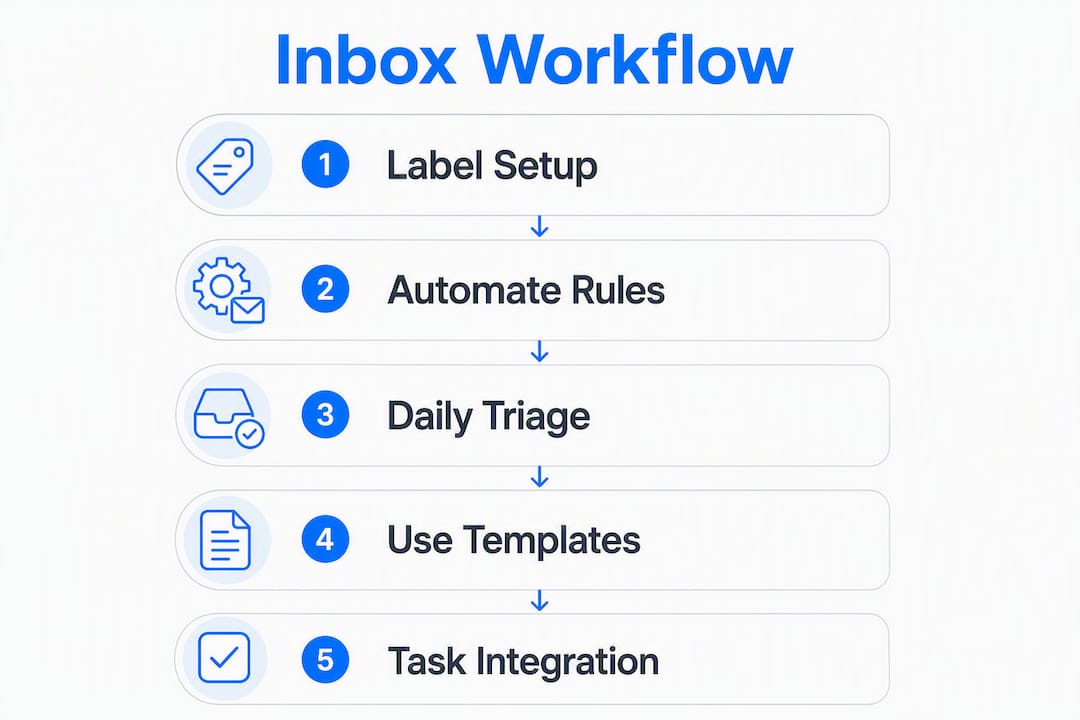
Use a two-pass routine every workday. The first pass is pure triage, no replying. The second pass is focused action. Keeping them separate prevents the trap of opening an email, half-reading it, and closing it without deciding anything.
The daily triage pass
- Delete or archive. Newsletters, automated notifications, anything you won’t act on. Gone.
- Move to Waiting. Any thread where the ball is in the client’s court. Snooze or waiting states bring these back when you need them, so you’re not relying on memory.
- Assign. If a collaborator owns the thread, assign it now. Don’t let it sit in a shared view unclaimed.
- Quick reply. If a response takes under two minutes, send it during triage. Otherwise, leave it for the action pass.
- Convert to task. Any email with a deadline or deliverable gets converted to a task in your project tool before you move on.
The focused action pass
Block this time on your calendar. Work only from the Action folder. No new email, no notifications. Reply, draft, review, and close threads in order of revenue impact.
Weekly reset (on a chosen weekday)
- Unsubscribe from any list that generated noise this week.
- Clear the Action folder. Anything left either gets a task or moves to Reference.
- Review Waiting items. Chase anything overdue.
Pro Tip: Set a hard limit of a small number of items in your Action folder at any time to prevent it from becoming a second inbox.
How should you organize emails by client and project?
Keep the folder structure shallow. Deep nesting (Client → Project → Phase → Year → Status) sounds organized but creates decision fatigue every time you file something. A two-level tree works for most contractors.

Recommended label/folder tree
| Level | Example | Purpose |
|---|---|---|
| Clients / ClientA / In-Progress | Clients / Acme Corp / In-Progress | Active deliverables for that client |
| Clients / ClientA / Billing | Clients / Acme Corp / Billing | Invoices, payment confirmations, disputes |
| Clients / ClientA / Reference | Clients / Acme Corp / Reference | Briefs, contracts, onboarding docs |
| Global: Action | Action | Anything requiring your next move |
| Global: Waiting | Waiting | Client-blocked threads |
| Global: Read Later | Read Later | Newsletters, industry content |
| Global: Receipts | Receipts | Auto-routed expense receipts |
The global labels cut across all clients. A thread can carry both a client label and a global state label simultaneously. That way, you can filter by “Acme Corp + Action” and see exactly what’s outstanding for that client.
Subject-line naming convention
Consistent subject lines make search fast and threads readable at a glance. Use this prefix pattern:
[ClientName] — [ProjectCode] — Short description
Examples:
[Acme] — WEB01 — Homepage copy review[Rivera] — LOGO03 — Final file delivery[Chen] — INV-22 — Invoice #22 follow-up
When you handle multiple clients in a single inbox, consistent prefixes mean you can search [Acme] and pull every thread for that client instantly, regardless of folder.
Which filters and automations should you set up first?
Automate repetitive routing so your Action view contains only real work. The goal is a short, honest list of threads that actually need your attention today.
Set these rules up in your first session:
- Route receipts automatically. Any email from PayPal, Stripe, QuickBooks, or your bank goes straight to the Receipts label, bypassing the inbox entirely.
- Label by client domain. Create a filter for
@acmecorp.comthat applies the Acme Corp label automatically. Every email from that domain is tagged before you open it. - Snooze newsletters. Route anything from known newsletter senders to Read Later. Review that folder once a week, not daily.
- Flag revenue-blocking threads. Create a filter for subject lines containing “invoice,” “payment,” or “urgent” that applies a high-priority tag. These surface at the top of your Action view.
- Auto-archive automated notifications. GitHub commits, calendar invites, Slack digests. None of these belong in an Action view.
Gmail users: Use the Filters and Blocked Addresses settings under Settings → See All Settings. The “Multiple Inboxes” lab lets you create a split view with your Action and Waiting labels visible alongside the main inbox. For a cleaner Gmail inbox, the Auto-Advance feature also prevents you from returning to the inbox after archiving, keeping momentum during triage.
Microsoft 365 users: Rules under Settings → Mail → Rules handle most of this. Focused Inbox provides a basic triage split, though custom rules give you more control over routing logic.

A general principle worth following: use provider-level rules (Gmail filters, Outlook rules) for routing and labeling. Use tool-level automations (Sendsync’s automation layer) for assignment, internal notes, and saved views. Mixing both levels gives you coverage without duplication.
How do email templates save contractors time?
Use templates for the messages you send more than twice a month. Writing the same scope-confirmation email from scratch every time is a tax on your attention, not a sign of professionalism.
Core templates every contractor needs
| Template | Subject line | Body (adapt as needed) |
|---|---|---|
| Receipt / thank you | Re: [Project] — Payment received | “Thanks for the payment — received and confirmed. I’ll update the project tracker and send the next milestone brief by [date].” |
| Scope confirmation | [Project] — Scope summary for your records | “Confirming what we agreed: [brief scope]. Timeline: [dates]. Any changes to this scope will be quoted separately before work begins.” |
| Change request acknowledgment | Re: [Project] — Change request received | “Got it. I’ll assess the impact on timeline and budget and send a revised quote within [X] business days.” |
| Invoice reminder | [ClientName] Invoice #[X] — Due [date] | “A friendly reminder that Invoice #[X] for $[amount] is due on [date]. Let me know if you have any questions.” |
Store these in your email client’s built-in template feature (Gmail’s Templates, Outlook’s Quick Parts), or in a notes app like Notion or Obsidian where you can search and copy quickly. Review them monthly. If you’re writing the same clarification in a reply that isn’t covered by a template, add it.
One practical note: keep the tone in templates slightly warmer than you think necessary. Contractors who sound transactional in writing often get slower responses than those who sound like people.
How do you turn emails into trackable tasks?
Integrating email with your task system means every actionable thread becomes a trackable item with a deadline and an owner. Threads that stay as threads get forgotten.
Practical integration patterns:
- Forward-to-task addresses. Asana, Todoist, and ClickUp each provide a unique email address. Forward any actionable email to that address and it becomes a task automatically, with the email body as the task description.
- Browser extensions. Tools like the Asana Chrome extension let you create a task directly from an open Gmail thread, preserving the subject line and a link back to the original email.
- Native integrations. Notion’s email-to-database feature and ClickUp’s email integration allow you to route emails into specific project boards without leaving the inbox.
Pro Tip: When converting an email to a task, always attach the original email or paste the key details (client name, deadline, deliverable) into the task description. A task that just says “Follow up” with no context is nearly as useless as leaving the email in your inbox.
Two patterns that work well for solo contractors and small studios:
- The forward pattern. During triage, forward any email with a deliverable to your task tool’s inbox address. Archive the original. The task now owns the commitment; the email is reference.
- The tag-and-link pattern. Apply a “Tasked” label to emails you’ve converted. In your task tool, paste a link back to the email thread. This creates a two-way trail: the task links to the email, and the email is labeled so you know it’s been handled.
When does a shared inbox make sense for contractors?
A shared inbox earns its place the moment you have more than one person touching client email, or when a single client uses multiple points of contact on their side. Without assignment and internal notes, threads get double-answered or ignored because everyone assumed someone else handled it.
Feature checklist for a shared inbox setup
- Assignment. One owner per thread, visible to everyone.
- Internal notes. Comment on a thread without sending to the client.
- Saved views. Filter by assignee, client tag, or status without rebuilding the search every time.
- Snooze / waiting states. Threads return to the Action view when the client responds or a timer fires.
- Audit trail. See who replied, when, and what they said. Critical for billing disputes and scope conversations.
Short adoption plan
| Phase | Action | Timeline |
|---|---|---|
| Pilot | Connect one client mailbox; assign one collaborator | Day 1 |
| Ownership rules | Agree on who owns new threads by default | Day 2 |
| Assignment convention | Use a simple rule: whoever opens it, owns it until reassigned | Day 3 |
| Weekly review | Check: unassigned threads, overdue Waiting items | Weekly |
Start with one or two clients, not your entire book. The remote team inbox collaboration guide covers the full rollout, but the pilot phase is where most contractors find the friction points before they scale.
The biggest trap in shared inboxes is the “flag everything” habit. If every thread is flagged as urgent, none of them are. Set a rule: flagged or high-priority status is reserved for revenue-blocking threads only.
What security basics should every contractor apply to client email?
Apply a short set of defaults and you cover the vast majority of contractor email risk. None of these require technical expertise.
- Enable two-factor authentication (2FA) on every email account. This single step blocks most unauthorized access. Use an authenticator app (Google Authenticator, Authy) rather than SMS when possible.
- Use app passwords for third-party tools. If a tool connects to your Gmail or Microsoft 365 account, generate a dedicated app password rather than using your main account password.
- Verify payment requests out of band. If a client emails new banking details or a payment address change, call them to confirm before acting. Business email compromise is one of the most common and costly fraud vectors for contractors.
- Enable provider-level encryption. Gmail and Microsoft 365 both encrypt email in transit by default. For sensitive deliverables, use a secure file-sharing service (Google Drive with restricted sharing, Dropbox, or a client portal) rather than attaching files directly to email.
- Block email trackers. Tools like Apple Mail’s Mail Privacy Protection or browser-based tracker blockers prevent senders from knowing when you open an email. This matters when negotiating or reviewing contracts.
Keep sensitive credentials, passwords, and API keys out of email entirely. If a client sends you login details by email, move them to a password manager (1Password, Bitwarden) and delete the email. An inbox is not a secure credential store.
How long does it take to set up an organized inbox system?
Expect the basic setup (labels, filters, templates) to take about one hour. A full shared inbox rollout with integrations runs one to three days, mostly because the pilot phase requires a collaborator and a real client thread to test against.
Implementation timeline and pricing shapes
| Task | Time to implement | Typical cost |
|---|---|---|
| Create Action / Waiting / Reference labels | 10 minutes | Free (built into Gmail / M365) |
| Set up 5 core filters | — | Free |
| Build 4 core email templates | — | Free |
| Connect email to task tool | — | Free to ~$10/month depending on task tool |
| Shared inbox pilot (1–2 clients) | 1–2 days | Free trial to ~$15–30/month for most tools |
| Full shared inbox rollout | 2–3 days | Varies by tool and user count |
On pricing shapes: most shared inbox tools charge per seat, which adds up quickly when you bring in a subcontractor or a part-time assistant. Sendsync’s unlimited-user pricing model sidesteps that entirely. You pay for the plan, not for each person you add. The 14-day free trial covers enough time to run a full pilot with a real client.
For contractors who want to design scalable inbox workflows from the start rather than patching them later, the investment in a proper shared inbox setup pays back within the first billing cycle.
Three step-by-step inbox workflows and how Sendsync maps to each
These three workflows cover the most common contractor setups. Each one is designed to be running within 24–72 hours.
Workflow 1: Solo contractor, single inbox
Who it’s for: One contractor, one email account, multiple clients.
- Connect your Gmail or Microsoft 365 account to Sendsync.
- Create the five core labels: Action, Waiting, Reference, Receipts, Read Later.
- Set up client-domain filters to auto-label incoming mail.
- Run the two-pass triage routine daily.
- Convert any email with a deliverable to a task using your task tool’s forward address.
Sendsync features used: Saved views (filter by label), automation rules (auto-label by domain), internal notes (leave context on a thread before archiving).
Expected outcome: Triage takes under 10 minutes. Action view stays under 10 threads. No missed follow-ups within the first week.
Workflow 2: Contractor managing multiple inboxes
Who it’s for: Contractors with separate email accounts per client or per business entity.
- Connect all accounts to Sendsync in a single workspace.
- Use saved views to filter by account or client tag.
- Set a unified triage pass across all accounts each morning.
- Apply the same Action / Waiting / Reference structure across every account.
- Use assignment to route threads to yourself or a collaborator based on account.
Sendsync features used: Multi-account connection (Gmail + M365 in one workspace), saved views per account, assignment.
Expected outcome: One triage session covers all clients. No switching between browser tabs or apps. Multi-client email management becomes a single daily habit instead of a fragmented process.
Workflow 3: Contractor plus small team or subcontractors
Who it’s for: A lead contractor with one or more collaborators sharing client communication.
- Connect the shared client-facing inbox to Sendsync.
- Set inbox ownership: new threads are unassigned by default.
- During triage, assign each thread to the right person.
- Use internal notes to brief a collaborator before they reply.
- Run a weekly review of unassigned and overdue Waiting threads.
Sendsync features used: Assignment, internal notes, audit trail, unlimited users (no per-seat cost), saved views for each team member.
Expected outcome: No double-replies. Every thread has a named owner. Collaborators see only their assigned threads by default, reducing noise.
Workflow-to-feature mapping
| Workflow step | Sendsync feature | Implementation checklist |
|---|---|---|
| Connect inbox | Gmail / M365 integration, no DNS setup | Day 1: connect account, verify delivery |
| Label incoming mail | Automation rules | Day 1: create 3–5 domain-based rules |
| Triage and assign | Assignment + saved views | Day 2: set default assignee rule |
| Add context before replying | Internal notes | Day 2: brief collaborators via notes, not reply-all |
| Track client-blocked threads | Waiting / snooze states | Day 2: move blocked threads to Waiting |
| Review team workload | Saved views by assignee | Weekly: check unassigned + overdue |
Pro Tip: In the first 72 hours, run Sendsync alongside your existing inbox rather than replacing it. That overlap period surfaces any routing gaps before you commit fully. After three days, you’ll know exactly which filters to tighten.
Key Takeaways
The most effective inbox system for independent contractors combines a two-pass triage routine, three core labels, and a shared inbox tool with automation that enforces those states without relying on manual discipline.
| Point | Details |
|---|---|
| Start with three labels | Create Action, Waiting, and Reference before touching any other setting. |
| Two-pass triage daily | Separate the triage pass (5–10 min) from the action pass to prevent repeated reads. |
| Automate routing first | Set client-domain filters and receipt routing in your first session to keep the Action view honest. |
| Shared inbox for teams | Use assignment and internal notes the moment a second person touches client email. |
| Sendsync for fast setup | Sendsync connects Gmail or Microsoft 365 in minutes, with unlimited users and a 14-day free trial to run a full pilot. |
The inbox system most contractors skip
Most advice on contractor inbox management focuses on the folder structure and stops there. That’s the easy part. The harder part, and the part that actually determines whether the system survives contact with a busy week, is the enforcement layer.
A folder tree without automation is just a filing cabinet you have to manually feed. The moment you’re under deadline pressure, you stop filing. The system collapses. Three weeks later, you’re back to a flat inbox with 400 unread messages and a vague sense that you missed something important.
The contractors who maintain clean inboxes long-term aren’t more disciplined. They’ve set up automations that do the filing for them, waiting states that bring threads back without any effort, and a shared inbox where assignment is the default, not an afterthought. The system runs whether they’re paying attention or not.
That’s the real argument for a tool like Sendsync over a manual label setup. The features aren’t impressive on a spec sheet. Assignment, internal notes, saved views. None of that sounds exciting. But in practice, those three things eliminate the entire category of “I thought you handled it” and “I forgot to follow up.” That’s where contractor revenue actually leaks.
Sendsync gives contractors a shared inbox that’s ready in minutes
Per-seat pricing is one of the most common reasons contractors avoid shared inbox tools. Add a subcontractor for a month, and suddenly you’re paying for a seat you’ll drop next month. Sendsync’s unlimited-user model removes that friction entirely. You pay for the plan, not for each person you add, which means you can bring in a collaborator for a two-week project without a pricing conversation.

The setup takes minutes, not days. Connect your Gmail or Microsoft 365 account, no DNS changes required. Create your saved views, set your automation rules, and assign the first thread. The scalable inbox workflows described in this article map directly to Sendsync’s features: assignment, internal notes, waiting states, and multi-account support in one workspace.
The 14-day free trial covers a full pilot with a real client. Start your trial at sendsync.com and have the core workflow running before the end of the week.
Useful sources
The following resources informed this article and are worth bookmarking for deeper reading on specific topics.
Setup and workflow guides:
- Freelancer’s Guide to a Cleaner Gmail Inbox — Meltzer Seltzer — Gmail-specific filter and Auto-Advance tips.
- InvoiceSorter — For freelancers — Waiting/snooze state rationale and the archiving trap.
Sendsync internal guides:
- Handle multiple clients in a single inbox — Step-by-step multi-client inbox setup.
- Gmail shared inbox for small business: 2026 guide — Gmail-specific shared inbox configuration.
- Remote team inbox collaboration: 2026 guide — Full shared inbox rollout for contractors with collaborators.
- Support inbox organization strategies for support teams — Actionable strategies for keeping the Action view focused.
Primary product page:
- Sendsync — Shared inbox for support teams — Start the 14-day free trial and connect your inbox.