
Support Inbox Organization Strategies for Support Teams
Support Inbox Organization Strategies for Support Teams ! Support team collaborating on inbox strategy Support inbox organization strategies are structured methods that support teams use to prioritize, assign, and resolve incoming customer emails without losing track of any conve

Support inbox organization strategies are structured methods that support teams use to prioritize, assign, and resolve incoming customer emails without losing track of any conversation. Teams without these methods risk up to 35% of emails going unread, which directly damages customer satisfaction and response times. The industry term for this discipline is shared inbox management, and it covers everything from SLA targets to status tracking and automated triage. The most effective teams treat their inbox as a communication hub only, not a task manager, and build workflows around clear ownership and defined completion states.
1. Apply support inbox organization strategies from day one
The biggest mistake support teams make is waiting until the inbox is out of control before building structure. Treating the inbox as a communication hub, not a to-do list, is the foundational principle of shared inbox management. Every actionable item extracted from an email belongs in a task tool, not sitting in the inbox as an unread message.
Start by auditing your current inbox. Count unread messages, identify recurring senders, and note which email types consume the most response time. A support inbox audit gives you the baseline data to build every other strategy on top of.

2. Assign one owner to every email thread
Every email thread needs one responsible person from the moment it arrives until it is resolved or explicitly handed off. Without clear ownership, two agents reply to the same customer, or worse, no one replies at all. Both outcomes destroy trust.
Ownership assignment works best when it happens at triage, not after the fact. The assigned agent’s name appears on the thread, and no one else touches it without a formal handoff. This single rule eliminates the most common cause of missed customer emails in shared inbox environments.
Assign at triage. Never leave a thread unassigned after the first review session.
Make handoffs explicit. A handoff includes a note explaining context and any pending actions.
One thread, one owner. Avoid co-ownership, which creates ambiguity about who acts next.
Pro Tip: Set a team rule that any unassigned thread older than 15 minutes in a triage window automatically goes to the triage lead for immediate assignment.
3. Replace read/unread flags with explicit status labels
Read and unread flags tell you nothing about what needs to happen next. Replacing them with status categories gives every thread a clear position in the workflow. The four statuses that work best in support environments are New, Mine, Waiting, and Done.
Explicit status categories prevent tickets from lingering as unresolved backlog items. A thread marked “Waiting” signals that the ball is in the customer’s court. A thread marked “Done” is closed and no longer demands attention. This system makes inbox zero a daily reality rather than a weekend project.
New: Arrived, unassigned, needs triage.
Mine: Assigned and actively being handled.
Waiting: Response sent, awaiting customer reply or internal input.
Done: Fully resolved, no further action needed.
Using these four labels consistently across the team creates a shared language. Every agent knows exactly where every conversation stands without asking.
4. Set response-time SLAs by inbox type
Not every support email carries the same urgency, and treating them all the same wastes time and frustrates customers. Response-time SLAs should be tailored to the inbox address: info@ requires a same-business-day response, support@ needs a 2–4 hour turnaround, and billing@ typically warrants a 1 business day SLA.
These targets give triage leads a clear prioritization framework. A billing inquiry that arrived three hours ago jumps ahead of a general info request from this morning. SLAs also give customers a predictable experience, which reduces follow-up emails and repeat contacts.
Define SLAs per address. Document them in a shared team reference so every agent applies the same standard.
Display SLA timers. Use your inbox platform to show how much time remains before a thread breaches its SLA.
Escalate near-breach threads. Any thread within 30 minutes of its SLA limit goes to the triage lead automatically.
Review SLA performance weekly. Track breach rates and adjust staffing or triage frequency if a particular address consistently misses targets.
Pro Tip: Post your SLA targets in the team’s daily standup channel. Visibility keeps the whole team calibrated without requiring a manager to chase individuals.
5. Run scheduled triage sessions twice daily
Triage sessions scheduled twice daily keep inboxes manageable and response times within SLA. The most effective schedule is a morning session at the start of the shift and a second session after lunch. Each session should last no more than 20 minutes.
During triage, apply the 4 D’s framework: Delete, Do, Delegate, and Defer. Consistent application of the 4 D’s prevents backlog accumulation and keeps prioritization fast. Delete noise immediately, do anything that takes under two minutes, delegate threads that belong to another agent, and defer everything else with a status label and a follow-up time.
Rotate triage duties across the team on a weekly basis. Rotation prevents burnout and ensures every agent understands the full scope of incoming volume. It also builds empathy across the team for the workload each role carries.
6. Build a minimal folder and label system
A folder system with too many categories defeats its own purpose. The most effective structure uses four folders: Action, Waiting, Reference, and Archive. Every email belongs in one of these four places, and nothing lives in the main inbox permanently.
Labels add a second layer of context without requiring a separate folder. Use labels to mark email type (billing, technical, onboarding) and priority (urgent, standard, low). Automated filters then route incoming emails to the right label before a human ever sees them. Templates for the 20 most common questions round out this system by cutting response time on repetitive inquiries and keeping tone consistent across the team.
Folder | Purpose |
|---|---|
Action | Emails requiring a response or task within the current SLA window |
Waiting | Threads pending a customer reply or internal input |
Reference | Emails with information needed later but no action required |
Archive | Fully resolved threads kept for records |
Build filters that auto-route emails by sender domain, subject keywords, or specific addresses.
Create a template library organized by category, not by agent, so the whole team shares the same responses.
Review and update templates quarterly to keep language accurate and policies current.
7. Delegate with instructions and deadlines, not just a forward
Delegation fails when it means forwarding an email with no context. Effective delegation requires explicit instructions, a clear deadline, and a defined outcome. The delegating agent remains accountable for the outcome until the receiving agent confirms completion.
Remove delegated threads from your personal view once the handoff is complete. Keeping them in your inbox creates false urgency and clutters your active workload. The receiving agent owns the thread from the moment they accept it.
Delegation without a deadline is a wish, not a workflow. Every handoff must include what needs to happen, who is responsible, and when it must be done.
Write the context note before forwarding. Include the customer’s history, the expected outcome, and the deadline.
Confirm receipt. The receiving agent acknowledges the handoff within one triage session.
Close the loop. Once the delegated thread reaches “Done,” the original agent receives a notification and removes it from their tracking list.
A clear definition of task completion prevents unresolved tickets from lingering in team workflows. “Done” means the customer received a resolution and no further action is pending. Anything short of that is still open.
8. Use AI tools to cut processing time in high-volume inboxes
AI-assisted triage reduces email processing time by 75% by focusing human attention only on actionable messages. Typically, only 15–25% of incoming emails require a direct human response. AI tools classify the rest, summarize threads, and flag deadlines automatically.
When manual processing becomes unsustainable, AI triage is the most direct fix. The tools scan incoming emails, apply category labels, and surface only the threads that need a decision. Agents spend their time responding, not sorting.
Auto-categorize by intent. AI reads subject lines and body text to assign labels like “billing dispute,” “technical error,” or “general inquiry.”
Summarize long threads. Agents get a three-sentence summary instead of reading a 12-message chain from scratch.
Flag deadline-sensitive emails. Any message containing language about urgency or time limits gets elevated automatically.
Combine AI with aggressive unsubscribing. Reduce incoming volume first, then let AI handle what remains. The two approaches together produce the fastest results.
Pair AI triage with scalable inbox workflows to build a system that holds up as your team and customer base grow.
Key takeaways
Effective shared inbox management requires clear ownership, explicit status labels, SLA targets by inbox type, and scheduled triage to prevent backlog and meet customer expectations.
Point | Details |
|---|---|
Assign ownership at triage | Every thread needs one named owner before the triage session ends. |
Use four status labels | New, Mine, Waiting, and Done replace read/unread flags with clear workflow states. |
Set SLAs by inbox address | Support@ needs 2–4 hours; info@ same business day; billing@ 1 business day. |
Triage twice daily | Morning and post-lunch sessions keep response times within SLA targets. |
Delegate with deadlines | Every handoff requires context, a deadline, and a confirmed recipient. |
What I’ve learned from watching teams fight their own inboxes
Most support teams do not have an email volume problem. They have an ownership problem. The inbox fills up because no one is sure who is responsible for what, so threads sit in a gray zone where everyone assumes someone else is handling it.
I have watched teams with 10 agents and 200 daily emails struggle more than teams with 3 agents and 400 daily emails. The difference is always structure, not headcount. The smaller team had clear owners, four status labels, and a triage routine. The larger team had none of those things and spent half their day asking each other “did you see that email from the customer?”
The other trap I see constantly is complexity for its own sake. Teams build 30-folder systems, 15 label categories, and elaborate escalation trees that no one follows after week two. The best systems are boring. Four folders. Four statuses. Two triage sessions. Templates for the top 20 questions. That is it.
AI triage is genuinely useful, but only after you fix the ownership and status problems first. Automating a broken workflow just produces broken results faster. Get the human discipline right, then layer in automation to handle the volume your team cannot process manually.
The teams that maintain inbox zero consistently are not working harder. They are working inside a system that makes the right action obvious at every step.
— Nick
Sendsync makes these strategies work from day one
Support teams that want to put these practices into action without months of configuration can get started with Sendsync. The platform connects directly to Gmail or Microsoft 365 mailboxes in minutes, with no DNS changes or complex setup required.
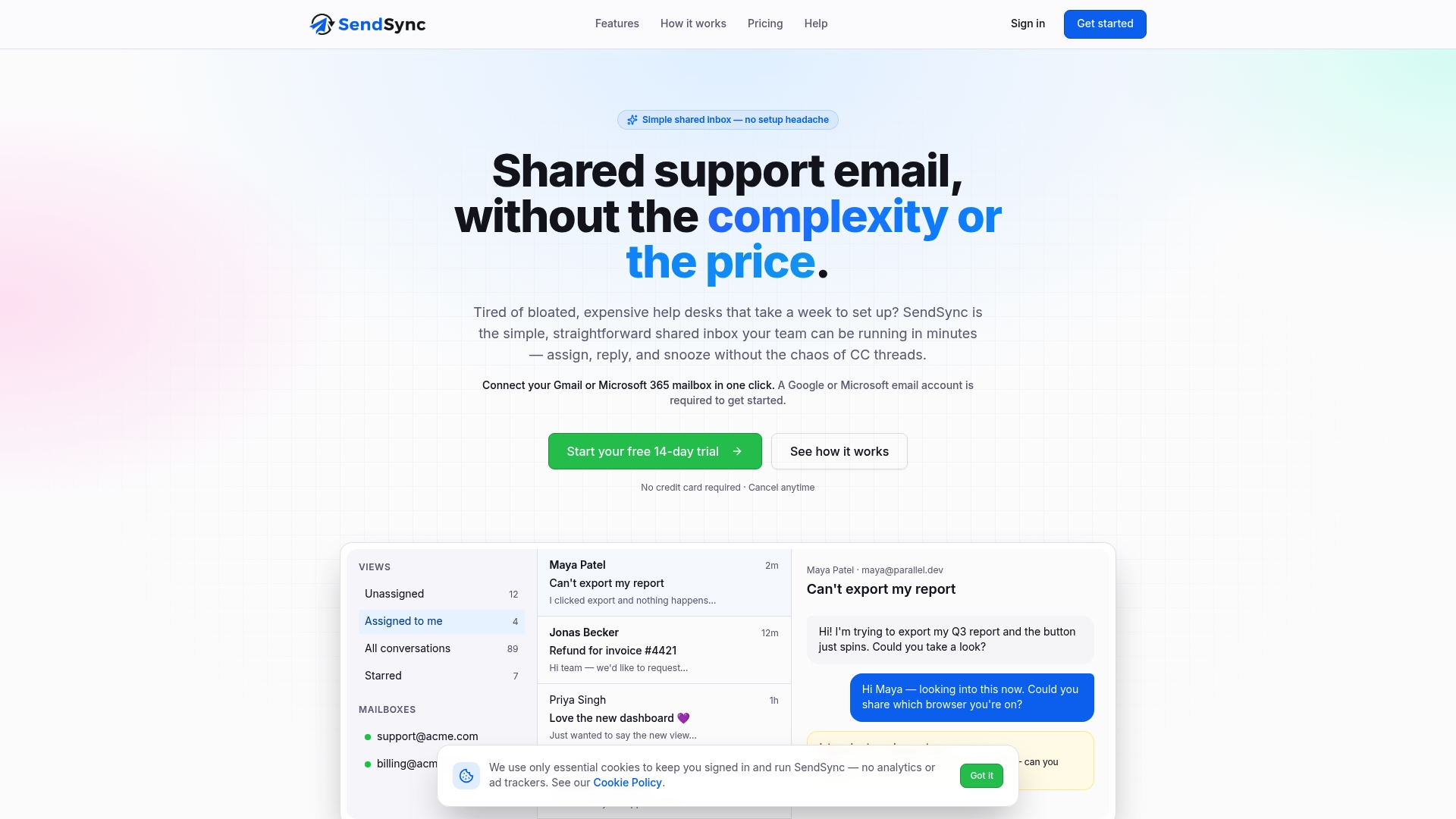
Sendsync gives every agent the ability to assign threads, apply status labels, and manage conversations inside a shared inbox built for support teams. Triage routines, delegation workflows, and template libraries all fit inside the same interface your team already uses for email. Sendsync offers unlimited users with no per-seat fees, so the cost stays flat as your team grows. Teams that need a practical, fast-to-deploy system for shared inbox management will find Sendsync worth a close look.
FAQ
What are support inbox organization strategies?
Support inbox organization strategies are structured methods for assigning ownership, tracking status, and triaging incoming customer emails. They combine SLA targets, status labels, folder systems, and delegation rules to keep response times consistent and inboxes manageable.
How often should support teams run triage sessions?
Twice daily is the standard recommendation. A morning session and a post-lunch session keep threads within SLA windows and prevent backlog from building overnight or across a midday gap.
What status labels work best for a shared support inbox?
The four most effective labels are New, Mine, Waiting, and Done. These four states cover every position a thread can occupy in a support workflow and replace ambiguous read/unread flags.
How does AI help with inbox management?
AI-assisted triage cuts email processing time by up to 75% by classifying incoming messages and surfacing only the threads that need a human response. It works best after teams have already established clear ownership and status tracking.
What is the right way to delegate a support email?
Delegation requires a context note, a clear deadline, and a confirmed recipient. Simply forwarding an email without instructions creates accountability gaps and increases the chance the thread goes unresolved.