
Email Triage Automation: A Practical Team Guide
Email Triage Automation: A Practical Team Guide ! Hands sorting email triage tags on desk Email triage automation is the AI-driven process of classifying, prioritizing, routing, and preparing draft responses for incoming email, so your team spends time acting on messages rather t

Email triage automation is the AI-driven process of classifying, prioritizing, routing, and preparing draft responses for incoming email, so your team spends time acting on messages rather than sorting them. The fastest way to start: run a small, governed pilot on one shared inbox with human-in-loop approvals before touching any production mailbox.
Two integration points make this immediately feasible. Microsoft Power Automate connects to Azure Language for custom classification, and Gmail’s Gemini features handle suggested replies and thread summaries natively. Sendsync can host that pilot inbox in minutes, with no DNS changes required.
Your quick starting checklist:
- Pick one shared support mailbox with a steady volume of messages
- Define three intent buckets (e.g., billing, bug report, general inquiry)
- Enable monitoring and require human approval for all outbound drafts
Key Takeaways
Email triage automation delivers the most value when it combines AI classification with human-in-loop approval for external sends, starting with a governed pilot on a single shared inbox.
| Point | Details |
|---|---|
| Start with one mailbox | Pick a high-volume shared inbox and define 3–5 intent buckets before configuring any tooling. |
| Require human approval for outbound | Keep all external replies in draft-only mode until precision data supports auto-send for specific categories. |
| Monitor override rates weekly | A reviewer override rate above 15% in any bucket signals model drift and requires retraining or rule-locking. |
| Use platform connectors for custom classification | Power Automate plus Azure Language covers most mid-size teams without custom model infrastructure. |
| Sendsync for fast pilots | Sendsync connects Gmail or Microsoft 365 in minutes, with unlimited users and a 14-day free trial covering a full pilot cycle. |
Key resources for implementing triage automation
- Build an AI Email Triage Agent | Nylas CLI — step-by-step architecture guide covering fetch, classify, draft, and idempotency patterns; the best starting point for teams building a custom pipeline
- Triage incoming emails with Power Automate | Microsoft Learn — end-to-end low-code tutorial for custom text classification with Azure Language; covers the full flow from connector setup to Teams routing
- Azure subscription prerequisites | Microsoft Azure — required reading before starting a Power Automate classification flow; covers the Azure subscription and Language resource setup
- Email Triage Use Case | Automation Anywhere — documents the operational case for AI-driven triage in customer service; useful for building the internal business case
- Gmail AI features | Google — covers Gemini-powered suggested replies and thread summaries; relevant for teams deciding which triage functions to handle at the client layer vs. the pipeline layer
- Sendsync shared inbox — recommended starting point for teams running a pilot; covers setup, integrations, and trial options
Table of Contents
- What does email triage automation actually do?
- Where does triage automation deliver the most business value?
- How should you implement it: build, buy, or both?
- What does a triage pipeline look like end to end?
- How do you keep triage accurate over time?
- What does a 4–8 week rollout look like?
- Why Sendsync works well as a triage pilot host
- Sources
What does email triage automation actually do?
Modern triage automation covers five concrete functions, and knowing each one helps you match the capability to your actual pain points.
Intent classification reads the body and subject of each message and assigns a category: billing dispute, feature request, bug report, account cancellation. This is where semantic classification beats keyword rules. A message that says “this charge doesn’t look right” and one that says “I was billed incorrectly” both map to the same billing intent, even though they share no keywords.
Urgency detection goes one layer deeper, flagging messages that carry SLA risk or time sensitivity. A VIP customer asking about a delayed shipment scores differently than a general product question, even if both land in the same intent bucket.
Owner routing and queue assignment takes the classification output and applies your team’s policy: billing disputes go to the finance queue, bug reports route to tier-2 support, and enterprise accounts get assigned to a named owner. This is where a shared inbox with routing rules becomes the operational backbone of the whole system.
Thread grouping and summarization surfaces context quickly. Instead of reading a 14-message thread, a reviewer sees a two-sentence summary and the current open question. Gmail’s Gemini features do this natively for Gmail users, which is worth factoring into your architecture decisions.

Draft generation is the highest-leverage function for most teams. The system prepares a reply, suggests a ticket creation, or proposes a CRM update, and a human approves or edits before anything goes out. Automation Anywhere’s documentation frames this shift clearly: AI-driven triage moves teams away from repetitive sorting and toward higher-value customer work.
Three quick use-case examples show how these functions combine in practice:
- Support SLA triage: inbound tickets classified by urgency, routed to the right tier, with a draft acknowledgment ready for one-click send
- Vendor coordination: purchase order confirmations and invoice disputes sorted automatically, with document requests flagged for procurement review
- Client billing requests: billing emails extracted from a mixed inbox, tagged, and routed to finance with a pre-populated draft referencing the relevant account
Where does triage automation deliver the most business value?
The highest-ROI workflows share one trait: high-volume, repetitive inbound with predictable intent patterns. Shared support inboxes, account management queues, procurement and vendor triage, legal intake, and multi-client professional services all qualify.
The measurable benefits break down into four categories. Faster SLA response comes from routing accuracy: the right message reaches the right person without a human reading and re-assigning it. Reduced manual sorting time frees agents for actual replies. Improved routing accuracy cuts the “wrong team” bounce that adds a full response cycle to every misdirected email. Fewer missed escalations come from urgency detection catching high-priority messages before they age past SLA thresholds.
For teams managing multiple clients, handling multiple clients in a single inbox without triage is where context-switching costs compound. Automated sorting by client and intent removes that overhead entirely.
Legal intake teams see a specific benefit: document request emails, which arrive in predictable formats, can be classified and routed to the right matter without a paralegal touching them first. Professional services firms with recurring billing cycles get similar gains on invoice-related correspondence.
How should you implement it: build, buy, or both?
The build-vs-buy decision comes down to three variables: your engineering capacity, your data sensitivity requirements, and how quickly you need results.
Building a custom model gives you full control over classification logic and data handling, but it requires labeled training data, model infrastructure, and ongoing maintenance. The upside is precision on domain-specific language. The downside is a 6–12 week minimum before you have anything production-ready.
Platform plus LLM (Power Automate with Azure Language, for example) is the middle path. Microsoft’s Power Automate tutorial walks through a low-code flow that uses a custom Azure Language text classification model to categorize incoming email and route results to Teams or other downstream actions. You need an Azure subscription and a Language resource with a key and endpoint to authenticate the flow. Engineering effort is moderate, and the classification quality is strong for most business categories.
SaaS shared inbox is the fastest path to a working pilot. No model training, no infrastructure, and you can define routing rules and intent tags in hours rather than weeks.
| Approach | Time to pilot | Engineering effort | Classification control | Best fit |
|---|---|---|---|---|
| Custom build | 6–12 weeks | High | Full | Large teams, sensitive data, unique domain |
| Platform + LLM (Power Automate + Azure) | 2–4 weeks | Moderate | High | Mid-size teams with Microsoft 365 |
| SaaS shared inbox | 1–3 days | Low | Moderate | Small to mid teams, fast pilots |
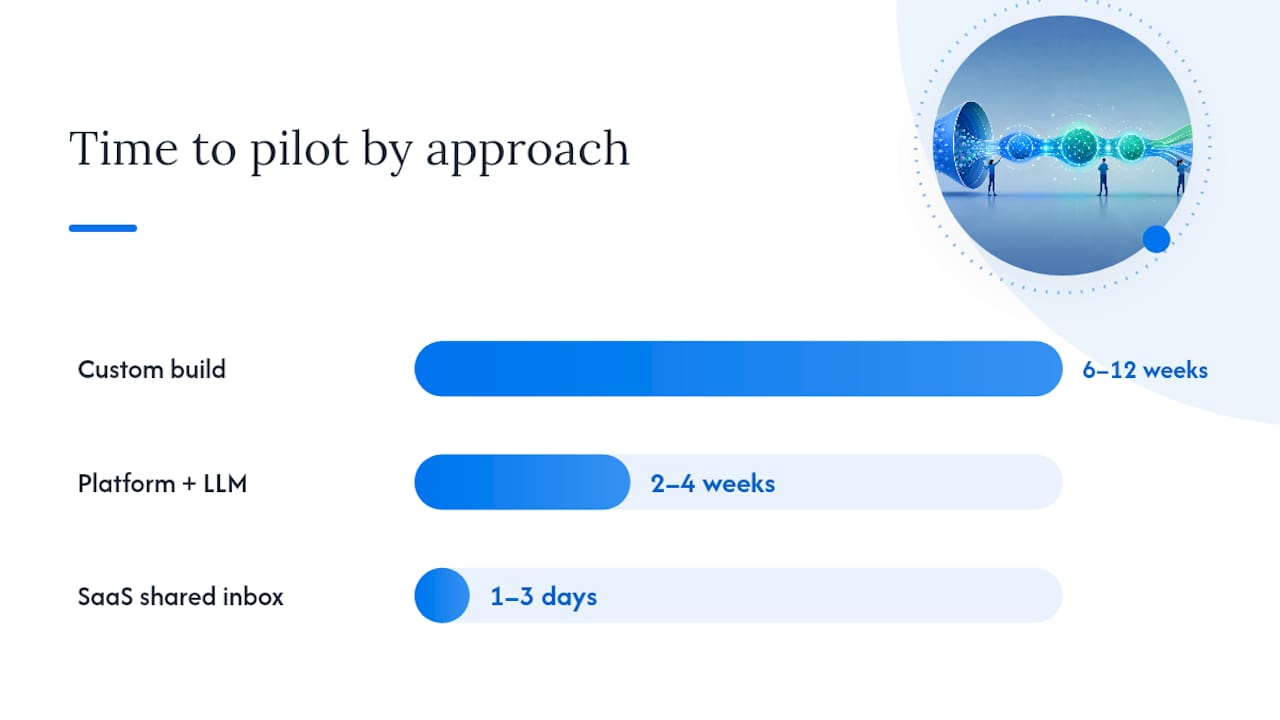
The recommended path for most teams: start with a SaaS shared inbox pilot to validate your intent buckets and routing logic. Add Power Automate and Azure Language connectors only if you need custom classification that the SaaS layer cannot handle. The Nylas build guide is worth reading even if you go SaaS-first: it demonstrates a lightweight architecture (email API plus orchestration plus LLM) that keeps the model in draft-only mode, which is the right default for any external send.
Four decision checkpoints before you choose:
- Team size and volume: under 500 emails per week, SaaS is almost always sufficient
- Security and data residency: U.S. teams with HIPAA or FedRAMP requirements need to verify where classification inference runs
- Integration depth: if you need CRM updates or ticketing system writes, a platform connector adds that without custom code
- Governance requirements: regulated industries should prefer explainable routing with audit trails over black-box classification
What does a triage pipeline look like end to end?
A working triage pipeline has six stages and five components. Here is the data flow:
- Fetch unread messages from the mailbox connector (IMAP, Microsoft Graph API, or Gmail API)
- Classify each message using an LLM or custom classifier, assigning intent and urgency
- Tag and route by writing labels, assigning owners, or moving threads to queues
- Prepare draft or summary for human review
- Human review approves, edits, or overrides the suggested action
- Action executes: send reply, update CRM, create ticket, or close thread
The five technical components that support this flow: a mailbox connector, a classification model (LLM or custom classifier), a grounding or RAG source for domain-specific replies, an orchestration layer (a cron job, serverless function, or integration platform like Power Automate), and an audit log store.
The Nylas guide recommends a 15-minute run cadence for the fetch-and-classify loop, which balances responsiveness against API rate limits.
Security notes for U.S. teams: use scoped credentials with the minimum permissions needed (read and draft, not send). Store audit logs with timestamps and classification reasons. Confirm data residency for any inference calls that touch message content, particularly if your inbox handles PII or regulated data. Limit automated outbound actions to low-risk categories until you have at least four weeks of precision data.
How do you keep triage accurate over time?
Accuracy degrades without governance. The three patterns that prevent it are human-in-loop design, monitoring KPIs, and a retraining cadence.
Human-in-loop design follows a simple risk ladder. Automated background actions (label, move to folder, mark as read) are safe for low-risk categories from day one. Draft generation with human approval is the right default for any external reply. Full auto-send should be reserved for narrow, well-tested categories with a documented false-positive rate below your SLA risk threshold.
Pro Tip: Flag high-value customer emails with an “approval required” tag and surface that flag in the AI prompt itself. This forces the model to treat those threads as a separate category, and reviewers see the flag before they read the draft, not after.
Monitoring KPIs to track from week one:
- Classification precision and recall by intent bucket
- False positive rate for any auto-send category
- SLA response time before and after triage
- Reviewer override rate (a rising override rate is an early signal of model drift)
Retraining guidance: collect labeled corrections every time a reviewer overrides a routing decision. Run a retraining review every four weeks during the pilot.
Explainability matters operationally. Surface the policy reason behind every routing decision: “Routed to billing queue: customer tier = Enterprise, keyword evidence = invoice dispute.” Reviewers can validate the logic in three seconds instead of re-reading the thread. This is the difference between a triage system teams trust and one they route around.
What does a 4–8 week rollout look like?
A governed pilot does not need to be complicated. Here is a numbered checklist that covers the full cycle:
- Week 0 — Scope: select the pilot mailbox, define 3–5 intent buckets, document routing rules, and assign a pilot owner
- Week 1 — Configure and test: connect the mailbox, configure classification rules or connectors, run on a sample of historical messages, and validate routing against known outcomes
- Weeks 2–4 — Run and monitor: go live with draft-only mode, log every automated action, review daily summaries, and track override rates
- Week 5 — Analyze: calculate precision and recall by bucket, compare SLA response times, and identify the two or three buckets with the highest override rates
- Weeks 6–8 — Iterate or expand: fix the weak buckets, add a second mailbox if metrics are strong, and document the governance rules for the broader team
Success metrics to set before launch: reduction in manual triage time per agent per day, SLA compliance rate, and reviewer override rate by bucket. Set a baseline in week 0 so you have a real before/after comparison.
Operational tips that save time during the pilot: keep all drafts editable until the moment of send, log the classification reason alongside every action, and schedule a daily digest for the on-call owner showing the previous day’s automated actions and any flagged edge cases. Scalable inbox workflow examples can help you structure the handoff points before you configure anything.
Why Sendsync works well as a triage pilot host
Sendsync is built for exactly the kind of shared inbox that a triage pilot needs: a single place where classification tags, draft assignments, and routing decisions land for human review.
The feature set maps directly to a triage workflow: shared inbox with assignment and workflows, Gmail and Microsoft 365 integrations, saved views and tagging for intent buckets, automation hooks for routing, and internal notes for reviewer context. The setup takes minutes, with no DNS changes required, which is the single biggest friction point teams hit when standing up a pilot on a traditional helpdesk.
Sendsync’s unlimited-user pricing means you can include the full pilot team without per-seat costs adding up before you have results. The 14-day free trial covers a full pilot cycle. For teams worried about siloed inboxes hurting efficiency, Sendsync keeps triage output inside the shared inbox rather than routing it to a separate tool.
In the architecture, Sendsync sits at the front-line layer: it receives triage tags and drafts from the classification pipeline and presents them to reviewers in a single, organized queue. The shared inbox vs. helpdesk comparison is worth reading if you are deciding where triage belongs in your stack.
What I would do differently on the first pilot
The biggest early win in any triage pilot is not the AI accuracy. It is the act of defining your intent buckets. Teams that spend two hours mapping their actual email categories before touching any tooling cut their configuration time in half and end up with cleaner precision metrics from week one.
The edge case that catches most pilots off guard is the ambiguous message: a customer who opens with a billing complaint but closes with a feature request. Human review catches these quickly, but the routing log reveals a pattern. After two weeks, you will see which hybrid-intent categories appear most often, and that tells you exactly where to add a sub-bucket or a manual-review flag.
One rule of thumb for scaling: expand by intent bucket, not by user. Expanding by user first spreads the governance load before you have the playbook documented.
Sendsync makes a fast triage pilot possible
Teams that want to run a triage pilot this week, not next quarter, get the fastest path with Sendsync. Connect your Gmail or Microsoft 365 inbox in minutes, define your intent buckets as tags, and start routing with human-in-loop approvals before the end of the day.

The 14-day free trial includes the full feature set: shared inbox, assignment workflows, tagging, saved views, and automation hooks. No DNS setup, no per-seat fees, and no long configuration process before you can test whether triage actually works for your team. For teams exploring AI in customer support more broadly, this AI in customer support guide covers vertical-specific considerations worth reviewing alongside your pilot plan.
Start your pilot at Sendsync and have a working triage inbox configured today.
Sources
- Build an AI Email Triage Agent | Nylas CLI
- Triage incoming emails with Power Automate - Foundry Tools | Microsoft Learn
- Use Case: Email Triage | Automation Anywhere
- Gmail
- Azure subscriptions and purchase options | Microsoft Azure