
How to Connect an Office 365 Mailbox to a Team Inbox
How to Connect an Office 365 Mailbox to a Team Inbox ! Administrator setting up a shared mailbox The fastest way to connect an Office 365 (Microsoft 365) mailbox for a team is to link it to a shared inbox app that handles assignment, notes and replies for everyone.

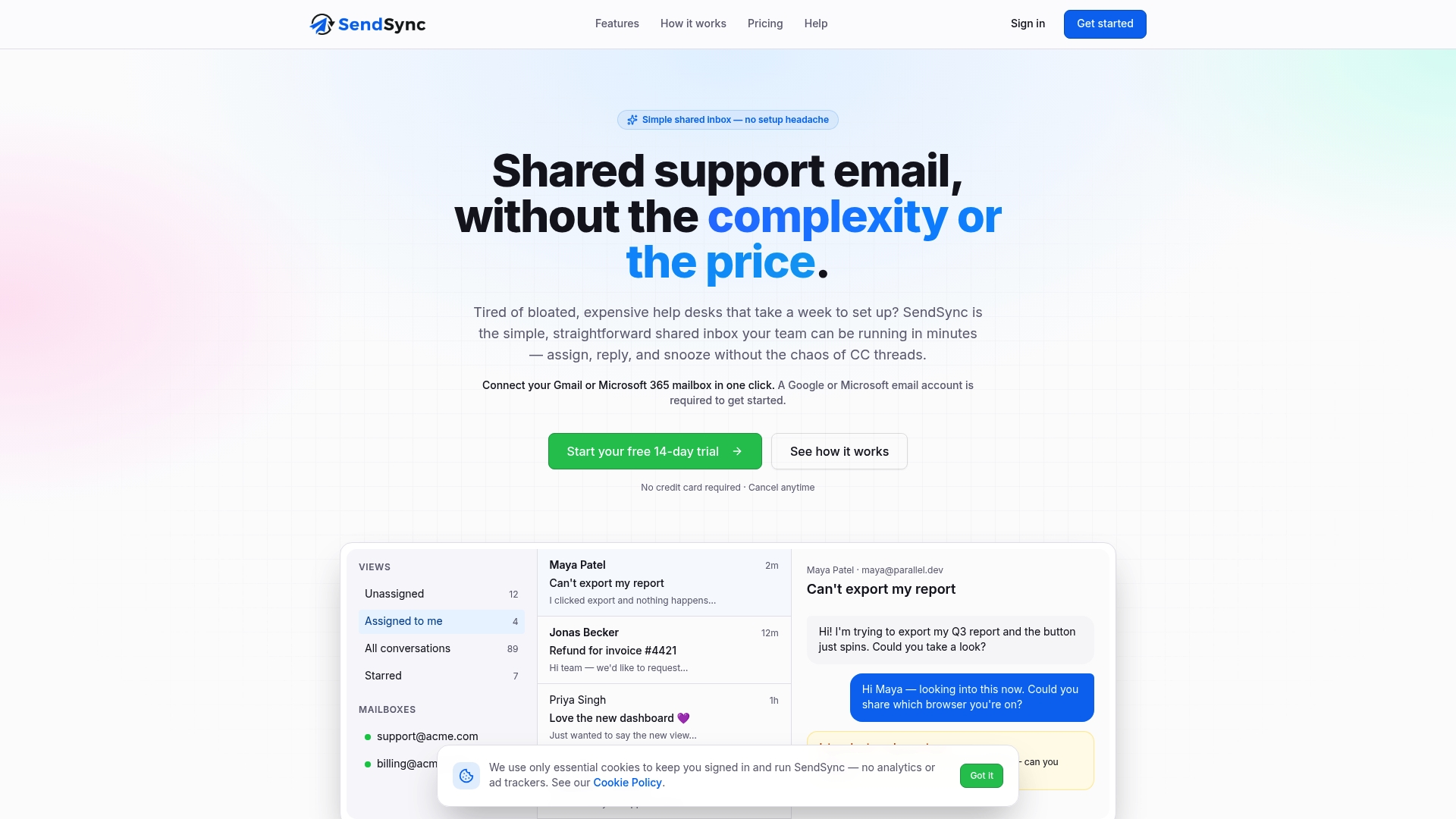
The fastest way to connect an Office 365 (Microsoft 365) mailbox for a team is to link it to a shared inbox app that handles assignment, notes and replies for everyone. With SendSync you connect your Microsoft 365 mailbox in a few minutes, with no DNS changes, and every teammate works from one inbox with no per-seat fees. The route Microsoft provides on its own, a shared mailbox in Outlook, works too, but it needs an admin, three kinds of permission and some patience while changes propagate. This guide covers both, so you know what each step takes and where it goes wrong.
TL;DR
- To put a Microsoft 365 mailbox in front of a whole team, connect it to SendSync: we designed it to go live in minutes, with no DNS setup and unlimited users.
- Microsoft’s built-in alternative is a shared mailbox. An admin creates it, adds members, and grants Full Access plus Send As or Send on Behalf. Without both a read and a send permission, it does not work.
- Most “it won’t connect” problems come from permissions granted through a security group, propagation delays of 30 to 60 minutes, or trying to sign in to the shared mailbox directly.
- Moving off a shared mailbox is a matter of connecting the same address to a shared inbox and retiring the Outlook workaround once the team is comfortable.
Table of Contents
- What “connecting a mailbox” actually means
- Connect your Microsoft 365 mailbox to SendSync
- The Microsoft route: how a shared mailbox gets connected
- Why a plain shared mailbox starts to strain
- When the mailbox won’t connect: a troubleshooting order
- Moving from a shared mailbox to a shared inbox
- A worked example
- Our perspective
- Try it on your own mailbox
- FAQ
- Sources
What “connecting a mailbox” actually means
People search this phrase for three different jobs. Some want to open a shared mailbox such as support@ in their own Outlook. Some want a whole team to answer from one address without stepping on each other. Others want to move mail out of a shared mailbox into something better.
The first job is a Microsoft setting. The second and third are what a shared inbox is for. A shared mailbox shows everyone the same messages, but it does not tell you who is answering a given email. Assigning, internal notes, tags and saved views come from a layer on top. That is the layer SendSync adds to your existing Microsoft 365 or Gmail mailbox.
Connect your Microsoft 365 mailbox to SendSync
This is the short route, and it is the one we recommend for support teams, small businesses, startups and freelancers who want a shared inbox without a help desk project.
- Start your trial. The 14-day free trial is on our site. You do not need to touch your domain settings first.
- Pick the mailbox. Choose the Microsoft 365 address customers already write to, such as support@ or hello@. It stays your mailbox. SendSync connects Gmail or Microsoft 365 mailboxes directly, so there are no DNS records to edit and no waiting for them to propagate.
- Invite your team. Plans have unlimited users, so you add everyone who touches support without counting seats. That matters for remote teams and for part-timers who only answer a few emails a week.
- Set up the basics. Add tags, a saved view for unassigned conversations, and an automation for email triage. Keep it small at first. The point is fewer moving parts, not more.
- Start assigning. Each conversation gets an owner, internal notes stay inside the team, and replies go out to the customer from the address they wrote to.
Where this goes wrong in other tools is the setup itself: DNS records, domain verification, forwarding rules and per-seat licenses all add days. Our approach removes those steps, which is why a freelancer on the Founder plan and a growing team on Growth start the same way.
What it costs
SendSync plans as published on our site: Founder is $10 per month, Starter is $30 per month, Growth is $80 per month and Scale is $200 per month. All have unlimited users, so the price does not rise when you add a teammate.
The Microsoft route: how a shared mailbox gets connected
If your company already uses a Microsoft 365 shared mailbox, or you want to understand it before moving, here is how it works. It helps to know what you are comparing.
A shared mailbox lets a group monitor and send email from a public address such as info@contoso.com. According to Microsoft Support, replies appear to come from the shared address rather than from the individual user, and the admin must first create the mailbox and add you as a member.
Step 1: An admin creates the mailbox and adds members
This is not something a regular user can do alone. In the Microsoft 365 admin center, admins manage shared mailboxes under Teams & groups. There they can add or remove members, choose which email apps members can use, and adjust permissions per member. If you are not the admin, you wait for one. Our guide on who creates an Outlook shared mailbox and how to get access walks through that handoff.

Step 2: Grant the right permissions
This is where most setups fail. Microsoft’s documentation separates two things:
| Permission | What it lets a member do |
|---|---|
| Full Access | Open the mailbox, read, view, delete and change messages. It does not allow sending from it. |
| Send As | Send mail that appears to come from the shared address. |
| Send on Behalf | Send mail that shows “user on behalf of” the mailbox. |
Both Full Access and a send permission are needed for the mailbox to work properly. Microsoft’s Exchange Online documentation adds a detail: Send on Behalf cannot be granted in the Exchange admin center. It requires the Set-Mailbox cmdlet’s GrantSendonBehalf parameter in PowerShell. If your admin only works in the portal, that is a stumbling block.
We cover the order of operations in giving Full Access and Send As first.
Step 3: Make it appear in Outlook
Once you are a member, the mailbox should show up in Outlook’s folder pane after you restart the app. If it doesn’t, you can add it by hand. Microsoft’s steps are:
- New Outlook: right-click your account name and choose Add shared folder or mailbox.
- Classic Outlook: File > Account Settings > Change > More Settings > Advanced > Add.
- Outlook on the web: sign in, select your name, choose Open another mailbox, and type the shared address.
That last route matters. Microsoft notes that you cannot reach a shared mailbox directly in Outlook on the web by signing in as it. A blank page usually means you tried. You open it from your own mailbox with Open another mailbox.
Step 4: Do not sign in to the shared mailbox itself
A shared mailbox is not a login. Microsoft’s own guidance says access is delegated through members’ own licensed mailboxes, the account should stay blocked from sign-in, and its password should be system-generated and unknown. Security reviewers say the same. The CIS Microsoft 365 benchmark, as summarized by Tenable, recommends blocking sign-in so a password reset or an attacker cannot turn the mailbox into a sender with no unique identity. If you handle customer data, our piece on shared inbox security and audit cmdlets goes deeper.
Why a plain shared mailbox starts to strain
The setup above is workable for a small group that only needs to read and answer. Support work asks more of it.
- Licenses and limits. The user needs a licensed Exchange Online mailbox, though the shared mailbox itself needs none, and only people inside your organization can be given access, per Microsoft. A contractor or outside freelancer is outside that circle unless you give them a Microsoft account.
- Storage. Microsoft states a shared mailbox can hold up to 50 GB without a license. Going to 100 GB, in-place archiving or litigation hold requires an Exchange Online Plan 2 license, or Plan 1 plus the Archiving add-on.
- No ownership. Two people can open the same email and both reply. Nothing in the mailbox says who has it.
- Admin dependence. Every new hire means an admin ticket and a wait for permissions.
We list the patterns we see support teams hit in four Outlook shared mailbox limitations and the daily volume where shared mailboxes start to struggle.
When the mailbox won’t connect: a troubleshooting order
If you are stuck, work through these in order. Most failures come from the first three.
- Confirm Full Access directly on the user. Automapping is set on the user’s mailbox, so permissions assigned through a security group won’t automap. The fix is to grant the permission explicitly to the person.
- Wait. Permission changes can take 30 to 60 minutes, occasionally longer. Changing the setting again while you wait just resets the clock in your head.
- Test in Outlook on the web first. Use a private window and Open another mailbox. If it works there, the permission is fine and the desktop profile is the problem, so rebuild that rather than the permission.
- Check Full Access and Send As separately. Reading works with one, sending needs the other.
- Look at licenses, size limits and conditional access. Any of these can block one person while the rest of the team is fine.
- Read the error text. An IMAP-style message saying the user is authenticated but not connected comes from the Office 365 server. Limilabs support says for shared mailboxes it usually means a missing mailbox permission step that can take up to half an hour to apply, and suggests checking with Get-MailboxPermission in Exchange Online PowerShell.
None of this is hard for an admin, but it is invisible to the person who just wants to answer a customer. That is the main reason small teams drift to a shared inbox with no DNS work and no permission matrix.
Moving from a shared mailbox to a shared inbox
This is the other half of what readers ask: how to leave a shared mailbox behind without losing control of support.
Keep the address, change the workflow
Your customers write to support@yourcompany.com. That address does not have to change. Connect the Microsoft 365 mailbox that receives those emails to SendSync and the team works in the shared inbox from then on. Because there are no DNS changes, nothing about how mail reaches you is touched during the switch.
Plan the cutover in four moves
- List who touches the mailbox. Everyone with Full Access or Send As today needs an invitation. With unlimited users, you do not have to decide who is worth a seat.
- Recreate your routines. Turn your informal habits (“Sam takes billing”) into tags, saved views and an assignment rule.
- Run both for a short period. Let the team answer from the shared inbox while the old Outlook mailbox stays as it is. Our Microsoft 365 team inbox setup guide shows a sensible order.
- Retire the workaround. When nobody opens the old shared mailbox, ask your admin to remove the extra delegates.
A word on moving old messages with automation
Some teams try to move archived mail with a flow tool. It is possible, but it has traps. Collab365’s guide points out that the flow connection belongs to a user, so actions default to that user’s personal folders unless Original Mailbox Address is set to the shared mailbox, and the connecting user needs Full Access. Moving a message also changes its ID, and a connector may return a 403 if the user lacks permission or a required license, per Zapier’s connector notes. For most support teams, the history can stay where it is. What matters is that new conversations start flowing into the shared inbox.
A worked example
Take a five-person online shop with one support@ address. Today, an admin created a shared mailbox, and three people have Full Access. Two others, a part-time contractor and the founder, use a forwarded copy. Replies sometimes go out twice, and the contractor sees nothing when the admin is away.

On a shared inbox, all five get a login on the same plan. Costs: the Starter plan is $30 per month, or $10 per month on Founder for a one-person setup. Every conversation has an owner and an internal note thread. Nobody has to wait for permissions to propagate. Compare that with a per-seat help desk: five seats at a typical per-agent price would grow with each hire, which is exactly what flat pricing with unlimited users avoids.
Our perspective
Most teams don’t need a help desk. They need to stop two people answering the same email.
A Microsoft 365 shared mailbox is a fair first step, and learning how it works is time well spent. But we’ve built SendSync around the point where it stops being enough: you want assignment, notes, tags and a view of what’s waiting, without a week of configuration.
That’s why we skip DNS and why we don’t charge per seat. Connect the mailbox you already have, add everyone, and work. Support should be about customers, not about administration.
Nick
Try it on your own mailbox
If you have a Microsoft 365 address that your team shares, the quickest test of everything above is to connect it. SendSync offers a 14-day free trial, then plans from Founder at $10 per month up to Scale at $200 per month, all with unlimited users. See the plans and start a trial.
FAQ
How do I access a shared mailbox in Office 365?
An admin has to add you as a member first. After that the mailbox appears in Outlook once you restart it, or you can add it manually. In Outlook on the web, select your name, choose Open another mailbox and type the shared address.
Can I sign in directly to a shared mailbox?
No. Microsoft designs shared mailboxes to be reached through members’ own accounts, and the shared account’s sign-in should stay blocked. That is also safer, because the mailbox never becomes a shared password.
Why can I read the shared mailbox but not send from it?
Full Access lets you open and read messages, but sending needs Send As or Send on Behalf. Ask your admin to check both. Send on Behalf can only be set with PowerShell, so it is the one most often missed.
Does a shared inbox need DNS changes for a Microsoft 365 mailbox?
Not with SendSync. You connect your Gmail or Microsoft 365 mailbox directly, so there are no DNS records to add and no waiting on propagation.
Will I pay more as my team grows?
Not on SendSync. Plans include unlimited users with flat monthly pricing, from $10 per month on Founder to $200 per month on Scale.
Sources
- Open and use a shared mailbox in Outlook, Microsoft Support
- Create a shared mailbox in Microsoft 365, Microsoft documentation
- About shared mailboxes in Microsoft 365, Microsoft Learn
- Configure shared mailbox settings, Microsoft Learn
- Shared mailboxes in Exchange Online, Microsoft Learn
- Can’t access a shared mailbox using OWA, Microsoft Learn
- Ensure sign-in to shared mailboxes is blocked, CIS benchmark via Tenable
- Shared Mailbox Access Denied for One User: Fix, EasyB
- BAD User is authenticated but not connected, Limilabs
- How to Move Shared Mailbox Emails with Power Automate, Collab365
- Microsoft Outlook API gotchas, Zapier connectors