
Bounced Email Troubleshooting: Find the Cause and Fix It
Bounced Email Troubleshooting: Find the Cause and Fix It ! Support specialist examining a bounced email notice To troubleshoot a bounced email, read the bounce message first, not the error number alone.

To troubleshoot a bounced email, read the bounce message first, not the error number alone. Look at the SMTP code (4xx means temporary, 5xx means permanent), then the text that explains the reason. Then fix what that reason points to: a typo in the address, a full mailbox, an oversized attachment, a failed authentication check, or a block on your sending reputation. This guide walks through each step in the order a support team would work through it.
TL;DR
- A code starting with 4 is usually a soft (temporary) bounce. A code starting with 5 is a hard (permanent) bounce. Resend only after you know which one you have.
- Save the full bounce message (the non-delivery report) and read the whole response. The text next to the code usually names the cause.
- Most fixes are simple: correct the address, shrink the attachment, wait out a limit, or publish proper SPF, DKIM and DMARC records.
- Never keep mailing addresses that hard bounce. Repeated sends to dead addresses damage your sender reputation.
- On a support team, one person should own bounces, so they don’t sit unread in someone’s personal inbox.
Table of Contents
- What a bounced email actually is
- Hard bounce or soft bounce: the first fork
- How to read a bounce message step by step
- Common causes and what to do about each
- Quick reference: matching symptoms to actions
- How to check whether an address will bounce before you send
- Where bounces get lost on support teams
- Put bounce handling where your whole team can see it
- A short checklist for the next bounce
- FAQ
- Sources
What a bounced email actually is
A bounce is a message that failed to reach its destination, and the system that refused or couldn’t deliver it sends you a notice. That notice goes by several names: bounce-back, delivery status notification (DSN), or non-delivery report (NDR). In Microsoft 365, a DSN or NDR carries an error code that explains the failure. Gmail shows the same information as a short message from a mailer-daemon address.
The notice is not noise. It is the receiving server telling you why it refused the delivery, and the full response tells you more than the error number alone. Treat it as the first piece of evidence in your investigation.
Hard bounce or soft bounce: the first fork
Everything else depends on this distinction.
- Hard bounce: a permanent failure. A hard bounce often comes from an invalid or non-existent address. Retrying will not help.
- Soft bounce: a temporary problem, such as a full mailbox or a server outage. A later attempt may succeed.
The SMTP reply code gives you a fast read. 4xx codes usually indicate soft bounces, while 5xx codes indicate hard bounces. Microsoft’s documentation draws the same line between 5xx permanent failures and 4xx temporary ones.
Two caveats keep you from over-trusting the label:
- A valid address can still hard bounce. Overly strict security filters on the recipient’s side can cause it. If you know the person is real, ask them to check their filters or have their IT team look.
- A soft bounce that keeps repeating is not harmless. Some sending platforms convert an address that soft bounces repeatedly into a hard bounce after a set number of attempts, to protect sender reputation.
| Soft bounce | Hard bounce | |
|---|---|---|
| SMTP code | Usually 4xx | Usually 5xx |
| Nature | Temporary | Permanent |
| Typical causes | Full mailbox, server down, temporary rate limit | Wrong or non-existent address, blocked sender, policy rejection |
| What to do | Wait, retry, check if it persists | Correct the address or fix the underlying block; stop resending |
How to read a bounce message step by step
A reliable method, in the spirit of the approach Suped describes: save the full NDR, identify the SMTP reply code, find the rejecting server, then test DNS, authentication and reputation in a systematic order. Here is how that looks in practice.

Step 1: Save the whole message
Don’t paraphrase the bounce in a ticket. Keep the original, including headers if your mail client shows them. If you later ask your IT provider or the recipient’s admin for help, the exact text saves a round of back-and-forth.
Step 2: Find the three-part code
Enhanced status codes look like 5.1.1 or 4.2.2. The first digit tells you temporary (4) or permanent (5). The rest narrows the cause. The plain-language text after the code is often more useful than the code itself, so read both.
Step 3: Identify who rejected it
The bounce names a server. If it is your own provider, the problem is on your side (limits, authentication, a blocked account). If it is the recipient’s server, the problem is with the address, the mailbox or their policy. This one fact tells you whether to look at your setup or write to the other party.
Step 4: Match the cause to a fix
Use the table in the next section. If the cause isn’t obvious, move to authentication and reputation checks.
Step 5: Don’t trust a single test
Sending one test message that arrives does not prove the problem is solved. As Suped’s guidance notes, a successful test doesn’t guarantee the recipient’s provider will accept later messages. Watch the next several sends to the same domain before you close the issue.
Common causes and what to do about each
The usual suspects are invalid addresses, full mailboxes, oversized messages, failed SPF/DKIM/DMARC checks, spam-triggering content and a recipient server permanently blocking delivery. Gmail’s own help lists non-existent addresses, spam filter triggers, exceeded sending limits and full recipient storage among the common reasons for rejection.
The address is wrong or doesn’t exist
This is the most frequent hard bounce, and the fix is dull but effective: check spelling, domain and formatting. If the recipient’s server rejected the message with a 5.4.1 error, Microsoft advises checking the address for accuracy and proper formatting. If the address was typed from a form, look for transposed letters, a missing dot, or a common domain misspelled.
When a customer writes to you from one address and a reply bounces, try the address in their signature, or call them. People change jobs and mailboxes get closed.
“Recipient email server rejected the message”
This wording means just what it says: the server on the other end refused your message. It is a symptom, not a diagnosis. Check the address first, then read the rest of the bounce for the reason the server gave. If the reason points at policy, such as spam filtering or a blocklist, the fix is on the sending side. If the reason is missing or vague, ask the recipient to confirm the mailbox is active and to check their quarantine.
The mailbox is full or the server is down
These are classic soft bounces. If Gmail can’t connect to the recipient’s server, the problem usually goes away quickly, so try again later. If the cause is on the recipient’s end for longer than that, telling their IT team is the practical step, or you can simply wait for automatic retries.
Retries have limits. Amazon SES, for example, doesn’t retry hard bounces but retries soft bounces several times before it gives up. Spamhaus adds that the timeout period for retries varies by network, so “it will resolve itself” has a clock on it.

A 421 or similar temporary refusal
Spamhaus notes that a 421 response can indicate a temporary problem such as too many simultaneous connections or reduced reputation. If you only see it occasionally, wait and retry. If it shows up across many recipients at one provider, treat it as a reputation signal and look at what you’ve been sending.
The attachment is too large or blocked
Compress large files or share a link instead. Some servers also refuse certain file types outright. Rackspace documents that for a 550 5.7.0 error tied to banned attachments, you remove the restricted file type and resend. Zip files and executables are the usual offenders.
You hit a sending limit
Gmail may reject outgoing mail when you exceed its sending limits or the message trips spam filters. Gmail’s guidance is to review the bounce message, check the recipient address, remove links or text that trigger filters, and wait up to 24 hours after a sending-limit error. This is the answer to “why is Gmail blocking my outgoing emails” in most cases: a limit or a filter, not a mysterious ban.
Your authentication is failing
If receiving servers can’t verify that you are allowed to send for your domain, they may reject or filter your mail. The fix is to make sure SPF, DKIM and DMARC are properly published. Change these records carefully, ideally with your domain host or IT provider, because a wrong DNS entry can break mail for the whole domain.
Here is a place where mailbox security matters beyond bounces. If you manage Microsoft 365 for a team, these Microsoft 365 security practices are worth reviewing alongside your delivery settings, because a compromised account is a quick route to blocked sending.
You’re on a blocklist
A 5.7.1 error that mentions Spamhaus means the sending IP or domain is listed. Rackspace’s guidance is to follow the link in the error to request remediation, and notes that safelisting the sender will not create an exception. Start with the link in the bounce, not with guesses. Then find out why the listing happened: a compromised account, a forwarded spam run, or a list with many dead addresses.
Quick reference: matching symptoms to actions
| What the bounce says | Likely cause | First action |
|---|---|---|
| 5xx, “user unknown” or “no such recipient” | Wrong or closed address | Verify the address; remove it if it can’t be confirmed |
| 4xx, “mailbox full” | Recipient storage | Wait, retry later, or contact them another way |
| 4xx or 5xx, “message too large” | Oversized attachment | Compress or send a link |
| 550 5.7.0, banned attachment | File type blocked | Remove the file type and resend |
| 5.7.1, blocklist mentioned | Listing on a blocklist | Follow the removal link in the bounce |
| Sending-limit message | Volume cap reached | Wait up to 24 hours and reduce volume |
| Authentication failure | SPF, DKIM or DMARC missing or wrong | Fix DNS records, then retest |
How to check whether an address will bounce before you send
Prevention is cheaper than repair, especially if you send to lists.
- Clean your lists and confirm new addresses. Twilio’s guidance is to clean lists, segment subscribers by engagement and require new subscribers to confirm their addresses.
- Use a verification check for risky batches. Some tools return statuses such as valid, accept-all and invalid, and the “accept-all” result flags addresses that can’t be confirmed either way. Others check the address at the RCPT TO stage without sending a message.
- Remove hard bounces. Microsoft notes that repeatedly sending to nonexistent addresses can significantly affect sender reputation. Many marketing platforms also drop contacts who hard bounce from future marketing sends.
- Watch your numbers. Spamhaus recommends monitoring sending metrics, including unexpected bounces and temporary failures.
If you advise clients or run a service business, this guide to business email security also covers why dead addresses and unwatched bounce rates become a company-wide risk.
Where bounces get lost on support teams
On a team, the technical fix is often the easy part. The harder part is that bounces arrive in one person’s inbox, look like automated clutter, and get ignored. The customer who never received your reply then writes again, angrier, or doesn’t write at all.
A few habits close that gap:
- Decide who owns bounces. One named person, or a rotating owner, checks them daily.
- Tag bounced conversations so they can be found and counted. A rise in the count is an early warning.
- Leave an internal note on the customer’s record when an address is bad, so the next teammate doesn’t resend to it.
- Never rely on BCC chains to keep colleagues informed; they hide failures. Our piece on better alternatives to BCC explains why.
These problems tie into a wider pattern. See why support teams miss customer emails and the common email management mistakes that let delivery failures go unnoticed. If your team is on Outlook shared mailboxes, these shared mailbox limitations are worth knowing.
Our perspective
We see the same pattern again and again. A team treats a bounce as a technical event, when it is really a customer event: someone asked for help and your answer never arrived. The SMTP code is only half the story. The other half is who noticed, who owned it, and how fast anyone acted.
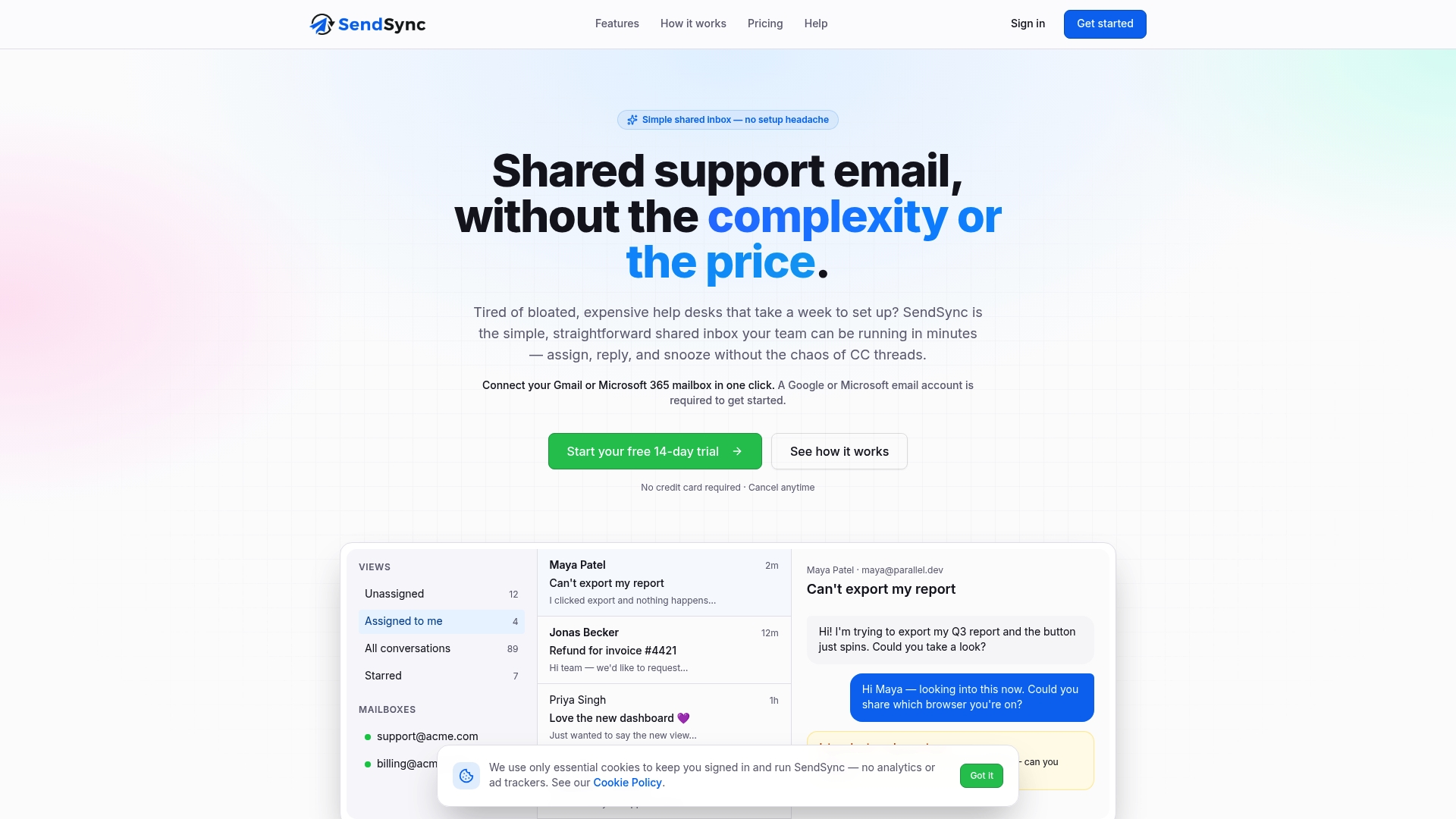
That is why we built SendSync as a thin shared inbox on top of the Gmail or Microsoft 365 mailboxes teams already use. You connect the mailbox, with no DNS changes needed, and everyone sees the same conversations. A bounce lands where the team can see it, get it assigned, tag it and leave a note, rather than vanishing into one person’s folder.
We also think pricing should not punish you for adding teammates. With unlimited users and flat plans, the person who watches bounces on Friday afternoon can be in the inbox without anyone doing seat math. Good delivery hygiene is a team habit, and the tool should make that habit easy.
Nick
Put bounce handling where your whole team can see it
If bounce notices keep disappearing into personal inboxes, a shared inbox fixes the visibility problem. SendSync connects to your Gmail or Microsoft 365 mailboxes, lets you assign, tag and annotate conversations, and does not require DNS setup. Plans are Founder at $10 per month, Starter at $30 per month, Growth at $80 per month and Scale at $200 per month, all with unlimited users, and you can start with a 14-day free trial. See the SendSync plans and pick the one that fits your team.
For more on setting up a team inbox, read how to handle multiple clients in a single inbox or the 2026 guide to multi-client email management.
A short checklist for the next bounce
- Save the full bounce message.
- Note the first digit of the code: 4 (temporary) or 5 (permanent).
- Identify which server rejected the message: yours or theirs.
- Read the plain-text reason and match it to a cause above.
- Apply one fix at a time so you know what worked.
- Retest, then watch the next few sends to that domain.
- Record the outcome on the customer’s conversation so nobody repeats the work.
FAQ
How do I fix a bounced or rejected email?
Start with the code: 4xx means try again later, 5xx means something must change before a resend can work. Check the address, the attachment size and type, and any sending-limit message. If the bounce points at authentication or a blocklist, fix SPF, DKIM and DMARC or follow the removal link in the bounce.
Why is Gmail blocking my outgoing emails?
Usually because you exceeded a sending limit or the message triggered a spam filter. Read the bounce, confirm the recipient address, remove suspicious links or wording, and wait up to 24 hours after a sending-limit error before trying again, as Gmail’s help page advises.
What does “Recipient email server rejected the message” mean?
The server receiving your email refused it. Check the address for accuracy and formatting first, since a typo is the most common cause. If the address is right, read the rest of the bounce for the stated reason, such as policy, spam filtering or a blocklist.
How can I tell whether an email will bounce before I send it?
You can’t be certain, but verification tools can flag invalid and risky addresses, and confirmed sign-ups keep new bad addresses out of your list. Even then, a successful test doesn’t guarantee later messages will be accepted, so keep an eye on your bounce notices.
Sources
- Gmail Help: Fix bounced or rejected emails
- Microsoft Learn: Email nondelivery reports (NDRs) and SMTP errors
- Microsoft Learn: Sender reputation and managed suppression list
- Brevo Help: Soft bounces and hard bounces
- HubSpot Knowledge Base: Email bounce types
- Mailchimp Help: Soft vs. hard bounces
- Spamhaus: How to handle bounced emails
- Spamhaus: Email deliverability 101 (PDF)
- Zoho Campaigns: List of bounce reasons
- Rackspace: Common email bounce messages
- Amazon SES: Email deliverability concepts
- MXroute: Why was my email rejected during SMTP?
- Suped: How do I troubleshoot email bounce messages?
- Twilio: Soft bounces vs. hard bounces
- ZapBounce: Email bounce checker
- Hunter: Email verification guide
- Microsoft 365 security practices
- Business email security guide