
Build an Email Escalation Workflow That Actually Works
Build an Email Escalation Workflow That Actually Works ! Hands organizing envelopes on a desk Implement an SLA-driven, trigger-based email escalation workflow today: add concrete escalation rules to your helpdesk, create one PBAS escalation email template, and build a single esca

Implement an SLA-driven, trigger-based email escalation workflow today: add concrete escalation rules to your helpdesk, create one PBAS escalation email template, and build a single escalation matrix view in your shared inbox or ticketing system. That three-step foundation, backed by the PBAS framework and clear SLA targets, is what separates teams that catch critical issues before they become crises from those that find out too late.
- Add at least three observable triggers to your helpdesk rules right now (examples: unresolved for 4 hours, three or more replies without resolution, refund request above a certain threshold).
- Create one PBAS escalation email template and save it as a macro so any agent can fire it in two clicks.
Pro Tip: Start with Sendsync’s shared inbox to host your escalation queue. Connect your Gmail or Microsoft 365 mailbox, create a saved view filtered by escalation tag, and assign your first escalation rule before your next shift starts.
Key Takeaways
A well-designed email escalation workflow combines observable triggers, a clear escalation matrix, PBAS-structured handoff emails, SLA targets with auto-notify, and circuit breakers to prevent dead-end loops.
| Point | Details |
|---|---|
| Define observable triggers | Use concrete conditions (time, reply count, dollar threshold) — never subjective ones like “seems upset.” |
| Build a three-level matrix | Map L1/L2/L3 to owners, SLA targets, handoff contents, and backup contacts before automating anything. |
| Use PBAS for every escalation | Problem, Business impact, Attempted solutions, Specific ask reduces back-and-forth and speeds decisions. |
| Monitor MTTA and loop frequency | Track mean time to acknowledge and escalation loop rate weekly; audit a sample of tickets monthly. |
| Sendsync hosts the workflow | Connect Gmail or M365, create escalation saved views, add PBAS macros, and set automation rules in under an hour. |
Table of Contents
- What is an email escalation workflow, and when does your team need one?
- Core components every effective email escalation workflow must include
- Designing intelligent triage and routing to keep noise out of the escalation path
- Step-by-step automation playbook: how to implement an email escalation workflow
- What to put in an escalation email: PBAS framework and ready-to-send templates
- Monitor SLAs and audit escalations: what to track and how often to review
- Common escalation triggers and a copy-ready example escalation matrix
- How Sendsync supports fast, reliable email escalation workflows
- Sendsync: the shared inbox built for escalation-ready support teams
- The part most teams get wrong about escalation workflows
- Sources
What is an email escalation workflow, and when does your team need one?
An email escalation workflow is a structured, SLA-driven process that automatically routes unresolved or high-priority email threads to the right owner, attaches the metadata needed for a clean handoff, and enforces time-based circuit breakers so no ticket disappears into a void. It combines three things: routing logic that moves threads up a defined ownership chain, visibility tools that show who owns what at any moment, and handoff metadata that tells the next owner exactly where things stand.
Teams need one when they see any of these failure patterns:
- Replies go unanswered because no one knows who owns the thread after a colleague goes on leave.
- Tickets loop between agents without resolution, each handoff losing context.
- A customer escalates to a VP because the support queue never surfaced the urgency.
- A chargeback or refund deadline passes unnoticed because the original agent was out.
Google Cloud’s support procedures formalize this by assigning a dedicated Escalation Manager who owns the case until closure, a model that works because ownership is never ambiguous. Red Hat’s escalation process similarly requires agents to include the case number and a clear business impact statement when requesting escalation, which forces the team to articulate why the issue matters before it moves up.
The business outcomes an escalation workflow protects are concrete: service-level compliance, launch deadline protection, and financial exposure from chargebacks or regulatory deadlines. Without a defined process, those outcomes depend entirely on individual memory and goodwill.
Core components every effective email escalation workflow must include
Every escalation workflow, regardless of the tooling, needs six components working together. Miss one and the system develops a predictable failure mode.
| Component | Operational requirement | Example values |
|---|---|---|
| Observable triggers | Concrete, measurable conditions that fire the rule | Unresolved 4 hrs, 3+ replies, refund above a certain threshold, chargeback received |
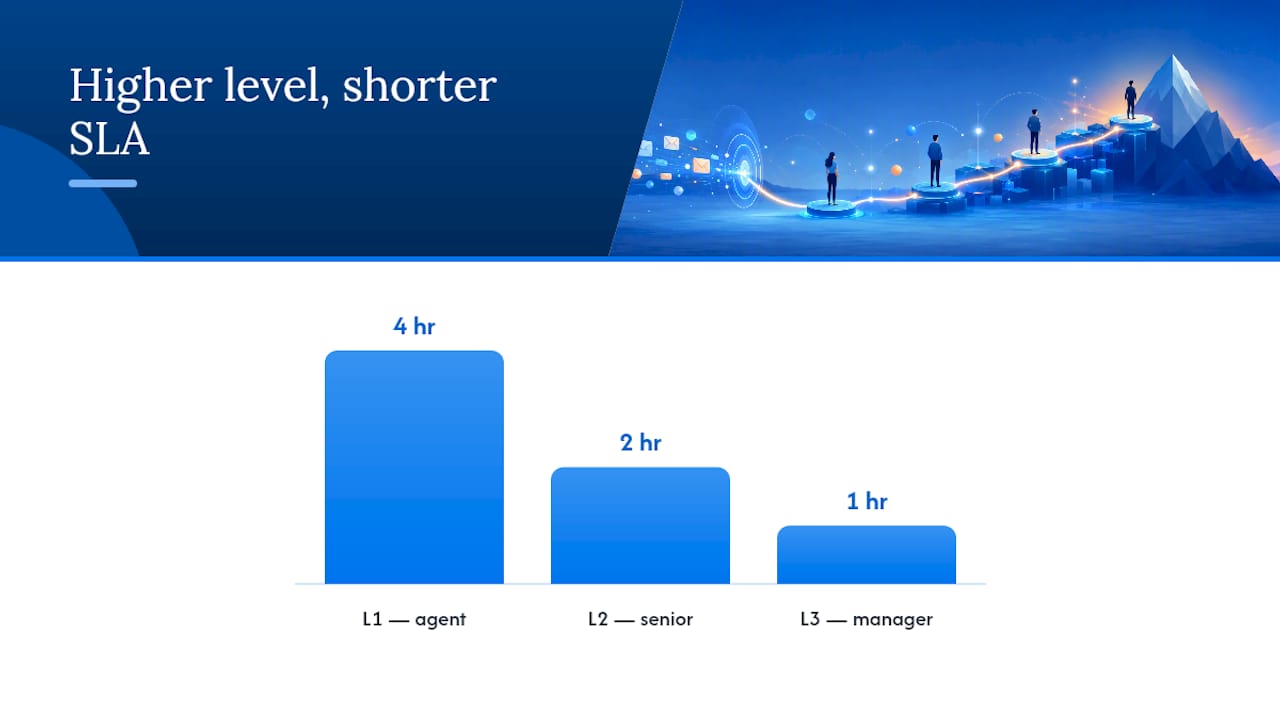
| Escalation matrix | Levels, owners, SLA targets, and backup contacts | L1 (agent, 4 hr SLA), L2 (senior, 2 hr SLA), L3 (manager, 1 hr SLA) |
| Handoff metadata | Structured payload the next owner receives | Ticket summary, steps taken, customer sentiment, attachments |
| SLA targets | Time limits per level with auto-notify on breach | L1: 4 hrs, L2: 2 hrs, L3: 1 hr; notify manager at 80% elapsed |
| De-escalation rules | Conditions that close or downgrade the escalation | Issue resolved, customer confirms satisfaction, refund processed |
| Circuit breakers | Hard timeouts that force human review | Any thread active beyond a safe window routes to human queue |
LobsterMail’s multi-agent escalation pattern makes the case that thread continuity (preserving In-Reply-To and References headers), dead-letter handling, escalation counters, and timeout-based circuit breakers are all necessary to prevent loops and dropped escalations in multi-step flows. Skip the circuit breaker and a misconfigured rule can bounce a ticket between agents indefinitely.
Handoff checklist (copy this into a macro or escalation form):
- Ticket ID and original subject line
- One-paragraph summary of the issue and customer history
- Steps already attempted and their outcomes
- Customer sentiment (calm, frustrated, threatening churn, legal language)
- Relevant attachments (screenshots, logs, order records)
- Escalation reason (trigger that fired) and urgency level
- Next action required from the recipient
Pro Tip: Save this checklist as a macro in your helpdesk. Agents who fill it in before escalating cut the back-and-forth that typically follows a bare “please help” forward.
Designing intelligent triage and routing to keep noise out of the escalation path
The biggest mistake teams make when building an escalation process is routing too much. When every mildly frustrated email hits L2, senior agents spend their day on issues a first-tier agent could resolve. Triage is the filter that keeps the escalation path clean.
Effective triage combines three layers:
- AI classification reads intent, sentiment, and category (billing, technical, churn risk) and assigns a confidence score.
- Keyword and metadata rules catch explicit signals: words like “chargeback,” “legal,” “cancel,” or “refund” above a dollar threshold.
- Metadata filters add context: customer tier, number of prior contacts, account age, or contract value.
BaseCloud Global’s AI email routing examples show a practical implementation: an AI classifier feeds nested branching logic that assigns urgent items to managers and triggers SMS alerts for critical issues, with separate routing paths for sales, technical, and billing categories. The branching is explicit, not a black box, which matters when you need to audit why a ticket went where it did.
OuterMind’s Escalation Router demonstrates a complementary pattern: a request_human_input flow pauses the automated chain and sends an escalation email from a shared mailbox when the classifier’s confidence falls below a threshold, rather than forcing a low-confidence routing decision.
Set your initial confidence threshold conservatively. A threshold that routes borderline cases to human review catches more genuine escalations during the pilot phase. You can raise it once production metrics show the classifier is reliable — but you cannot un-drop a ticket that was auto-closed incorrectly.
Routing best practices worth building in from day one: assign by category, not just urgency; define a fallback contact for every routing path so no thread lands in an unmonitored queue; and document the branching logic in a shared runbook so the team can audit it without reading code.
Pro Tip: Review your triage routing weekly for the first month. Track how often human reviewers override the classifier’s decision. A high override rate is a signal to retrain or tighten the keyword rules, not to trust the automation more.
Step-by-step automation playbook: how to implement an email escalation workflow
Building the automation in the right order prevents the most common failure modes. Here is a concrete sequence.
Pre-implementation (before you touch any tooling):
- Map your current email flow: which queues exist, who owns them, and where threads currently stall or disappear.
- Define escalation owners and backups for each level. Write names, not job titles.
- Choose your channel stack: shared mailbox (Gmail or M365), ticketing system, or a dedicated automation platform. Most small-to-mid teams start with a shared inbox and add ticketing later.
Implementation steps:
- Configure the shared mailbox and connect it to your helpdesk or inbox tool. OuterMind’s setup requires an M365 shared mailbox and governance configuration as a baseline.
- Create routing rules and macros for each trigger condition. SAP’s escalation documentation shows that defining an initial response time (IRT) per rule, and auto-notifying the manager when that IRT is reached, is a reliable baseline pattern.
- Add escalation timers: set a reminder at 80% of the SLA window and an auto-escalation at 100%.
- Configure alternate contacts for each level so auto-escalation has somewhere to go if the primary owner does not respond.
- Wire in SMS or Slack alerts for L3 (critical) escalations. Email alone is too easy to miss for a production outage.
- Implement circuit breakers: any thread that has been active beyond a defined window routes to a human queue regardless of routing status, preventing dead-end loops.
Testing plan:
| Test type | What to verify | Pass condition |
|---|---|---|
| Unit test (rule) | Each trigger fires correctly in isolation | Rule fires promptly after condition met |
| Simulated escalation | Full L1 → L2 → L3 handoff with test ticket | Handoff metadata present at each level |
| Dead-letter handling | Bounce or undeliverable escalation email | Thread re-queues to fallback contact |
| Thread continuity | In-Reply-To headers preserved across handoffs | Reply chain intact in recipient’s inbox |
| Circuit breaker | Thread exceeds timeout window | Forced to human queue, not re-routed |
Implementation timeline:
- Week 1: Pilot with one queue, one trigger type, two agents.
- Weeks 2–3: Staged rollout to additional queues, add L2 and L3 levels.
- Week 4: Full rollout, monitoring dashboard live, first weekly review completed.
Pro Tip: Run a maker-checker approval step for any auto-escalation that involves a financial threshold or legal language. One human confirmation before the thread reaches a senior manager prevents false alarms and builds trust in the system.
What to put in an escalation email: PBAS framework and ready-to-send templates
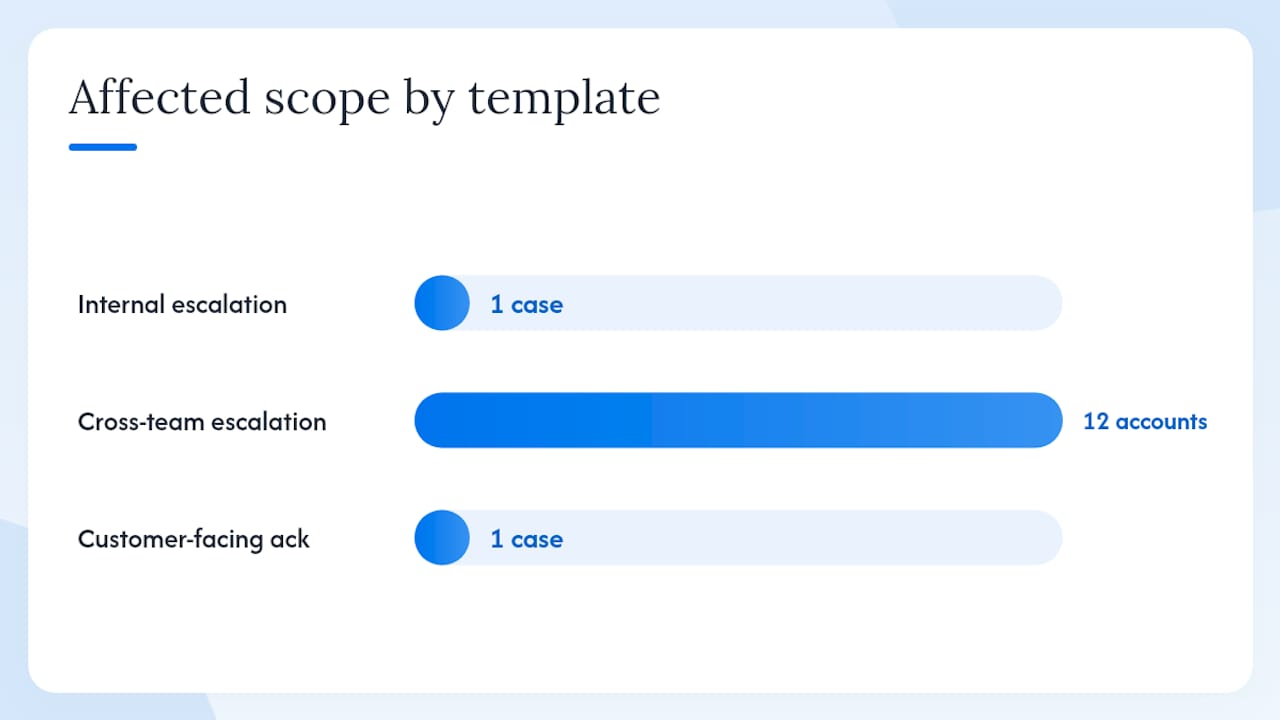
PBAS stands for Problem, Business impact, Attempted solutions, Specific ask. It works because it forces the sender to answer the four questions the recipient will ask anyway, before they ask them. A well-structured PBAS email cuts the back-and-forth that typically follows a vague “FYI, this customer is upset” forward.
Template 1: Internal escalation to manager
Subject: [ESCALATION: L2] Order #48291 — Refund Blocked, Customer Threatening Chargeback
Problem: Customer placed order #48291 on March 3. Refund requested March 5 due to non-delivery. Payment processor is blocking the refund citing a 72-hour hold.
Business impact: Customer has stated they will file a chargeback if not resolved by end of day. Chargeback would incur a $35 fee and flag the account.
Attempted solutions: Contacted payment processor twice (ticket #PP-9921). Offered store credit — declined. Escalated internally to billing on March 6 — no response yet.
Specific ask: Approve manual refund override or contact payment processor directly. Response needed by 3:00 PM ET today.
Template 2: Cross-team escalation to engineering
Subject: [RISK: High] API Timeout Affecting 12 Enterprise Accounts — Needs Engineering Review
Problem: API endpoint
/orders/statusreturning 504 errors intermittently since 09:00 AM ET. Affects 12 enterprise accounts confirmed so far.Business impact: Three accounts have SLA clauses with penalty provisions. One customer has already emailed their account manager.
Attempted solutions: Restarted service at 09:15 AM — no improvement. Checked logs — no obvious error pattern. Rolled back last deployment at 09:45 AM — issue persists.
Specific ask: Engineering lead to review server logs and confirm root cause by 11:00 AM ET. Please reply-all to keep support loop informed.
Template 3: Customer-facing escalation acknowledgment
Subject: Re: Your Request — Escalated to Our Senior Support Team [Case #48291]
We have escalated your case to our senior support team. A specialist will contact you within 2 hours. Your case number is #48291 — please reference it in any follow-up.
We have already reviewed [steps taken] and are working on [specific next action]. We will update you by [time] regardless of outcome.
Subject-line patterns that work:
[ESCALATION: L2]+ issue summary + urgency signal[RISK: High]+ affected scope + action needed[URGENT]+ case number + deadline
Pro Tip: Always CC the original ticket thread or attach the ticket ID in the escalation email. Recipients who have to hunt for context lose time — and sometimes give up and ask the customer directly, which erodes trust.
Closing the loop matters as much as opening it. When an escalation resolves, send a one-line reply to the escalation thread confirming resolution and the root cause. This feeds your audit trail and helps you tune triggers later.
Monitor SLAs and audit escalations: what to track and how often to review
Metrics without a review cadence are just numbers. The goal is a lightweight system that surfaces problems before they become patterns.
Core metrics to track:
- Escalation rate: percentage of total tickets that reach L2 or above. A sudden spike usually means a trigger is misconfigured or a product issue is generating volume.
- Mean time to acknowledge (MTTA): how long from escalation trigger to the next owner’s first action. This is the metric SLA targets are built around.
- Mean time to resolution by level (MTTR-L): average resolution time segmented by escalation level. L3 MTTR that exceeds L2 MTTR by a large margin suggests L3 is receiving tickets that should have resolved at L2.
- Escalation loop frequency: how often a ticket escalates, de-escalates, and re-escalates. Loops indicate unclear ownership or missing de-escalation criteria.
- Undelivered or bounced escalations: escalation emails that never reached their recipient. LobsterMail’s guidance treats dead-letter handling as a required component, not an edge case.
- Maker-checker approval rate: percentage of auto-escalations that pass human review without modification. A low rate signals the automation is over-escalating.
Dashboard and review cadence:
- Daily: critical queue (L3 open tickets, any SLA breach in the last 24 hours).
- Weekly: escalation rate trend, MTTA by level, loop frequency.
- Monthly audit: sample 10 escalated tickets and check handoff metadata completeness, SLA compliance, and whether the trigger that fired was the right one.
For teams that want external support on escalation auditing and compliance, managed support services can provide structured audit frameworks and escalation compliance reviews.
Fix the root cause before tightening the SLA.
Common escalation triggers and a copy-ready example escalation matrix
Triggers must be concrete and observable. Subjective conditions like “customer seems upset” are unenforceable and inconsistent. Elium’s escalation procedure template illustrates this well: it specifies triggers like refund requests above a defined threshold, three or more repeat contacts, and chargeback notifications, each of which is binary and auditable.
Trigger list you can adapt today:
- Time-based: unresolved for 4 hours (L1 → L2), unresolved for 8 hours (L2 → L3).
- Repetition: three or more replies on the same thread without resolution.
- Severity: production outage, data loss, or security incident keyword detected.
- Customer request: explicit request for a manager or supervisor.
- Financial threshold: refund request above a certain threshold, chargeback notification received.
- Regulatory signal: legal language, GDPR/CCPA mention, or regulatory body named.
Sample escalation matrix:
| Level | Trigger | Escalate to | SLA target | Handoff contents | Backup |
|---|---|---|---|---|---|
| L1 | Any inbound ticket | Assigned agent | 4 hours | Ticket summary, category | Team lead |
| L2 | Unresolved 4 hrs, 3+ replies, refund above a certain threshold | Senior agent / team lead | 2 hours | L1 handoff + steps taken + sentiment | Support manager |
| L3 | Unresolved 8 hrs, chargeback, production outage, legal language | Support manager | 1 hour | Full PBAS payload + attachments | Director / on-call |
Customization notes:
- Set your time-based X values based on your current average resolution time, not an aspirational target. If your team currently resolves 80% of tickets in 6 hours, a 4-hour L1 SLA is aggressive but achievable. A 1-hour L1 SLA will generate constant false escalations.
- Add a maker-checker step at L3 for any trigger involving financial or legal exposure.
- Use circuit breakers at each level: if a thread has been in L2 for longer than your L2 SLA window without any owner action, it auto-escalates to L3 regardless of other conditions.
- For teams managing multiple client contracts, escalation thresholds often need to vary by client SLA. Multi-client email management guidance covers how to structure per-client escalation rules in a shared inbox.
How Sendsync supports fast, reliable email escalation workflows
Sendsync maps directly to the workflow components described above. Connect your Gmail or Microsoft 365 mailbox in minutes, no DNS configuration required, and the shared inbox becomes the operational home for your escalation queue.
Feature-to-workflow mapping:
- Shared mailbox integration: Gmail and M365 connect without DNS setup, giving the whole team visibility into the escalation queue from day one.
- Assignment and internal notes: assign escalated threads to the right owner with one click; leave internal notes with handoff metadata so the next agent has full context without reading the entire thread.
- Saved views for escalation queues: create a filtered view showing only escalated threads, segmented by level (L1, L2, L3) using tags.
- Automation rules and macros: configure trigger-based rules (tag on keyword, assign on reply count, notify on SLA threshold) and save PBAS templates as macros agents can fire instantly.
- Metrics dashboards: track MTTA, resolution time by level, and escalation rate without a separate analytics tool.
For teams building out their first scalable inbox workflow, Sendsync’s structure makes it straightforward to layer escalation logic on top of an existing support queue rather than rebuilding from scratch.
Sendsync quickstart checklist for escalation:
- Connect Gmail or M365 mailbox (under 5 minutes, no DNS required).
- Create an “Escalation” tag and a saved view filtered by that tag.
- Add a PBAS escalation macro to your template library.
- Configure an automation rule: if reply count ≥ 3 and unresolved, apply “Escalation” tag and assign to team lead.
- Set a second rule: if “Escalation” tag is present and unresolved for 2 hours, notify support manager.
- Test with a simulated ticket before going live.
Pro Tip: Use Sendsync’s internal notes to paste the handoff checklist directly into the thread before reassigning. The next owner sees everything without opening a separate ticket system.
Sendsync: the shared inbox built for escalation-ready support teams
Teams that have spent time configuring traditional help desks know the frustration: hours of setup, per-seat pricing that scales against you, and a configuration layer that requires an admin every time a rule changes. Sendsync cuts that overhead significantly.

For support managers who just built an escalation matrix and need a home for it, Sendsync connects your existing Gmail or M365 mailbox in minutes, not days. Unlimited users on every plan means you can add your L2 and L3 owners without a pricing conversation. Automation rules, saved escalation views, PBAS macros, and assignment workflows are all available without a professional services engagement.
The practical path: start a 14-day free trial at Sendsync, connect your mailbox, and configure your first escalation rule before the end of the day. The escalation matrix you built from this guide can be live in your inbox before your next shift.
The part most teams get wrong about escalation workflows
Most escalation guides focus on the matrix and the templates. Both matter. But the failure point teams actually hit in production is almost never the matrix design. It is the absence of circuit breakers and the presence of subjective triggers.
Here is what happens: a team builds a reasonable L1/L2/L3 structure, writes decent PBAS templates, and launches. Six weeks later, senior agents are drowning in escalations that should have resolved at L1, and the escalation queue has become a dumping ground for anything the first-tier agent did not want to handle. The triggers were too vague (“customer is unhappy”), the circuit breakers were never configured, and no one defined what de-escalation looks like.
The conventional advice is to “start simple and iterate.” That is correct but incomplete. What you actually need to start simple on is the trigger set, not the circuit breakers. Circuit breakers should be in place from day one, even if they are set to a generous timeout. A thread that loops indefinitely because no one configured a hard stop is a worse outcome than a thread that escalates one level too early.
The second thing most guides underweight is the handoff payload. A bare email forward with “please help” is not an escalation. It is a transfer of confusion. The PBAS structure exists precisely because the recipient needs to act, not investigate. Every minute they spend reconstructing context is a minute the customer waits.
The third overlooked piece is the review cadence. Escalation workflows are not set-and-forget. The triggers that made sense in week one will need tuning by week four. The teams that get this right schedule a monthly audit from the start, sample actual escalated tickets, and ask one question: did the right trigger fire, and did the right person receive it? That question, asked consistently, is what keeps the system calibrated.
Sources
These sources back the guidance in this article and are worth bookmarking for implementation reference:
- E-Mail Escalation Process
- Customer care procedures | Google Cloud Support
- Escalation Router overview | OuterMind
- Multi-agent email escalation chain pattern: how agents hand off and escalate — LobsterMail