
How Email Tools Integrate Into Your Support Workflow
How Email Tools Integrate Into Your Support Workflow ! Woman working with email support tools at home workspace The fastest path to a functional support workflow: connect your shared support address (support@yourdomain.

The fastest path to a functional support workflow: connect your shared support address (support@yourdomain.com) to a shared inbox tool with two-way sync enabled, turn on automated triage, and make sure every agent can see assignment history and internal notes before they reply. That’s the whole playbook. Everything below is the detail that makes it stick.
Three things to do right now:
- Map your support address. Identify the single mailbox (support@, help@, info@) that will be shared. One address and one inbox serve as the single source of truth.
- Enable two-way sync. Responses sent from the shared tool must appear in the original mailbox and thread correctly using original message headers. Without this, sent-mail synchronization breaks and agents lose thread context.
- Turn on basic triage triggers. Even a single rule — “new email from unknown sender → assign to first available agent” — eliminates the manual sorting that buries tickets.
Skipping any one of these creates the problem you’re trying to solve. Context switching between a raw inbox and a CRM typically consumes 2–5 minutes per message; when multiplied across dozens of emails per day, this adds up to roughly 40–150 minutes of overhead per agent daily, according to Modulario’s estimates. Sendsync is the recommended solution for this pattern: Gmail and Microsoft 365 connect in minutes, no DNS changes required.
Table of Contents
- How do email integrations actually work under the hood?
- The trigger → logic → action pattern every triage workflow uses
- How do you prevent double-handling in a shared inbox?
- What security and permissions controls does your integration need?
- Your rollout checklist and realistic timeline
- Which KPIs tell you the integration is actually working?
- Sendsync fits this integration pattern from day one
- Key Takeaways
- The part most rollout guides skip
- Sources and further reading
How do email integrations actually work under the hood?
Two-way synchronization is the foundation. When an agent replies inside a shared inbox tool, the sent message must reflect back to the original mailbox AND attach to the correct thread. This works through message-ID headers: every email carries a unique identifier, and a properly built integration uses that header to match replies to their parent thread rather than creating orphaned conversations. Gmail’s API and Microsoft Graph both expose this natively; IMAP/SMTP fallbacks can do it too, but with less reliability on threading.
Two-way sync isn’t just a convenience feature. Without it, a customer who replies to a “sent from support@” message gets a response that never appears in the shared tool — and the next agent who picks up the ticket has no idea what was already said. Proper reply threading via headers is what keeps the conversation whole.
Three connector types cover most setups:
- Native OAuth connectors (Gmail, Microsoft 365): organization-level consent through Google Cloud Console or Azure AD, plus a redirect URI registration. More secure, easier to manage at scale.
- IMAP/SMTP: credential-based, works with any provider, but requires storing passwords and offers no push notifications — the tool polls on an interval instead of reacting instantly.
- API/webhooks: Gmail’s Pub/Sub watch feature or a Microsoft Graph webhook subscription fires the moment a message lands, removing the polling delay entirely. Worth the setup time for high-volume queues.
Auto-sync ingests monitored mailboxes automatically, while sidebar/plugin methods show CRM context manually and require agents to log interactions themselves. For team workflows, automated sync is the only practical choice — but it requires exclusion rules to protect personal addresses and internal threads from being pulled into the shared queue.

The trigger → logic → action pattern every triage workflow uses
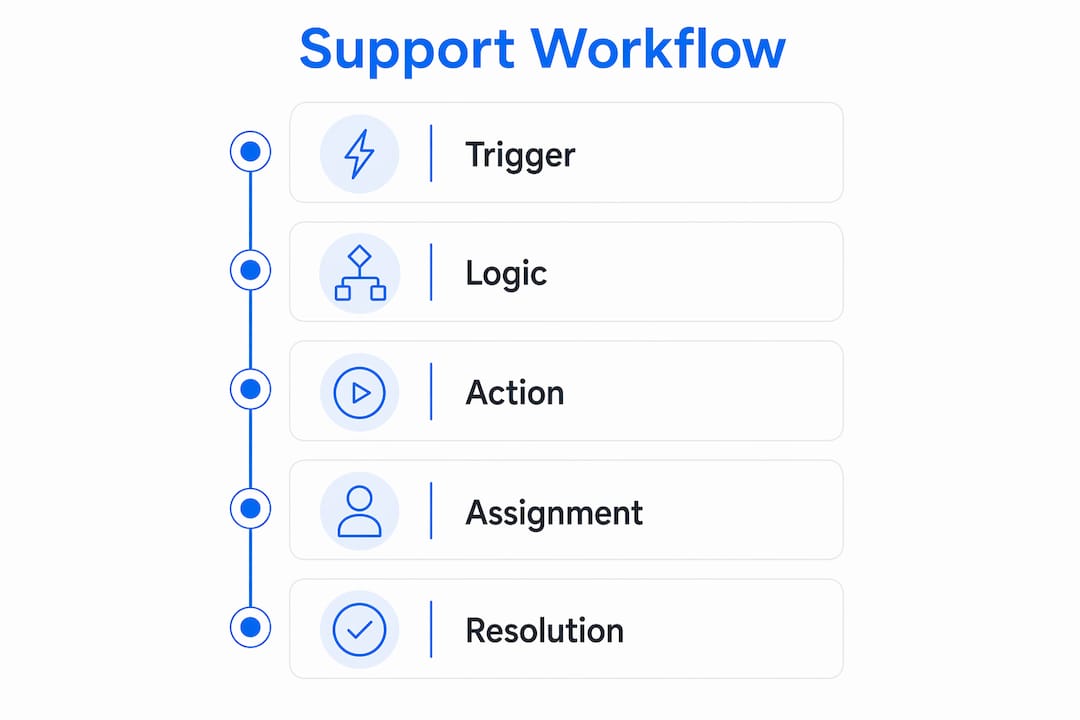
Email-based automation follows a consistent three-layer structure. Understanding it lets you build any triage rule without needing a developer.
- Trigger layer. A monitored mailbox event fires the workflow: new email arrived, unread flag set, attachment detected. Critically, triggers only fire on new messages after activation — reactivating a paused trigger won’t retroactively process the backlog. Set your sync start date deliberately.
- Logic/filter layer. IF statements evaluate the incoming message: sender domain matches a VIP list, subject line contains “urgent,” customer has an open ticket already. This is where branching happens. Tools like visual workflow builders support multi-branch triage with merge nodes — far more useful for support than linear drip sequences designed for marketing.
- Action layer. The workflow assigns to a teammate, creates a ticket, sends an automated acknowledgment, or escalates. For a high-priority inbound: trigger fires on “urgent” keyword → logic checks sender domain against VIP list → action assigns to senior agent AND sends a 5-minute acknowledgment reply.
The pitfall to avoid: treating support triage like a marketing drip. Linear sequences delay assignment. Queue burial — where support emails sit in a drip sequence instead of getting instantly assigned — is one of the most common integration mistakes. Tickets must be created or assigned the moment the trigger fires.
How do you prevent double-handling in a shared inbox?
Assignment on first touch is the single most effective rule. The moment a new email arrives and a trigger fires, it gets an owner. An unassigned email is an invitation for two agents to start typing simultaneously.
Status visibility matters just as much. Open, pending, and resolved states need to be visible to every agent in real time. Contextual visibility — status, internal notes, and assignment history — is what separates a shared inbox from a forwarded alias. Without it, agents duplicate work because they genuinely can’t tell whether someone else is already handling a thread.
Internal notes are the coordination layer that keeps replies personal. Instead of forwarding context to a colleague (which creates a new thread and confuses the customer), agents leave a private comment: “Customer is on the Pro plan, had a billing issue last month, handle with care.” The next agent reads the note and replies as if they’ve known the customer for months.
Pro Tip: Set a single-owner policy and a short SLA window for high-priority inbound. If the assigned agent hasn’t responded within that window, an escalation trigger reassigns automatically. This catches the “I thought you had it” gaps without requiring a manager to monitor the queue.
For a deeper look at team inbox differences versus personal email behavior, the operational implications are significant.
What security and permissions controls does your integration need?
- Mailbox ownership via OAuth: organization-level admin consent (not per-user) means a departing employee can’t take mailbox access with them. Microsoft 365 requires Azure AD app registration; Gmail requires Google Cloud Console OAuth setup with a verified redirect URI.
- Role-based access: agents get read/write on their assigned queues; observers (managers, QA) get read-only. No one needs access to every mailbox by default.
- Audit logs: every sent message, assignment change, and status update should be logged and searchable. This matters for HIPAA-covered businesses (where email containing PHI requires access controls and audit trails) and for GDPR compliance (where you need to demonstrate who accessed what and when).
- Exclusion lists: personal email addresses and internal-only threads must be explicitly excluded from auto-sync. A dedicated client inbox keeps personal and professional threads from bleeding into the shared queue.
For HIPAA environments, verify that your shared inbox vendor offers a Business Associate Agreement before connecting any mailbox that receives patient information.
Your rollout checklist and realistic timeline
Pre-rollout steps: audit all active support mailboxes, build an exclusion list (personal domains, internal addresses, mailing lists), select a pilot team of 3–5 agents, and set a hard sync start date so triggers don’t fire on historical mail.
| Phase | Task | Estimated Time |
|---|---|---|
| Admin setup including OAuth consent and redirect URI registration typically takes a short amount of time. | ||
| Mailbox connect involves connecting a pilot mailbox and verifying two-way sync, usually completed within an hour. | ||
| Trigger configuration includes building several triage rules and testing with sample emails, which takes a few hours. | ||
| Pilot testing involves running live on one mailbox and monitoring for about a week. | ||
| User training includes walkthrough sessions for the pilot team covering assignment, notes, and status, lasting a few hours. | ||
| Full launch involves expanding to all support mailboxes, typically accomplished within a day. |
Cost factors to consider: per-seat pricing models inflate cost as the team grows; unlimited-user plans (like Sendsync’s) keep rollout cost flat regardless of headcount. Admin setup time for OAuth is real — budget 2–4 hours for a first-time integration. For scalable inbox workflows, the pilot phase is where you validate triage logic before it impacts your full queue.
Which KPIs tell you the integration is actually working?
Watch these metrics in the first two weeks after launch:
- First reply time (FRT): the clearest signal. A 20–30% improvement typically means triage automation is routing correctly and agents aren’t hunting for context before replying.
- Average response time: broader than FRT; catches delays that happen mid-conversation, not just on first touch.
- Resolution rate: percentage of tickets closed without escalation. Rising resolution rate means agents have enough context to handle issues end-to-end.
- Assignment-to-response lag: time between a ticket being assigned and the agent’s first reply. High lag means either the assignment rules are wrong or agents are overloaded.
- Double-handling incidents: manually track (or tag) any thread where two agents sent a reply. This number should drop to near zero within the first week if single-owner assignment is enforced.
Build a simple dashboard: inbox volume by queue, percentage of auto-assigned vs. manually assigned, and SLA breach count. If auto-assignment is low, your trigger rules need refinement. For real-time visibility benchmarks, tracking these weekly for the first month gives you enough data to adjust staffing and SLA targets confidently.
Sendsync fits this integration pattern from day one

Most shared inbox tools ask you to reconfigure DNS, wait for propagation, or hire someone to set up the OAuth flow. Sendsync skips all of that. Connect your Gmail or Microsoft 365 mailbox in minutes, assign the first ticket, and leave a private note for a colleague — without touching a single DNS record. The two-way sync works out of the box, sent messages reflect back to the original mailbox, and reply threading stays intact.
For a pilot, pick one support mailbox, add a few agents, and run it for 7–14 days. Measure first reply time (FRT) and double-handling incidents before and after. Sendsync’s unlimited-user pricing means adding the rest of the team costs nothing extra, which removes the usual “let’s wait until we’re sure” hesitation that delays full rollouts.
Start your 14-day free trial and have your first shared inbox live before end of day.
Key Takeaways
Email tools integrate into an existing support workflow most effectively through two-way sync, automated triage triggers, and contextual visibility that prevents agents from duplicating each other’s work.
| Point | Details |
|---|---|
| Two-way sync is non-negotiable | Sent messages must reflect in the original mailbox and thread via message-ID headers. |
| Automate triage immediately | Use trigger → logic → action rules to assign tickets the moment they arrive, not after manual review. |
| Enforce single-owner assignment | Visible status and assignment history eliminate double-handling faster than any other single change. |
| Plan a 7–14 day pilot | Test on one mailbox with 3–5 agents over a 7–14 day period; measure first reply time (FRT) and double-handling before expanding. |
| Sendsync for fast rollout | Gmail and Microsoft 365 connect without DNS changes; unlimited-user pricing keeps rollout cost flat. |
The part most rollout guides skip
The conventional wisdom on shared inbox rollouts focuses on the technology: pick a tool, connect the mailbox, done. What actually derails pilots is the operational gap between “the tool is connected” and “the team trusts it.”
The most common snag isn’t a technical one. It’s queue burial caused by triage rules that were copied from a marketing automation setup. Linear sequences that wait 10 minutes before assigning a ticket feel fine in a drip campaign. In a support queue, a customer who emailed about a billing error and waited 12 minutes for an acknowledgment has already opened a second ticket, called the phone line, or posted on social media.
The fix is simple but counterintuitive: make your first triage action an assignment, not a reply. An automated acknowledgment is fine as a second action, but the ticket needs an owner before any message goes out. That single change, combined with a 15-minute escalation rule for unresponded assignments, closes the gap between “we have a shared inbox” and “we actually respond faster.”
The other thing guides underestimate: internal notes are a cultural shift, not just a feature. Teams that use them well stop forwarding context by email entirely. Teams that skip them revert to Slack threads and CC chains within two weeks. Make internal notes part of the handoff protocol from day one, not an optional extra.
Sources and further reading
- E-mail Integration in ERP and CRM: Microsoft 365, Gmail, and Beyond — Modulario Blog
- Email Trigger — FlowX.AI documentation
- Email Workflows — Visual Workflow Builder for Email | FlowingMail
- CRM Email Integration Guide: Setup, Benefits & ROI — CRMLeaf
- Email Integration | Workflow Automation | Make
- Mastering Email Automation: N8N Workflows Guide — WebAIStack
- Shared Inbox Best Practices for Support Teams — Sendsync Blog
- Benefits of a Unified Team Inbox — Sendsync Blog
- Remote Team Inbox Collaboration: 2026 Guide — Sendsync Blog
- Workflow Configurator — ProSystemize