
The Role of Unified Inbox in Remote Work Success
The Role of Unified Inbox in Remote Work Success ! Woman typing at laptop in bright home office A unified inbox is a centralized communication hub that pulls messages from email, chat, and other channels into one interface, giving remote teams a single place to read, assign, and

A unified inbox is a centralized communication hub that pulls messages from email, chat, and other channels into one interface, giving remote teams a single place to read, assign, and respond. The role of unified inbox in remote work goes far beyond convenience. It directly reduces the cognitive load that comes from toggling between five or six platforms before noon. For remote workers and team leaders managing distributed collaboration, a unified inbox is the difference between a controlled workflow and a chaotic one.
What is a unified inbox and how does it improve remote communication workflows?
A unified inbox consolidates emails, messages, and notifications from multiple channels into one view. The industry term for the broader category is Unified Communications as a Service, or UCaaS. UCaaS platforms combine voice, video, messaging, and email into a single cloud-based interface, supporting mobile and hybrid work from anywhere. That consolidation matters because remote teams lose real time every time a member switches between platforms to find context.
The practical benefits of a unified inbox show up in three specific areas:
Reduced platform switching. When all messages live in one place, teams stop losing context by jumping between apps. A support agent handling customer questions does not need to check email, then a chat tool, then a ticketing system separately.
Improved team visibility. Consolidated communication threads give every team member a shared view of what has been sent, replied to, and resolved. No message falls through the cracks because one person forgot to forward it.
Better asynchronous collaboration. Remote teams rarely work the same hours. A unified inbox preserves full conversation history so a teammate in a different time zone picks up exactly where the last person left off. Asynchronous inbox management is one of the most underrated advantages of this setup.
Pro Tip: Set up a shared label or folder for each active project so every team member sees the same message threads without needing to search.
The efficiency gain is not just about speed. It is about mental clarity. When remote workers know exactly where to look for every message type, they spend less energy managing their inbox and more energy doing actual work.

How does AI integration enhance unified inbox effectiveness while maintaining privacy?
AI triage speeds email processing for remote teams, but it requires strict privacy controls to protect sensitive data. Defining which data AI agents can access is a baseline requirement for compliance with standards like HIPAA and GDPR. Teams that skip this step expose client records and HR communications to unnecessary risk.
The most useful AI feature in a modern unified inbox is the micro-summary. AI-generated micro-summaries suggest next steps for each message, which team members confirm or adjust in seconds. That approach cuts decision fatigue significantly for remote workers managing large volumes of asynchronous messages.
Setting up AI access boundaries requires deliberate policy decisions:
Exclude sensitive folders from AI scanning. HR threads, legal correspondence, and client financial data should sit outside the AI’s reach by default.
Limit AI to summarization, not storage. AI should read and suggest, not retain message content beyond the active session.
Audit AI activity logs regularly. Remote teams should review what the AI accessed and flagged, especially when onboarding new members.
Align AI settings with compliance requirements. GDPR and HIPAA each define specific rules about automated data processing. Match your AI configuration to whichever standard applies.
Pro Tip: Create a written AI access policy before enabling any triage features. Share it with the full team so everyone understands what the AI can and cannot see.
Balancing automation with privacy is the defining challenge of AI-assisted inbox management in 2026. Teams that get this right process messages faster without sacrificing security.
What workflow strategies do high-performing remote teams use with unified inboxes?
High-performing remote teams treat their unified inbox as a routing system, not a storage system. The goal is to move every message to the right destination quickly, then keep the inbox clear for new incoming work.
The most effective workflow strategies follow a clear sequence:
Route machine notifications to a digest folder. Automated system alerts like repository updates, build notifications, and monitoring pings should never land in the primary inbox. Create a rule that moves them automatically to a folder labeled “Machine” or “Digest.” Review that folder once a day, not in real time.
Connect one task manager to the inbox. Routing actionable emails into a task system prevents the inbox from becoming a to-do list. Tools like Asana, Todoist, or Notion work well here. The inbox handles communication. The task manager handles work.
Eliminate duplicate notification channels. If a team already receives repository alerts in a chat tool, turning off redundant email alerts removes noise without losing information. Duplicate channels are one of the leading causes of alert fatigue in remote teams.
Reserve the primary inbox for human messages. Once machine traffic is routed away, the primary inbox contains only messages that need a human response. That separation makes prioritization fast and obvious.
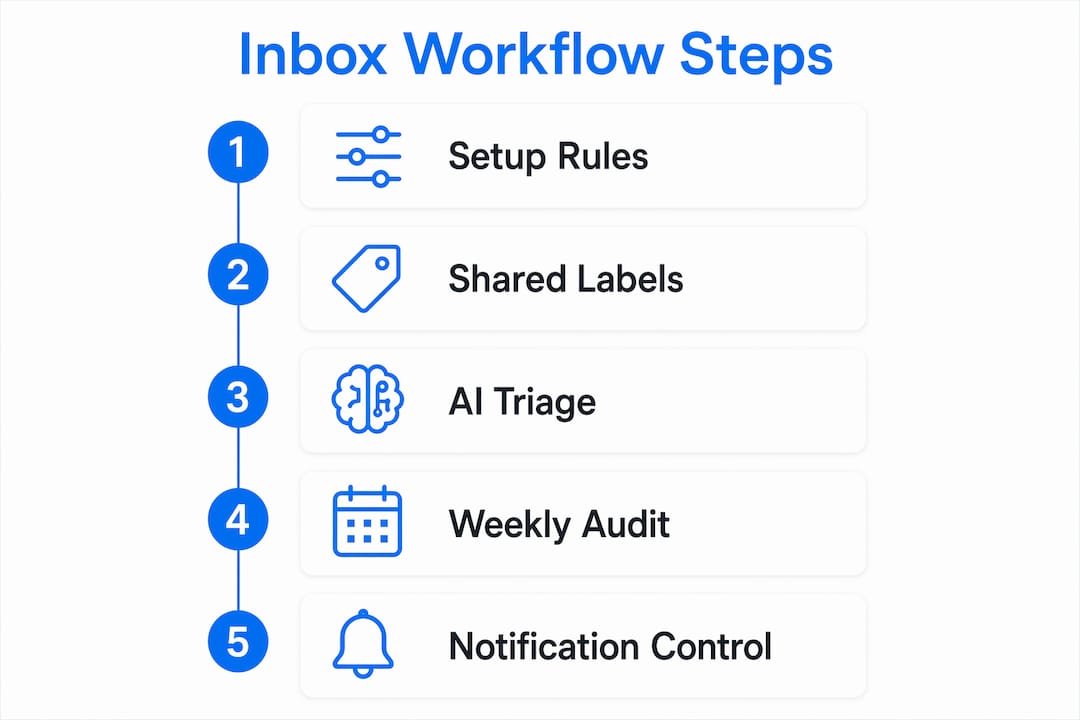
Pro Tip: Run a weekly 15-minute inbox audit with your team. Review what landed in the wrong folder and adjust your routing rules. Workflows need tuning, not just setup.
The teams that struggle with unified inboxes are usually the ones that set up the tool but never set up the rules. The inbox itself does not create order. The rules and habits around it do.
How does a unified inbox support work-life balance for remote professionals?
A unified inbox supports work-life balance by keeping work and personal communications visually and functionally separate. Account separation with clear sender markings helps remote professionals avoid the cognitive burden of switching mental contexts mid-conversation. Seeing a personal email from a family member sitting next to a client escalation in the same view creates unnecessary stress.
The features that protect boundaries most effectively include:
Color-coded account labels. Assigning a distinct color to each connected account makes the source of every message visible at a glance, without opening it.
Project-based folders. Grouping messages by client or project rather than by sender keeps work threads organized and prevents personal messages from mixing into active work queues.
Notification scheduling. Setting quiet hours for work email notifications means a remote worker’s personal evening is not interrupted by a non-urgent thread. Most unified inbox platforms support scheduled delivery or do-not-disturb windows.
Separate reply identities. Replying from the correct account address, even within a unified view, maintains professional boundaries and prevents accidental replies from a personal address.
The cognitive health benefit here is real. When remote workers know their personal messages are visually separated and will not trigger work notifications after hours, they disengage from work more fully at the end of the day. That recovery time directly affects next-day focus and output.
What are the practical steps for remote teams to implement a unified inbox?
Implementing a unified inbox works best as a structured process, not a one-day switch. Teams that rush the setup often end up with a cluttered interface that replicates the problem they were trying to solve.
Follow these steps in order:
Audit your current communication channels. List every platform your team uses: email accounts, chat tools, ticketing systems, and notification sources. Identify which ones generate the most noise and which ones carry the most critical messages.
Connect accounts and set up filtering rules. Start with email. Connect Gmail or Microsoft 365 accounts first, then add secondary channels. Build filtering rules immediately. Do not wait until the inbox fills up.
Create a “Machine” digest folder. Move all automated notifications there from day one. This single step keeps the primary inbox clean and focused.
Define AI access policies in writing. Before enabling any AI triage features, document which folders and message types the AI can process. Share that document with the team.
Integrate your task manager. Connect the inbox to whichever task tool your team already uses. Set a rule that flags or forwards actionable messages there automatically.
Train the team and set expectations. A shared inbox best practice session at launch prevents confusion and ensures everyone uses the system the same way.
Key Takeaways
A unified inbox reduces communication chaos for remote teams by consolidating channels, automating routing, and enforcing clear boundaries between work and personal messages.
Point | Details |
|---|---|
Centralize all channels | Pull email, chat, and notifications into one view to cut platform switching and improve team visibility. |
Define AI access boundaries | Set written policies on which data AI can process to stay compliant with HIPAA and GDPR. |
Route machine alerts to a digest | Auto-move system notifications out of the primary inbox to prevent alert fatigue and maintain focus. |
Separate work and personal accounts | Use color labels and notification scheduling to protect work-life boundaries within a unified interface. |
Connect a task manager | Route actionable emails to a dedicated task tool so the inbox stays a communication space, not a to-do list. |
What I’ve learned from watching teams get this wrong
Most remote teams adopt a unified inbox and immediately feel better. Then, three weeks later, the inbox is just as chaotic as before. The tool did not fail. The habits did.
The mistake I see most often is treating setup as a one-time event. Filtering rules go stale. New notification sources appear. Team members start using the inbox as a task list again because it is faster than switching to the task manager. Without a regular review, the system drifts back to noise.
The second mistake is underestimating privacy controls. Teams enable AI triage because it sounds efficient, then never define what the AI can access. That is not a minor oversight. A single AI-processed HR thread or client financial record can create a compliance problem that costs far more than the time the AI saved.
The teams I have seen get this right share one habit: they treat their inbox workflow as a living system. They schedule a short monthly review, adjust rules, and update their AI access policy when roles change. Leadership models the behavior by following the same rules as everyone else. That consistency is what makes the difference between a tool that helps and one that just adds another layer to manage.
A well-structured remote inbox is not a set-it-and-forget-it solution. It is a practice.
— Nick
Sendsync makes shared inbox management simple for remote teams
Remote teams that want a unified inbox without the setup headache have a direct option in Sendsync. The platform connects Gmail or Microsoft 365 mailboxes in minutes, with no DNS configuration required. Teams assign, reply, and manage conversations from a single shared view, with full visibility across every thread.

Sendsync offers unlimited users with no per-seat fees, which makes it practical for growing remote teams that cannot afford to pay per head. The platform is built for professional client inbox management, with clear delegation and conversation tracking built in. If your team is ready to cut email clutter and improve response times, Sendsync’s shared inbox is worth a look.
FAQ
What is the role of a unified inbox in remote work?
A unified inbox consolidates messages from email, chat, and other platforms into one interface, reducing platform switching and giving remote teams a single source of truth for all communications.
How does AI triage work in a unified inbox?
AI triage reads incoming messages and generates micro-summaries with suggested next steps, which team members confirm or adjust quickly. Teams must define which data the AI can access to stay compliant with standards like GDPR and HIPAA.
How do remote teams prevent alert fatigue with a unified inbox?
High-performing teams create automated rules that route machine-generated notifications to a digest folder, keeping the primary inbox reserved for messages that require a human response.
Can a unified inbox help with work-life balance?
Yes. Features like color-coded account labels, notification scheduling, and project-based folders keep work and personal messages visually separate, reducing cognitive load and protecting off-hours time.
What tools should integrate with a unified inbox?
A task manager is the most important integration. Routing actionable emails into a dedicated task system prevents the inbox from becoming a to-do list and keeps work organized across the full remote team.