
Visibility Across Remote Team Emails: 2026 Guide
Visibility Across Remote Team Emails: 2026 Guide ! Woman typing on laptop in home office Visibility across remote team emails is defined as shared, real-time insight into who owns which messages, who has replied, and what still needs attention.

Visibility across remote team emails is defined as shared, real-time insight into who owns which messages, who has replied, and what still needs attention. Without it, distributed teams duplicate work, miss client requests, and lose accountability fast. Tools like Google Workspace Collaborative Inbox, Gmail delegation, and Zapier-powered Slack digests each address this problem differently. The right approach depends on whether your team needs assignment-style workflows or simple read/send access. Getting this right cuts response times and builds the kind of transparency that keeps remote teams aligned.
What are the main tools for visibility across remote team emails?
Google Workspace provides two main approaches for shared email visibility: Collaborative Inbox via Google Groups and Gmail delegation. They solve different problems and should not be treated as interchangeable.
Google Groups Collaborative Inbox gives teams a shared queue where members can claim, assign, and mark emails as complete. The workflow lives at groups.google.com, not inside Gmail. That distinction matters because it requires team members to work in a separate interface. The upside is explicit ownership: every email has a clear assignee, and managers can see the full queue at a glance.

Gmail delegation works differently. It grants one or more team members access to a shared mailbox inside Gmail. There are no assignment features or completion statuses. It works well when a single person needs to send and read on behalf of an executive or shared address, but it does not support team-level collaboration.
Scheduled email digests via tools like Zapier fill a third gap. A 12-person agency using 9am weekday digests cut response time from 4 hours to under 45 minutes. Digests push unread email summaries to Slack or Microsoft Teams at set times, giving the whole team visibility without requiring everyone to monitor a shared inbox constantly.
Tool | Access method | Assignment support | Best for |
|---|---|---|---|
Google Groups Collaborative Inbox | Yes, claim/assign/complete | Team-owned shared queues | |
Gmail delegation | Gmail interface | No | Single-user proxy access |
Zapier email digests | Slack or Teams | No | Async visibility and alerts |
Gmelius | Inside Gmail | Yes, with collision detection | Advanced Gmail collaboration |
Pro Tip: Run parallel Zapier automations: one for daily digests and one for instant alerts on high-priority emails. You get both async and real-time visibility without flooding your team’s notifications.
How can remote team leaders set communication protocols to improve email visibility?
The right tools only work when the team agrees on how to use them. Without clear protocols, even a well-configured Collaborative Inbox becomes a source of confusion.
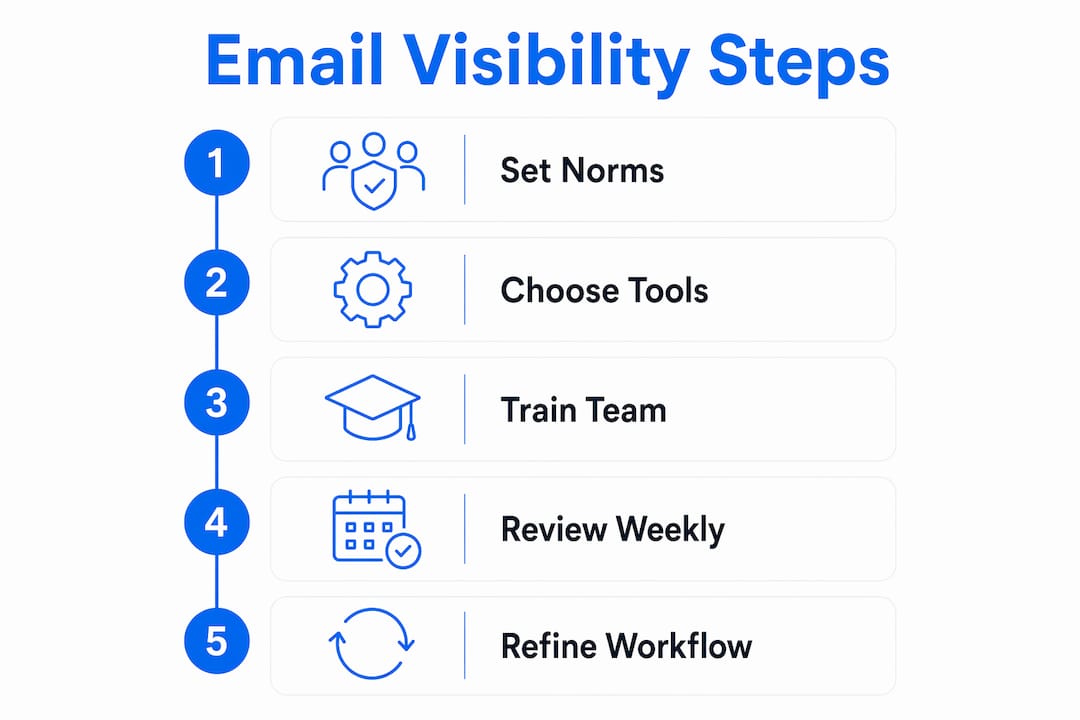
The most effective starting point is a 24-hour response SLA for non-urgent emails. Setting this expectation removes the anxiety of wondering whether a message has been seen. It also stops team members from treating every email as urgent, which is one of the most common sources of burnout in remote work.
Define channel purpose clearly:
Email handles async requests, client updates, and documentation that needs a paper trail.
Slack or Teams DMs handle quick questions that need a same-day answer.
Phone or video calls handle genuine emergencies or complex conversations that email cannot resolve.
When every team member knows which channel fits which situation, email stops being a catch-all. That clarity alone reduces the volume of messages that need visibility management.
Inbox anxiety is a real operational problem. Async communication best practices show that leaders who define default response windows reduce urgency misinterpretation across their teams. When people know a 24-hour window is normal, they stop reading silence as negligence.
Pro Tip: Run a 15-minute weekly check-in where the team reviews the shared inbox queue together. This surfaces stuck emails, redistributes load, and reinforces the habit of working the queue rather than ignoring it.
How to set up Google Workspace Collaborative Inbox step by step
Setting up a Collaborative Inbox takes less than 30 minutes if you follow the right sequence. The most common mistake is expecting it to behave like a Gmail inbox. It does not.
Create a Google Group. Go to groups.google.com and create a new group. Choose a clear name that reflects the inbox purpose, such as support@yourcompany.com.
Enable Collaborative Inbox features. Inside Group Settings, select “Collaborative Inbox” as the group type. This activates the take, assign, and mark-complete workflow options.
Set permissions. Decide who can post to the group (external senders, all members, or managers only), who can manage members, and who can assign conversations. Managers typically hold the assign permission.
Add team members. Invite each team member by email. Assign roles: Owner, Manager, or Member. Owners and Managers can assign conversations; Members can only claim them.
Configure notification settings. Each member should set their own notification preferences inside the group. Without this step, members often miss new emails entirely.
Train the team on the interface. Collaborative Inbox workflows happen inside groups.google.com, not Gmail. This is the single biggest source of adoption friction. Run a short walkthrough before going live.
Define your workflow. Agree on what “claimed” means versus “assigned.” Decide who handles emails that sit unclaimed for more than 24 hours.
Pro Tip: Pin a one-page workflow guide inside your team’s Slack channel or shared Google Doc. New hires and occasional users forget the groups.google.com interface quickly. A visual reference cuts onboarding time significantly.
The clearest operational pattern in Google Workspace is to use Collaborative Inbox for assignment and ownership, and reserve Gmail delegation only for cases where assignment-style collaboration is not needed. Mixing both approaches on the same address creates confusion about where to work.
What are the common pitfalls when managing email visibility across remote teams?
Most teams run into the same set of problems. Knowing them in advance saves significant rework.
Expecting Gmail-native behavior. Collaborative Inbox does not live inside Gmail. Teams that set it up and then wait for emails to appear in their Gmail inbox will miss everything. Clear training on where shared inbox workflows live is critical to operational success.
Losing thread context in Slack digests. Forwarding email summaries to Slack is useful for visibility, but it strips the original thread. Forwarding email visibility through external channels risks losing thread-level auditability. Tools that embed internal notes directly inside email threads, such as Gmelius, preserve context better than digest-only approaches.
Collision risk without assignment. When two team members reply to the same email without knowing the other is working on it, the client receives duplicate responses. Collision detection features solve this by showing live indicators when a teammate is already composing a reply. Without this, teams need strict claiming rules to avoid duplication.
No documentation of the process. Teams that skip written workflow documentation see adoption drop within weeks. New members default to individual inboxes because nobody told them otherwise.
Effective remote email visibility is less about surveillance and more about creating shared understanding and transparent workflows.
The fix for most of these pitfalls is the same: write down the workflow, train the team on the interface, and review the queue together regularly. Technology sets the stage, but habits keep it running.
Key Takeaways
Visibility across remote team emails requires the right tool choice, clear protocols, and consistent team habits working together.
Point | Details |
|---|---|
Choose the right tool | Use Google Groups Collaborative Inbox for assignment workflows; use Gmail delegation only for proxy access. |
Set response SLAs | A 24-hour response window for non-urgent emails reduces anxiety and urgency misinterpretation. |
Train on the interface | Collaborative Inbox lives at groups.google.com, not Gmail. Skipping this training kills adoption. |
Prevent collisions | Use assignment claiming or collision detection tools to stop duplicate replies before they reach clients. |
Combine async and real-time | Pair daily Slack digests with instant alerts for high-priority emails to balance visibility and overload. |
What I’ve learned about email visibility after years of watching remote teams struggle
Most managers I’ve seen approach this problem backwards. They pick a tool first and build habits around it later. That sequence almost always fails. The tool is the easy part. The hard part is getting a distributed team to agree on what “handled” means and where to do the work.
The teams that get email transparency right share one trait: their leaders set the norms before rolling out the technology. They define response windows, channel purposes, and ownership rules in writing. Then they introduce the tool as the mechanism for enforcing those norms, not as a replacement for them.
The other thing I’ve noticed is that visibility done well builds trust. When every team member can see the queue, nobody wonders whether their colleague is dropping the ball. That transparency reduces the low-grade suspicion that quietly damages remote team culture. It also makes it easier to redistribute load fairly, because the data is visible to everyone.
My honest recommendation: start with the simplest tool that fits your team’s size and workflow. A well-run Google Groups Collaborative Inbox beats a poorly adopted enterprise platform every time. Iterate based on what your team actually finds confusing, not based on feature lists. Solicit feedback after the first month and adjust. The teams that treat email visibility as a living process rather than a one-time setup are the ones that sustain it.
— Nick
How Sendsync makes email visibility simple for remote teams
Remote teams that outgrow Google Groups Collaborative Inbox or want a faster setup need a purpose-built solution. Sendsync is a shared inbox platform designed specifically for this. Teams connect their Gmail or Microsoft 365 mailbox in minutes, with no DNS configuration or lengthy onboarding required.
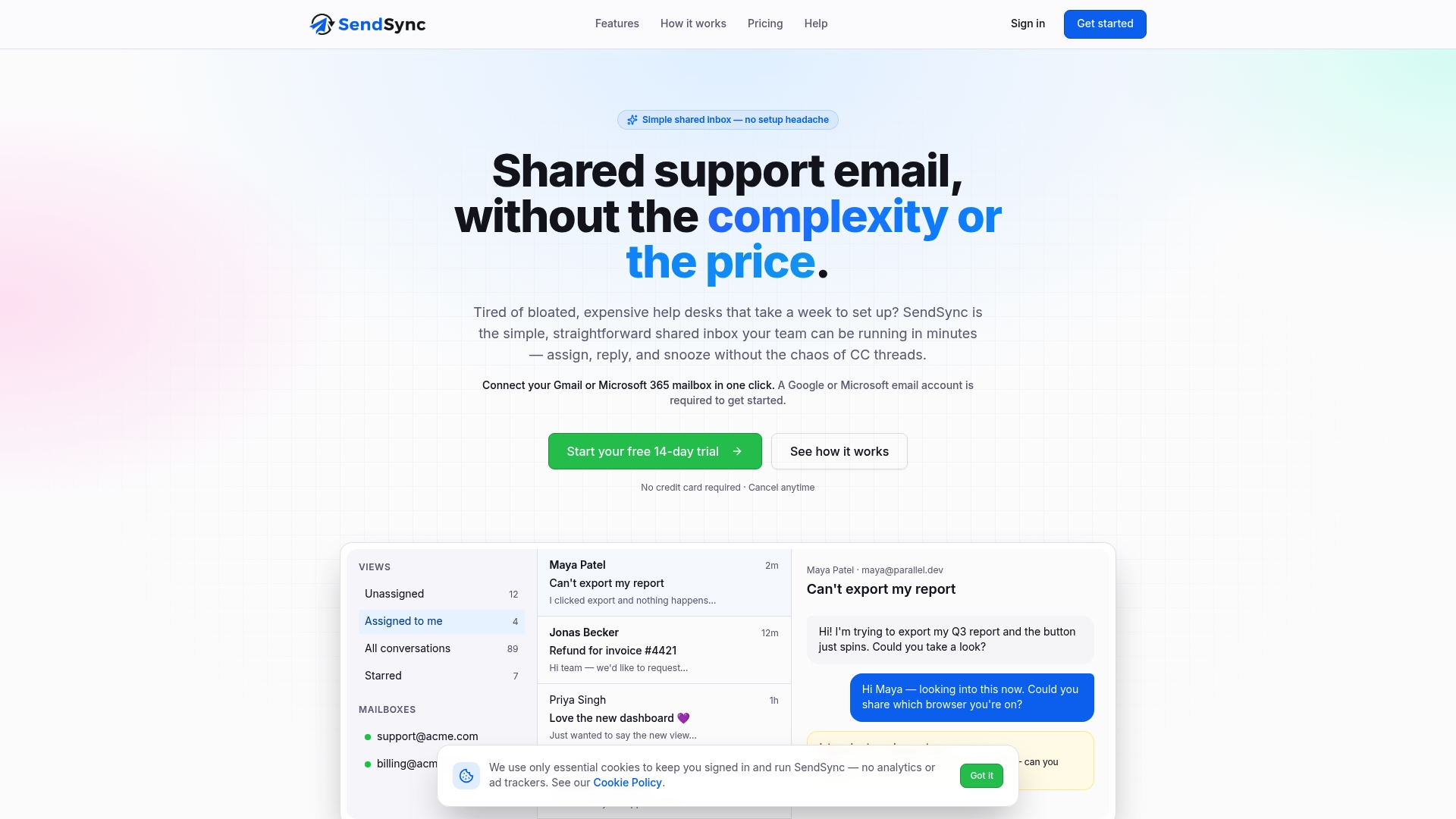
Sendsync gives every team member a clear view of the shared queue, with assignment, reply, and conversation management built into a single interface. There are no per-seat fees, which makes it practical for teams of any size. If your current email visibility setup feels held together with Zapier automations and manual processes, Sendsync is worth a close look.
FAQ
What does email visibility mean for remote teams?
Email visibility means every relevant team member can see which emails have arrived, who owns each one, and what the current status is. It replaces individual inboxes with a shared queue that creates accountability.
What is Google Groups Collaborative Inbox?
Google Groups Collaborative Inbox is a shared email queue inside groups.google.com where team members can claim, assign, and mark emails as complete. It is separate from Gmail and requires specific training for adoption.
How do Slack email digests improve remote team communication?
Scheduled email digests push summaries of unread emails to Slack or Microsoft Teams at set times. One agency using daily 9am digests cut average email response time from 4 hours to under 45 minutes.
What is the difference between Gmail delegation and a shared inbox?
Gmail delegation gives one person access to another person’s mailbox for read and send actions. A shared inbox like Google Groups Collaborative Inbox adds assignment workflows, ownership tracking, and completion statuses that delegation does not provide.
How do I prevent duplicate email replies in a shared inbox?
Use explicit claiming rules so only one person works an email at a time. Tools like Gmelius add collision detection that shows live indicators when a teammate is already composing a reply to the same thread.