
Status Update Inbox Feature: A Complete Team Guide
Status Update Inbox Feature: A Complete Team Guide ! Woman managing notifications on laptop in home office The status update inbox feature is a centralized digital interface that collects, organizes, and surfaces status-related messages and notifications in one place.

The status update inbox feature is a centralized digital interface that collects, organizes, and surfaces status-related messages and notifications in one place. Teams use it to track task progress, respond to mentions, and stay informed without checking multiple tools or threads. Whether you encounter it in a consumer messaging app or a project management platform, the core function is the same: reduce communication noise and surface what matters most. Understanding this feature gives teams a direct path to faster responses and fewer missed updates.
What is the status update inbox feature?
The status update inbox feature is best understood as a filtered, real-time feed of relevant notifications pulled from across your communication or project environment. In professional settings, the industry term for this concept is the “update feed” or “notification inbox,” and both phrases describe the same core function. The feature acts as a single destination where mentions, task assignments, and status changes land together, rather than scattering across separate channels.
The inbox feature explanation matters because without it, teams default to manual polling. Someone checks a board, then a thread, then an email, then a chat. That cycle wastes time and creates gaps. A status update inbox collapses that process into one view.

Teams using unified inboxes report more efficient task tracking and fewer missed communications. The efficiency gain is not just about convenience. It reflects a structural change in how information flows through a team.
How does the status update inbox work in consumer apps?
Consumer messaging apps offer the clearest example of status update inbox functionality in practice. WhatsApp integrates status updates directly into the main chat interface, showing up to 3 recent updates in a compact top tray. That design choice reduces navigation friction by keeping status content one tap away from active conversations.
The engagement numbers behind this design are significant. Users spend 32% of app time consuming status content, which prompted the interface redesign toward immediacy. That figure means status updates are not a secondary feature. They are a primary driver of how people use the app.
The ranking logic behind the inbox is also worth understanding:
Interaction frequency: Updates from contacts you message most appear first, not the most recent ones.
Algorithmic sorting: The feed customizes itself based on your behavior, not a timestamp.
Compact display: Only the most relevant updates surface in the top tray, keeping the interface clean.
Visual format: Status content uses a stories-style format, separate from text-based chat threads.
This approach differs from a simple chronological feed. WhatsApp ranks status updates by interaction frequency rather than time, which means the inbox actively prioritizes relevance over recency. That is a deliberate design choice with real consequences for how teams and individuals consume updates.
Pro Tip: If you notice certain contacts’ updates always appearing first, that reflects your own interaction history. To see updates from less-contacted people, you need to scroll past the algorithmic top tier.
How does the inbox feature support professional team collaboration?
In professional tools, the status update inbox serves a different but related purpose. Update inboxes in team platforms centralize assigned tasks, mentions, and notifications so teams can manage work without polling multiple boards. The result is a single feed that replaces the need to manually check every project or thread for changes.
The types of notifications that flow into a professional update inbox typically include:
Mentions: When a teammate tags you in a comment or task.
Assignments: When a task or ticket is assigned or reassigned to you.
Status changes: When a task moves from “In Progress” to “Done” or a ticket is escalated.
Deadline alerts: Triggered by date-based rules or workflow automations.
AI-driven filtering is now a standard part of this inbox feature overview in enterprise platforms. Tools that use AI assistants to triage routine queries focus human attention on complex tasks that require judgment. This reduces the volume of low-priority notifications that reach team members, which directly addresses the problem of notification fatigue.
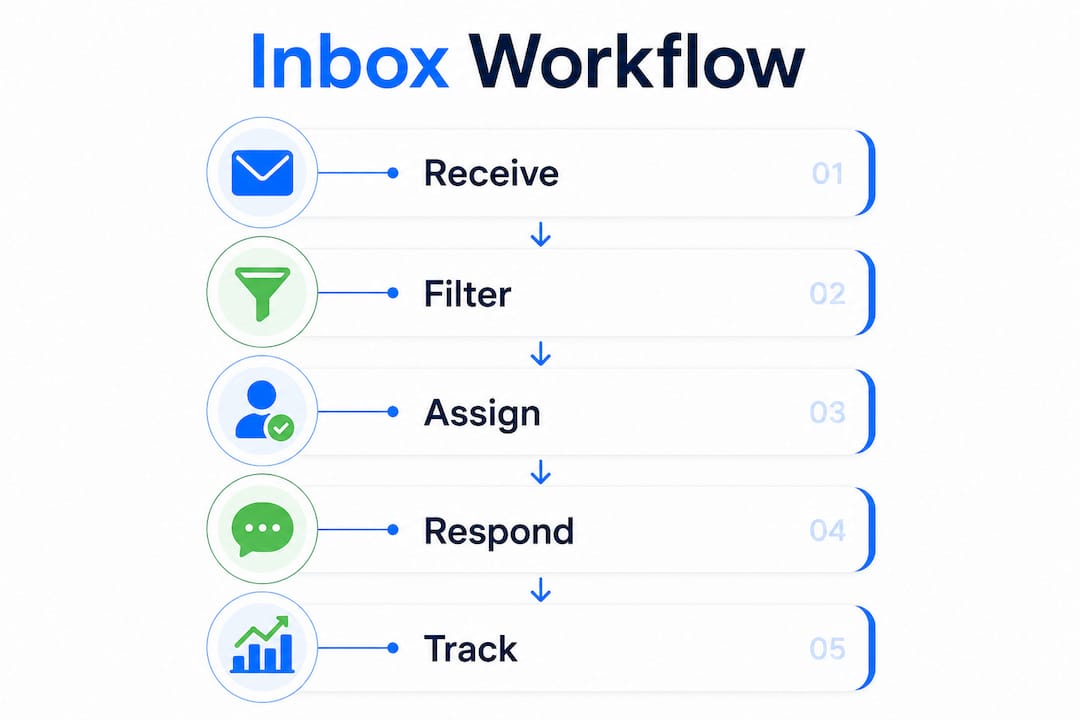
The shared inbox as an operational queue is a concept that separates high-performing teams from those that struggle with communication chaos. Teams that treat the inbox as a structured workflow, with clear assignment rules and response macros, outperform teams that use it as a general message dump. The inbox feature benefits teams most when it has defined ownership and clear triage logic.
Pro Tip: Assign every incoming update to a specific team member within a set time window. Unassigned items in a shared inbox are the leading cause of missed responses.
What are the technical nuances of managing a status update inbox?
The inbox is not a physical folder. It is a filtered view of a larger database, shaped by label architecture and sorting rules. Inbox views rely on label structures, which explains why messages sometimes skip the inbox or disappear without being deleted. Understanding this distinction prevents confusion when items seem to vanish.
“Archiving in professional shared inboxes often means removing labels rather than moving emails. This allows items to appear in multiple views simultaneously until an explicit status change occurs. Teams that misread this behavior often think items are resolved when they are simply unlabeled.”
Algorithmic ranking adds another layer of complexity. The feed does not show updates in the order they happened. It shows them in the order the system predicts you care about them. That is useful for relevance, but it creates a risk: urgent updates from infrequent contacts can get buried.
Status update delays are a separate but related challenge. A lag of 30 minutes or more between a real-world event and its official status update is common in some platforms. That lag reflects internal communication inefficiencies, not a UI limitation. Teams that treat status updates as exact real-time signals will sometimes act on outdated information.
The table below compares two common inbox management approaches:
Approach | Behavior | Best for |
|---|---|---|
Label-based filtering | Items appear or disappear based on tag rules | Teams with structured triage workflows |
Chronological feed | Updates display in time order, no ranking | Small teams with low update volume |
One more nuance: labeling an update as “major” or “minor” is often an editorial choice. Severity labels influence user perception rather than reflect a strict technical classification. Teams should read severity labels critically, not as objective facts.
How can teams use the status update inbox effectively?
Effective use of the inbox feature starts with integration into daily workflows, not just occasional check-ins. Remote teams benefit most from a unified update inbox because it replaces the informal visibility that comes from working in the same physical space.
Here are the core best practices for teams:
Set clear assignment rules. Every incoming update should have an owner within a defined time window. Ambiguity about ownership is the most common cause of missed responses.
Use filters and mute options. Not every notification needs to reach every team member. Filter by project, priority, or type to keep the inbox focused.
Review privacy and sharing settings. Status updates visible to the wrong audience create confusion or expose sensitive information. Audit permissions regularly.
Treat the inbox as a queue, not an archive. Items should move through the inbox toward resolution, not accumulate indefinitely.
Integrate with your existing tools. The inbox feature works best when it connects to the platforms your team already uses, such as Gmail or Microsoft 365.
Real-time inbox visibility reduces email overload and improves task tracking for support teams specifically. The inbox feature benefits extend beyond convenience. They translate directly into faster response times and fewer dropped conversations.
For specialized workflows, the stakes can be even higher. An inbox update can trigger an 87-day response window in processes like USCIS Request for Evidence cases, where timely responses directly affect outcomes. That example illustrates why treating the inbox as a passive notification center is a mistake. It is an active workflow tool.
Key Takeaways
The status update inbox feature is most effective when teams treat it as a structured operational queue with clear ownership, filtering rules, and real-time visibility across all active workflows.
Point | Details |
|---|---|
Centralized notification hub | The inbox collects mentions, assignments, and status changes in one filtered view. |
Algorithmic ranking over chronology | Updates surface by relevance, not time, so urgent items from infrequent contacts can get buried. |
Labels control visibility | Inbox views depend on label architecture, not physical folders, which affects when items appear or disappear. |
Status delays are process signals | A lag between real events and status updates reflects internal communication gaps, not UI failures. |
Treat it as a queue | Teams that assign ownership and use triage rules get the most value from shared inbox features. |
Why the inbox feature is more powerful than most teams realize
Most teams set up a status update inbox and immediately start using it like a passive notification tray. That is the wrong mental model. The inbox is an active workflow surface, and the teams that treat it that way see a measurable difference in response quality and coordination speed.
The shift toward algorithmic ranking in consumer apps like WhatsApp is a preview of where professional tools are heading. Relevance-based sorting will become the default in team platforms, not just messaging apps. That means teams need to understand how their inbox ranks updates, not just that it does.
The detail that surprises most people is the label architecture point. Teams assume that when an item disappears from the inbox, it is resolved. Often, it just lost a label. That misread leads to real operational failures, especially in support workflows where every dropped conversation has a cost.
The future of this feature points toward tighter AI filtering and more granular control over what surfaces and when. The teams that will benefit most are those that have already built clear assignment rules and triage habits. The tool gets smarter, but only if the workflow behind it is already structured.
The professional client inbox concept is evolving fast. Teams that invest in understanding the mechanics now will be better positioned to use the next generation of inbox features effectively.
— Nick
How Sendsync brings the status update inbox to life for teams
Sendsync is a shared inbox built for support teams that need real-time visibility without the setup overhead of traditional help desks.

Sendsync connects directly to Gmail or Microsoft 365, giving teams a centralized feed of conversations, assignments, and status changes from day one. There are no per-seat fees and no DNS configuration required. Teams can assign, reply, and track every conversation in a single view, which is exactly what a well-designed status update inbox should deliver. If your team is ready to put the concepts in this article into practice, Sendsync’s shared inbox is built to make that transition fast and straightforward.
FAQ
What is a status update inbox feature?
A status update inbox feature is a centralized feed that collects notifications, mentions, and status changes from across a platform into one filtered view. It replaces manual polling across multiple boards or threads.
How does algorithmic ranking affect the inbox?
Algorithmic ranking surfaces updates from your most frequently contacted people first, not the most recent ones. This improves relevance but can bury urgent updates from less-frequent contacts.
Why do items sometimes disappear from the inbox?
Items disappear when their labels are removed, not because they are deleted or resolved. Inbox views are filtered database perspectives, so label changes directly control what appears.
How can teams avoid notification overload in a shared inbox?
Teams should use filters, mute low-priority update types, and assign clear ownership rules so every item has a responsible team member and a path to resolution.
Are status update severity labels accurate?
Severity labels like “major” or “minor” are often editorial choices designed to manage user perception rather than precise technical classifications. Teams should verify the actual impact independently.