
What Is a Virtual Team Inbox? A 2026 Guide
What Is a Virtual Team Inbox? A 2026 Guide !

A virtual team inbox is defined as a collaborative shared email workspace where multiple team members manage, assign, and track messages from a single address. Unlike a standard distribution list, which scatters replies across individual inboxes and creates fragmented workflows, a team inbox enforces clear ownership, status tracking, and accountability. The industry term for this category is “shared inbox software,” and the two phrases are used interchangeably throughout this guide. Core features include assignment tracking, internal comments, collision detection, and message status labels. These capabilities make a virtual team inbox the foundation of any serious remote team communication solution.
What is a virtual team inbox and how does it differ from a shared mailbox?
A virtual team inbox is a purpose-built collaborative workspace that allows multiple users to manage a shared email address with features like assignment tracking, internal comments, and collision detection. A standard shared mailbox, by contrast, gives everyone access to one email address but provides zero workflow, accountability, or measurement features. That gap is the core problem teams run into when they outgrow a basic setup.
Shared mailboxes provide access to a single email address but lack workflow and accountability features that team inboxes provide. When five people can all see the same email but no one owns it, messages get ignored or answered twice. A virtual team inbox solves this by adding assignment, internal notes, collision detection, and analytics on top of the shared address.

The distinction matters for remote teams especially. A distribution list sends a copy of each email to every member’s personal inbox. That causes fragmented workflows where replies go out from different addresses, context gets lost, and no one can see the full conversation history. A dedicated shared inbox keeps everything in one place, visible to the whole team.
How does a virtual team inbox improve team communication and workflow?
Dedicated team inbox software reduces duplicate responses and missed messages to near zero. Unmanaged inboxes provide 0% visibility of ownership or status, while team inboxes assign ownership and track message status for 100% accountability. That is not a minor improvement. It is the difference between a support team that loses customer emails and one that closes every ticket.
The operational gains come from three specific mechanisms:
Ownership assignment. Each incoming message gets assigned to one team member. Everyone else can see who owns it, so no one else jumps in unnecessarily.
Status tracking. Messages move through states like open, pending, and closed. Teams can filter by status and spot bottlenecks before they become problems.
Collision detection. When two agents open the same email, the system alerts both. This prevents duplicate replies, which damage customer trust and waste time.
Internal comments. Team members can leave notes on a conversation without sending an external reply. This replaces the messy practice of forwarding emails with commentary attached.
Pro Tip: Set a team rule that every new message gets assigned within 15 minutes of arrival. Unassigned messages are the single biggest cause of missed responses in shared inboxes.
The contrast with unmanaged setups is stark. A team using a plain shared mailbox has no way to know if a message has been answered, who is working on it, or how long it has been sitting there. A virtual team inbox makes all of that visible at a glance, which is why visibility in your team inbox directly correlates with faster response times.
What are the key features of virtual team inbox software?
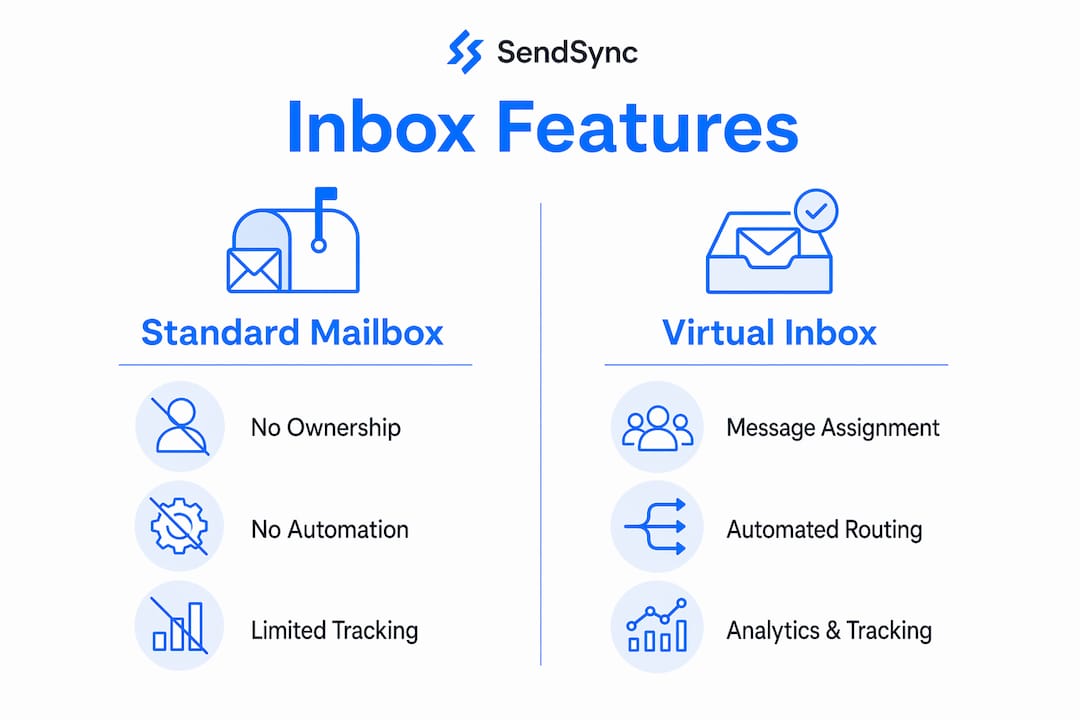
A virtual team inbox delivers features that a plain shared mailbox simply cannot replicate. The table below compares the two approaches across the dimensions that matter most for team workflows.
Feature | Standard shared mailbox | Virtual team inbox |
|---|---|---|
Message ownership | None | Assigned per conversation |
Status tracking | None | Open, pending, closed labels |
Collision detection | None | Real-time alerts |
Internal comments | None | Threaded notes per conversation |
Automation rules | None | Routing, tagging, auto-assignment |
Analytics | None | Response time, volume, agent metrics |
Each feature category addresses a specific failure mode in team communication. Assignment and ownership eliminate the “someone else will handle it” problem. Message assignment and internal notes also eliminate the need to forward emails with commentary, which is one of the most common sources of context loss in support teams.
Automation rules deserve special attention. Well-configured routing rules can automatically assign emails from a specific client to the right team member, tag messages by topic, or escalate unanswered threads after a set time. This reduces manual triage work significantly. Teams that configure automation early spend far less time sorting their inbox and more time actually responding.
Analytics close the loop. Without data on response times, message volume, and agent workload, managers have no way to spot problems or justify staffing decisions. A virtual team inbox surfaces these metrics automatically, turning a communication tool into a management resource.
How to set up a virtual team inbox effectively
Setting up a virtual team inbox follows a consistent pattern regardless of which platform you choose. Basic setup using Google Groups Collaborative Inbox takes about 5 minutes, but feature-rich platforms require connecting email accounts, configuring permissions, and building automation rules.
Follow these steps to get a team inbox running correctly from day one:
Connect your existing email account. Most platforms support Gmail or Microsoft 365. Connecting an existing address avoids the need to migrate contacts or change your public email.
Enable conversation history. In Google Groups, skipping the ‘Conversation History’ toggle disables ownership and resolution features entirely. This single setting is the most commonly missed step in setup.
Configure role-based permissions. Decide who can assign messages, who can close conversations, and who has admin access. Overly broad permissions create confusion; overly narrow ones create bottlenecks.
Build your first automation rules. Start with simple routing: assign emails from known client domains to specific team members, and tag messages by keyword.
Train your team on status discipline. A team inbox only works if everyone updates message status consistently. Run a 30-minute walkthrough before going live.
Review your first week of analytics. Check response times and unassigned message counts. Adjust automation rules based on what you find.
For Microsoft 365 users, one technical detail catches teams off guard. Shared mailbox automapping in Microsoft 365 only works with individual user objects, not security groups. If you grant access via a group, team members may not see the shared mailbox automatically in Outlook and will need manual configuration.
Pro Tip: Before going live, send 10 test emails and have each team member practice assigning, commenting on, and closing a conversation. Catching workflow gaps in a test run is far cheaper than discovering them during a customer escalation.
What are the practical benefits of a virtual inbox for remote teams?
Remote and hybrid teams face a specific set of communication problems that a virtual inbox for remote teams is built to solve. Time zone gaps mean messages sit unanswered for hours. Distributed workloads mean no one knows who is handling what. A shared inbox with proper workflow features addresses both directly.
The practical benefits break down as follows:
Improved visibility. Every team member can see the full queue, who owns each message, and what the current status is. This matters especially when team members hand off work across time zones.
Faster response times. Ownership assignment and status tracking eliminate the delay caused by team members waiting to see if someone else will respond first.
Reduced message loss. Centralizing messages from diverse sources including email, WhatsApp, and social media into one dashboard reduces the chance that a message falls through the cracks.
Workload distribution. Managers can see at a glance which team members are overloaded and reassign conversations in real time.
Scalability. A well-configured team inbox grows with the team. Adding a new member means granting access and setting permissions, not rebuilding a workflow from scratch.
The multi-channel integration point is worth expanding. A virtual team inbox that pulls in messages from email, WhatsApp, and social media gives teams a single place to manage all customer communication. Without that centralization, agents switch between platforms constantly, which increases the chance of a missed follow-up. Teams handling multiple clients in a single inbox report fewer dropped conversations and faster resolution times as a direct result.
For growing organizations, the scalability advantage compounds over time. A team that builds good inbox workflows early can double in size without rebuilding its communication system. That is a meaningful operational advantage for any team planning to grow.
Key Takeaways
A virtual team inbox is the most direct fix for the accountability and visibility gaps that break remote team communication.
Point | Details |
|---|---|
Definition clarity | A virtual team inbox adds assignment, tracking, and collaboration features on top of a shared email address. |
Accountability gap | Unmanaged shared mailboxes provide zero visibility of ownership; team inboxes assign and track every message. |
Setup precision | Enabling conversation history in Google Groups and configuring automapping in Microsoft 365 are the two most commonly missed setup steps. |
Remote team fit | Centralized multi-channel inboxes reduce message loss and improve workload visibility across time zones. |
Scalability | A properly configured team inbox grows with the team without requiring a workflow rebuild. |
Why most teams underuse their shared inbox
Most teams set up a shared inbox and then use it like a slightly better distribution list. They share access, skip the automation rules, and never touch the analytics. The result is a tool that costs money but delivers maybe 20% of its potential value.
The real leverage in a virtual team inbox comes from ownership discipline. Every message needs an owner within minutes of arrival. Not “someone will get to it,” but a specific person with their name on it. I have seen teams cut their average response time in half just by enforcing that one rule, without changing any other part of their workflow.
The second overlooked area is internal comments. Most teams still forward emails to discuss them, which creates parallel threads, loses context, and makes it impossible to see the full conversation history. Internal notes keep all context attached to the original message. That sounds minor until you are onboarding a new team member and they can read the full history of a client relationship in one place.
The technical setup details matter more than most teams realize. Skipping the conversation history toggle in Google Groups or misconfiguring automapping in Microsoft 365 does not just cause minor inconvenience. It disables the core features that make a team inbox worth using. Get the setup right before you train anyone on the tool.
The teams that get the most out of shared inbox software are the ones that treat it as a workflow system, not just an email address. The technology is straightforward. The discipline is the hard part.
— Nick
How Sendsync makes shared inbox setup fast and affordable
Teams that want a virtual team inbox without a lengthy configuration process have a direct option in Sendsync. Sendsync connects to Gmail or Microsoft 365 in minutes, with no DNS changes required and no per-seat fees that inflate costs as the team grows.

Sendsync gives teams assignment tracking, internal notes, and collision detection out of the box. The platform is built for support teams that need shared inbox features without the overhead of a full help desk. Unlimited users on competitive plans means the cost stays flat even as the team scales. If your team is still managing customer email from a plain shared mailbox or a distribution list, Sendsync is a direct upgrade worth exploring.
FAQ
What is a virtual team inbox?
A virtual team inbox is a collaborative shared email workspace where multiple team members assign, track, and manage messages from a single address. It adds features like ownership assignment, status tracking, and collision detection that standard shared mailboxes do not provide.
How is a team inbox different from a shared mailbox?
A shared mailbox gives multiple users access to one email address but lacks workflow and accountability features. A team inbox adds assignment, internal notes, collision detection, and analytics on top of that shared access.
What are the main benefits of a virtual team inbox for remote teams?
The main benefits include improved message visibility, faster response times, reduced message loss, and workload distribution across team members. Multi-channel integration also centralizes email, WhatsApp, and social media messages in one place.
How long does it take to set up a team inbox?
Basic setup using Google Groups Collaborative Inbox takes about 5 minutes. Feature-rich platforms that require connecting email accounts, configuring permissions, and building automation rules take longer but deliver significantly more capability.
What is the most common setup mistake with team inboxes?
In Google Groups, failing to enable the Conversation History toggle disables ownership and resolution features entirely. In Microsoft 365, granting shared mailbox access via a security group instead of individual accounts breaks automapping for Outlook users.