
What Presence Indicators Mean and How They Actually Work
What Presence Indicators Mean and How They Actually Work ! Hand adjusting physical presence status token Presence indicators are near-real-time availability signals built from app activity, calendar state, call status, and device sessions, not a record of how hard someone is work
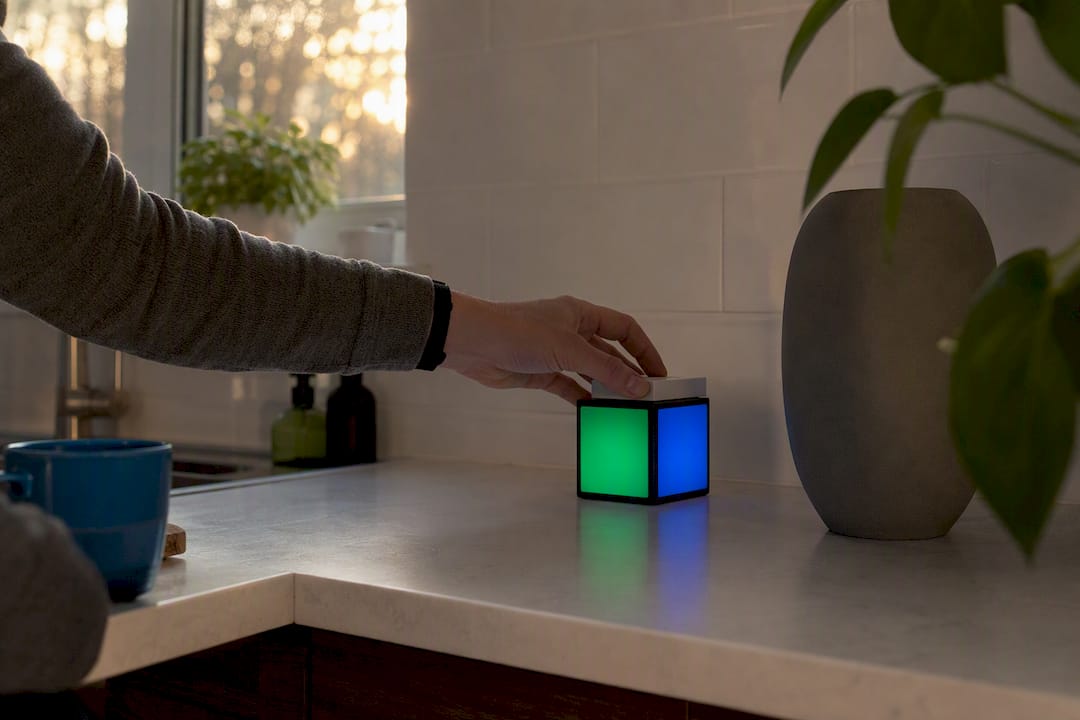
Presence indicators are near-real-time availability signals built from app activity, calendar state, call status, and device sessions, not a record of how hard someone is working. In Microsoft Teams, that little colored dot updates automatically as you type, join a call, or lock your screen, and it can also be overridden manually. Here’s how presence indicators work in team tools, and what they can’t tell you.
- What presence reliably shows: whether someone’s device is active, in a meeting, or has set a status on purpose.
- What it can’t show: whether someone is actually focused, reading your message, or free to talk right now.
Key Takeaways
Presence indicators combine app activity, calendar state, and device signals into a fast but imperfect availability snapshot that teams should treat as context, not confirmation.
| Point | Details |
|---|---|
| Presence blends multiple signals | App focus, heartbeats, calendar events, and call state all feed into one status. |
| Automatic timers cause false Away | Teams flips to Away after about five minutes of no input in its own window. |
| Manual states override automation | Do Not Disturb and Appear Offline stick until you change them or their timer expires. |
| Visibility defaults to org-wide | Presence is visible across the organization by default unless an admin enables privacy mode. |
| Shared workflows beat status-chasing | Sendsync’s shared inbox gives customer conversations a clear owner instead of relying on who looks available. |
Table of Contents
- How Team Tools Detect and Calculate Presence
- What Do the Different Presence States Mean?
- How Manual Status, DND, and Calendar Integration Work
- Who Can See Your Presence Status, and What Can Admins Control?
- Best Practices for Reading Presence Without Creating Pressure
- Why Does Presence Show the Wrong Status Sometimes?
- What Does the Research Say About Using Presence Well?
- Why Presence Should Never Replace a Real Workflow
- Cut the Ping Pressure With a Shared Inbox
- Frequently Asked Questions
- Sources
How Team Tools Detect and Calculate Presence
Presence isn’t one signal, it’s several stitched together. Microsoft Teams pulls from app window focus and keyboard or mouse input, periodic client heartbeats sent over the network, Outlook calendar events, active call or meeting state, and OS-level signals like a locked screen or a backgrounded mobile app.
The system aggregates all of that per person, often weighting whichever device was most recently active. Most platforms, Teams included, also run on fixed timers: after roughly five minutes with no input inside the Teams window, status commonly flips to Away, even if you’re deep in a spreadsheet in another app.
If you’re active in Excel or a browser but haven’t touched Teams in five minutes, you’ll show as Away. Your teammates read that as “gone,” when you’re actually just working somewhere else.
- Signed in on both a laptop and a phone? The system usually shows whichever device is more active.
- Locked your screen for a coffee break? That OS-level signal typically overrides everything else and pushes you to Away almost immediately.
What Do the Different Presence States Mean?
Presence states run on a rough scale from most to least available, and knowing which ones are automatic versus manual changes how you should react to each one.
- Available (green check): actively using the app, automatic. Fine for a quick ask.
- Busy (red dash): manually set, or auto-set by an active call. Send a message, don’t call.
- In a meeting (red icon): auto-set from a calendar event. Assume delayed response.
- Do not disturb: manually set, notifications suppressed. Leave a note, don’t expect a reply soon.
- Away (yellow icon with clock): automatic, no input for several minutes. Message and wait.
- Offline: signed out or no active session. Use email or a shared inbox instead.
- Appear offline: manually set to look signed out while still logged in. Treat like offline, respect the signal.
Calendar events and screen sharing both override the automatic activity timer, which is why someone can look “available” one minute and jump straight to “in a meeting” the next without touching their status manually.
How Manual Status, DND, and Calendar Integration Work
You control your own status on top of whatever Teams calculates automatically. Setting a manual status is quick, and it’s worth knowing exactly what each option does before you rely on it.
- Click your profile picture and pick a status from the list, or write a custom status message with an expiration time.
- Choose Do Not Disturb to mute notifications entirely, except for anyone you’ve added to your priority access list.
- Set a duration (30 minutes, until a certain time, or until you change it) so the status doesn’t stick around after you’ve moved on.
- Check your calendar settings, since Outlook events sync automatically and will override a manual “Available” the moment a meeting starts.
Screen sharing or presenting in a call typically triggers a distinct “Presenting” state that suppresses pop-up notifications so they don’t show up on shared screens.
Pro Tip: Add your manager and two or three close collaborators to priority access before you turn on Do Not Disturb for focus time. That way urgent pings still reach you, but the constant stream of pings doesn’t.
Who Can See Your Presence Status, and What Can Admins Control?
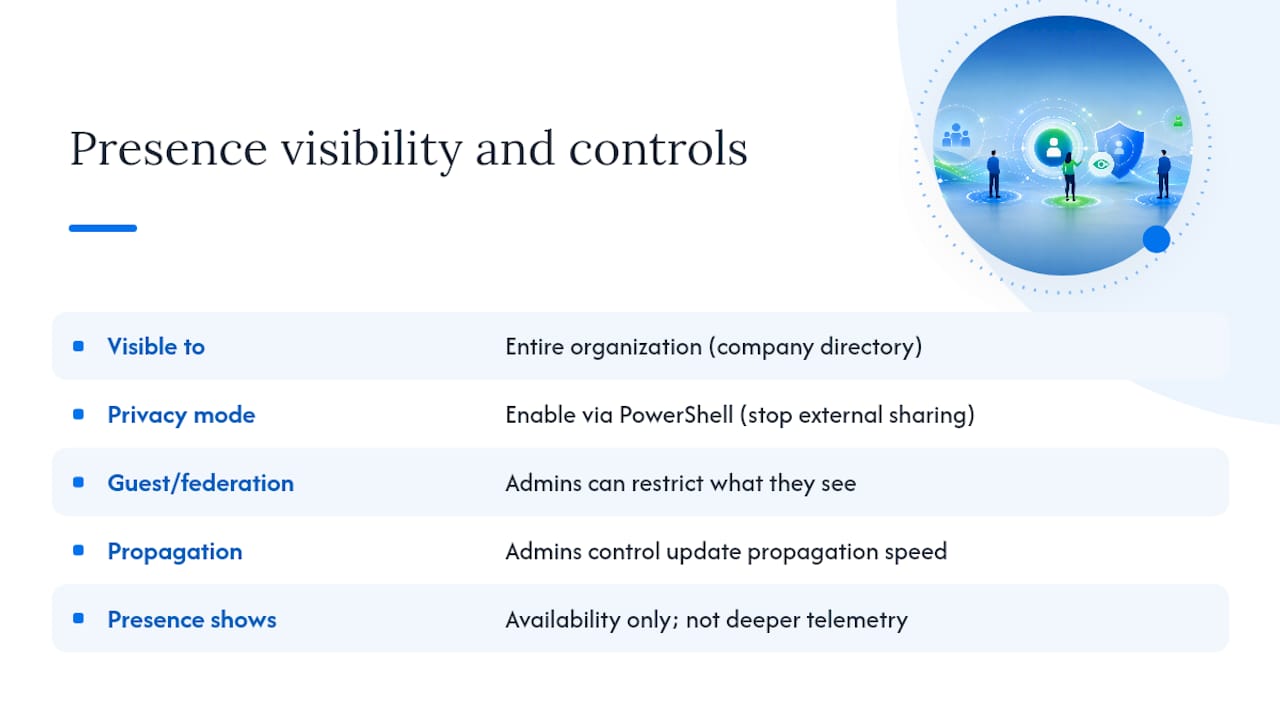
By default, your presence is visible across your entire organization in near real time, not just to your immediate team. That includes anyone in the company directory, which surprises a lot of people the first time a stranger from another department messages them because they showed as Available.
Admins have real levers here, including advanced team roles and permission features that control visibility and access. They can enable privacy mode through PowerShell to stop presence from being shared with external tenants, restrict what federated or guest users can see, and control how quickly status changes propagate across the organization.
Presence and privacy mode settings live at the tenant level, meaning individual employees generally can’t turn off org-wide visibility themselves. That’s an admin decision, not a personal one.
For employees, the practical distinction matters: presence shows availability, not deeper telemetry like keystrokes, app usage duration, or which documents you opened. If your organization wants that level of tracking, it comes from separate monitoring software, not the presence dot. For a closer look at what colleagues and employers can and can’t see by default, see this guide on email and status visibility across remote teams.
Best Practices for Reading Presence Without Creating Pressure
Presence indicators work best as a light signal, not a leash. Teams that treat the green dot as a productivity tracker end up with people leaving their laptops open just to look available, which helps no one.
- Use presence for low-stakes, quick questions. Use direct messages or a shared inbox for anything that needs tracking.
- Treat Away or Offline as “message and move on,” not “message repeatedly.”
- Set status messages with expected response windows: “Heads down until 2pm” beats a plain Do Not Disturb with no context.
- Schedule recurring focus blocks on your calendar so Busy shows up automatically instead of relying on manual toggles you’ll forget to turn off.
A simple team rule that works well in practice: use DND during deep work blocks, use status messages to set expectations, and route anything customer-facing or time-sensitive through a shared inbox instead of a DM. Distributed teams that adopt something like this see fewer “are you there?” messages and less pressure to look perpetually online.
Pro Tip: Pair calendar focus blocks with Do Not Disturb and a shared inbox for support requests. It takes the burden off any one person’s presence dot and puts ownership on the workflow instead.
Why Does Presence Show the Wrong Status Sometimes?
Presence breaks in predictable ways. A background browser tab, a missed heartbeat ping, a locked screen, or a shaky network connection can all leave your status stuck on something inaccurate for minutes at a time.
Presence systems generally rely on periodic heartbeat signals and last-seen timestamps, and a short grace period exists specifically so a brief network drop doesn’t instantly flag you offline. That grace period is a feature, not a bug, but it also means status can lag reality by a minute or two.
| Symptom | Likely cause | Quick fix |
|---|---|---|
| Stuck on Away | Missed heartbeat or inactive window | Click into the Teams app to refresh |
| Online but not responding | Notifications muted or DND active | Check status before assuming they’re ignoring you |
| Appears offline despite being logged in | Manually set, or a network drop | Wait a minute, then try a direct message |
| Status not updating across devices | Multiple sessions competing for “most active” | Sign out of unused devices or sessions |
What Does the Research Say About Using Presence Well?
Presence data is a contextual signal, not proof of effort or output. Manual statuses, privacy modes, and priority access all exist because heavy reliance on presence tends to feel like monitoring rather than coordination.
Managers get better results focusing on outcomes and deliverables, publishing clear team availability norms, and routing customer-facing or time-sensitive work through a shared inbox rather than chasing a colored dot.
Why Presence Should Never Replace a Real Workflow
Sendsync builds around the idea that customer conversations shouldn’t depend on who happens to look available. Shared inboxes give teams clear ownership of every message, so nobody’s checking a colleague’s status dot to figure out who’s handling a reply. Presence tells you who’s around; it was never meant to tell you who owns what. For support and client-facing teams especially, that distinction is the difference between fast, predictable responses and a lot of unnecessary pinging.

Cut the Ping Pressure With a Shared Inbox
There are other ways to manage team communication load: stricter DND policies, more calendar blocking, tighter presence rules. Those help, but they still put the burden on individuals to manage interruptions in real time. Sendsync takes a different approach for customer-facing work: instead of routing requests to whoever looks Available, a shared inbox gives every conversation a clear owner from the start.

That means fewer “are you free?” messages and fewer replies that fall through the cracks because someone’s status happened to say Away. Teams connect their Gmail or Microsoft 365 mailbox in minutes, no DNS setup required, and everyone works from the same view of open conversations instead of guessing who’s around. If you’re tired of coordinating support work around a colored dot, try Sendsync and see how a shared inbox changes the way your team responds.
Frequently Asked Questions
How long before Teams shows me as Away? Teams typically switches to Away after about five minutes of no activity inside its window, even if you’re actively working in another application.
Can my employer see more than my presence status? Not through presence alone. Presence shows availability, not keystrokes or app usage. Deeper monitoring requires separate software, not the standard presence feature.
Does presenting in a meeting change my status automatically? Yes. Screen sharing or presenting typically triggers a distinct status that suppresses notifications so they don’t appear on a shared screen.
Why does my status show Offline when I’m logged in? This usually means you’ve manually set Appear Offline, or a missed heartbeat and brief network drop is causing a delay before your real status catches up.
Should teams rely on presence to judge who’s working? No. Presence is a contextual signal for coordination, not a productivity measurement, and treating it that way tends to create pressure to look constantly online rather than actually be productive.
Sources
- Presence and presence admin settings in Microsoft Teams
- Microsoft Teams Presence: The Complete Guide (2026)
- Teams features by platform