
How Email Mentions Work in Team Tools: 2026 Guide
How Email Mentions Work in Team Tools: 2026 Guide ! Woman typing email with mentions at home office Email mentions are a feature in team collaboration tools that let users tag colleagues directly in messages or comments using the "@" symbol, triggering a targeted notification tha

Email mentions are a feature in team collaboration tools that let users tag colleagues directly in messages or comments using the “@” symbol, triggering a targeted notification that draws attention to specific updates or action items. Understanding how email mentions work in team tools is the difference between a focused, responsive team and one drowning in notification noise. Platforms like Microsoft Teams, Outlook integrations, and project tools like Linear all support mentions, but each handles notification delivery differently. This guide breaks down the mechanics, compares mention types, and gives team leaders a practical framework for using mentions without creating chaos.
How email mentions work in team tools like Microsoft Teams
An @mention in Microsoft Teams tags an individual, a channel, or a custom group to send a targeted notification that highlights the message and improves responsiveness. The tagged person sees the message flagged in their activity feed, and depending on their settings, receives a push notification, an email alert, or both. This is the core mechanic: the “@” symbol acts as a routing signal, not just a visual cue.

The notification delivery logic varies by platform. In Microsoft Teams, a mention in a channel post sends an alert only to the tagged person, not the entire channel. That distinction matters enormously for teams managing dozens of active threads at once.
Here is how the tagging workflow breaks down in Microsoft Teams:
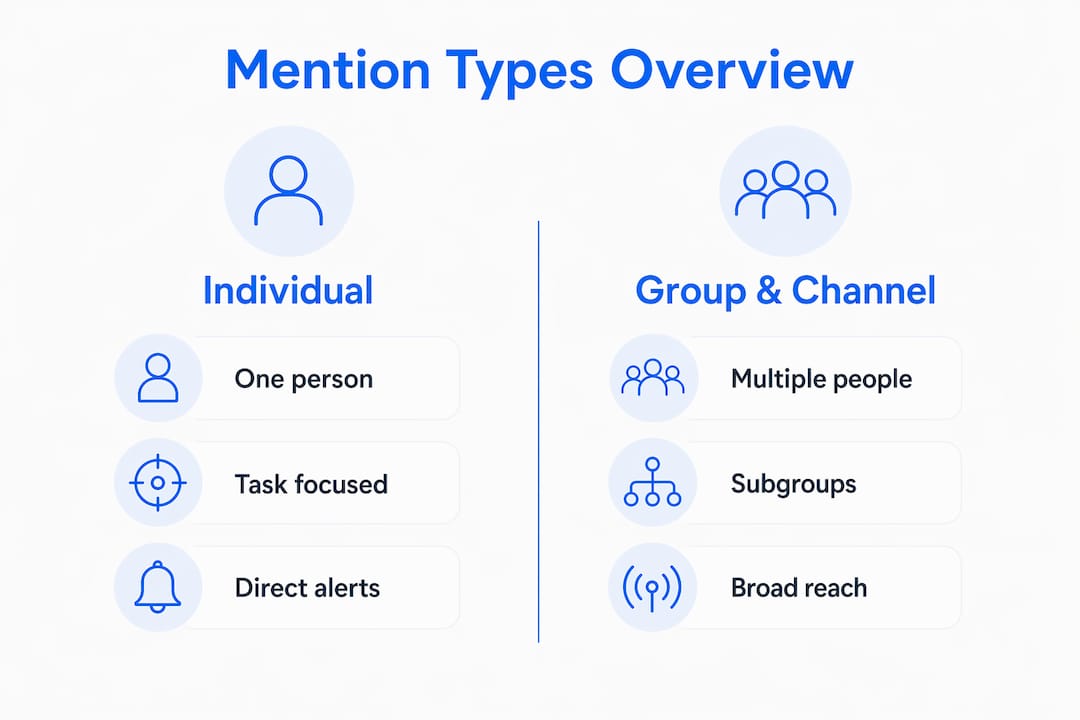
Individual @mention: Tags one person. Only that person receives the notification. Best for direct questions or task assignments.
@channel or @team: Notifies every member of the channel or team. Use sparingly. This is the digital equivalent of calling an all-hands meeting.
Custom tags: Tags a defined subgroup, such as “on-call engineers” or “design leads.” Delivers alerts only to that subset, balancing notification reach without broadcasting to everyone.
In shared inbox tools, @mentions serve a different but equally powerful function. Internal comments with @mentions create invisible sub-threads for team collaboration, protecting customer privacy and keeping side conversations out of the customer-facing thread. Your team can debate the right response without the customer seeing a word of it.
Pro Tip: Set up custom tags in Microsoft Teams before your team grows past 10 people. Once you have 20+ members, retroactively organizing subgroups becomes a significant time investment.
How smart notification systems reduce mention overload
Notification fatigue is the real enemy of effective team communication. Viva Engage addresses this directly with smart notification delivery that selects a single preferred channel for sending at-mention alerts based on a user’s recent engagement history. The system does not blast every available channel simultaneously.
The logic runs on a 30-day engagement window. Notification channels are chosen based on user engagement over 30 days, sending alerts only to the most responsive platform. If the user does not open the notification within 60 minutes, the system sends a secondary alert through an alternative channel. That architecture means fewer interruptions for active users and a reliable fallback for those who miss the first alert.
Team leaders can apply this same logic manually by training their teams to configure notification preferences thoughtfully. Here is a practical four-step approach:
Audit current notification settings. Have each team member review which channels deliver mention alerts. Most people accept defaults and never revisit them.
Prioritize one primary channel. Choose either email or in-app notifications as the primary alert method for mentions, not both simultaneously.
Set quiet hours. Configure “Do Not Disturb” windows for deep work periods. Mismanaged @mentions become a major source of interruptions when teams ignore availability settings.
Review weekly. Notification preferences should change as project phases change. A sprint kickoff week warrants different settings than a documentation week.
Managing notification preferences and team culture around mentions is the single most underrated factor in preventing communication overload. Most teams configure mentions once and never revisit the settings.
Pro Tip: Use “Do Not Disturb” status aggressively during focus blocks. In Microsoft Teams, this silences all @mentions except those from people you explicitly allow. Protect two-hour focus windows daily and your team’s output quality will improve noticeably.
Individual vs. group vs. channel mentions: which one to use
Choosing the wrong mention type is one of the most common mistakes in team communication. Teams that default to @channel for every announcement train their colleagues to ignore notifications entirely. That defeats the purpose of the feature.
The table below maps each mention type to its notification scope and the scenarios where it performs best.
Mention type | Notification scope | Best use case |
|---|---|---|
Individual @mention | One person only | Task assignment, direct question, urgent follow-up |
@channel or @team | All channel or team members | Critical announcements, policy changes, all-hands updates |
Custom tag | Defined subgroup | On-call rotations, role-specific alerts, project subteams |
Internal comment mention | Visible to team only | Side conversations in shared inboxes, internal review notes |
The principle behind this table is simple: choosing the appropriate mention type balances notification reach and limits overload. Broad mentions should be rare and reserved for genuinely urgent, team-wide information.
Effective team communication also requires accepting that no single tool suffices. Messaging apps handle quick mentions well. Project boards handle accountability and task tracking. Broadcast channels handle wide announcements. Each fills a different communication need. Trying to do all three with @mentions alone creates clutter and erodes the signal value of each tag.
Practical steps for team leaders to optimize mention workflows
Configuring mention notifications correctly from the start saves significant time and reduces friction later. Project management tools like Linear make this straightforward. Enabling email notifications for mentions in Linear follows a four-step process: access account settings, open the notifications panel, find the email options section, and toggle the mentions setting on. That single toggle ensures critical updates reach team members even when they are not actively logged into the tool.
Beyond configuration, the following practices make mention workflows genuinely effective for teams managing client communication and internal projects simultaneously:
Create a mention policy. Write down when each mention type is appropriate. Post it in your team’s main channel. New hires should read it on day one.
Use mentions for action, not information. Tag someone when you need a response or a decision. Do not tag people simply to keep them informed. That is what broadcast channels and status updates are for.
Combine mentions with assignment. In scalable inbox workflows, pairing a mention with a formal task assignment reduces ambiguity. The mention gets attention; the assignment creates accountability.
Audit mention frequency monthly. If one person is being tagged in 40% of all mentions, that is a workload distribution problem disguised as a communication habit.
Train before you deploy. Roll out new mention features with a 30-minute team walkthrough. Tools like Microsoft Teams and Linear have enough configuration options that undirected adoption leads to inconsistent use.
For remote teams managing client inboxes, the stakes are higher. A missed mention in a customer support thread can mean a delayed response and a frustrated client. Building mention alerts into your email workflow, not just your chat workflow, closes that gap.
Pro Tip: When onboarding a new team member, assign them a “mention buddy” for the first two weeks. This person monitors whether the new hire is being over-tagged or under-tagged and adjusts accordingly. It sounds informal, but it prevents the most common onboarding communication failures.
Key Takeaways
Email mentions work best when each mention type is matched to its correct scope, notification settings are actively managed, and team culture reinforces disciplined tagging habits.
Point | Details |
|---|---|
Match mention type to scope | Use individual tags for tasks, custom tags for subgroups, and @channel only for critical announcements. |
Configure notifications deliberately | Set one primary alert channel and use quiet hours to protect focus time from mention interruptions. |
Use smart delivery systems | Platforms like Viva Engage throttle alerts based on 30-day engagement, reducing fatigue automatically. |
Combine mentions with assignment | Pairing a mention with a formal task assignment removes ambiguity and creates clear accountability. |
Audit and train regularly | Review mention frequency monthly and train new hires on your team’s mention policy from day one. |
What I have learned from managing mention-heavy teams
The most common mistake I see team leaders make is treating @mentions as a neutral, low-cost action. They are not. Every mention you send is a cognitive interruption for the recipient. When you tag someone, you are asking them to stop what they are doing and pay attention to you. That is a real cost, and most teams never account for it.
I have managed teams where mentions were so overused that people started ignoring them entirely. The tool that was supposed to improve responsiveness had the opposite effect. The fix was not technical. It was cultural. We wrote a one-page mention policy, held a 20-minute team meeting to walk through it, and saw notification response rates improve within a week.
The other thing I have observed is that the teams who use mentions most effectively are the ones who also use the fewest of them. They treat a direct @mention as a signal that something genuinely needs attention. That scarcity gives the feature its power. When everything is urgent, nothing is.
My honest recommendation: start with a strict policy and loosen it over time based on what your team actually needs. It is far easier to expand mention permissions than to walk back a culture of over-tagging.
— Nick
How Sendsync helps teams manage mention notifications in email
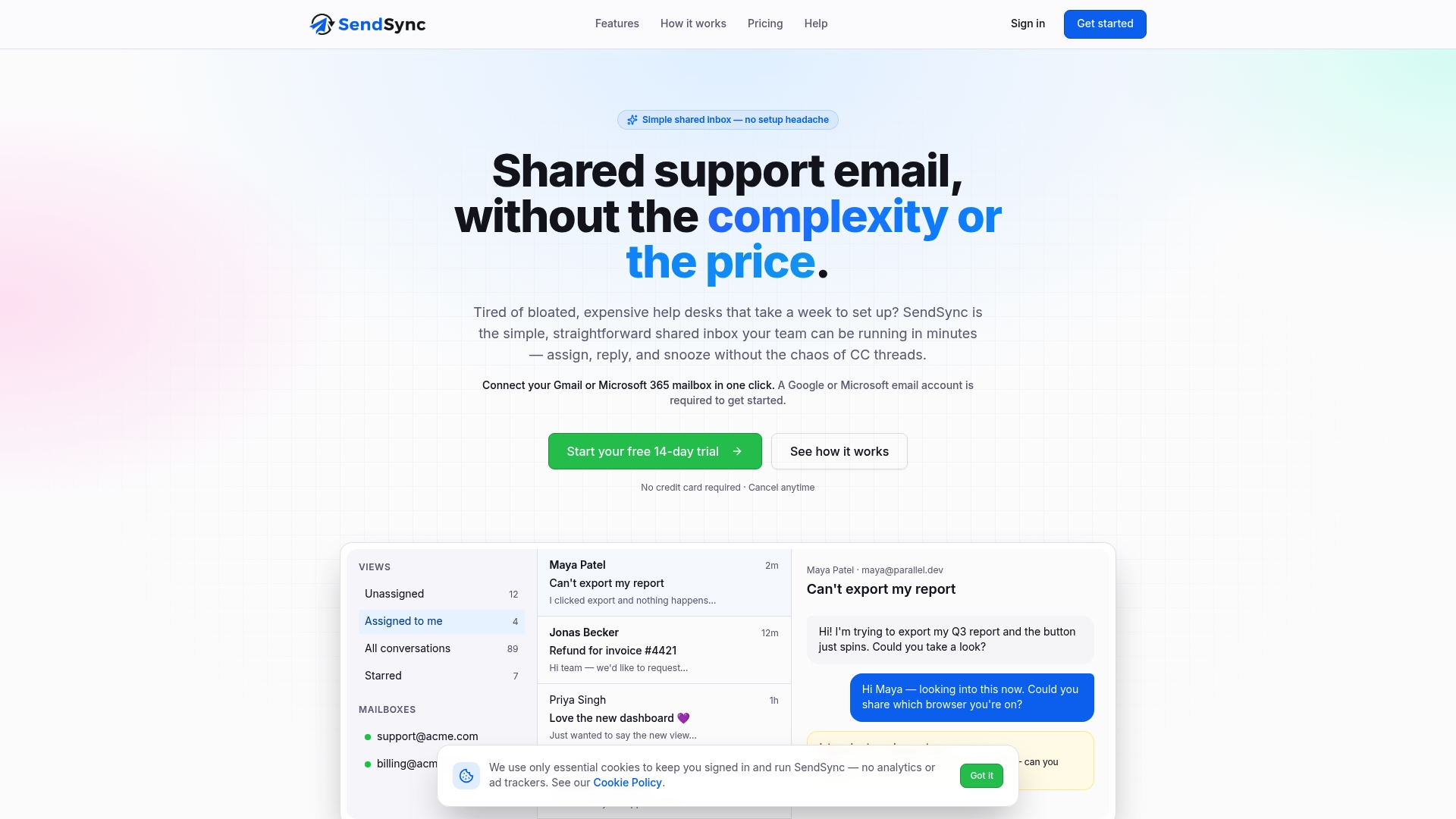
Sendsync gives customer support teams a shared inbox that connects directly to Gmail or Microsoft 365 mailboxes, with no DNS configuration required. Team members can assign conversations, leave internal comments, and tag colleagues without switching between tools. That means mention notifications stay inside the same workflow where the actual email response happens.
For team leaders dealing with notification overload, Sendsync’s model of unlimited users with no per-seat fees makes it practical to bring the whole team into one view. Everyone sees the same inbox, the same assignments, and the same internal comments. No one misses a mention because they were working in a separate tool. Explore how Sendsync handles shared team email and see whether it fits your current workflow.
FAQ
What does an @mention do in a team tool?
An @mention tags a specific person, group, or channel and triggers a targeted notification. The tagged user sees the message flagged in their activity feed and receives an alert through their configured notification channel.
How do I stop @mentions from interrupting my focus time?
Set your status to “Do Not Disturb” in tools like Microsoft Teams during focus blocks. This silences all mention alerts except those from explicitly allowed contacts.
Can @mentions be used inside email threads?
Yes. Shared inbox tools support internal @mentions inside email threads as private comments visible only to your team. This keeps side conversations out of the customer-facing thread entirely.
What is the difference between @channel and a custom tag?
An @channel notifies every member of a channel simultaneously. A custom tag notifies only a defined subgroup, such as “support leads” or “on-call engineers,” making it far less disruptive for large teams.
How do I enable email notifications for mentions in project tools?
In Linear, the process takes four steps: open account settings, go to notifications, find the email section, and toggle the mentions option on. Most project management tools follow a similar settings path.