
Best Customer Support Inbox Management Tools in 2026
Best Customer Support Inbox Management Tools in 2026 ! Woman typing customer support inbox at home desk Sendsync is the strongest pick for most support teams: a unified shared inbox that connects Gmail and Microsoft 365 in minutes, with no DNS changes required, collision detectio

Sendsync is the strongest pick for most support teams: a unified shared inbox that connects Gmail and Microsoft 365 in minutes, with no DNS changes required, collision detection built in, and unlimited-user pricing that keeps costs flat as your team grows. If you’re a support manager who needs your team live this week rather than next quarter, that combination is hard to beat.
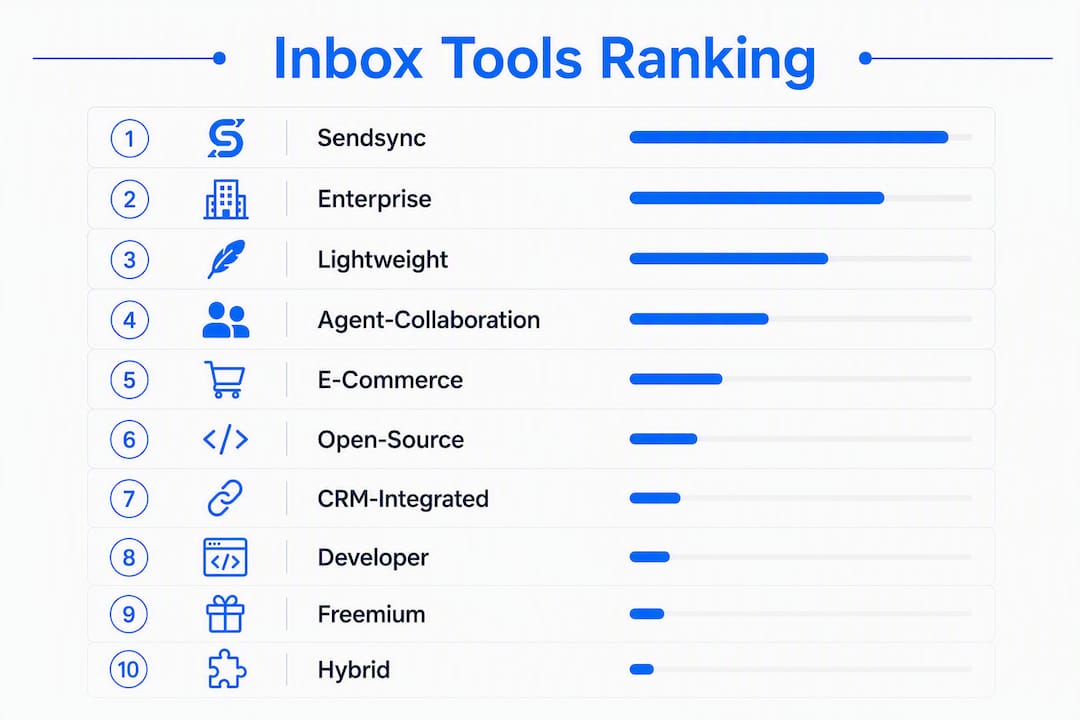
Here’s where the other categories fit:
- Enterprise helpdesk (CRM-integrated): Zendesk, Freshdesk, HubSpot Service Hub, Zoho Desk. Best when you need omnichannel routing, deep CRM linking, and enterprise compliance. Expect longer setup and higher per-seat licensing.
- Lightweight shared inbox: Help Scout, Hiver. Minimal learning curve, email-first. Fewer advanced routing features.
- Agent-collaboration-first shared inbox: Front, Missive. Strong on shared drafts and presence; automation depth varies.
- E-commerce-focused support tool: Gorgias. Purpose-built for retailers with prebuilt order/returns integrations.
- Open-source / self-hosted ticketing: osTicket and similar. Low licensing cost; requires internal hosting and maintenance.
Pick Sendsync when your team is small to mid-size, your primary channels are email, and you want a unified team inbox running before the end of the week. Move toward an enterprise helpdesk category when you need HIPAA compliance, complex SLA tiers, or omnichannel routing across voice and chat. Consider an e-commerce-focused support tool like Gorgias if order data integration is your primary driver.
Table of Contents
- Which customer support inbox management tools should you compare?
- Mini-reviews: what each category actually delivers
- How to choose the right inbox management tool for your team
- How this shortlist was built
- Why Sendsync is the recommended pick
- Key Takeaways
- The real mistake most teams make when rolling out a shared inbox
- Start your Sendsync trial this week
- Useful sources and further reading
Which customer support inbox management tools should you compare?
The table below maps each category to the dimensions support managers weigh most: pricing shape, integrations, collision detection, automation, setup time, compliance, and mobile parity.
| Category | Best for | Pricing shape | Gmail / Outlook | Collision detection | Automation & AI | Setup time | Reporting | Security / compliance | Mobile app |
|---|---|---|---|---|---|---|---|---|---|
| Sendsync (recommended) | Small-to-mid teams needing fast setup and cross-mailbox visibility | Unlimited users; flat monthly tiers | Both; no DNS required | Yes, built-in | Triage, tagging, saved views | Minutes | Conversation metrics, dashboards | SOC 2 alignment; GDPR-ready | Yes |
| Enterprise helpdesk (Zendesk, Freshdesk, HubSpot, Zoho) | Large teams with complex routing and CRM needs | Per-seat; tiered plans | Both | Varies by vendor | Advanced AI routing, auto-drafts | Days to weeks | SLA tracking, exports, custom reports | SOC 2, HIPAA options, SSO | Yes |
| Lightweight shared inbox (Help Scout, Hiver) | Small teams wanting email-first simplicity | Per-seat; lower tiers | Both | Limited | Basic automation | Hours | Basic metrics | SOC 2; limited HIPAA | Yes |
| Agent-collaboration-first (Front, Missive) | Distributed teams relying on shared drafts and handoffs | Per-seat; mid-range | Both | Yes | Moderate; varies | Hours to a day | Mid-tier reporting | SOC 2 | Yes |
| E-commerce-focused (Gorgias) | Retailers needing order/returns integration | Per-ticket or per-seat | Gmail primary | Limited | Prebuilt ecommerce workflows | Hours | Ecommerce-specific metrics | SOC 2 | Yes |
| Open-source / self-hosted (osTicket) | Dev-resourced teams wanting low licensing cost | Free / self-hosted | Via plugin | Not built-in | Basic; custom scripting | Days to weeks | Basic; custom | Self-managed | Limited |
| CRM-integrated hub (HubSpot Service Hub) | Teams coupling inbox activity to sales CRM | Per-seat; higher tiers | Both | Limited | CRM-driven automation | Days | CRM-linked reporting | SOC 2, GDPR | Yes |
| Developer/ticketing-centric (Zendesk, Jira Service) | Product teams linking tickets to engineering issues | Per-seat; tiered | Both | Varies | SLA-tied automation | Days | SLA dashboards | SOC 2, HIPAA options | Yes |
| Small-business / freemium | Freelancers or micro teams needing basic shared access | Free to low-cost | Gmail primary | Rarely | Minimal | Minutes | Minimal | Basic | Sometimes |
| Hybrid helpdesk / shared inbox | Growing teams upgrading from shared inbox to helpdesk | Mid-range per-seat | Both | Sometimes | Moderate | Hours to a day | Mid-tier | SOC 2 | Yes |
Two trade-offs managers must weigh before shortlisting:
- Pricing model vs. team size: Per-seat pricing compounds fast. A 15-agent team on a $25/seat plan costs $375/month before any add-ons. Unlimited-user pricing, like Sendsync’s, keeps that number fixed regardless of headcount.
- Setup time vs. feature depth: Enterprise platforms offer richer SLA configuration and omnichannel routing, but migration friction from DNS changes, mailbox reconfiguration, and CRM mapping can push go-live by weeks. If your team is bleeding duplicate replies right now, that delay has a real cost.
Mini-reviews: what each category actually delivers
Sendsync
Sendsync does one thing exceptionally well: it gets a support team into a shared inbox fast. Connect your Gmail or Microsoft 365 mailboxes, invite your team, and you’re assigning conversations the same day. No DNS reconfiguration, no ticketing taxonomy to build from scratch.

The core feature set covers what most support teams need: conversation assignment with clear ownership, real-time collision detection so two agents never reply to the same thread, private internal notes, cross-inbox customer history, and saved views for triage. Automation handles tagging and routing rules. The metrics dashboard tracks conversation volume, response times, and resolution rates.
Pricing shape: Flat monthly tiers with unlimited users. No per-seat fees. Integrations: Gmail and Microsoft 365 natively; CRM connections via integrations. Migration friction: Minimal. No MX record changes; mailbox linking takes minutes. Trial: 14-day free trial.
Pros:
- Fastest time-to-value of any category
- Unlimited-user pricing scales without cost surprises
- Collision detection and ownership are first-class features, not add-ons
Cons:
- Less suited to teams needing omnichannel (voice, live chat) out of the box
- Enterprise compliance certifications (HIPAA) may require plan verification
Best for teams that need to stop duplicate replies this week and want predictable pricing as they hire.
Enterprise helpdesk category (Zendesk, Freshdesk, HubSpot Service Hub, Zoho Desk)
These platforms are built for scale. Zendesk and Freshdesk offer omnichannel routing across email, chat, voice, and social. HubSpot Service Hub ties every ticket to a CRM contact record. Zoho Desk brings a lower price point with solid automation. Automation and routing are mature across this category, and SLA tracking is granular.

The trade-off is setup complexity. Expect DNS changes, mailbox reconfiguration, and days of workflow mapping before your team is fully live. Per-seat pricing means a 20-agent team pays 20x the base rate, and enterprise tiers add up quickly.
Pros:
- Richest SLA configuration and reporting
- Omnichannel and deep CRM integration
- SOC 2, HIPAA options, SSO across most vendors
Cons:
- Weeks to full deployment for complex setups
- Per-seat costs scale steeply with headcount
- Higher administrative overhead
Best for teams that run multi-channel support at scale and have an IT team to manage configuration.
Lightweight shared inbox category (Help Scout, Hiver)
Help Scout and Hiver sit at the simpler end of the spectrum. Both are email-first, with clean interfaces and low learning curves. Help Scout adds a knowledge base and customer profiles. Hiver lives inside Gmail, which means zero interface change for agents already working in Google Workspace.
Neither platform matches enterprise-grade SLA reporting or advanced routing. Collision detection exists but is less prominent than in Sendsync. Per-seat pricing applies in both cases.
Pros:
- Fast adoption; minimal training required
- Clean, distraction-free UI
- Solid for teams under 10 agents
Cons:
- Limited automation depth
- Per-seat pricing adds up as the team grows
- Reporting is basic compared to enterprise tools
Best for teams that are moving off a shared Gmail alias for the first time and want the simplest possible upgrade.
Agent-collaboration-first shared inbox category (Front, Missive)
Front and Missive prioritize how agents work together. Shared drafts, internal comments, and presence indicators are central to both products. Front also supports SMS and social channels alongside email. Missive is particularly strong for small teams that want a collaborative email client feel rather than a ticketing system.
Automation capabilities vary: Front has more mature routing rules; Missive is more flexible but requires more manual configuration. Both use per-seat pricing.
Pros:
- High collaboration feature density
- Strong for distributed and async teams
- Multi-channel support (Front)
Cons:
- Per-seat pricing at mid-to-high rates
- Automation requires careful rule design to avoid misrouting
- Heavier than needed for teams that just want email assignment
Best for teams that are distributed across time zones and depend on handoffs and shared context between agents.
E-commerce-focused support tool category (Gorgias)
Gorgias is purpose-built for online retailers. It pulls Shopify, Magento, and BigCommerce order data directly into the conversation view, so agents see order status, tracking, and return history without switching tabs. Macros and prebuilt ecommerce workflows reduce handle time on repetitive order inquiries.
Outside of ecommerce, Gorgias is a narrower fit. Its pricing model charges per ticket volume rather than per seat, which works well for retailers with predictable inquiry patterns but can get expensive during peak seasons.
Pros:
- Best-in-class order/returns data integration
- Prebuilt ecommerce macros and workflows
- Reduces handle time on high-volume order inquiries
Cons:
- Per-ticket pricing can spike during peak periods
- Limited value for non-ecommerce support teams
- Reporting is ecommerce-centric, not general SLA-focused
Best for teams that run support for an online store and need order data in the conversation view.
Open-source / self-hosted ticketing category (osTicket)
osTicket consolidates email, web form, and phone inquiries into a multi-user web interface. It’s free to license, which makes it attractive for teams with tight budgets and internal dev resources. The trade-off is everything that comes with self-hosting: server setup, maintenance, upgrades, and security patching fall on your team.
Modern UX features like in-app collision detection are not built in. Agents can work the same ticket simultaneously without a warning, which is the exact problem shared inbox tools solve. Teams that choose this route typically build workarounds or accept some duplicate-reply risk.
Pros:
- Zero licensing cost
- Full control over data and hosting
- Flexible for teams that want to customize
Cons:
- No built-in collision detection
- Hosting and maintenance require internal resources
- Setup takes days; UX is dated compared to SaaS alternatives
Best for teams that have a developer on staff, need full data control, and can absorb the maintenance overhead.
CRM-integrated hub category (HubSpot Service Hub)
HubSpot Service Hub is the right choice when inbox activity must live inside a CRM. Every conversation links to a contact and deal record, giving sales and support a shared view of the customer. The downside is cost: HubSpot’s pricing climbs quickly as you add seats and unlock advanced features, and the platform is heavier to configure than a standalone shared inbox.
Best for teams that are already on HubSpot CRM and want support conversations to flow into the same system.
Developer / ticketing-centric category (Zendesk, Jira Service Management)
Zendesk’s ticketing engine is mature and widely adopted. Jira Service Management connects support tickets directly to engineering issues, which is valuable for product teams that need to escalate bugs without losing context. SLA configuration is granular in both platforms. Customer-facing UX is functional but less polished than email-first tools.
Best for teams that support a software product and need tight links between customer tickets and engineering workflows.
Small-business / freemium category
Free or near-free tools in this category give micro teams basic shared access to a mailbox. Automation is minimal, reporting is sparse, and compliance features are limited. They work for a freelancer or a two-person team that needs to stop forwarding emails manually. They stop working the moment volume or complexity grows.
Best for teams that have fewer than five agents and need shared access without any budget.
Hybrid helpdesk / shared inbox category
This category sits between a pure shared inbox and a full helpdesk. Tools here offer moderate automation, mid-tier reporting, and enough SLA configuration to satisfy a growing team without the full complexity of an enterprise platform. They’re often the easiest upgrade path for a team that has outgrown a lightweight shared inbox but isn’t ready for Zendesk-level configuration.
Best for teams that are scaling past 10 agents and need more structure than a basic shared inbox provides.
How to choose the right inbox management tool for your team
Work through this checklist before you book a demo. It takes 20 minutes and will save you weeks of back-and-forth with vendors.
- Define your team size and growth trajectory. Count current agents and project 12 months out. If you expect to double headcount, per-seat pricing will compound fast. Calculate the 12-month cost at projected headcount, not current headcount.
- Map your channels. Email-only teams have far more options than teams that also handle chat, SMS, or voice. Don’t pay for omnichannel routing you won’t use.
- Set your SLA requirements. Do you have contractual response-time commitments? If yes, you need SLA tracking and alerting built in, not bolted on via a spreadsheet.
- Test collision detection on real traffic. During any trial, run your actual support volume through the tool for 48–72 hours. Count how many times two agents open the same conversation. If the tool doesn’t show real-time presence, that number will be higher than you expect.
- Validate integrations before committing. Connect your CRM, your ecommerce platform, or your ticketing system during the trial. A native integration listed on a pricing page sometimes means a Zapier connector. Verify the depth.
- Measure trial setup time. Time how long it takes to connect mailboxes, invite your team, and assign the first real conversation. If it takes more than a day, factor that into your go-live estimate.
- Check mobile app feature parity. Open the mobile app and try to assign a conversation, add a private note, and check the queue. If those actions require the desktop, your on-call agents will feel it.
- Confirm compliance and SSO. If your organization requires SOC 2, GDPR data residency, or HIPAA, get written confirmation from the vendor before signing. Don’t rely on a marketing page.
- Audit reporting and export options. Pull a sample report during the trial. Can you export conversation data to CSV? Can you filter by agent, mailbox, and time period? If your SLA reporting lives in a spreadsheet, this matters.
- Calculate total cost of ownership. Add licensing, implementation time, training, and any integration costs. Unlimited-user pricing lowers marginal cost as volume or contractor headcount rises; per-seat pricing does the opposite.
Five questions to ask vendors during a demo:
- “How does your tool show real-time agent presence on an open conversation?”
- “Can we route conversations from multiple shared mailboxes into a single prioritized queue?”
- “What are the exact migration steps, and who handles DNS changes if required?”
- “What does your audit log cover, and how long is data retained?”
- “What’s your SLA for support response, and what onboarding assistance is included?”
Red flags to watch for during trials:
- No visible collision detection or presence indicator
- Per-seat costs that aren’t shown until checkout
- No audit log or data export option
- Mobile app that can’t assign or reply to conversations
- Setup that requires IT involvement for basic mailbox linking
A simple evaluation rubric (copy this into your procurement brief and weight by priority):
| Criterion | Suggested weight | Notes |
|---|---|---|
| Collision detection & ownership | 20% | Non-negotiable for teams above 3 agents |
| Setup time & migration friction | 15% | Directly affects time-to-value |
| Pricing model fit | 20% | Calculate at 12-month projected headcount |
| Integrations (CRM, email) | 15% | Verify depth, not just presence |
| Automation & AI | 10% | Test on real traffic before trusting |
| Reporting & SLA tracking | 10% | Must export; must filter by agent |
| Security / compliance | 10% | Get written confirmation |
Pro Tip: Before your first vendor demo, run a quick inbox audit to document your current routing rules, label taxonomy, and auto-reply logic. Vendors who can map their tool to your existing rules in the demo are the ones worth shortlisting.
How this shortlist was built
The evaluation behind this shortlist used eight criteria, weighted by how directly each one affects a support team’s daily output and total cost of ownership.
| Criterion | Weight | Why it matters |
|---|---|---|
| Shared-inbox features (assignment, collision detection, private notes) | — | Core to preventing duplicate replies and ownership confusion |
| Pricing model fit (per-seat vs. unlimited, TCO at scale) | — | Determines long-term affordability as teams grow |
| Setup time & migration friction | 15% | Directly affects time-to-value and rollout risk |
| Integrations (Gmail, Outlook, CRM, ecommerce) | — | Determines whether the tool fits existing workflows |
| Automation & AI (triage, routing, auto-drafts) | 12% | Affects throughput at volume; needs human-review safeguards |
| Reporting & analytics (SLA tracking, exports) | 10% | Required for SLA accountability and team performance visibility |
| Security & compliance (SOC 2, GDPR, HIPAA, SSO) | 6% | Mandatory for regulated industries; table stakes for enterprise |
| Mobile app parity | 4% | Affects on-call and distributed team coverage |
Sources used in this evaluation include vendor documentation, product trials, buyer guides from 2026, third-party review platforms, and Sendsync product signals. The evaluation focused on tools available to US-based teams and priced in USD.
Key findings that shaped the weighting:
- Buyer guides in 2026 consistently rank centralized multi-mailbox queues as the highest-impact feature for teams moving off personal inboxes, because centralization directly reduces duplicate replies and speeds response times.
- Automation and AI are valuable for draft generation and triage, but teams should test automation on real traffic and keep human review in the loop to avoid misrouted tickets.
- Migration friction is often underestimated. The blocker is rarely mailbox connectivity; it’s workflow mapping: label normalization, auto-reply logic, and CRM ticket mapping. Capturing current routing rules before any migration accelerates parity significantly.
Why Sendsync is the recommended pick
Sendsync’s strongest argument isn’t a single feature. It’s the combination of speed, pricing structure, and the features that matter most to a team in the initial period after adoption.
Setup and migration: Sendsync connects Gmail and Microsoft 365 mailboxes without DNS changes. For most teams, that means going from “we need a shared inbox” to “we’re assigning real conversations” in the same afternoon. No IT ticket, no MX record reconfiguration, no waiting on a DNS propagation window.
Core features that move the needle:
- Unified queue across multiple mailboxes, so support@, billing@, and help@ all land in one prioritized view
- Collision detection with real-time presence, so agents see when a colleague is already working a conversation
- Conversation assignment with clear ownership, reducing the “I thought you handled it” problem
- Private internal notes for context that customers don’t see
- Cross-inbox customer history, so agents see prior conversations regardless of which mailbox they came through
- AI-assisted drafts and triage automation for tagging and routing
- Saved views for filtering by mailbox, tag, assignee, or status
- Metrics dashboards tracking volume, response times, and resolution rates
Pricing: Unlimited users on flat monthly tiers. As your team grows from 5 agents to 15, the cost doesn’t move. That’s a meaningful structural advantage over per-seat tools, where cost-per-conversation drops as volume rises but per-seat fees stay fixed per head.
Who it fits best: Small-to-mid support teams (roughly 2–50 agents) whose primary channel is email, who want to be live within a day, and who need predictable pricing. Teams that need HIPAA compliance, voice channel routing, or deep CRM workflow automation should verify those requirements against Sendsync’s current plan details or consider an enterprise helpdesk category alongside it.
Proof points: Sendsync’s real-time visibility guidance documents how presence indicators and clear ownership reduce duplicate replies. Its multi-client inbox workflows show how teams managing several client mailboxes can consolidate without losing per-client context.
Key Takeaways
Sendsync is the strongest fit for most support teams: fast setup, unlimited-user pricing, and built-in collision detection address the three biggest pain points teams face when moving off a shared Gmail alias.
| Point | Details |
|---|---|
| Collision detection is non-negotiable | Run a 48–72 hour presence test during any trial to confirm real-time detection works on your actual traffic volume. |
| Pricing model shapes long-term cost | Calculate total cost at 12-month projected headcount; unlimited-user pricing keeps costs flat as teams scale. |
| Migration friction is workflow, not mailbox | Capture your current routing rules, labels, and auto-reply logic before any migration to cut parity time in half. |
| Automation needs human review | Test triage and routing automation on real traffic before going live; misconfigured rules misroute tickets silently. |
| Sendsync for fast, predictable setup | Sendsync connects Gmail and Microsoft 365 without DNS changes and offers a 14-day free trial to validate on real volume. |
The real mistake most teams make when rolling out a shared inbox
Most rollout failures aren’t caused by choosing the wrong tool. They’re caused by switching too fast.
The pattern is predictable: a team picks a platform, connects the mailbox, invites everyone, and goes live the same day. For the first 48 hours, agents are still checking their personal inboxes out of habit. Conversations get replied to twice. Some don’t get replied to at all because everyone assumed someone else handled it. The team blames the tool when the real problem was the cutover.
The fix is a staggered rollout. Connect the new inbox in parallel with your existing setup. Run both for 48–72 hours. Have agents work from the new tool but keep the old one visible. This surfaces the collision-detection gaps, the routing rules that didn’t transfer, and the auto-replies that are still firing from the old mailbox. Fix those before you flip the switch entirely.
The other thing teams underestimate is the difference between workflow automation and process automation. Routing rules that tag and assign conversations are workflow automation. Deciding which conversations get escalated to a senior agent is a process decision. Confusing the two leads to over-automated inboxes where the rules handle the easy cases and the hard ones fall through. Understanding that distinction before you configure automation saves a lot of cleanup later.
Pro Tip: Run a 3-day collision-detection test with escalating ownership alerts before swapping any MX records. Assign a mix of new and existing conversations to different agents, then check how many were touched by more than one person. That number is your baseline. If the tool’s collision detection is working, it should drop to near zero by day two.
Start your Sendsync trial this week
Sendsync gives support teams a shared inbox that’s live in minutes, not weeks. Where enterprise platforms charge per seat and require IT involvement to connect a mailbox, Sendsync links Gmail or Microsoft 365 directly, with no DNS changes and no configuration overhead. Unlimited-user pricing means your cost stays predictable whether you’re onboarding two agents or twenty.

What to test during your 14-day trial:
- Connect all your support mailboxes (support@, billing@, help@) and confirm they land in a single unified queue
- Assign live conversations to different agents and verify collision detection fires before anyone sends a duplicate reply
- Check cross-inbox customer history on a returning customer’s thread
- Pull a response-time report and export it to CSV
- Open the mobile app and assign a conversation from your phone
First-week onboarding steps:
- Connect Gmail or Microsoft 365 mailboxes (no DNS changes required)
- Invite your team and set default assignment rules
- Run the 48–72 hour collision-detection test described above
- Map your existing routing rules and tags into Sendsync’s saved views
- Review the shared inbox best practices guide and adapt the workflow templates to your team’s volume
- Go live and measure time-to-first-reply against your pre-Sendsync baseline
Start your free 14-day trial at Sendsync and have your team assigning real conversations before the end of the day.
Useful sources and further reading
- Sendsync — Shared inbox for support teams: — Product landing page covering integrations, pricing shape, setup claims, and the unlimited-user model. Start here to verify current plan details.
- Real-Time Inbox Visibility Benefits for Support Teams · Sendsync: Explains how presence indicators and collision detection reduce duplicate replies. Useful for teams evaluating whether real-time visibility is worth prioritizing.
- Handle Multiple Clients in a Single Inbox · Sendsync: Workflow examples for teams managing several client mailboxes in one workspace.
- 10 Best Customer Service Email Management Software in 2026 · The CX Lead: — Independent buyer guide covering evaluation criteria and feature comparisons across the category.
- Workflow Automation Examples: Top Use Cases for 2026 · Keystone Consulting: Practical guidance on automation use cases and safe rollout practices, including human-review safeguards.
- Workflow Automation vs Process Automation: 2026 Guide · Keystone Consulting: Helps teams distinguish which type of automation to prioritize during tool selection and rollout.
- osTicket on GitHub: — Source repository and documentation for the open-source ticketing platform. Reference for teams evaluating self-hosted alternatives.