
Freelance Inbox Organization System: A Team Guide
Freelance Inbox Organization System: A Team Guide ! Freelancer organizing email notes at table A freelance inbox organization system is a set of rules, folder structures, and processing habits that move every incoming message from arrival to a clear terminal state, giving support

A freelance inbox organization system is a set of rules, folder structures, and processing habits that move every incoming message from arrival to a clear terminal state, giving support teams faster first-response times, explicit ownership, and fewer missed follow-ups.
The three operational anchors that make it work:
- Processing cadence: three daily blocks (morning, midday, end-of-day) replace constant checking
- Two-minute rule: if a reply takes under two minutes, send it during the processing block rather than deferring it
- several primary folders or tags: Action Needed, Waiting For, Reference/Archive, Leads/Admin, and optionally Urgent or This Week
Table of Contents
- What is a freelance inbox organization system, exactly?
- How to build a folder and tag structure that actually holds
- Seven steps to implement the system quickly
- Shared inbox practices that keep small teams aligned
- Where automation helps and where humans must stay in control
- Common traps and how to recover from them
- Implementation checklist and metrics for weeks 1–4
- Key Takeaways
- Why habit beats hierarchy every time
- Sendsync makes this system easy to deploy for your team
- Useful sources
What is a freelance inbox organization system, exactly?
At its core, the system defines five states a message can occupy: incoming (untriaged), action/doing, waiting/tracking, reference/archive, and deleted. A message enters the inbox and exits to one of those four terminal states. Nothing sits in limbo.
The biggest structural choice is personal inbox vs. shared team queue. A personal inbox assigns ownership by default to whoever receives the mail. A shared queue has no implicit owner until someone claims or is assigned a conversation. For support teams, that distinction directly affects SLAs: an unassigned message in a shared queue can age invisibly, while a claimed conversation has a named owner and a clock running.
Supporting elements complete the picture: filters and rules that sort on arrival, canned replies and templates for predictable responses, assignment fields that attach a name to each thread, and handoffs to a task tool when email generates work that needs tracking outside the inbox. Together, these reduce team collisions and make first-response time measurable rather than guesswork.
How to build a folder and tag structure that actually holds
Keep active categories limited. Adding too many categories causes triage to become its own cognitive burden. A practical set for most support teams looks like this:

| Folder / Label | Purpose |
|---|---|
| Action Needed | Requires a reply or decision from you |
| Waiting For | Sent, pending a response from someone else |
| Reference / Archive | No action needed; keep for lookup |
| Leads / Admin | Inquiries, contracts, invoices, subscriptions |
| Urgent | Optional; time-sensitive escalations only |
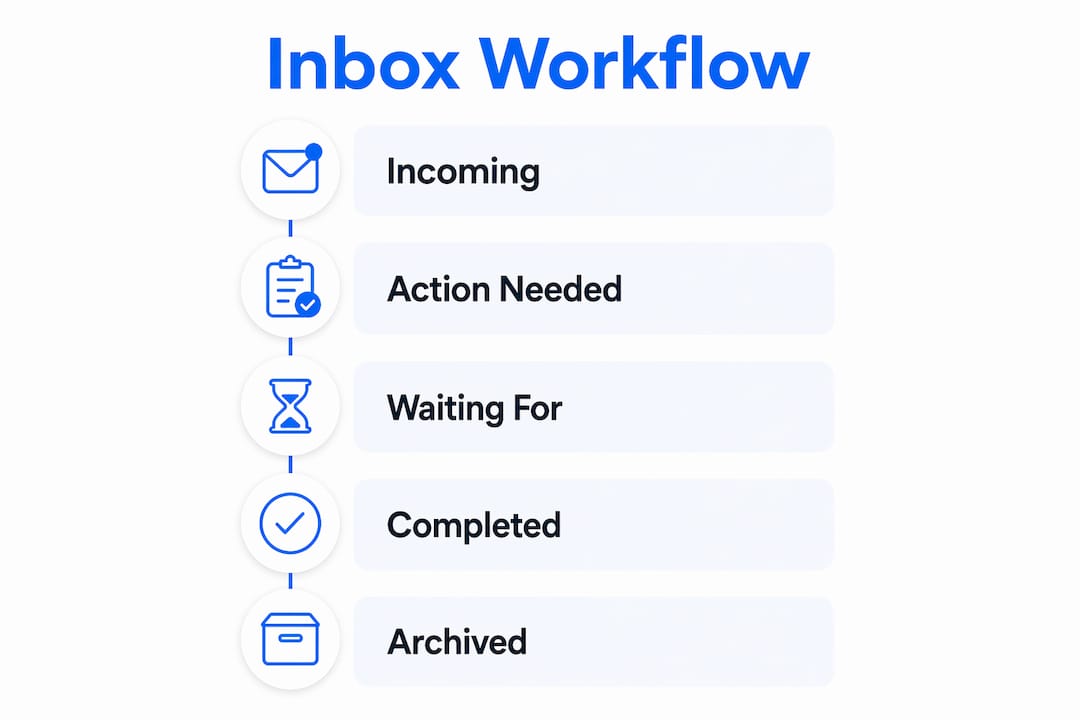
For Gmail, use labels rather than simulating folders. A single thread can carry both a status label (“Action Needed”) and a categorical label (“Client: Acme”) without duplication. Pair manual status labels with automated categorical filters and you eliminate most of the filing burden. For Outlook, use folders plus color categories to achieve the same split between status and category.
One hard rule: folders unused for two months signal a system that no longer matches how you actually work. Delete or merge them. A folder graveyard creates decision fatigue at exactly the moment you need clarity.
Pro Tip: Before you create any folder, ask whether you will act on it differently from an existing one. If the answer is no, it does not need its own category.
Seven steps to implement the system quickly
- Reduce incoming noise first. Unsubscribe from newsletters, filter system notifications to an Admin/Noise label, and route invoices to a Finance folder automatically. Fewer inputs mean faster triage.
- Pick a simple model. The Trusted Trio (Action, Read, Archive) works for low-volume inboxes. For support teams handling multiple clients, Action Needed / Waiting For / Reference / Leads is more durable.
- Schedule processing windows and apply the two-minute rule inside them. Outside those windows, the inbox is closed.
- Set assignment and ownership rules. Decide whether your team uses explicit claim (someone actively assigns a thread) or reply-first ownership. Explicit claim is safer in shared queues because it prevents two agents from drafting the same reply.
- Create 3–5 templates for your most common replies: acknowledgment, status update, resolution, escalation, and follow-up. Integrate them into your shared inbox workflow so any team member can use them consistently.
- Run a one-week manual labeling exercise before touching automation. Label every message by hand for seven days. You will see the real patterns in your inbox, not the ones you assumed were there.
- Review at the end of week one and adjust labels, rules, and cadence for the first 30 days. The system you design on day one is rarely the one that fits by day 30.
Shared inbox practices that keep small teams aligned
Assignment norms matter more than folder structure for teams. Explicit claim, where an agent actively assigns or accepts a conversation, prevents the silent collision where two people draft replies to the same thread. Visible status tags (“In Progress,” “Waiting,” “Resolved”) give the whole team a live picture without a meeting.
SLA basics for small teams: set a target first-response window (commonly 4–8 business hours for email support), define an escalation path for threads that age past that window, and assign one person to monitor the Waiting For queue daily. For teams considering a blended internal and outsourced support model, clear ownership rules become even more critical at the handoff point.
The simplest shared workflow runs like this: an agent claims a new thread, responds using a template where applicable, moves the thread to Waiting For if a customer reply is needed, and archives it once resolved. That four-step cycle, repeated consistently, is what keeps a shared queue from becoming a pile. For deeper guidance on remote team permissions and audit trails, those details matter when sensitive client data passes through a shared mailbox.
Where automation helps and where humans must stay in control
A three-layer automation model covers the practical range: classify (triage incoming mail into buckets), prioritize (surface threads that need attention today), and draft (generate reply drafts for predictable messages). Each layer adds value; each layer also carries a failure mode if deployed without oversight.
Tasks well-suited for automation:
- Filtering newsletters and system notifications into non-priority folders
- Applying categorical labels based on sender domain or keywords
- Surfacing threads that have aged past your SLA window
- Drafting routine acknowledgment or status-update replies to a Drafts folder
Tasks that must stay human:
- Any message involving money, contracts, or pricing
- Complaints with emotional content or escalation signals
- Threads from new clients where context is still being established
- Any reply that commits the team to a deadline or deliverable
Pro Tip: Auto-drafts go to Drafts, never to Send. Build the approval step into the workflow from day one, especially for anything touching contracts or payments.
The human-in-the-loop rationale is straightforward: AI classifies and drafts faster than any person, but it cannot read the relationship history behind a message. A client who has been patient for three weeks and is now asking a simple question deserves a different tone than a new inquiry. Only the agent knows that.
Common traps and how to recover from them
Inbox Zero is not a count. The method, introduced by Merlin Mann, defines “zero” as the amount of mental attention left in the inbox, not the number of messages. Treating it as a count turns it into a vanity metric. The discipline is processing every message to a terminal state: delete, delegate, defer, or do.
The folder graveyard. If you have more than 5–10 active folders or any folder that has not received mail in two months, the taxonomy is causing decision fatigue rather than solving it. Consolidate to your core 4–7 categories and run a purge.
Automating too early. Manually label for at least a week before writing rules. Automating a flawed workflow encodes the mistakes and makes them harder to spot.
Using email as a task manager. When a message generates work, extract the task into a real task tool (Trello, Todoist, Asana, or Google Tasks) and archive the email. Leaving it in the inbox as a reminder means it competes with new mail for attention.
When the system slips, the recovery is simple: reset rules, run a one-day bulk triage (archive everything older than 30 days), and re-establish processing blocks.
Implementation checklist and metrics for weeks 1–4
A low-stress email workflow separates reading from responding and keeps the system easy to maintain. This timeline maps the work:
| Week | Actions | Metrics to watch |
|---|---|---|
| Week 1 | Reduce noise, create 4–7 categories, schedule processing blocks, create templates, run manual labeling | Backlog size, % assigned vs. unassigned |
| Week 2 | Automate low-risk categorical labels, add draft automation for predictable replies | First response time (FRT), templates usage rate |
| Month 1 | Set ownership rules and SLAs, run weekly review, adjust categories | Resolution time, average handle time, backlog trend |
Track five metrics: first response time, backlog size (threads older than your SLA window), resolution time, percent assigned vs. unassigned, and template usage rate. If FRT is not improving by week two, the processing cadence or assignment rules need adjustment before adding more automation.
Key Takeaways
A freelance inbox organization system works when habit drives the structure, not the other way around: pick a simple model, schedule processing blocks, apply the two-minute rule, and keep folders to 4–7 active categories.
| Point | Details |
|---|---|
| Start with habit, not folders | Build processing cadence and the two-minute rule before creating any folder structure. |
| Keep 4–7 active categories | More than that creates decision fatigue; folders unused for two months should be deleted or merged. |
| Manual labeling before automation | Label by hand for one week to learn real patterns before writing rules or enabling AI drafting. |
| Humans own sensitive messages | Auto-drafts go to Drafts only; money, contracts, and emotional messages require human review before sending. |
| Sendsync for fast team setup | Sendsync connects Gmail or Microsoft 365 in minutes and supports assignment, templates, and shared labels with no per-seat fees. |
Why habit beats hierarchy every time
The conventional advice on inbox systems focuses on architecture: the right folder names, the right labels, the right rules. That framing is backwards. A sophisticated folder hierarchy fails without habit, and a simple three-folder system with consistent daily processing blocks outperforms a complex taxonomy that nobody maintains under pressure.
The teams that get this right start with two commitments: a fixed processing schedule and a clear claim/assign rule. Everything else, the folders, the templates, the automation, gets layered on top of those two habits once they are stable. Scaling a shared inbox is really a governance problem, not a technology problem. Clear ownership per conversation, visible SLA status, and a weekly review to catch drift are what prevent a shared queue from collapsing into chaos when volume spikes.
Sendsync makes this system easy to deploy for your team
Most teams spend more time configuring their inbox tool than building the habits that actually drive results. Sendsync removes that barrier: connect your Gmail or Microsoft 365 mailbox in minutes, with no DNS configuration or lengthy onboarding.

Once connected, your team gets assignment and claiming built in, shared labels that map directly to the 4–7 category structure described above, canned reply templates for consistent responses, and audit trails for compliance. The pricing model covers unlimited users with no per-seat fees, which means adding a new team member does not change your monthly cost. That matters for small support teams where headcount fluctuates.
Map your Action Needed, Waiting For, Reference, and Leads folders into Sendsync’s shared workspace, set your assignment rules, and your team is running the system described in this guide from day one. Start with Sendsync and have your shared inbox live before the end of the week.
Useful sources
- Email Management for Freelancers: Stop Inbox Overload — Inbox Zero as attention management; processing to terminal states
- Inbox Zero With AI: A 3-Layer Email System for Freelancers — Three-layer automation model and manual-labeling-first recommendation
- How to Organize Your Email Inbox: A System That Actually Sticks — Folder graveyard rule, habit-first approach, 4–7 category limit
- Best Email Organization System 2026: PARA vs Inbox Zero — Model comparison including the Trusted Trio
- Low-Stress Email Workflow for Freelancers — Batching, reading vs. responding separation, task handoff
- Email Inbox Zero Services — Processing cadence, daily blocks, and clearing to terminal state
- Shared Inbox Best Practices for Support Teams — Team-specific workflows, SLAs, and assignment norms