
What Is a Collaborative Email Workspace for Teams?
What Is a Collaborative Email Workspace for Teams? !

A collaborative email workspace is a shared digital environment where multiple team members access, manage, and respond to a common email inbox simultaneously. Unlike a personal inbox, it gives every authorized team member full visibility into incoming messages, ongoing conversations, and who is handling what. The most widely used implementations are Google Collaborative Inbox, part of Google Workspace, and Microsoft 365 shared mailboxes. Understanding what is collaborative email workspace means understanding how teams replace scattered, siloed inboxes with a single coordinated communication hub.
What is a collaborative email workspace and how does it work?
A collaborative email workspace is a shared inbox environment built for team use, not individual use. Every team member with the right permissions can read, reply to, assign, and track emails from one central address, such as support@yourcompany.com. No one needs a separate password for the shared address. Instead, each person accesses it through their own account credentials.
Google Collaborative Inbox is a feature inside Google Groups that lets teams manage emails jointly within Google Workspace. Microsoft 365 shared mailboxes work similarly: multiple users access a common address through their own Microsoft 365 accounts, with no shared password required. Both platforms separate the shared address from individual user accounts, which preserves accountability and keeps audit trails intact.

The core difference between a collaborative email workspace and a standard distribution group is visibility. A distribution group forwards emails to individual inboxes. A shared workspace keeps all messages in one place, so every team member sees the same thread history, replies, and status. That single view is what makes coordination possible at scale.
What features define a collaborative email workspace?
The defining features of email collaboration software go well beyond simple shared access. The right platform gives teams the tools to coordinate without stepping on each other.
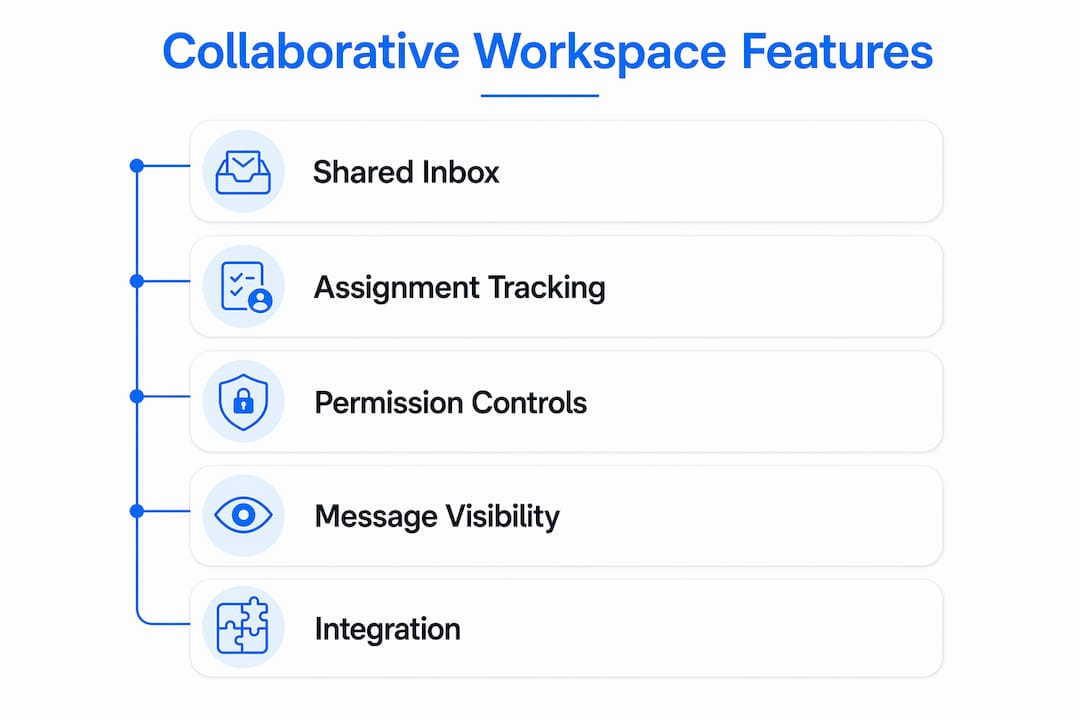
Core features to look for:
Shared inbox access with individual permissions. Every team member logs in with their own credentials. Admins control who can read, reply, or manage messages.
Sending options. Microsoft 365 distinguishes between Send As (email appears from the shared address) and Send on Behalf (email shows the sender’s name on behalf of the shared address). Full Access permission lets users manage mailbox content but does not grant the ability to send as the shared address. That requires a separate Send As permission.
Conversation tracking and audit trails. Teams can see who replied to which message and when. This prevents duplicate replies and keeps everyone accountable.
Assignment and tagging. Members can assign specific emails to colleagues, add labels, and mark conversations as resolved. This turns an inbox into a lightweight task queue.
Integration with calendars and task managers. Google Workspace connects shared inboxes with Google Calendar and Google Spaces. Microsoft 365 shared mailboxes integrate with Teams, Planner, and shared calendars.
Pro Tip: Set up assignment protocols before you go live. Decide who owns which email categories and document it. Teams that skip this step end up with the same message answered twice or not at all.
The features of collaborative email tools matter most when volume grows. A team handling ten emails a day can survive with informal rules. A team handling 200 needs structured permissions, clear assignments, and a visible audit trail.
How do Google Collaborative Inbox and Microsoft 365 shared mailboxes compare?
Both platforms solve the same core problem but take different approaches to permissions, setup, and scale.
Feature | Google Collaborative Inbox | Microsoft 365 Shared Mailbox |
|---|---|---|
Access method | Google Groups within Google Workspace | Individual Microsoft 365 accounts |
Password required | No | No |
Permission model | Group roles (Owner, Manager, Member) | Full Access, Send As, Send on Behalf |
Sending identity | Send as group address | Send As or Send on Behalf |
Setup complexity | Low, managed through Google Groups | Moderate, managed through Microsoft 365 admin center |
Best for | Google Workspace teams, smaller volumes | Microsoft 365 environments, structured workflows |
Scale limit | Suited for smaller teams |
The Microsoft 365 permission model is more granular, which is both its strength and its most common source of confusion. Full Access and Send As are separate permissions that must both be granted for a user to fully operate a shared mailbox. Admins who grant only Full Access will find that team members can read mail but cannot send from the shared address. That gap generates more helpdesk tickets than almost any other shared mailbox issue.
Google Collaborative Inbox is faster to set up and works well for teams already inside Google Workspace. It lacks the granular permission tiers of Microsoft 365 but compensates with simpler administration. For teams that need structured role separation, Microsoft 365 wins. For teams that need speed and simplicity, Google Workspace is the better fit.
One practical note on Microsoft 365: permission changes take 5–15 minutes to apply after an admin makes them. Teams that expect instant access after a permission update will run into confusion. Build that delay into your onboarding process.
What are the benefits of email collaboration for teams?
The benefits of email collaboration extend well beyond convenience. A properly configured shared inbox changes how teams communicate, track work, and serve customers.
The most immediate benefit is eliminating duplicate replies. Shared mailboxes let teams see and manage all messages collectively, so no two people unknowingly respond to the same thread. That alone saves time and prevents the embarrassment of contradictory answers reaching a customer.
Email serves as a durable, searchable record that preserves decisions and context. Organizations rely on email threads for documented records that go well beyond what ephemeral chat tools can offer.
A collaborative email workspace also supports distributed teams. When your support team spans multiple time zones, a shared inbox means the next person on shift picks up exactly where the last one left off. No forwarding chains, no lost context, no “I thought you handled that.” Google Workspace connects dispersed teams through shared inboxes and integrated tools, giving managers real visibility into team activity.
The benefits for small teams using a shared inbox are especially strong. Small teams often lack the headcount to dedicate one person to email management. A shared inbox lets everyone contribute without creating chaos. Visibility in a team inbox also builds accountability. When everyone can see who responded and when, response times improve and nothing falls through the cracks.
How can teams implement a collaborative email workspace effectively?
Getting a shared inbox running is straightforward. Getting your team to use it well takes more deliberate effort.
Define ownership before launch. Assign categories of email to specific team members or roles. A support inbox might route billing questions to one person and technical issues to another. Clear ownership prevents the “someone else will handle it” trap.
Set permissions correctly from day one. For Microsoft 365, grant both Full Access and Send As to every team member who needs to reply. Misconfiguring Send As and Full Access is the most common cause of sending failures. For Google Workspace, assign the right group role to each member before they start using the inbox.
Access shared mailboxes only through individual accounts. Signing in with shared credentials destroys audit trails and individual accountability. Every team member must use their own login. This is a security requirement, not a preference.
Integrate with your existing tools. Connect the shared inbox to your team calendar, task manager, or project board. Scalable inbox workflows use email assignment alongside task tracking so nothing gets lost between systems.
Train the team on assignment protocols. Show team members how to assign emails, mark conversations as resolved, and use labels. A 30-minute walkthrough at launch prevents weeks of confusion.
Pro Tip: Run a one-week pilot with a small group before rolling out to the full team. Catch permission issues and workflow gaps before they affect customers.
The remote team inbox collaboration guide from Sendsync covers additional strategies for distributed teams, including how to handle handoffs across time zones without losing thread context.
Key Takeaways
A collaborative email workspace works because it replaces individual, siloed inboxes with a single shared environment that gives every team member visibility, accountability, and clear ownership of conversations.
Point | Details |
|---|---|
Core definition | A shared inbox where multiple users manage email through their own accounts, not a shared password. |
Permission accuracy | Grant both Full Access and Send As in Microsoft 365 to avoid sending failures. |
Google vs. Microsoft | Google Collaborative Inbox is faster to set up; Microsoft 365 offers more granular permissions. |
Scale consideration | Microsoft 365 shared mailboxes work well for teams up to approximately 25 concurrent users. |
Security baseline | Always access shared mailboxes through individual credentials to preserve audit trails. |
Why email collaboration still beats the alternatives
Teams have been told for years that chat tools like Slack or Microsoft Teams would replace email. That prediction has not held up. Chat is fast but ephemeral. A decision made in a Slack thread is nearly impossible to find six months later. Email threads, by contrast, are searchable, timestamped, and self-documenting. A collaborative email workspace captures that durability and makes it a team asset rather than an individual one.
What I have seen consistently is that teams underestimate the permission setup. They get the shared inbox created, hand out access, and assume it works. Then someone cannot send from the shared address, or two people reply to the same message, and the team loses confidence in the whole system. The technical setup takes minutes. The workflow design takes thought.
The other mistake I see is treating a shared inbox as a replacement for clear ownership. A shared inbox with no assignment rules is just a bigger version of the same chaos. The inbox is the container. The protocols are what make it function. Teams that invest time in defining who handles what, and how to hand off conversations, get dramatically better results than teams that just flip on the feature and hope for the best.
Email collaboration also holds a specific advantage for customer-facing teams. A customer who emails support@yourcompany.com does not care which team member replies. They care that someone replies quickly, accurately, and with full context. A well-run collaborative email workspace delivers exactly that. Chat tools cannot replicate the formality, searchability, and thread continuity that email provides for external communication.
— Nick
How Sendsync makes team email management simpler
Teams that want the benefits of a collaborative email workspace without the configuration complexity of Microsoft 365 admin centers or Google Groups have a direct path forward with Sendsync.
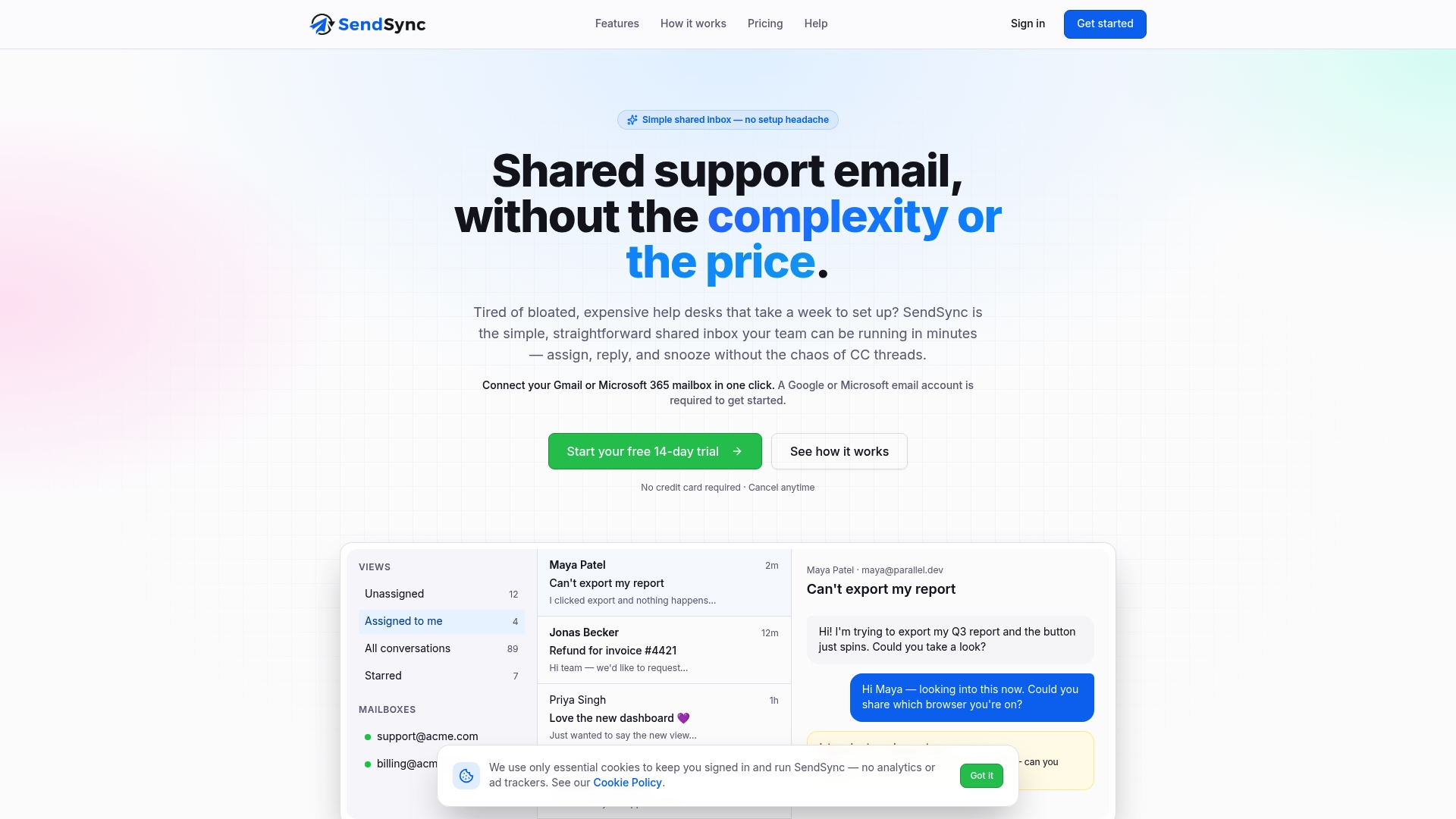
Sendsync connects directly to Gmail or Microsoft 365 mailboxes in minutes, with no DNS changes and no lengthy setup. Teams can assign emails to specific members, track conversation status, and manage responses from a single shared view. The platform charges no per-seat fees, which means adding team members does not increase costs. For customer support teams that need fast setup and clean workflows, Sendsync’s shared inbox removes the administrative friction that slows most teams down. You can also learn how to assign emails to teammates effectively from day one.
FAQ
What is a collaborative email workspace?
A collaborative email workspace is a shared inbox environment where multiple team members access, manage, and respond to a common email address through their own individual accounts. It provides shared visibility, assignment tools, and audit trails that a personal inbox cannot offer.
How is a shared mailbox different from a distribution list?
A shared mailbox keeps all messages in one central inbox that every authorized team member can see and manage. A distribution list simply forwards copies of incoming emails to individual inboxes, with no shared visibility or coordination.
What permissions does a Microsoft 365 shared mailbox require?
Users need Full Access to read and manage mailbox content, plus Send As permission to send email from the shared address. Granting only Full Access is the most common configuration mistake and prevents users from sending on behalf of the shared mailbox.
How many users can share a Microsoft 365 shared mailbox?
Microsoft 365 shared mailboxes work effectively for teams of up to approximately 25 concurrent users. Larger teams or more complex workflows may need Microsoft 365 Groups or a dedicated email collaboration platform.
Is Google Collaborative Inbox or Microsoft 365 better for small teams?
Google Collaborative Inbox is easier to set up and works well for teams already using Google Workspace. Microsoft 365 shared mailboxes offer more granular permissions and suit organizations that need structured role separation. The right choice depends on which platform your team already uses.