
Admins: Shared Inbox Filters That Work with OWA, PowerShell & Triage
Admins: Shared Inbox Filters That Work with OWA, PowerShell & Triage ! Administrator reviewing shared inbox routing The reliable fix is to create rules directly inside the shared mailbox through Outlook on the web, or script them with Exchange PowerShell for bulk deployment, and

The reliable fix is to create rules directly inside the shared mailbox through Outlook on the web, or script them with Exchange PowerShell for bulk deployment, and confirm the mailbox has Full Access permission before you touch anything. Skip desktop-client-only rules; they run only when that one user’s Outlook happens to be open. Check folder permissions after routing, too, or your team ends up with mail nobody can see.
TL;DR:
- Creating server-side rules in Outlook on the web with Full Access permissions ensures consistent performance across time zones and activity levels.
- PowerShell scripting simplifies managing multiple rules across numerous mailboxes, but requires admin rights and careful folder path handling.
- A rule setup should focus on a few durable categories, avoid complex conditions, and include regular housekeeping to prevent obsolescence.
- Rule failures usually result from permissions issues, auto-mapped mailbox problems, or conflicting desktop client rules, not syntax errors.
- Combining simple server-side filtering with a shared workflow for assignment enhances team efficiency and reduces over-engineering.
Table of Contents
- Setting Up Shared Inbox Filters in Outlook on the Web
- When Should You Use PowerShell for Inbox Rules Instead?
- Building a Filter Strategy That Doesn’t Fall Apart in Six Months
- Why Do Shared Mailbox Rules Stop Working?
- How Rule Order Changes What Actually Happens to a Message
- Pairing Server-Side Rules With Team Triage Workflows
- What I’d Check in the First 30 Days After Rollout
- Why Most Teams Over-Engineer Their Shared Inbox Rules
- Getting More From Server-Side Rules With a Shared Team Inbox
- Sources
Setting Up Shared Inbox Filters in Outlook on the Web
Server-side rules run on Microsoft’s servers regardless of who’s logged in or whether anyone’s laptop is open. That’s the whole reason creating rules through Outlook on the web beats client-side setups for a shared mailbox: the rule fires the same way at 2 a.m. as it does at 2 p.m., whether it’s you or a teammate three time zones away.
Here’s the actual sequence:
- Sign into Outlook on the web with an account that has Full Access to the shared mailbox.
- Open the shared mailbox as another mailbox (not just “add shared folder” in your own view).
- Go to Settings, then Mail, then Rules.
- Create a new rule, give it a specific name (not “Rule 1”), and add your conditions.
Conditions and actions work in pairs. You might set the condition to “From contains vendor@domain.com” and the action to “Move to folder: Accounts Payable.” Or condition “Subject contains ‘urgent’” paired with action “Mark as junk” for spam that slips past filters. Common building blocks include:
- Conditions: sender address, subject or body keywords, has attachments, sent to a specific alias.
- Actions: move to folder, forward or redirect, mark as junk, mark importance.
- Exceptions: skip the rule if the subject contains a specific term, or if it’s from an internal domain.
Once the rule is live, use “Run rule now” to apply it retroactively to messages already sitting in the inbox, and set “Stop processing more rules” if that rule should be the final word for a given message.
Test before you trust it. Send three or four sample emails that match your conditions, confirm they land in the right folder, and have a second team member check that they can actually see the result.
Pro Tip: Create test rules with an obvious throwaway folder name like “ZZTEST” first. It’s easier to spot a misfire, and you can delete the folder cleanly once the rule behaves.
When Should You Use PowerShell for Inbox Rules Instead?
OWA works fine for one or two rules. It gets tedious fast when you need the same rule structure across a dozen mailboxes, or when you’re managing rules as part of a repeatable onboarding process. That’s where New-InboxRule in Exchange PowerShell earns its keep: it’s scriptable, auditable, and version-controllable in a way clicking through a web UI never will be.
A basic example:
New-InboxRule -Mailbox 'shared@domain.com' -Name 'Invoices Rule' -SubjectOrBodyContainsWords 'Invoice' -MoveToFolder 'shared@domain.com:\Accounting'
A few things to know before you run it:
- You’ll need administrative permissions on the mailbox, not just your own account’s rights.
- Folder paths can reference either a folder ID or a full path string. Paths are easier to read in a script; IDs are more stable if a folder gets renamed.
- Use
Get-InboxRule -Mailbox 'shared@domain.com'to inspect what’s already there before adding more. Remove-InboxRulegives you a clean rollback if a scripted rule misfires.
Pro Tip: Point your first scripted rule at a test folder instead of a real destination. Validate the logic with Get-InboxRule, confirm it caught the right messages, then repoint it to the live folder.
Building a Filter Strategy That Doesn’t Fall Apart in Six Months
Most shared mailbox rule setups don’t fail because the syntax is wrong; for guidance on staying productive with manageable inboxes, see how to organize your email inbox effectively with theNeedle’s advice on inbox organization. They fail because someone built forty rules and eighteen nested folders in month one, and by month six nobody remembers what half of them do or why. Productivity guidance on shared mailboxes consistently points the same direction: fewer, durable categories beat deep folder trees.
Pick a handful of categories that map to how your team actually works, not how your org chart looks. Something like VIP, Billing, Support, and Notifications covers most support inboxes without turning into a maze:
- Keep each rule doing one obvious job, not five conditional branches.
- Document who owns the rule, why it exists, and when it was last tested.
- Avoid automatic deletes until you’ve watched the rule run clean for a couple of weeks.
- Schedule a recurring housekeeping pass, monthly or quarterly, to retire rules nobody uses anymore.
This is also where server-side rules stop being enough on their own. Rules can sort mail by sender or keyword, but they can’t tell you whether someone already replied or whether a message is stuck. That’s a workflow problem, not a filtering problem, and it’s worth reading up on shared inbox best practices built around ownership rather than folder depth.
Pro Tip: If a rule needs more than two conditions to describe what it does, it’s probably trying to solve a triage problem instead of a filtering problem. Split it into a simple rule plus a manual assignment step.

Why Do Shared Mailbox Rules Stop Working?
Rule failures almost always trace back to one of a handful of causes, and most of them are boring permission issues rather than anything exotic.
- Missing Full Access. Send As or Send on Behalf permissions let someone send mail as the mailbox, but they don’t grant the rights needed to create or manage rules. Check Full Access first, always.
- Auto-mapped versus full account access. When a shared mailbox is only auto-mapped in desktop Outlook, it sometimes won’t show up correctly in the Rules dropdown, which is one more reason OWA is the more dependable place to build rules.
- Client-side rule conflicts. A rule built in someone’s desktop Outlook only runs while that Outlook client is open on their machine. If it’s fighting with a server-side rule, disable or rebuild it as a server-side rule instead.
A quick diagnostic checklist:
- Confirm Full Access on the mailbox for the account creating rules.
- Rebuild suspect rules in OWA rather than the desktop client.
- Watch rule storage: Outlook rules have a combined size limit around 256 KB, and overly complex conditions eat into that fast.
- Run
Get-InboxRulefor a clean inventory of what’s actually active.
How Rule Order Changes What Actually Happens to a Message
Rules run top to bottom, and the first one that matches and includes “Stop processing more rules” wins. Get the order wrong and a VIP client’s email can get swallowed by a generic newsletter filter three rules down.
Put your most specific rules first: exact sender matches, VIP flags, anything that should short-circuit everything else. Save broad cleanup rules, like anything catching newsletter keywords, for the bottom of the list.
- Reorder rules by dragging them in Settings > Mail > Rules, most specific to least specific.
- Add exceptions to prevent a broad rule from catching messages meant for a narrower one.
- After reordering, resend your test messages and check the destination folder again. Order changes can silently break a rule that worked fine before.
Pairing Server-Side Rules With Team Triage Workflows
Rules are good at one thing: deciding where a message goes the instant it arrives. They’re bad at deciding who should answer it or whether it’s already been handled. That gap is exactly why triage and assignment workflows outperform folder-heavy setups as a team grows past two or three people.
The practical split: use simple server-side rules to strip out noise, like moving newsletters or auto-replies out of the main view, and then use a shared workflow layer for everything that needs a human decision. Sendsync’s Gmail and Microsoft 365 integration sits on top of that split naturally, giving teams assignment and shared visibility without asking anyone to memorize a folder tree.
| Layer | Job | Tool |
|---|---|---|
| Rule engine | Sort by sender, keyword, attachment | OWA rules or PowerShell |
| Triage layer | Assign ownership, track status | Shared inbox workflow |
| Review cadence | Trim and consolidate | Monthly or quarterly check |
- Route obvious noise (notifications, receipts) with a rule, not a person’s attention.
- Leave anything ambiguous in the main view for a human to assign.
- Revisit the rule list whenever the triage layer shows a pattern the rules should be handling.
What I’d Check in the First 30 Days After Rollout
Pilot a small rule set in OWA before you touch anything else, and don’t move on until you’ve confirmed every teammate can actually see the folders your rules route into. I’d run a rule report against a week of real traffic and count false positives by hand. Automated confidence is worth nothing if a client email quietly lands in a junk folder nobody checks.
Write down who owns each rule and when you last tested it. Put a 30-day review on the calendar before you forget, and use it to cut anything redundant. Rules that don’t get revisited turn into the mystery logic nobody wants to touch two years later.
Why Most Teams Over-Engineer Their Shared Inbox Rules
Here’s the pattern I keep seeing: an admin inherits a shared mailbox, gets nervous about missing something important, and responds by building rules for every possible scenario. Fifteen conditions later, nobody, including the person who wrote them, can explain why a message went to a particular folder.
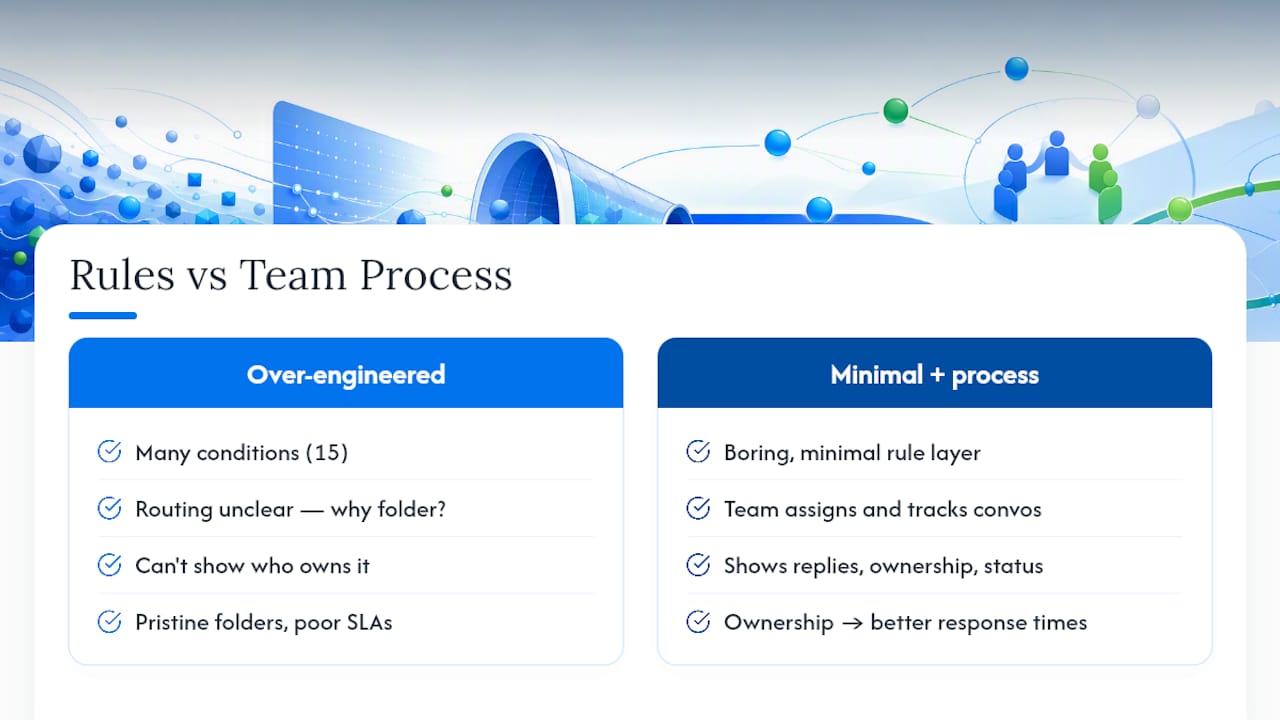
The uncomfortable truth is that most of that complexity is solving the wrong problem. A rule can sort mail. It cannot tell your team who’s handling a conversation, whether a reply already went out, or whether a message just fell through the cracks. Treating filtering as the entire solution is how teams end up with pristine folder structures and terrible response times.
The better approach flips the emphasis: keep the rule layer boring and minimal, and put the real intelligence into how your team assigns and tracks conversations. A rule that shoves invoices into an Accounting folder is doing its job. What happens next, who owns it, whether it’s stalled, isn’t a filtering question at all.
— Nick
Getting More From Server-Side Rules With a Shared Team Inbox
Server-side rules solve routing. They don’t solve who’s supposed to respond, and that’s where most shared mailboxes quietly break down even after the filters are working perfectly.

Sendsync connects directly to Gmail or Microsoft 365 in minutes, no DNS changes, no waiting on a setup ticket. Once your OWA rules or PowerShell scripts are sorting mail into the right folders, Sendsync gives your team a shared view where anyone can assign a conversation, leave an internal note, and see exactly who’s handling what, without opening five folders to piece it together. Plans cover unlimited users with no per-seat fees, so adding your whole support team doesn’t mean recalculating your budget every time someone joins. Pair your existing routing rules with Sendsync’s shared inbox for the assignment and visibility layer, and start a trial to see how much rule complexity you can actually retire.
Sources
- How do I create rules on a shared inbox? - Microsoft Q&A
- Add rules to a shared mailbox - Microsoft Support
- How to create and manage inbox rules for shared mailboxes - m365scripts