
Audit First: 20–50 Demo to Migrate From Zendesk or Use a Shared Inbox
Audit First: 20–50 Demo to Migrate From Zendesk or Use a Shared Inbox ! Support migration audit arranged across table Migrating from Zendesk works best as a planning project, not a weekend export: audit your instance, export in JSON for full fidelity, run a small demo migration,

Migrating from Zendesk works best as a planning project, not a weekend export: audit your instance, export in JSON for full fidelity, run a small demo migration, then move real tickets through a delta import before cutover. The part every team underestimates is that automations, macros, triggers, and SLA policies almost never transfer automatically and need to be rebuilt by hand. Start today by auditing your configuration and running a 20 to 50 record demo migration before you touch production data.
TL;DR:
- Conduct a thorough audit of your Zendesk configuration, including tickets, users, automations, tags, and help center content, before exporting data.
- Export data in JSON format to preserve nested information and run a small demo migration to identify issues with automations, macros, and custom fields.
- Use third-party tools for complex migrations involving attachments and custom fields or opt for API scripts if your mapping logic is highly unique; always validate with a demo first.
- Prepare a detailed field mapping, standardize data formats, deduplicate users, and clean tags to ensure a smoother transfer and reduce post-migration errors.
- Maintain a comprehensive rollback plan, preserving the original Zendesk until full validation, to minimize risks and enable quick reversion if issues arise during cutover.
Table of Contents
- How Do You Audit Your Zendesk Instance Before Migrating?
- What’s the Best Way to Export Zendesk Data?
- Which Migration Method Should You Use: Native, Third-Party, or API?
- What Doesn’t Transfer Automatically When You Switch Platforms?
- How Do You Test and Cut Over Without Losing Data?
- Publisher Perspective: When a Shared Inbox Beats Rebuilding a Full Helpdesk
- How Do You Map Fields and Clean Data Before Import?
- How Long Does a Zendesk Migration Actually Take?
- How Do You Train Your Team on the New Platform?
- What Security and Compliance Steps Protect Customer Data During Migration?
- What’s the Rollback Plan if Migration Fails?
- How Do You Decommission Zendesk Without Losing Historical Records?
- Editorial Take: Migration Is a Planning Problem, Not a Technical One
- How Sendsync Simplifies a Support Platform Switch
- Where to Go Next for Migration Specifics
- Sources
How Do You Audit Your Zendesk Instance Before Migrating?
Every migration that goes sideways skipped this step. Before you export a single ticket, you need a full inventory of what actually lives inside your Zendesk account, because the configuration items are what break, not the tickets themselves.
Build a checklist that covers:
- Tickets by status (open, pending, on hold, solved, closed)
- Users, organizations, and their custom attributes
- Custom ticket fields and their value sets
- Tags, macros, triggers, and automations
- SLA policies and business rules
- Installed apps and third-party integrations
- Help Center articles, categories, and sections
- Attachments tied to tickets and articles
Not everything deserves to move. Use simple heuristics: tickets untouched for over two years, low-value one-off requests, and duplicate macros are candidates to archive rather than migrate. Skipping this triage is a common cause of post-migration errors, according to PipeCrush’s migration guidance, which found that teams who mapped fields and workflows before exporting had far fewer rebuild headaches afterward.
Turn the audit into three deliverables: a field mapping spreadsheet, a prioritized list of automations and macros ranked by business impact, and a Help Center content map showing every article and its internal links.
Pro Tip: Tag your audit spreadsheet with an owner name next to each automation or macro. When something breaks after cutover, you want to know who to call, not who to blame.
What’s the Best Way to Export Zendesk Data?
The format you choose determines how much history survives the trip. JSON captures nested data like comment threads, custom field metadata, and attachment references, which makes it the right choice when ticket history matters. CSV works for basic field exports like ticket lists or user records, but it flattens relational data and loses context. XML shows up occasionally in older integrations, but it’s rarely worth using unless a specific tool requires it.
For the actual extraction, follow this sequence:
- Request an export through Zendesk support, or use the Incremental Ticket Export API for high-volume accounts.
- Schedule the export during a low-traffic window to avoid rate-limit conflicts and reduce the chance of mid-export changes.
- Pull attachments separately and verify a sample against their source tickets.
- Store raw exports in a versioned folder before any cleaning begins, so you always have an untouched backup.
Once the raw data lands, clean it before import: deduplicate contacts, normalize status and priority values, standardize custom field formats, strip internal-only links from article bodies, and spot-check a sample of attachments to confirm they open correctly.
Third-party migration tools quote transfer speeds around 2,000 tickets per hour in some cases, but that number only reflects raw throughput. Planning and cleanup, not transfer speed, are what actually determine your calendar timeline.
Which Migration Method Should You Use: Native, Third-Party, or API?
Three real paths exist, and each trades speed for control.
Native importers move core tickets, contacts, and Help Center articles quickly and at no extra cost. The tradeoff is real: tags, macros, triggers, and SLA policies typically don’t survive the trip and need manual reconstruction on the other side, a limitation eesel AI’s migration guide documents in detail.
Third-party migration tools generally handle attachments, tags, and custom fields with higher fidelity, and most support delta migrations, which capture new tickets created while the main transfer runs. HubSpot’s Service Hub team notes that the added cost usually pays for itself for mid-market teams with complex field structures.
API or custom scripts make sense when your mapping logic is unusual, or when you’re merging Zendesk data with a second data source before import.
Whichever path you pick, run a demo first:
- Select 20 to 50 representative records, mixing old and recent tickets
- Confirm timestamps, comment order, and attachment links survived intact
- Check that custom fields landed in the right destination fields
- Request a delta run to capture anything created since the export
Demo migrations are standard practice for a reason, according to Help Desk Migration’s checklist: they catch mapping errors while the stakes are still small.
Pro Tip: Run your demo during off-hours and ask your destination platform’s support team about a temporary API rate-limit bump. It speeds up ingestion and shortens your validation window.
What Doesn’t Transfer Automatically When You Switch Platforms?
Triggers, automations, SLA policies, most macros, and several app integrations rarely move cleanly, and some advanced custom field types (multi-select trees, dependent fields) often need to be rebuilt from scratch rather than mapped.
Don’t try to rebuild everything on day one. Rank your top 10 to 15 automations and macros by business impact, starting with anything tied to SLA enforcement, routing, or high-volume queues. PipeCrush’s guide recommends prioritizing exactly these categories first, since they affect customer-facing response times immediately. Lower-priority rules can wait until after go-live, and some old automations are worth retiring outright rather than rebuilding blindly. If you’re consolidating several overlapping automation tools in the process, Tekkr’s guide on reducing tool redundancy offers a useful framework for deciding what earns a spot in the new setup.
For Help Center content, run a find-and-replace pass on internal links before publishing, set up redirects from old URLs where your new platform allows it, and click through a sample of articles post-import to confirm nothing points to a dead Zendesk link.
Pro Tip: Build your automation rebuild list in the order tickets actually flow through your queue, not alphabetically. It exposes gaps in routing logic before customers do.
How Do You Test and Cut Over Without Losing Data?
Validation is where most teams either catch problems or ship them straight to customers. Before cutover, confirm:
- Record counts match between source and destination, ticket for ticket.
- Comment history retains its original order and authorship.
- Attachments open and link back to the correct ticket.
- Rebuilt automations fire correctly under test conditions.
- Routing rules and third-party integrations pass a live test transaction.
Once validation clears, run a parallel period: keep Zendesk in read-only mode as a historical archive while new tickets route through the new platform for two to four weeks, shorter for smaller teams with simpler workflows. Full cutover should wait until you hit zero critical automation failures, your team shows real adoption of the new tool, and any tickets created during the parallel run have gone through a final delta migration.
Publisher Perspective: When a Shared Inbox Beats Rebuilding a Full Helpdesk
Not every team needs to rebuild Zendesk’s full architecture somewhere else. If your support operation runs mostly through email, your ticket volume is moderate, and your automation needs are simple, routing rules and a couple of SLA reminders rather than a maze of triggers, a shared inbox is often the better destination.
Ask yourself:
- How many channels do you actually support beyond email?
- How complex are your current automations, really?
- Do you need deep reporting, or just visibility into who’s handling what?
A shared inbox can connect directly to Gmail or Microsoft 365 without DNS changes, and its pricing, which covers unlimited users instead of charging per seat, can change the math for growing teams. For teams making this call, comparing a shared inbox against full helpdesk software side by side clarifies the tradeoff fast.
Pro Tip: If your automation rebuild list from the previous step has fewer than five must-haves, that’s a strong signal you don’t need a full helpdesk replacement at all.
How Do You Map Fields and Clean Data Before Import?
Field mapping is where migrations either go smoothly or quietly fall apart weeks later. Zendesk’s custom fields rarely match your new platform’s schema one to one, so you need a deliberate mapping document before any real import happens.
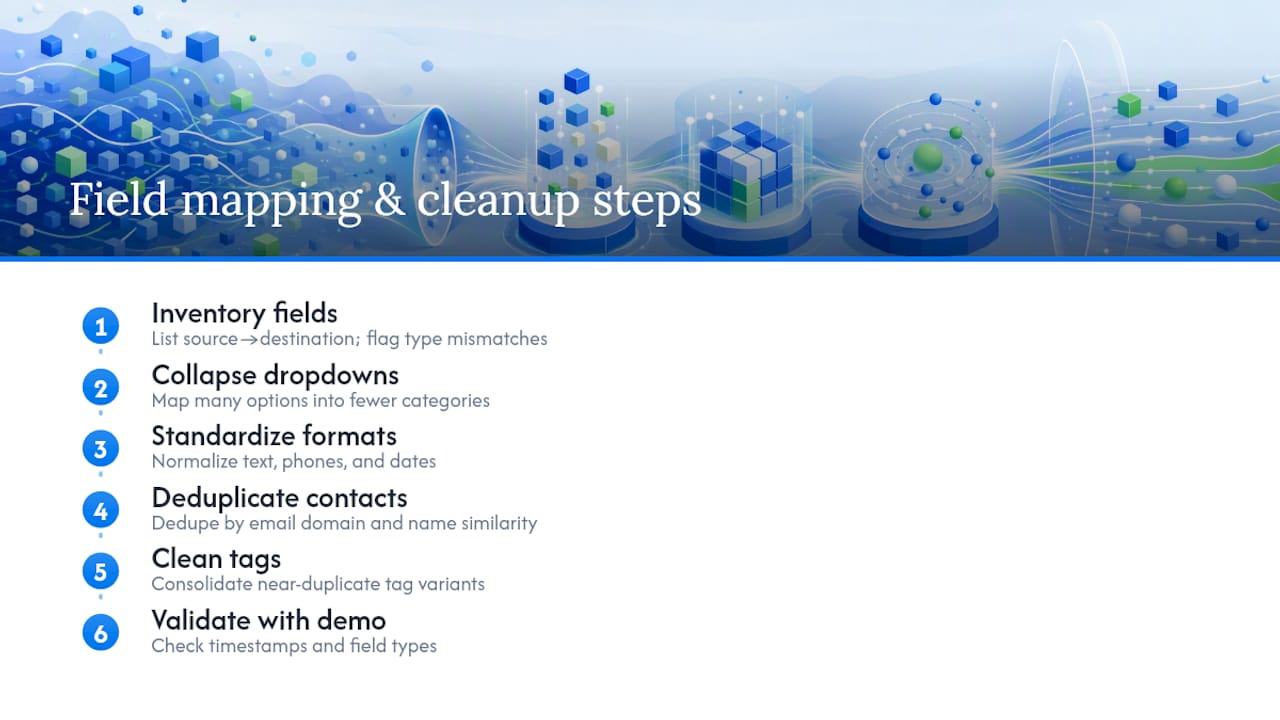
Start by listing every source field next to its intended destination field, flagging any mismatches in data type. A Zendesk dropdown with twelve options might need to collapse into four categories in the new system, and that decision should happen on paper, not mid-import. Text fields with inconsistent formatting, phone numbers written five different ways, dates in mixed formats, need standardization rules before they touch the new platform.
Contact deduplication deserves its own pass. Zendesk often accumulates duplicate user records from guest checkouts or multiple email aliases, and importing those duplicates just moves the mess to your new system. Run a dedupe pass keyed on email domain and name similarity before export, not after.
Tag cleanup matters more than it seems. Years of ad hoc tagging usually leaves you with near-duplicate tags, “billing-issue” and “billing_issue” living side by side. Consolidate before import, because untangling tags after go-live means touching every affected ticket individually.
Finally, validate your mapping against the demo migration results. If timestamps shifted time zones, or a custom field landed as plain text instead of a dropdown value, that’s a mapping error, not a platform limitation, and it’s far cheaper to fix before the full transfer than after.
How Long Does a Zendesk Migration Actually Take?
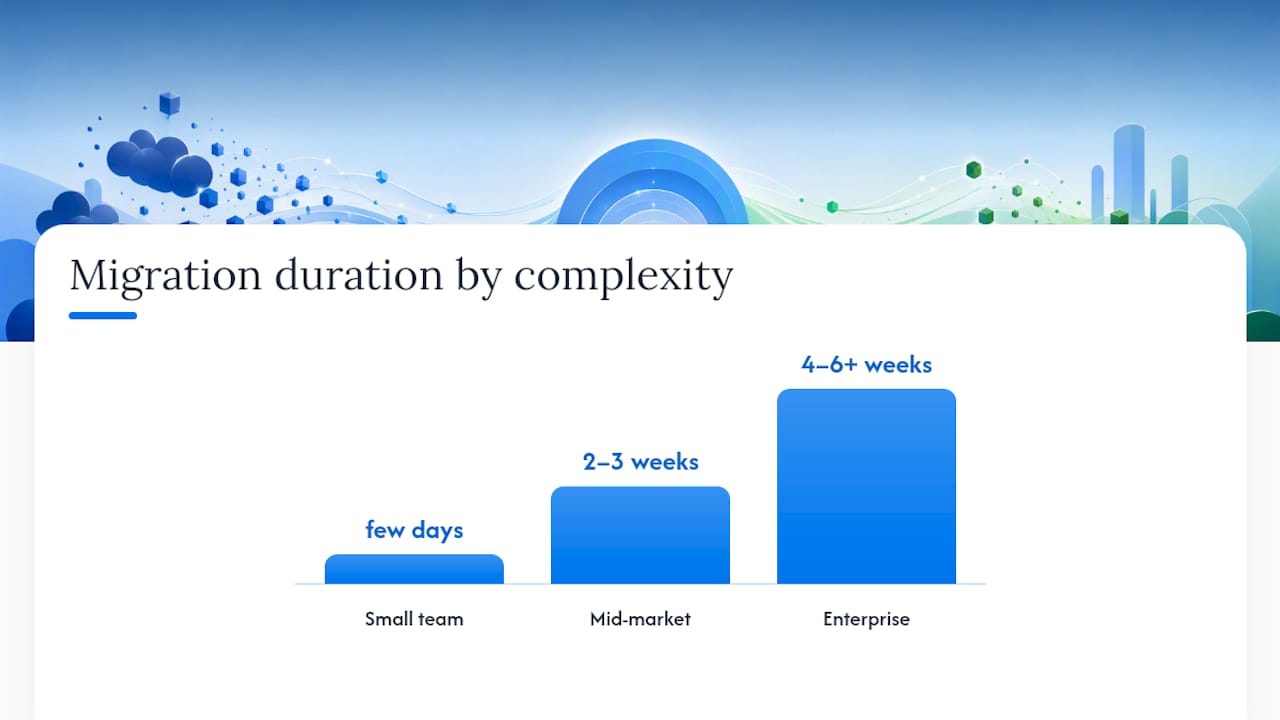
Timing depends almost entirely on account complexity, not ticket count alone. A complete migration sequence, audit, export, map and clean, demo import, full import, delta capture, cutover, can run just a few days for a small team with a handful of custom fields and no complex automations.
Mid-market accounts with multiple custom field types, several integrations, and a few hundred macros typically need two to three weeks, most of it spent on the audit and rebuild phases rather than the actual data transfer. Enterprise accounts with deep automation trees, multiple brands, and heavy Help Center content often stretch to four to six weeks or more, largely because rebuilding SLA logic and routing rules takes real time to test properly.
The most common pitfall isn’t technical, it’s scheduling. Teams underestimate how long field mapping and automation rebuilding take relative to the export itself, then compress the testing window to hit an arbitrary deadline. A second common mistake: migrating every closed ticket from the last five years instead of archiving older records in read-only Zendesk access, which HubSpot’s comparison guide points out adds unnecessary cost and risk for data nobody actively references anymore.
A third pitfall: not assigning a single owner for the migration. When responsibility splits across three people, mapping decisions get made twice, differently, and nobody notices until validation.
How Do You Train Your Team on the New Platform?
Migrating the data is only half the job. If your agents don’t trust the new system, ticket response times slip right when you need them to hold steady.
Start training before cutover, not after. Give agents access to the new platform during the parallel run period so they can practice on real, low-stakes tickets while Zendesk still handles the bulk of traffic. This turns go-live day into a routine shift rather than a crisis.
Build short, role-specific guides instead of one giant manual. A frontline agent needs to know how to find a ticket, respond, and tag it correctly. A team lead needs to understand routing rules and escalation paths. Separate documentation, reviewed against real workflow examples, makes both groups faster to onboard.
Assign a small group of power users, two or three agents, as first-line support for their peers during the first two weeks. Questions get answered faster than routing everything through IT, and those power users usually surface workflow gaps you missed during planning.
Track adoption with a simple metric: percentage of tickets handled entirely inside the new platform versus tickets still touching Zendesk.
What Security and Compliance Steps Protect Customer Data During Migration?
Every export you generate is a copy of sensitive customer data sitting outside your production system, and that copy needs the same protection as the original.
Encrypt exported files at rest and in transit, especially if you’re using cloud storage as a staging area between Zendesk and your new platform. Limit access to raw export files to the smallest group of people actually doing the migration work, not the entire IT team.
If your support tickets contain regulated data, payment details, health information, government IDs, confirm your new platform’s compliance posture matches or exceeds what Zendesk provided before you migrate a single record. Don’t assume parity; verify it against the vendor’s own documentation.
Delete staging copies of exported data once the migration completes and you’ve confirmed the full import succeeded. Leaving temporary export files sitting in a shared drive for months is one of the more common, and more avoidable, compliance gaps teams create during migrations.
Log who accessed exported data and when, particularly during the demo and parallel-run phases when files pass between multiple hands. If your organization has an existing audit framework, apply it to the migration project itself, not just to the finished result.
What’s the Rollback Plan if Migration Fails?
Every migration plan needs an exit ramp, and the moment to design it is before you start, not after something breaks.
Keep your original Zendesk account fully intact and untouched throughout the parallel run. Because it’s still your system of record until cutover, rolling back simply means redirecting traffic to it and pausing new ticket creation in the destination platform.
Define rollback triggers in advance: a critical automation that misroutes urgent tickets, a data integrity failure affecting more than a small percentage of records, or an integration outage that blocks agents from doing their jobs. Vague thresholds lead to indecision in the moment, so write specific numbers into your cutover plan now.
Keep your cleaned export files and mapping documentation version-controlled, so if you need to re-run the full import after fixing an issue, you’re not rebuilding the mapping logic from memory. A failed cutover attempt should cost you a day, not a week.
Communicate the rollback plan to your support team before go-live, not during a crisis. Agents who know the fallback procedure stay calmer, and calmer agents make fewer additional mistakes while everyone works through the fix.
How Do You Decommission Zendesk Without Losing Historical Records?
Shutting down Zendesk too early is the most expensive mistake a migration can make, because historical ticket data often has legal retention requirements or ongoing customer value you can’t easily recreate.
Before canceling your Zendesk subscription, confirm every ticket, article, and attachment you intend to keep has been exported and verified, not just migrated. A successful import into your new platform and a complete backup are two different things, and you want both.
Export a final, complete backup after your parallel run ends, capturing any tickets created or modified during that window. Store this backup somewhere outside both platforms, ideally in cold storage with clear retention labeling tied to your compliance requirements.
Downgrade rather than immediately cancel if your contract allows it. Many teams keep a read-only or light-tier Zendesk account active for several months as a safety net, giving agents and compliance staff a way to look up old tickets without paying for full seats.
Document the decommission date and the location of your final backup in your internal knowledge base. Six months from now, when someone asks about a ticket from before the migration, you want that answer to take five minutes, not a frantic search through old email threads.
Editorial Take: Migration Is a Planning Problem, Not a Technical One
The conventional advice treats Zendesk migration as a data problem: export this, import that, done. That framing misses what actually breaks migrations, which is underestimating how much of a support operation lives in configuration rather than data. Tickets migrate cleanly almost every time. Automations, SLA logic, and routing rules are where teams lose weeks they didn’t budget for.
The audit-first approach isn’t glamorous, and it’s tempting to skip straight to export because it feels like progress. It isn’t. A rushed migration that skips the demo step usually costs more time in post-launch firefighting than the audit would have taken up front.
The other overlooked point: not every team needs to rebuild what they had. If your support operation is email-heavy with modest automation needs, forcing yourself into another complex helpdesk just because that’s what you’re used to is its own kind of mistake. Match the destination to the actual complexity of your workflow, not to habit.
— Nick
How Sendsync Simplifies a Support Platform Switch
Sendsync gives support teams an alternative to rebuilding a full helpdesk from scratch: connect Gmail or Microsoft 365 in minutes, skip the DNS configuration entirely, and get your team collaborating on shared conversations the same day instead of weeks into a technical setup.

For teams with moderate ticket volume and email as the dominant channel, this matters more than it sounds. Instead of spending weeks rebuilding triggers, SLA policies, and routing trees, you set up assignment and internal notes in an afternoon. Some pricing models that cover unlimited users with no per-seat fees may change the math for growing teams that kept hesitating to add support staff under Zendesk’s licensing model. Fewer automations to reconstruct also means faster onboarding: agents already know how to use email, so the learning curve is close to zero.
If your migration audit turned up a short automation list and an email-heavy ticket mix, start a trial with Sendsync and see how fast your team can be back to full productivity.
Where to Go Next for Migration Specifics
For the technical details this guide didn’t cover in full, a few sources are worth bookmarking. Zendesk’s own Help Center migration documentation covers API-based export options and native content-transfer methods directly from the source. Help Desk Migration’s checklist walks through demo and delta migration mechanics in more granular detail than fits here. And eesel AI’s migration guide offers a broader look at sequencing and timing across account sizes, useful for benchmarking your own project plan against real-world examples.
Sources
- Zendesk Data Migration Checklist
- How to migrate from Zendesk: a complete 2026 guide | eesel AI
- Zendesk alternatives (HubSpot Service Hub blog)