
How to Migrate From Intercom Without Losing Your History
How to Migrate From Intercom Without Losing Your History ! Hands plugging network cable into switch Yes, you can migrate from Intercom, and the process is straightforward if you start the export clock immediately.

Yes, you can migrate from Intercom, and the process is straightforward if you start the export clock immediately. Intercom’s own tooling puts real limits on how fast you can pull data, so treat the first three days as a race against expiring download links, not a leisurely planning phase.
Do this in the next 24 to 72 hours:
- Request full conversation, contact, and company exports from your Intercom workspace settings today.
- Download every export file the moment it’s ready and verify row counts against your workspace totals.
- Block engineering time this week for API pulls covering anything CSV export won’t capture.
- Freeze non-critical automations so your data snapshot stays clean during extraction.
Pro Tip: Export downloads often expire within days, so download and back up files to cloud storage the same hour they land, not the same week.
The sequence that works: inventory everything, export it, rebuild your knowledge base, re-wire your integrations, then run a parallel cutover before you cancel anything.
Key Takeaways
Migrating from Intercom succeeds when teams export early, verify every file, rebuild workflows simpler than the original, and run a parallel cutover before canceling anything.
| Point | Details |
|---|---|
| Export immediately | Download every file within hours since Intercom links expire and CSV exports are capped. |
| Inventory before extracting | Map conversations, contacts, tags, attachments, KB articles, and webhooks before scoping the project. |
| Preserve identifiers on import | Keep user IDs, external IDs, and tags intact so history stays actionable after migration. |
| Run a real bake-off | Test 20 to 30 recurring questions on both systems before committing to full cutover. |
| Simplify, don’t rebuild, and consider Sendsync | Use migration to cut automation bloat; Sendsync offers a DNS-free shared inbox setup for teams ready to move on. |
Table of Contents
- Inventory and Planning: What to Map Before You Touch Intercom
- Export Methods and the Limits You Will Hit
- Migrating Conversations and Attachments Without Losing Context
- Rebuilding Your Knowledge Base on the New Platform
- Re-Wiring Integrations, Automations, and Workflows
- The Cutover Plan: Testing, Rollback, and When to Finally Cancel Intercom
- Why Sendsync Is a Practical Landing Spot After Intercom
- Sources
Inventory and Planning: What to Map Before You Touch Intercom
Migration projects fail when teams start exporting before they know what “everything” actually includes. Build an inventory first, and treat it as a living document your whole team can check against.
- Conversations — open, closed, and snoozed threads, plus any tagged or archived history you’re legally or contractually required to keep.
- Contacts and companies — including custom attributes, lead scores, and segment memberships that other tools depend on.
- Tags and custom objects — these often carry business logic (churn risk, plan tier) that breaks silently if dropped.
- Attachments — images, PDFs, screen recordings attached to conversations.
- Help center articles — including drafts, internal-only articles, and multi-language versions.
- Bots and workflows — document the logic, not just the trigger names.
- Webhooks and integrations — every endpoint currently receiving Intercom events.
Decide scope honestly. Full history migration protects you against compliance requests and customer disputes, but selective archiving (say, the last 12 months live, older data archived as read-only CSV) cuts migration time substantially. For most support teams, plan on one engineer, one support lead for validation, and a QA pass from someone who didn’t build the export scripts.
Export Methods and the Limits You Will Hit
Intercom gives you three real export paths, and each one has a ceiling you need to plan around.
- CSV export is fine for contacts and simple reporting, but manual exports are capped and force you into batching for anything beyond a small workspace.
- Data Export API handles conversations and larger datasets through pagination, and it’s the only realistic option for full conversation history.
- Articles API covers help center content, but there’s no single bulk export button for your entire help center, so you pull article by article or script it.
The practical constraints that trip people up: CSV row caps that force multi-file exports, download links that expire before a distracted engineer gets to them, and a 500-message-part truncation limit on long conversation threads that silently cuts off older history if you’re not paginating correctly.
The work-around is unglamorous but reliable. Script batch pulls against the Data Export API rather than relying on manual triggers. Run parallel downloads so expiring links don’t create a bottleneck. Stage everything in temporary cloud storage (an S3 bucket works well) before you transform anything, and run a checksum or row-count verification against Intercom’s own totals before you delete a single export file. Migration services automate much of this batching and mapping if your team doesn’t have bandwidth to script it in house.

Migrating Conversations and Attachments Without Losing Context
Moving the words is easy. Moving the meaning attached to those words is where teams get sloppy.
- Pull conversation threads through the paginated API, not the CSV export, since long threads hit that 500-message-part cap and need to be reassembled with consistent timestamps so system notes and agent attributions line up correctly.
- Stage attachments separately. Either rehost files in your own storage and rewrite links, or preserve original URLs if your new platform can reference external files directly.
- Preserve identifiers. Keep original user IDs, external IDs, and tags intact on import so a customer’s three-year history still reads as one continuous thread instead of a fresh contact record.
- Map agents before you import tickets. If an agent’s account doesn’t exist yet in the new system, create a placeholder and assign historical tickets to a single admin, then reassign once real user accounts exist.
Pro Tip: Run a small batch of 50 to 100 conversations through your import pipeline first. Catching a broken attachment link or a mangled timestamp in a test batch is far cheaper than catching it after 40,000 records land wrong.
Community threads on platforms like HubSpot routinely confirm that native full-chat import from Intercom is rarely available out of the box, which means most teams end up building custom API-based import regardless of destination platform.
Rebuilding Your Knowledge Base on the New Platform
Your help center needs more care than a straight copy-paste job. Pull articles through the Articles API one at a time and treat scraping the public help center pages as a last resort, reserved for cases where your API tier doesn’t cover bulk article access.
- Standardize metadata across every article: category, last-updated date, and author, before import.
- Check internal links and embedded images manually. Vendor import guides consistently flag broken formatting and image links as the most common post-import cleanup task.
- If you’re building a retrieval-based chatbot instead of a static help center, chunk articles into passages, tag each chunk with a canonical article ID, and keep an index mapping chunks back to source articles so you can correct a bad answer at its origin.
- Preserve article URLs where possible, or set up redirects, so old support links customers have bookmarked still resolve.
Re-Wiring Integrations, Automations, and Workflows
Every third-party connection pointed at Intercom needs a deliberate decision, not an assumption it’ll “just work” after cutover.
- Inventory every integration touching Intercom: your CRM, analytics tools, Slack, Zapier or Make scenarios, and billing systems.
- Document each webhook’s event schema before you disconnect anything, since you’ll need it to configure the equivalent trigger on the new side.
- Test sync in both directions. A CRM that updates from your inbox but doesn’t push back correctly will quietly corrupt customer records within weeks.
- Plan for backfill. Any events that fired during the cutover window need a manual reconciliation pass.
- Rebuild bot logic rather than copying it node by node. Translating a tangled decision tree into a new platform’s automation model is the moment to cut dead branches, not preserve them.
The Cutover Plan: Testing, Rollback, and When to Finally Cancel Intercom
Don’t flip a switch on a Friday and hope. Run both systems in parallel for a defined window, typically two to four weeks depending on your ticket volume.
- Select 20 to 30 recurring, real customer questions and run them through both systems as a bake-off, comparing response accuracy and resolution time side by side.
- Track escalation rate, first-response time, and SLA compliance on the new platform against your Intercom baseline for the same period.
- Set explicit rollback triggers before launch, not during a crisis: a meaningful jump in escalation rate, any SLA breach, or a pattern of factual errors in bot responses should trigger an automatic pause.
- Keep a short grace period, generally one to two billing cycles, before canceling Intercom entirely.
Intercom’s own migration guidance recommends this grace period specifically because workspace cancellation can trigger eventual deletion of retained data. Once you’ve confirmed the new platform is stable and your team isn’t quietly reopening Intercom out of habit, run a final export check, confirm nothing critical is left in the old workspace, and schedule the account for closure.
Operator Perspective: Simplify, Don’t Replicate
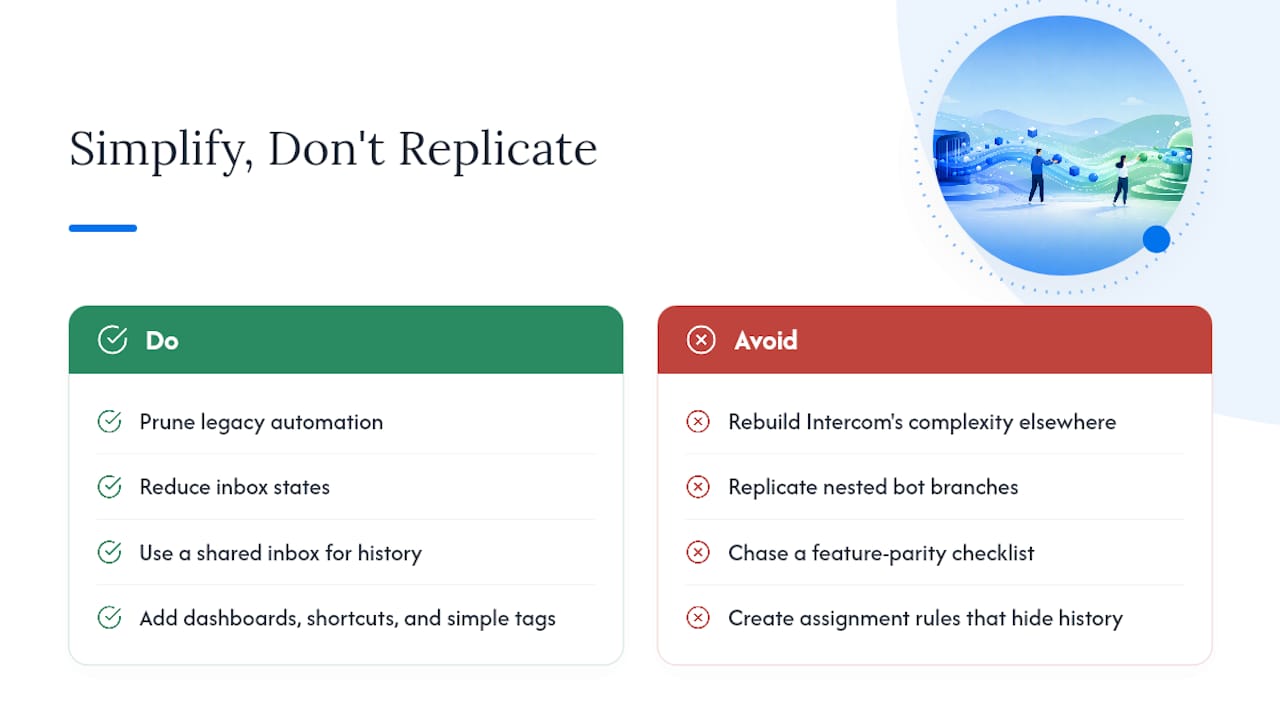
The biggest mistake support teams make during migration is trying to rebuild Intercom’s exact complexity somewhere else. Don’t. Bessemer’s analysis of Intercom’s own architectural shift makes a point worth sitting with: platforms outgrow their own automation layers constantly, which is exactly why migration is the moment to prune yours.
Fewer inbox states, fewer nested bot branches, and a shared-inbox model where anyone can see conversation history without hunting through assignment rules will save you more time than any feature parity checklist. Once the migration settles, invest in dashboards, keyboard shortcuts, and a simple tagging convention your whole team actually uses, not the ambitious one nobody adopted.
— Nick
Why Sendsync Is a Practical Landing Spot After Intercom
If the migration checklist above left you wondering whether the destination needs to be another sprawling help desk, it doesn’t. Sendsync gets a shared inbox running with your existing Gmail or Microsoft 365 mailbox in minutes, with no DNS records, no MX changes, and no multi-week onboarding call.

That matters directly for migration planning. The conversation history, contacts, and tags you just spent days exporting need somewhere simple to land, and Sendsync’s assignment, internal notes, and saved views cover the same job Intercom’s inbox did, minus the per-seat pricing and configuration overhead. Every teammate gets full access under one plan, so you’re not rationing seats while you’re still stabilizing the new system. Support teams already using a shared inbox model post-migration find it easier to keep tagging conventions and shortcuts consistent, which pairs well with shared inbox best practices worth setting up in your first week.
Start a Sendsync trial and connect your support mailbox today to see how quickly your team can be answering tickets in a simpler inbox instead of configuring one.
Sources
- Migrate from Intercom to an AI Chatbot: 2026 Checklist | Heeya
- Import Data to Intercom with Help Desk Migration
- Migrating Your Intercom Knowledge Base to UserGuiding
- Intercom’s playbook for becoming an AI-native business - Bessemer Venture Partners