
How to Migrate from Help Scout: 2026 Step-by-Step Guide
How to Migrate from Help Scout: 2026 Step-by-Step Guide ! Hands sorting files symbolizing inventory The fastest safe route when you migrate from Help Scout is to run a scoped inventory, execute a demo migration on a sample batch, then schedule a full migration with a defined cuto

The fastest safe route when you migrate from Help Scout is to run a scoped inventory, execute a demo migration on a sample batch, then schedule a full migration with a defined cutover window. That sequence catches mapping errors before they hit production and gives you a clean rollback point if anything breaks.
Your minimum safe scope covers:
- Customers, conversations (with full thread history), attachments, tags, saved replies, Docs articles, and basic metadata
- Three migration paths to evaluate: DIY export plus custom scripts (maximum control, needs engineering), a third-party migration service (faster, costs money, comes with guarantees), or a move to a lightweight shared inbox like Sendsync (minimal rebuild, no DNS headaches, live in days)
- Immediate next step: pull a full record count from Help Scout’s API and request a test export today
One rule holds throughout: keep your Help Scout account active and your exports backed up until every record is verified and a formal sign-off is complete.
Key Takeaways
Migrating from Help Scout safely requires a scoped inventory, a verified demo migration, and a defined rollback plan before you touch production data.
| Point | Details |
|---|---|
| Run inventory first | Count all conversations, attachments, tags, and automations before starting any export. |
| Demo migration is non-negotiable | Test on 100–500 conversations and pass QA before running the full import. |
| Preserve external_id on every record | Idempotent imports let you rerun partial batches without creating duplicates. |
| Keep Help Scout active post-cutover | Maintain read-only access for at least 30 days as your rollback safety net. |
| Sendsync for email-first teams | Connect Gmail or Microsoft 365 in minutes with no DNS changes and unlimited users. |
Table of Contents
- How to migrate from Help Scout: plan and inventory first
- Exporting your data from Help Scout: what you can get
- How should you migrate: DIY, a service, or a shared inbox?
- Field mapping and transformations you’ll need to apply
- How to run a demo migration and verify it worked
- Cutover steps: how to switch inboxes without losing messages
- Post-migration QA, agent training, and final sign-off
- Migration timeline, cost factors, and security checklist
- When Sendsync is the faster, lower-risk migration outcome
- What to do if the migration fails: rollback plan
- Preparing your team and inventorying data
- When a lightweight shared inbox is actually the right migration outcome
- Sendsync: the fast-switch option for email-first support teams
- Sources
How to migrate from Help Scout: plan and inventory first
Before you touch a single export, you need a clear picture of what you own. Teams that skip this step discover mid-migration that they have 40,000 attachments nobody accounted for, or three mailboxes that were quietly routing to a shared alias nobody remembered.
Records to inventory before you start:
- Users and agents (names, roles, permission levels)
- Mailboxes (count, aliases, forwarding rules)
- Conversations (open, closed, spam, pending — total count per mailbox)
- Attachments (volume and total storage size)
- Customers and companies/organizations
- Tags (active vs. orphaned)
- Saved replies (count and ownership)
- Docs sites, collections, and articles
- Automations and workflows
- Webhooks and integrations
Assign owners before day one:
- Migration owner: accountable for the project timeline and go/no-go decisions
- Data steward: responsible for export integrity and backup storage
- QA lead: owns the verification checklist and sign-off criteria
- DNS/IT contact: handles mailbox connections, MX records, and forwarding changes
- Agent training lead: prepares the team for the new platform
Pro Tip: Set an external_id on every record during your first export pass. Migration guides consistently recommend preserving original Help Scout IDs to support idempotent import runs — meaning you can re-run a partial import without creating duplicates. Also establish a day-0 freeze rule: no new tags, no new saved replies, no workflow changes from the moment you cut your first export.
A realistic inventory for a team of 10–20 agents with two to three years of conversation history typically takes two to three business days to complete properly.
Exporting your data from Help Scout: what you can get
Help Scout gives you several export paths, but not everything comes out cleanly. Knowing the gaps before you start saves hours of scrambling.
What Help Scout exposes for export:
- Customers (CSV via the UI or JSON via the Customers API)
- Conversations and threads (JSON via the Conversations API, paginated)
- Attachments (download URLs returned in the API response, not bundled automatically)
- Tags (embedded in conversation exports)
- Mailbox metadata (names, aliases, settings)
- Docs sites, collections, and articles (via the Docs API)
- Saved replies (via the API)
- Basic reporting data (CSV export from the Reports section)
Automations, workflows, and webhook configurations have no bulk export. You document those manually.
Step-by-step export checklist:
- Request a full account data export from Help Scout’s Settings page. This gives you a baseline CSV of customers and basic conversation metadata.
- Use the Help Scout Conversations API to pull threaded message data in JSON. Paginate through all mailboxes. Store each page to disk immediately.
- For each conversation, collect attachment download URLs from the API response. Download and store attachments separately. As one first-hand migration report documents, attachment preservation is one of the trickiest parts of leaving Help Scout — download URLs expire, and bulk attachment export is not a built-in feature.
- Pull Docs content via the Docs API: sites → collections → articles, in that hierarchy.
- Export saved replies via the API and document automations manually in a spreadsheet.
- Verify record counts: total conversations exported vs. total shown in the Help Scout UI.
File format notes: API responses come as JSON with ISO 8601 timestamps. The UI CSV export uses a different timestamp format. Normalize everything to UTC before import. Store all export files encrypted at rest — temporary API access tokens should be scoped to read-only and rotated immediately after the export completes.
How should you migrate: DIY, a service, or a shared inbox?
The right migration method depends on your team size, conversation volume, and how much engineering capacity you can spare. There is no universally correct answer, but the decision matrix is straightforward.
Comparing your three options:
- DIY export plus scripts: Full control over field mapping and timing. Cheaper if you have an engineer available. Requires building and testing your own import scripts, handling pagination, and managing retries. Realistic for teams under 5,000 conversations with a developer on staff.
- Third-party migration service: Faster execution, pre-built connectors, and often a data guarantee. Costs money — migration services listed on Capterra vary in price and scope, so check reviews on G2 for field-level mapping quality, attachment handling, and idempotent rerun support before committing.
- Move to a lightweight shared inbox (Sendsync): If your team’s core workflow is email-based support and you don’t need a full ticketing system rebuild, this path skips most of the complexity. Connect your Gmail or Microsoft 365 mailbox, invite your team, and you’re live. No DNS changes required.
Decision matrix — ask these questions:
- Team size over 50 agents with complex SLA rules? A full helpdesk migration service is likely worth the cost.
- Under 20 agents, primarily email-based support, no custom ticket fields? A shared inbox alternative like Sendsync is worth a serious look before you spend weeks rebuilding workflows.
- Need to preserve CSAT scores, custom fields, and automation logic? Plan for a migration service or significant DIY engineering time.
- Tight timeline (under two weeks)? DIY is risky at scale. A service or a shared inbox switch is faster.
- Budget under $500? DIY or Sendsync. Full-service migrations for medium teams typically run higher.
The Help Scout to Zendesk migration guide from Helpando notes that automations and saved replies almost always require a manual rebuild regardless of which migration method you choose — factor that labor into your timeline estimate.
Community write-ups on DIY migrations confirm that custom scripting is feasible but demands careful testing, especially around attachment URLs and thread ordering.
Field mapping and transformations you’ll need to apply
Every destination platform uses different object names and field types. Mapping Help Scout’s data model to your target requires explicit decisions before import, not after.
Help Scout object → destination field mapping (generic labels):
| Help Scout object | Destination equivalent | Common transformation needed |
|---|---|---|
| Customer | Contact | Normalize email to lowercase; E. format for phone |
| Company/Organization | Organization | Deduplicate by domain |
| Conversation | Ticket / Thread | Map status (active → open, closed → resolved) |
| Thread (message) | Thread / Reply | Strip inline image CIDs; rehost attachments externally |
| Attachment | Attachment | Download and rehost if target API lacks upload endpoint |
| Tag | Tag / Label | Audit and consolidate taxonomy before import |
| Custom field | Custom field / Attribute | Match data type; text fields may need casting |
| Saved reply | Macro / Template | Manual rebuild — no API import path on most platforms |
| CSAT rating | Satisfaction score | Often read-only on destination; store as a custom attribute or internal note |
Common transformations to apply before import:
- Convert all timestamps to UTC ISO 8601 format
- Normalize email addresses to lowercase to prevent duplicate contact records
- Reformat phone numbers to E.164 (+1XXXXXXXXXX for US numbers)
- Clean up tag taxonomy: merge synonyms, remove orphaned tags with zero conversations
- For attachments, download each file and rehost it if the destination API requires a URL rather than a binary upload. Some platforms mark
conversation_ratingas read-only and cannot be populated via API — store those values as custom attributes instead - Preserve the original Help Scout conversation ID as
external_idon every imported record. This makes reruns safe and lets you cross-reference source and destination records during QA
A practical approach: build a mapping spreadsheet with one row per Help Scout field, the destination field name, the transformation rule, and a “verified” checkbox. Run it past your QA lead before writing a single import script.
How to run a demo migration and verify it worked
A demo migration on a representative sample is the single most important step in the whole process. It surfaces broken image links, missing attachments, and thread-ordering bugs before they affect your full dataset.
QA checklist for every demo run:
- Sample accounts: verify customer records created correctly, no duplicates
- Conversation threading: confirm replies are nested under the correct parent conversation
- Attachments: spot-check at least 20% of conversations with attachments — verify files are accessible and not returning 404s
- Tags: confirm all tags transferred and are assigned to the correct conversations
- Custom fields: verify data types and values match source
- Internal notes: confirm they are marked as internal (not visible to customers) in the destination
- User mapping: verify agent assignments are correct and no conversations are orphaned to a deleted user
- Timestamps: confirm created/updated dates match source data, not the import date
How to run the demo migration:
- Select a representative sample: 1–5% of total conversations, or 100–500 conversations, whichever is larger. Include edge cases: conversations with multiple attachments, conversations with tags, closed conversations, conversations with CSAT ratings.
- Run the import script or migration service on that sample only.
- Open 10–20 conversations manually in the destination and compare them side-by-side with the source in Help Scout.
- Run your QA checklist against the sample. Log every failure in a bug tracker with the conversation ID, the failure type, and the expected vs. actual value.
- Fix mapping errors in your import script or configuration. Re-run the demo on the same sample set. Repeat until the QA checklist passes with zero critical failures.
Common failures to watch for: broken inline image links (CID references that don’t resolve), HTML body content that renders as raw markup, attachments that uploaded but return access-denied errors, and conversations that imported with the wrong status (open vs. closed). The ClonePartner migration guide recommends an audit → sample run → full migration sequence for exactly this reason — catching these issues on 200 conversations is far cheaper than finding them on 20,000.
Cutover steps: how to switch inboxes without losing messages
The cutover is the highest-risk phase. A clean cutover means no messages fall into a gap between the old inbox and the new one.
Cutover sequence:
- Run a final delta export from Help Scout: pull all conversations updated since your last full export. This captures any tickets opened or updated during the demo and QA phases.
- Declare a freeze window: no new tags, no workflow changes, no agent permission changes from this point forward.
- Import the delta records into the destination platform.
- Update mailbox connections: connect your Gmail or Microsoft 365 mailbox to the new platform. If you’re using Sendsync, this requires no DNS changes — connect the mailbox directly.
- If your destination requires MX record changes: update MX records, SPF, DKIM, and DMARC at your DNS provider. MX propagation typically takes 15 minutes to 48 hours depending on your TTL settings. Lower your TTL to 300 seconds at least 48 hours before cutover to speed propagation.
- Verify SMTP/IMAP credentials in the new platform. Send a test message and confirm it appears correctly.
- Confirm mail routing: send a test email to your support address and verify it lands in the new inbox, not the old one.
- Notify agents: send a Slack or email message with the exact time the new inbox goes live and what they should do with any conversations still open in Help Scout.
Timing guidance: schedule the cutover during your lowest-traffic window — typically late Friday evening or early Saturday morning for US-based teams. A staged cutover (one mailbox at a time) reduces risk for teams with multiple inboxes. For customer communication, a brief status page note or auto-reply (“We’re upgrading our support system — response times may be slightly longer for the next few hours”) sets expectations without alarming anyone.
For teams using mailbox-level forwarding instead of MX changes, the cutover is simpler: update the forwarding rule in Gmail or Microsoft 365 to point to the new platform’s ingest address. No DNS propagation wait required.
Post-migration QA, agent training, and final sign-off
The migration isn’t done when the data lands. It’s done when your team is productive and every record is verified.
Final QA checklist:
- Pull a random sample of 50–100 conversations from the destination and verify them against Help Scout
- Confirm all attachments are accessible (no 404s, no permission errors)
- Verify macros and saved replies have been recreated (these require manual rebuild on most platforms)
- Test all automations: trigger each rule and confirm the expected action fires
- Check SLA rules: verify response-time targets are configured correctly
- Confirm user roles and permissions match the source configuration
- Verify Docs articles are published and accessible at the correct URLs (or that redirects are in place)
Agent training plan:
- Schedule a 30-minute live walkthrough of the new platform on day one
- Assign a shadowing buddy for the first two days: one experienced agent paired with each new user
- Update your internal knowledge base with screenshots of the new UI for common tasks (assigning conversations, adding tags, using saved replies)
- Rebuild saved replies in the new platform before agents go live — nothing slows a team down faster than having to retype standard responses from scratch
- Send a brief change communication to customers if your support email address changed: a simple “We’ve upgraded our support system — same address, faster responses” message is enough
Archival and sign-off:
- Set Help Scout to read-only mode (cancel new agent seats but keep the account active)
- Keep the account accessible for at least 30 days post-migration for reference lookups
- Store your full export files in encrypted cloud storage for at least 90 days
- Formal sign-off criteria: QA lead confirms zero critical failures, migration owner confirms all mailboxes routing correctly, and agent training lead confirms all agents have completed the walkthrough
Migration timeline, cost factors, and security checklist
Typical migration timeline by team size:
| Phase | Small team (1–5 agents) | Medium team (6–20 agents) | Medium-plus team (20–50 agents) |
|---|---|---|---|
| Planning and inventory | 1–2 days | 2–3 days | 3–5 days |
| Demo migration and QA | 1–2 days | 2–3 days | 3–5 days |
| Full migration | 1 day | 1–2 days | 2–3 days |
| Cutover | 2–4 hours | 4–8 hours | 8–24 hours |
| Post-migration QA | 1 day | 2–3 days | 3–5 days |
| Total | 4–7 days | 7 days | 12 days |
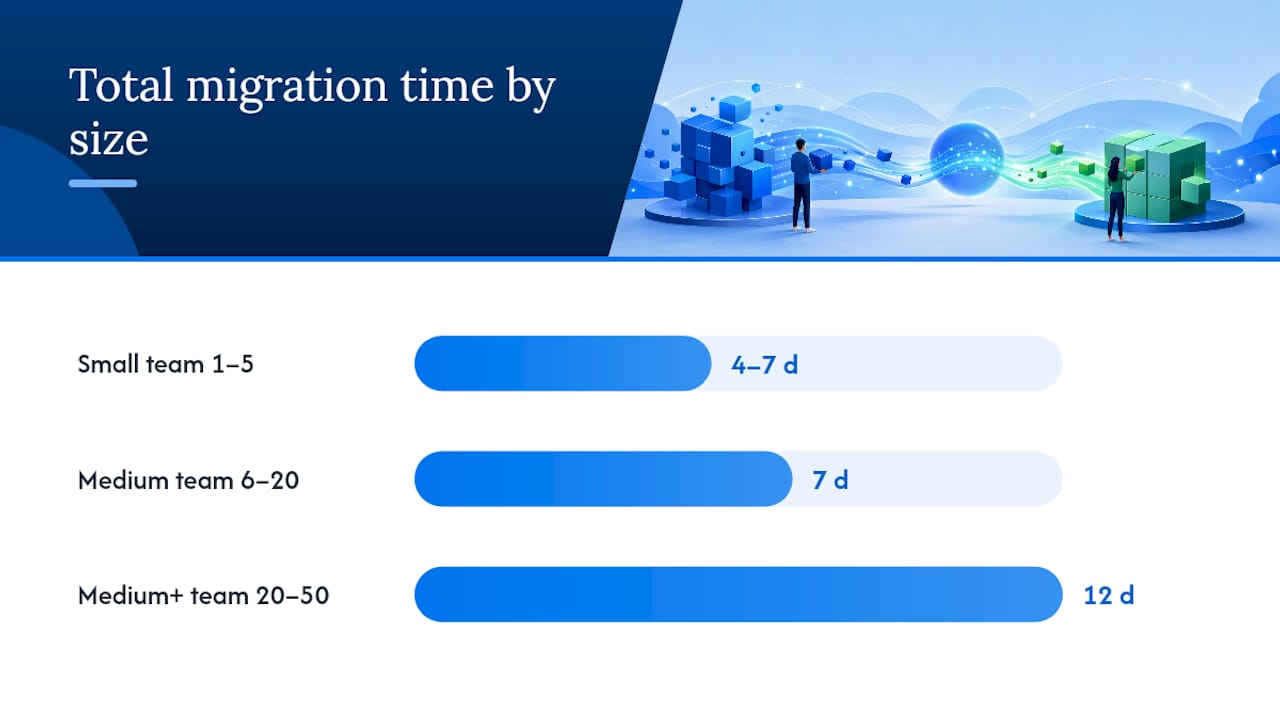
Medium teams should plan for a 1–2 week migration window as a realistic baseline.
Security checklist for the migration period:
- Create a dedicated read-only API key for exports — never use admin credentials in scripts
- Store export files encrypted at rest (AES-256 minimum); use a private S3 bucket or equivalent with access logging enabled
- Enable audit logging on both the source and destination platforms during the migration window
- Revoke all temporary API keys and migration-service access tokens immediately after the full migration completes
- Review data retention policies: under U.S. frameworks, customer communication data retention requirements vary by industry (HIPAA for healthcare, CCPA for California-based customers). Confirm your retention period before deleting source data
- Confirm the destination platform’s data residency: verify data is stored in U.S. data centers if your compliance posture requires it
Cost factors to budget for:
- Conversation volume: migration service fees often scale with record count
- Attachment storage: large attachment volumes increase both migration time and destination storage costs
- Engineering time: DIY migrations for medium teams typically require 20–40 hours of developer time
- Migration service fees: vary by vendor and scope — check Capterra and G2 for current pricing ranges
- Destination licensing: compare per-seat vs. unlimited-user pricing models carefully; a platform with per-seat fees can cost significantly more at scale than one with flat pricing
- Potential overlap period: you may pay for both Help Scout and the new platform for 2–4 weeks
When Sendsync is the faster, lower-risk migration outcome
For teams whose support workflow is primarily email-based, Sendsync is worth evaluating before committing to a full helpdesk rebuild. The pitch is simple: if you don’t need a complex ticketing system, why rebuild one?
What Sendsync gives you out of the box:
- Gmail and Microsoft 365 mailbox integration with no DNS changes required
- Shared inbox with conversation assignment, internal notes, and tagging
- Automation for email triage and routing
- Saved views and metrics dashboards
- Unlimited users with no per-seat fees
- No lengthy configuration process — the setup takes minutes, not days
Onboarding timeline example:
- Day 1: Create account, connect Gmail or Microsoft 365 mailbox
- Day 1–2: Invite team members, configure tags and saved views
- Day 2–3: Go live with real customer traffic
That’s a 1–3 business day path to a working inbox, compared to 1–2 weeks for a full helpdesk migration. For teams moving away from Help Scout because of cost or complexity, not because they need more features, that difference matters.
Real-world benefits:
- Fewer rebuild steps: no need to recreate complex automation trees or custom ticket fields you weren’t really using
- Faster agent productivity: the shared inbox model is familiar to anyone who has used Gmail, so the learning curve is minimal
- Lower ongoing cost: unlimited users means your monthly bill doesn’t grow every time you add a support agent
Pro Tip: *Before you commit to Sendsync, export your Help Scout conversations and run a shared inbox vs. helpdesk comparison against your actual workflow.
If you need managed mailbox migration support during the cutover, Secure Techies’ Microsoft 365 migration case study shows what a clean mailbox-level transition looks like in practice.
What to do if the migration fails: rollback plan
Every migration needs a defined abort condition before it starts. Deciding rollback criteria in advance means you’re not making a panicked judgment call at 2 AM.
Rollback steps:
- Pause all new imports immediately
- Revert DNS or forwarding changes: point your support address back to Help Scout’s ingest
- Switch agents back to Help Scout (keep it in read-only mode, not fully closed, for exactly this reason)
- Restore any conversations that were created in the destination during the migration window by exporting them and importing back to Help Scout, or by keeping Help Scout active long enough to handle them manually
- Notify agents of the rollback and the expected timeline for a second attempt
Signoff criteria for aborting a migration:
- More than 5% of sampled conversations have missing or inaccessible attachments
- Thread fragmentation rate above 2% (replies not nested under the correct parent)
- Any customer-facing data loss (conversations not found in destination that exist in source)
- Mailbox routing confirmed broken after cutover (emails not arriving in new inbox)
- Agent productivity below 50% of baseline after 48 hours on the new platform
Keeping the source intact: the single most important rollback enabler is a live Help Scout account with all data intact. Don’t cancel your Help Scout subscription until you’ve passed QA sign-off and operated on the new platform for at least two weeks. Run incremental delta exports every 24 hours during the migration window so your backup is never more than a day stale.
Preparing your team and inventorying data
The inventory section earlier in this guide covers the record types to count. This section covers the human side: getting your team ready so the technical migration doesn’t stall on people problems.
Start with a kickoff meeting that covers three things: what is moving, what is being left behind (automations, complex workflows that need manual rebuild), and what the new platform looks like. Agents who understand the “why” behind a migration are far less resistant to the change than those who show up one morning to a different inbox with no warning.

Assign the agent training lead early. That person should have access to the destination platform at least one week before cutover so they can build training materials from real experience, not screenshots from a vendor’s marketing page.
For mailbox inventory specifically: pull a list of every email address that currently routes to Help Scout, including aliases and forwarding rules. Missing a single alias during cutover means customer emails disappear into a void until someone notices. A managed help desk service can handle this audit if your IT resources are stretched.
Document your current automations in plain language before you start. “If conversation is tagged ‘billing’ and status is ‘pending’, assign to billing team after 2 hours” is easier to rebuild in a new platform than trying to reverse-engineer it from Help Scout’s workflow UI mid-migration.
When a lightweight shared inbox is actually the right migration outcome
Most migration guides assume you’re moving to a bigger, more complex platform. That framing is worth questioning.
The teams I see struggle most with Help Scout migrations aren’t the ones with 50,000 conversations. They’re the ones with 8,000 conversations who decide to migrate to a full enterprise helpdesk because it seemed like the “grown-up” choice, then spend three months rebuilding automations they barely used, training agents on a UI that’s far more complex than their actual workflow demands, and paying per-seat fees that double their support tooling cost.
The honest tradeoff looks like this: a full helpdesk migration preserves every custom field, every CSAT score, every automation rule. It also costs 2–4 weeks of engineering time, a migration service fee, and a retraining period. For teams with genuine complexity, that cost is justified.
A shared inbox approach, by contrast, accepts that some data (complex automations, custom ticket fields, CSAT history) won’t transfer cleanly, and trades that completeness for speed and simplicity. You’re live in days, not weeks. Your agents are productive immediately because the interface looks like email. Your monthly cost doesn’t scale with headcount.
The question to ask before you start is not “which helpdesk should we migrate to?” It’s “do we actually need a helpdesk, or do we need a better shared inbox?” That distinction, covered in depth in the Help Scout vs. Zendesk framing piece, changes the entire migration calculus.
Sendsync: the fast-switch option for email-first support teams
Most teams moving away from Help Scout want two things: less complexity and lower cost. Sendsync delivers both without the 2-week migration project.

Connect your Gmail or Microsoft 365 mailbox directly, no DNS changes, no IT ticket required. Your team gets a shared inbox with assignment, internal notes, tagging, and automation out of the box. Unlimited users means your bill stays flat whether you have 3 agents or 30. Setup takes minutes; most teams are handling real customer traffic within 1–3 business days.
Before you close your Help Scout account, run a full export and complete your QA checklist. Once you’re satisfied, start your free 14-day trial at Sendsync and see how fast the switch actually takes.