
Email Audit Trail for Support Teams: Capture, Test, Comply
Email Audit Trail for Support Teams: Capture, Test, Comply ! Hands holding security token near laptop An email audit trail, at the conversation level, is a timestamped record of every action taken on a support thread: who opened it, who assigned it, who replied, who added an inte

An email audit trail, at the conversation level, is a timestamped record of every action taken on a support thread: who opened it, who assigned it, who replied, who added an internal note, and when each status changed. If your shared inbox doesn’t capture that per-conversation activity today, the first step is to verify it and enable it before your next compliance review or customer dispute lands on your desk.
Support teams using Gmail or Microsoft 365 connected to a shared inbox like Sendsync need this trail to answer one question fast: what happened in this thread, and who did what? Average response time and first-contact resolution are only meaningful metrics when you can trace the actions behind them.
Key Takeaways
A conversation-level email audit trail requires an API connector, not native delegation, to capture named actors, timestamps, and action history on every support thread.
| Point | Details |
|---|---|
| Use an API connector | Native delegation doesn’t log actor IDs; switch to an API connector for full per-conversation recording. |
| Record six core fields | Actor, action, timestamp, conversation ID, message ID, and attachment snapshot are the minimum for accountability. |
| Set retention before go-live | Define your retention window and configure exports before the default log window closes on early data. |
| Pilot on one mailbox first | Test on a single mailbox, verify all fields, then expand to avoid gaps in historical thread data. |
| Sendsync covers the checklist | Sendsync logs assignments, notes, status changes, and IDs via Gmail and Microsoft 365 API connectors with no DNS setup. |
Table of Contents
- What an email audit trail actually covers in this guide
- What every conversation-level trail should record
- Why conversation-level trails matter for support teams
- How Gmail and Microsoft 365 connect to a shared inbox audit trail
- Step-by-step checklist to set up a reliable audit trail
- Policies, roles, and access controls that make audit data trustworthy
- How to verify the audit trail and what to review regularly
- Common pitfalls and how to fix them
- How Sendsync maps to the audit-trail checklist
- What the audit trail data actually tells you about your team
- Sendsync gives your team a conversation-level audit trail from day one
- Sources
What an email audit trail actually covers in this guide
This guide covers conversation- and action-level audit trails only. That means:
- Conversation actions: opened, assigned, replied, forwarded internally, status changed (New, In Progress, Waiting on Customer, Closed)
- Per-message identifiers: message ID, conversation/thread ID, client or customer ID
- Internal coordination: notes added, tags applied, mentions triggered
- Actor and timestamp: the specific user who performed each action, recorded in ISO 8601 format
- Attachments snapshot: file names and sizes logged at the moment of send or receipt
This guide does not cover SMTP delivery logs, mail transport events, or server-level admin audit logs. Those are system-level records managed by IT administrators, not support managers. The distinction matters because modern shared inboxes treat the inbox as a workflow layer with assignment rules, internal notes, tagging, and auditability — not just a mailbox everyone can open. Provider-level logs don’t capture that workflow layer at all.
What every conversation-level trail should record
The table below shows the minimal fields required for basic accountability versus the recommended fields for a compliance-ready trail.
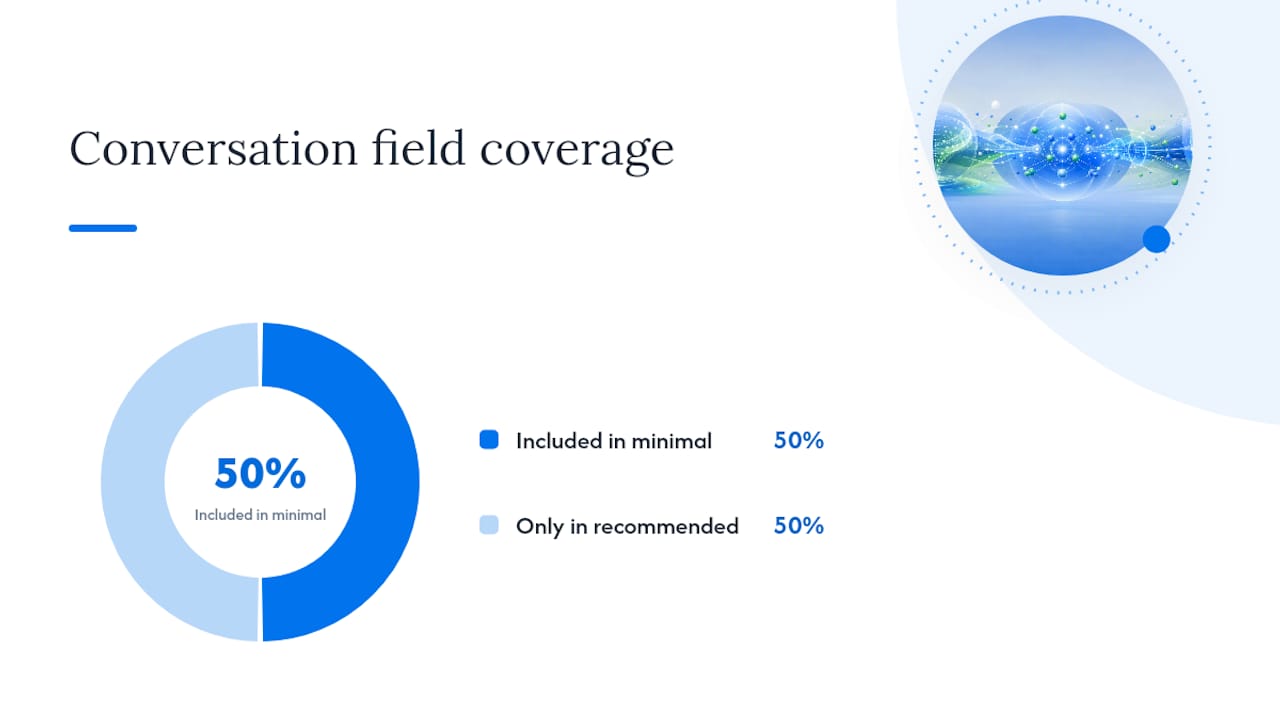
| Field | Minimal (accountability) | Recommended (compliance-ready) |
|---|---|---|
| Actor (user ID) | Yes | Yes + display name |
| Action type | Yes | Yes + action category |
| Timestamp | Yes (ISO 8601) | Yes + timezone offset |
| Conversation ID | Yes | Yes |
| Message ID | Yes | Yes |
| Customer/client ID | No | Yes |
| Previous assignee | No | Yes |
| Attachment snapshot | No | Yes (file name, size) |
| Internal note content | No | Yes (full text) |
| Status before/after | No | Yes |
A single audit entry looks like this in practice:
- Actor: agent@company.com (User ID: u-4821)
- Action: Assigned
- Timestamp: 2026-03-14T09:22:11-05:00
- Conversation ID: conv-00391
- Message ID: msg-88204
- Previous assignee: Unassigned
- Status change: New → In Progress
Preserving full transcripts, attachments, and timestamps at every handoff reduces friction and handle time, especially when a conversation escalates from an automated response to a live agent. Logging when data was created or modified, using TTL policies and hashed linkage keys for privacy-aware retention, keeps the trail useful without accumulating data you don’t need.
Why conversation-level trails matter for support teams
Operational benefits:
- Collision prevention: assignment fields plus status tracking prevent duplicate replies when combined with collision detection
- Faster onboarding: new agents can read the full action history on a thread instead of asking colleagues for context
- Clear ownership: every conversation has a named assignee, eliminating the “I thought you handled it” problem
Quality and compliance benefits:
- SLA verification: timestamps let you prove or dispute whether a response met the agreed window
- Dispute evidence: a complete action log is the difference between “we responded” and proving you responded, when, and how
- Audit readiness: weekly inbox reviews using shared mailbox analytics surface missed emails and keep SLAs aligned with team workflows
Coaching benefits: objective data on who resolved threads at first contact, who escalated most, and where handoffs stall gives managers something concrete to work with in 1:1s.
How Gmail and Microsoft 365 connect to a shared inbox audit trail
Two integration modes are common, and they yield different audit data.
| Integration mode | What it captures | Limitations |
|---|---|---|
| Delegation / shared mailbox (native) | Read/send events at mailbox level | No per-conversation action log; no assignment or note history |
| API / IMAP connector (third-party layer) | Full conversation actions, actor IDs, timestamps, status changes | Requires OAuth permissions; historical data only from connection date |
Microsoft 365’s built-in reporting is limited for shared-mailbox operational visibility. Admins often rely on audit logs, Power BI, or third-party analytics to fill the gap, and some built-in reports carry retention and export restrictions. Gmail’s native interface has similar blind spots: it records delivery, not the support workflow actions that happen after a message arrives.
The practical implication is straightforward. If you connect a new mailbox via API today, your conversation-level trail starts from that date. Migrating an existing mailbox means your historical thread data won’t carry over action-level records unless the source system exported them. Plan for that gap before you go live.
Step-by-step checklist to set up a reliable audit trail
- Inventory your mailboxes. List every support address, who has access, and which integration mode is currently active.
- Choose your integration mode. For full conversation-level recording, use an API or IMAP connector, not native delegation alone.
- Verify permissions. Confirm OAuth scopes cover read, send, and metadata access. For Microsoft 365, check that the service account has the correct Exchange Online permissions.
- Enable per-conversation recording. In your shared inbox tool, turn on action logging for assignments, status changes, internal notes, and replies.
- Define retention and export rules. Set a retention window aligned with your compliance requirements (many US support teams use 3 years as a baseline). Configure scheduled exports to a secure location.
- Run a pilot on one mailbox. Send test threads, assign them, add internal notes, change statuses, then pull the audit log and verify every field appears. A phased rollout starting with one mailbox reduces operational risk and preserves thread history during migration.
- Train the team. Walk agents through what gets recorded and why consistent internal notes matter for the audit record.
Pro Tip: Before migrating an existing mailbox, export a sample of 20 threads and confirm that message IDs survive the transfer intact. Forwarded messages that pass through a relay often get a new message ID, which breaks the conversation chain in your audit log.
Policies, roles, and access controls that make audit data trustworthy
Captured data is only useful if the right people can access it and the wrong people can’t modify it.
Role definitions:
- Inbox Owner: full read/write access, can export logs, responsible for retention policy compliance
- Triage Lead: can assign and tag; read access to audit log for their assigned threads
- Responder: can reply and add internal notes; no direct audit log access
- Auditor: read-only access to full audit log; no ability to modify conversations
Policy minimums to draft before go-live:
- Data retention policy with a defined window and deletion schedule
- Access policy specifying who can view and export logs (never share mailbox passwords; use provider-level delegation and multi-factor authentication)
- Offboarding checklist: revoke delegate access, reassign open threads, archive the departing agent’s action history
Keep coaching use of audit data separate from security monitoring. Agents who know their notes are reviewed for coaching respond differently than agents who feel surveilled. State the purpose clearly in your policy.
How to verify the audit trail and what to review regularly
Pick 10 random closed conversations each week. For each one:
- Open the thread and read the full exchange.
- Pull the audit log for that conversation ID.
- Confirm every reply has a matching actor ID and timestamp.
- Verify assignment changes match what the thread shows.
- Check that any attachment sent or received appears in the snapshot.
A support inbox audit should surface these specific gaps:
| What to check | Red flag | Likely cause |
|---|---|---|
| Actor ID on every action | Blank or “system” | Delegation mode, not API connector |
| Timestamps in sequence | Out-of-order entries | Clock sync issue or batch import |
| Message ID present | Missing on some entries | Forwarded message broke the chain |
| Internal notes logged | Notes visible in thread but absent from log | Logging not enabled for note events |
| Attachment snapshot | File sent but no log entry | Attachment logging not configured |
Common pitfalls and how to fix them
- Forwarded messages break conversation IDs. When a message passes through an external relay before hitting your inbox, it often arrives with a new message ID. Fix: configure your connector to preserve the original
ReferencesandIn-Reply-Toheaders, or use conversation threading by subject and sender rather than message ID alone. - Delegation without audit fields. Native shared mailbox delegation in Gmail and Microsoft 365 doesn’t log who performed which action. Fix: switch to an API connector that records actor IDs at the action level.
- Collision replies. Two agents reply to the same thread simultaneously. Fix: enforce assignment before reply and enable collision detection so the second agent sees a warning before sending.
- Retention mismatch. Your inbox tool keeps 90 days of logs but your compliance requirement is 3 years. Fix: configure scheduled exports to a long-term store before the window closes.
- Migrated legacy threads. Bulk reindexing a legacy mailbox rarely recovers action-level history. The practical approach is to leave original history intact in the source system and treat the migration date as the audit trail start date in the new system.
Diagnosing missing data: check integration mode first (delegation vs. API), then verify that logging is enabled for every action type, then confirm the retention window hasn’t expired on the entries you’re looking for.
How Sendsync maps to the audit-trail checklist
Sendsync connects directly to Gmail and Microsoft 365 via API without DNS setup, which means the conversation-level recording starts from day one without IT configuration overhead.
| Audit requirement | Sendsync feature |
|---|---|
| Actor + action + timestamp | Activity log per conversation, timestamped to the second |
| Assignment history | Assignment field with previous/current assignee and timestamp |
| Status changes | Status tracking (New, In Progress, Waiting, Closed) logged per change |
| Internal notes | Private notes visible in thread, included in activity log |
| Conversation and message IDs | Preserved through Gmail and Microsoft 365 API connectors |
| Export | Log export available for compliance review |
| Unlimited users | Flat-rate pricing, no per-seat fees, so every agent gets a named account |
To get started: connect your Gmail or Microsoft 365 mailbox, enable activity logging in settings, assign a test thread, add an internal note, then pull the activity log to confirm all fields appear. The whole setup takes a few minutes.
What the audit trail data actually tells you about your team
Most teams implement an audit trail for compliance and then discover its real value is operational. The log shows you where conversations stall, which agents leave the most context in internal notes, and whether your SLA clock starts when a message arrives or when someone actually opens it. Those are different times, and the gap between them is often where your response-time problem lives.
The sequencing that works in practice: get the technical setup right first (API connector, logging enabled, retention defined), then write the policies, then train the team. Trying to write policies before you know what data you’re actually capturing leads to policies that don’t match reality. Pilot on one mailbox, measure the SLA impact over two weeks, then expand.
One practical tip for agents: ask them to write internal notes as if the next person reading them knows nothing about the customer. That single instruction produces more useful audit data than any field-level requirement you can enforce technically.
Sendsync gives your team a conversation-level audit trail from day one
Support teams that need per-conversation accountability without a long IT project get a direct path with Sendsync. It connects to Gmail and Microsoft 365 in minutes, no DNS changes required, and logs every assignment, reply, note, and status change with a named actor and timestamp from the moment you connect.

Unlimited users on a flat plan means every agent gets a named account in the audit log, not a shared login that obscures who did what. Start a 14-day free trial at Sendsync and run the 10-thread verification check described above on your first day.
Sources
- Shared Inbox Accountability System Design Guide 2026 | Mailbird
- Shared Inbox for Teams: The Ultimate Guide to 2026
- Shared mailbox best practices for your team | timetoreply
- Will the Human Agent See Full Conversation History After AI Handoff? | Twig
- Conversational Memory In Support: Preserve Context Across Channels Without Creeping Users Out | Typewise